
iPhone · guide
Syncing with iCloud paused, and the fix Apple warns against
By Alberto Gulotta · Updated · 11 min read
Before doing anything, there is one instruction Apple gives twice on the same page — and it rules out the thing almost everyone tries first.
“If your photos aren’t syncing, don’t turn iCloud Photos off. Syncing with iCloud pauses for a variety of reasons.”
“Don’t turn off iCloud or iCloud Photos. This restarts the syncing process.”
Apple says it twice on the same page, in two different sections, which is as close as documentation comes to raising its voice. The obvious remedy is the one being ruled out — and the reason is given: switching it off does not resume anything, it starts the whole sync again from the beginning. On a large library that turns a pause into a much longer wait.
With that out of the way, the useful part: “paused” is not one condition. Apple lists several distinct messages, each with a different cause, and the wording on your screen tells you which one you have. Reading it is the whole diagnosis.
What each pause message means
Apple lists them with a cause and a remedy each. “Paused” is a report, not a fault.
- Low Data Mode · Low Power Mode
- “Syncing paused to reduce network data usage or save battery. You can turn these behaviors on or off in Settings.”
- Optimizing Battery Power · Optimizing System Performance · Poor Network Connection
- “Syncing paused to improve power, performance, and network connection. To force syncing, tap Sync Now, or wait a few minutes for syncing to resume automatically.”
- Low Battery
- “Syncing paused because your battery charge is below 20 percent. To resume syncing, charge your device.” A precise threshold, and the only thing that clears it.
- [Device] Needs to Cool Down
- “Syncing paused to protect your device from overheating. You might see an option to Sync Now. If not, wait a few minutes to let your device cool down.”
- iCloud storage is full
- “Syncing paused because you exceeded your iCloud storage limit.” Either reduce what is stored or upgrade the plan.
- Move Photos to Personal Library to Continue Syncing
- “Syncing paused because a Shared Library owner has hit their storage limit.” Move those items back to your Personal Library; syncing resumes “after the Shared Library Owner upgrades their storage plan or reduces the amount of storage they use”. That is somebody else’s limit stopping your sync, and only they can lift it.
Two of those deserve pulling out. Low Battery is precise — Apple names twenty per cent, and charging is the only thing that clears it. And the Shared Library one is the strangest situation on the list: your sync has stopped because of somebody else’s storage limit, and Apple is explicit that it resumes only when that person upgrades or clears space. Nothing on your own device will fix it.
The rest divide neatly into two groups. Some are the phone protecting itself — battery, heat, performance, a poor connection — and those clear on their own or with a tap of Sync Now. Some are a limit that has been reached, and those need a decision rather than patience.
Where the message actually is
It sits at the bottom of the screen, below the photo count.
- iPhone or iPad: open Photos → Collections → the profile button in the upper corner. “Check your library status below your name and photo count.”
- iOS 17 or earlier: the Library tab → All Photos → scroll to the bottom.
- Mac: Photos → Library in the sidebar → All Photos in the toolbar → scroll to the bottom.
That location is worth knowing on its own. The status sits below the photo count, at the foot of a view whose purpose is showing pictures — so the sentence that explains the problem is one scroll past the thing you opened the app for.
The unglamorous first step. Before any of the diagnosis above, Apple’s own opening instruction is this: “Connect your device to power and to Wi-Fi, then let the device sync uninterrupted overnight.” It repeats the point later — “depending on the size of your library and your Wi-Fi speed, you may need to wait overnight… Some larger-sized files may take longer to upload or sync.” Several of the pause messages clear themselves once the phone is charging and still, so a night on the charger is both a remedy and a test: if it is still paused in the morning, the reason is one of the specific ones above.
“Check if you have an album named Unable to Upload.”
One line in Apple’s list, and it is the most concrete thing on the page. If some files cannot go up, they are gathered in an album with that name — so a library that seems stuck may be stuck on specific items you can go and look at. Apple’s remedy is to “edit each photo or video, then check to see if the photo or video uploads”, or to upload the contents again from an iPhone or iPad, or reimport them on a Mac.
Apple also publishes the file types iCloud Photos supports, which is worth having when a specific item refuses to move: HEIF, JPEG, RAW, PNG, GIF, TIFF, HEVC, MP4, and “special iPhone and iPad formats like slo-mo, time-lapse, 4K videos, and Live Photos”. Anything outside that list is outside what the service is documented to carry.
Two more checks close Apple’s list, and both are about ruling things out rather than fixing them. Update the device to the latest version of iOS, iPadOS or macOS. And check whether other iCloud services are working — Mail, Contacts, Messages — because “if other services also aren’t working, check your Wi-Fi connection and the System Status for outages”. A sync that has stopped alongside everything else is not a photo problem.
One more thing worth checking before assuming photographs have gone missing rather than stalled. Apple notes that with iCloud Shared Photo Library, “when you move photos to your Shared Library, you no longer see them in your Personal Library” — so a picture that has vanished from the view you usually look at may have moved rather than failed.
What this page will not tell you is how long a sync should take. Apple gives no figure, only that it depends on library size and Wi-Fi speed and that larger files take longer — and a page that invented a duration would be inventing the number readers most want. What it can tell you is the shape of the answer: read the message, and treat overnight on a charger as the first test rather than the last resort.
The guides below take it three ways: the messages themselves, the storage limit behind two of them, and the neighbouring settings that decide what is being synced at all.
Where to start
Three ways in. Read the message on your screen first; it decides which.
- “It says paused and I do not know why.”
- The messages are listed in the messages
- “It says my storage is full.”
- That is a decision, not a wait — the storage limit
- “I was about to turn iCloud Photos off.”
- Apple says not to — read the messages
The messages
Battery, heat, performance, connection, storage, and somebody else’s Shared Library. Each has its own wording, and the wording is the diagnosis.
The storage limit
Two of the pause messages are about space rather than about power. Those need a decision — reduce what is stored, or pay for more.
What is being synced
Before troubleshooting a sync, it is worth knowing what is in it and where the files go. These guides cover both.
Not covered here. It will not tell you to turn iCloud Photos off and on. Apple says the opposite twice on one page, and gives the reason: it restarts the syncing process.
It will not give a time for a sync to finish. Apple names no figure, only that library size and Wi-Fi speed decide it.
And it will not pretend the Shared Library case is yours to fix. Apple says syncing resumes when the library’s owner upgrades or clears space, and nothing on your device changes that. What holds instead is simple: the fix Apple warns against is presented as Apple presents it, warning included, rather than as a trick that happens to work.
Sources
- Apple, If your iCloud Photos aren’t syncing or syncing with iCloud is paused (the instruction to connect the device to power and Wi-Fi and let it sync uninterrupted overnight, and to check that the same Apple Account is used on all devices; the note that photos moved to an iCloud Shared Photo Library no longer appear in the Personal Library; the locations of the library status — on iPhone or iPad via Photos, Collections and the profile button, below the name and photo count, and in iOS 17 or earlier via the Library tab, All Photos and scrolling to the bottom; and on Mac via Photos, Library, All Photos and scrolling to the bottom; the instruction not to turn iCloud Photos off because syncing with iCloud pauses for a variety of reasons, and the later statement not to turn off iCloud or iCloud Photos because this restarts the syncing process; the pause messages and their causes — Low Data Mode or Low Power Mode pausing to reduce network data usage or save battery; Optimizing Battery Power, Optimizing System Performance or Poor Network Connection pausing to improve power, performance and network connection, with Sync Now or a wait of a few minutes; Low Battery pausing because the charge is below 20 percent, cleared by charging; a device needing to cool down, pausing to protect against overheating; iCloud storage being full because the storage limit was exceeded; and Move Photos to Personal Library to Continue Syncing, because a Shared Library owner has hit their storage limit, with syncing resuming after that owner upgrades or reduces their storage; the instruction to update to the latest version of iOS, iPadOS or macOS and to check whether other iCloud services such as Mail, Contacts or Messages are working, checking Wi-Fi and the System Status for outages if not; the supported file types of HEIF, JPEG, RAW, PNG, GIF, TIFF, HEVC, MP4 and special iPhone and iPad formats such as slo-mo, time-lapse, 4K videos and Live Photos; and the instruction to check for an album named Unable to Upload and to edit each item or upload or reimport its contents again) — support.apple.com, read 22 August 2026.
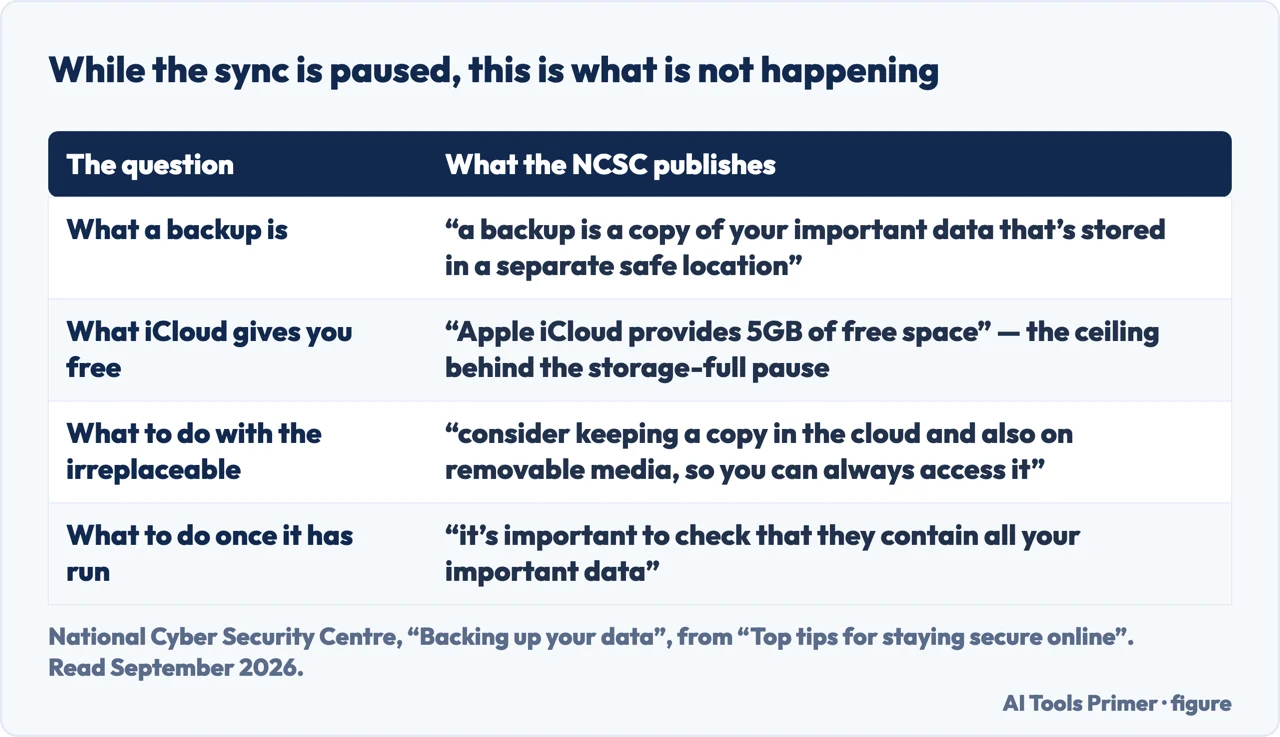
- National Cyber Security Centre — Backing up your data, from Top tips for staying secure online, for what a backup is, the 5 GB that iCloud gives free, the advice to keep an irreplaceable copy in two places, and the instruction to check that a backup contains what you think it does — www.ncsc.gov.uk, read 5 September 2026.
Written by Alberto Gulotta
Founder and editor of AI Tools Primer, writing from Palermo, Italy. Thirty-five years of taking computers apart, starting with a Commodore 64 — the long version is on the about page.
Something wrong on this page? Write to aitoolsprimer@gmail.com and it gets fixed.
Written on 22 August 2026 · last checked 23 September 2026.
Independence and limits
No affiliate links and no paid placements anywhere on this site. Nobody pays to appear here, and no company has seen this page before you did.
This is general information, not professional advice. Where a page touches money, health, safety or the law, it names its source and the date it was read — and your situation may still differ. See the privacy page and the cookie policy.