Before the cable, one question. How to transfer photos from iphone to computer has a straightforward answer and a trap in front of it, and the trap is that the photos you can see on the phone are not necessarily the photos on the phone.
“If you have iCloud Photos turned on, you must download the original, full resolution
versions of your photos to your iPhone or iPad before you import to your PC.”
This is the sentence to read before plugging anything in. With iCloud Photos on, the pictures
sitting on the phone may be device-optimised stand-ins rather than the originals — Apple’s own
description is that you can “keep full-resolution originals on each of your devices, or save
space with device-optimized versions instead.” Import in that state and you have copied the
stand-ins.
So the first decision is whether you need to transfer anything at all. Apple’s own framing is that with iCloud Photos “you don’t need to import photos from one device to another” — the library is the same library everywhere — Apple’s phrase is “on all of your Apple devices, on iCloud.com, and even on your PC”. That is the answer for somebody who wants their pictures available on a computer. It is not the answer for somebody who wants a folder of files they can put on a drive and hand to somebody, and the difference between those two wishes is worth settling before you start.
The other thing to settle first, if you are turning iCloud Photos on today: “The photos and videos that you keep in iCloud Photos use your iCloud storage. Before you turn on iCloud Photos, make sure that you have enough space in iCloud to store your entire collection.” Apple puts that check before the switch rather than after it.
With that decided, the cable. The two computers want different things.
To a Mac
Cable, then the Photos app. Apple’s sequence: connect, click Allow if asked about
the accessory, open Photos, and the Import screen appears — “if the Import screen doesn’t
automatically appear, click the device’s name in the Photos sidebar.”
Unlock the phone, tap Trust if it asks, choose an album, then Import Selected or
Import All New Photos. The word New is doing work: it skips what is already
there.
To a Windows PC
One step first, and it is the step that changed and is easy to get wrong: “Install the Apple
Devices app from the Microsoft Store.” Not iTunes.
Then cable, unlock, Trust — and from there Apple hands you over: it points at
Microsoft’s own instructions for importing into the Photos app in Windows.
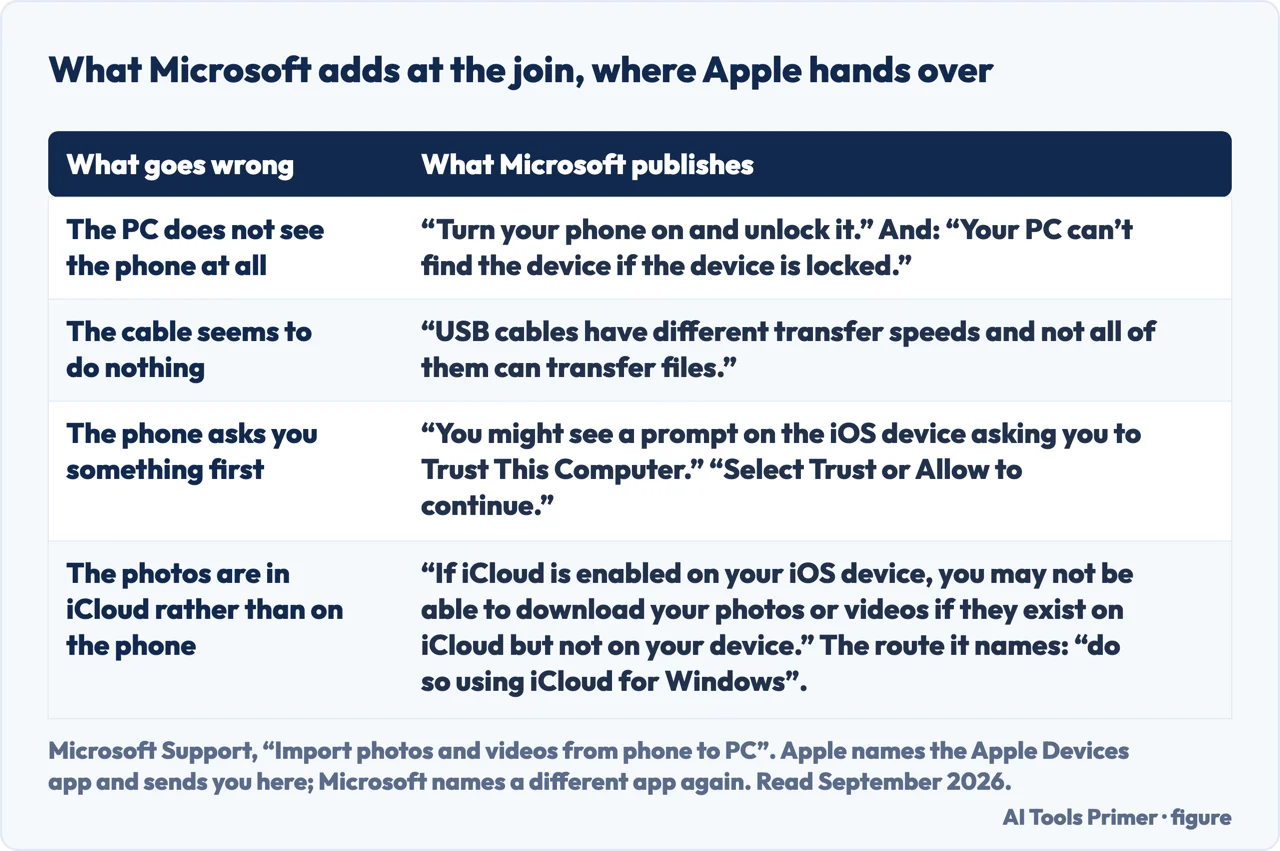
The Windows line is the one worth repeating, because it changed and anything written before the change names the wrong app. The one Apple names is the Apple Devices app from the Microsoft Store — and after that, Apple does not describe the import itself. It sends you to Microsoft’s instructions for the Photos app in Windows, which is an honest division of labour and also a warning: two companies, two sets of documentation, and the join between them is where an afternoon goes.
It is worth walking across that join, because Microsoft’s side of it answers the three things that go wrong before any photograph moves. The first is the one that looks like a broken cable: “Turn your phone on and unlock it”, because “your PC can’t find the device if the device is locked”. The second really is the cable: “USB cables have different transfer speeds and not all of them can transfer files” — a lead that charges the phone perfectly well can be a lead that carries nothing else. The third is the prompt: “You might see a prompt on the iOS device asking you to Trust This Computer. Select Trust or Allow to continue.”
And on the question this page opened with, the two companies name two different applications. Apple sends a Windows user to the Apple Devices app. Microsoft, describing the same import in the Photos app, says: “If iCloud is enabled on your iOS device, you may not be able to download your photos or videos if they exist on iCloud but not on your device.” and names its own route out: “do so using iCloud for Windows”. Same problem, same day, two answers — which is worth knowing before you install either.
The join between two sets of documentation, and what is written on the other side of it. Quotations from Microsoft. Figure drawn by AI Tools Primer.
The setting that stops the arguments about file formats. Apple, under the heading of
compatibility with Windows:
Settings › Camera › Formats › Most Compatible
And the exact consequence, in Apple’s words: “From now on, your camera will capture photos
and videos in JPEG and H.264 formats.” Read from now on literally. It changes what
the camera does next; the pictures already on the phone were taken in the old format and stay that
way.
That distinction is easy to walk into twice. Transfer a few hundred photos, find that Windows is unhappy with them, change the camera setting, transfer the same photos again — and get the same files, because the setting was never about those. It governs the camera from that point forward. For pictures already taken, the conversion has to happen somewhere else.
Two more routes Apple names, for two different jobs
AirDrop, “to quickly send photos and videos to your Mac.” The right tool for six
pictures and the wrong one for six thousand — no cable, no app, no import screen.
Image Capture, to “import your images directly to a folder on your Mac.” The one worth
knowing about, because it is the only route here that puts files where you choose rather than
into a photo library. If what you want is a folder you can copy to a drive, this is it.
The second of those is the quiet recommendation on this guide. Both the Photos routes put your pictures into a photo library, which is excellent if you want to browse them and unhelpful if you want files. Apple names Image Capture in one line and moves on, but for the specific job of getting a folder you can back up, hand over, or drag onto an external disk, it is the tool that does what you asked rather than what the software prefers.
One last practical note, because it stops the process halfway without saying so. The phone will ask to Trust This Computer, and it asks on the phone rather than on the screen you are looking at. A cable connected to a locked phone that has been left face down on the desk looks exactly like a cable that is not working.
The guides below take it four ways: what is actually on the phone, importing to a Mac, importing to a PC, and the routes that give you files rather than a library.
Not covered here. It will not tell you to install iTunes. Apple names the Apple Devices app from the Microsoft Store, and instructions that still say otherwise were written for a different arrangement.
It will not promise that changing the camera format fixes photos you have already taken. Apple’s own wording is “from now on”, and that is the whole limit.
And it will not treat a photo library as the same thing as a folder of files. They are different things to want, and only one route on this guide gives you the second. What holds instead is simple: the warning about downloading originals and the Most Compatible setting are Apple’s own wording.
Getting photos off the phone and keeping them
Copied is not moved, and synced is not backed up. Four jobs that get confused for each other.
Apple Support — Transfer photos and videos from your iPhone or iPad to your Mac or PC (the iCloud Photos position and its storage warning, the device-optimised against full-resolution choice, the Mac import sequence including the Photos sidebar and Import All New Photos, the requirement to install the Apple Devices app from the Microsoft Store, the condition that iCloud originals must be downloaded before importing to a PC, the Settings › Camera › Formats › Most Compatible route with its “from now on” wording, and the mentions of AirDrop and Image Capture) — support.apple.com, read 16 September 2026.
Microsoft Support — Import photos and videos from phone to PC, Windows 11 and Windows 10 (the instruction to connect the phone with a USB cable that can transfer files and to turn the phone on and unlock it, with the note that the PC cannot find the device if the device is locked; that USB cables have different transfer speeds and not all of them can transfer files; the Photos app route of selecting Import, then the connected device; that a prompt may appear on the iOS device asking you to Trust This Computer, to be answered with Trust or Allow; and that if iCloud is enabled on the iOS device you may not be able to download photos or videos that exist on iCloud but not on the device, in which case Microsoft names iCloud for Windows) — support.microsoft.com, read 6 September 2026.
AG
Written by Alberto Gulotta
Founder and editor of AI Tools Primer, writing from Palermo, Italy. Thirty-five years of
taking computers apart, starting with a Commodore 64 — the long version is on the
about page.
Written on 22 August 2026 · last checked 23 September 2026.
§
Independence and limits
No affiliate links and no paid placements anywhere on this site. Nobody pays to appear here,
and no company has seen this page before you did.
This is general information, not professional advice. Where a page touches money, health,
safety or the law, it names its source and the date it was read — and your situation may
still differ. See the privacy page and the
cookie policy.