
Software · guide
How to turn on airdrop, and why it keeps turning off
By Alberto Gulotta · Updated · 9 min read
How to turn on airdrop is often asked by somebody who already has. It was turned on last month, it worked, and today the other phone is not appearing. The switch is not the problem, and this guide is mostly about the four things that have to be true around it.
What has to be true before anything appears
- Wi-Fi and Bluetooth on, on both devices. Both, and both. AirDrop uses one to find and the other to move.
- Within thirty feet — Apple’s figure is “30 feet (10 meters)”.
- Personal Hotspot off. Apple: “If either of you have Personal Hotspot on, disconnect.” This is the blocker that never occurs to anybody standing there with a photo to send.
- The receiver has to be accepting. Control Center, touch and hold the top-left group of controls, tap AirDrop, then Contacts Only or Everyone for 10 Minutes.
On a Mac it is the menu bar rather than Control Center, and the tell is colour: “When it’s blue, it’s on.” Click and hold beside AirDrop to choose Contacts Only or Everyone — and note that the Mac’s Everyone is not time-limited in the way the iPhone’s is.
That third item is worth pausing on, because it is documented by Apple in one line and repeated almost nowhere. A phone sharing its connection cannot AirDrop, and on a phone that shares its connection to a laptop every morning, Personal Hotspot can easily still be on hours later. Two people standing next to each other, both with AirDrop set to Everyone, neither appearing to the other, and the cause is a switch on an unrelated screen.
Now the setting itself, which is the second half of the answer and the part that makes AirDrop feel unreliable when it is behaving exactly as designed.
“In iOS 16.2 and later, the setting called Everyone for 10 Minutes changes after 10 minutes.”
This is the answer to the commonest complaint about AirDrop — that it was working and now it is not. Nothing broke. The open setting is designed to close itself, and it closes to a different place depending on whether the phone is signed in. Ten minutes is the whole of it, and it is a good decision by Apple, badly signposted.
Which produces a small practical habit worth adopting. If you are about to receive something from somebody who is not in your contacts, set Everyone for 10 Minutes at the moment you need it, not in advance. Setting it early is the reliable way to have it lapse before the transfer starts.
On recent software there is a further step in that situation. From iOS 26.2 and its equivalents, somebody who is not in your contacts must use an AirDrop code: you tap Get AirDrop Code, read the code out, and they type it in. It is a sensible answer to unsolicited files from strangers on trains.
It has a consequence that deserves stating plainly, because it is not obvious from the screen. Accepting the code opens a thirty-day window in which that person can send you things without asking again — Apple: “You can continue to share and receive items using AirDrop with that person for 30 days.” If you would rather not leave that open, the control exists and is well hidden: open Contacts, find them in the Other Known list, and choose Forget This Person.
It is worth saying why any of that machinery exists, because Apple’s pages describe the setting and not the reason. The reason is published somewhere else entirely. Announcing that cyberflashing would become a criminal offence, the UK government described the behaviour and named the channel: it “typically involves offenders sending an unsolicited sexual image to people via social media or dating apps, but can also be over data sharing services such as Bluetooth and Airdrop”, with a penalty of “up to two years in prison”. It also gives the scale it was answering: research it cites found that “32 percent of girls aged 12-18 surveyed had received an unsolicited nude picture of men or boys”.
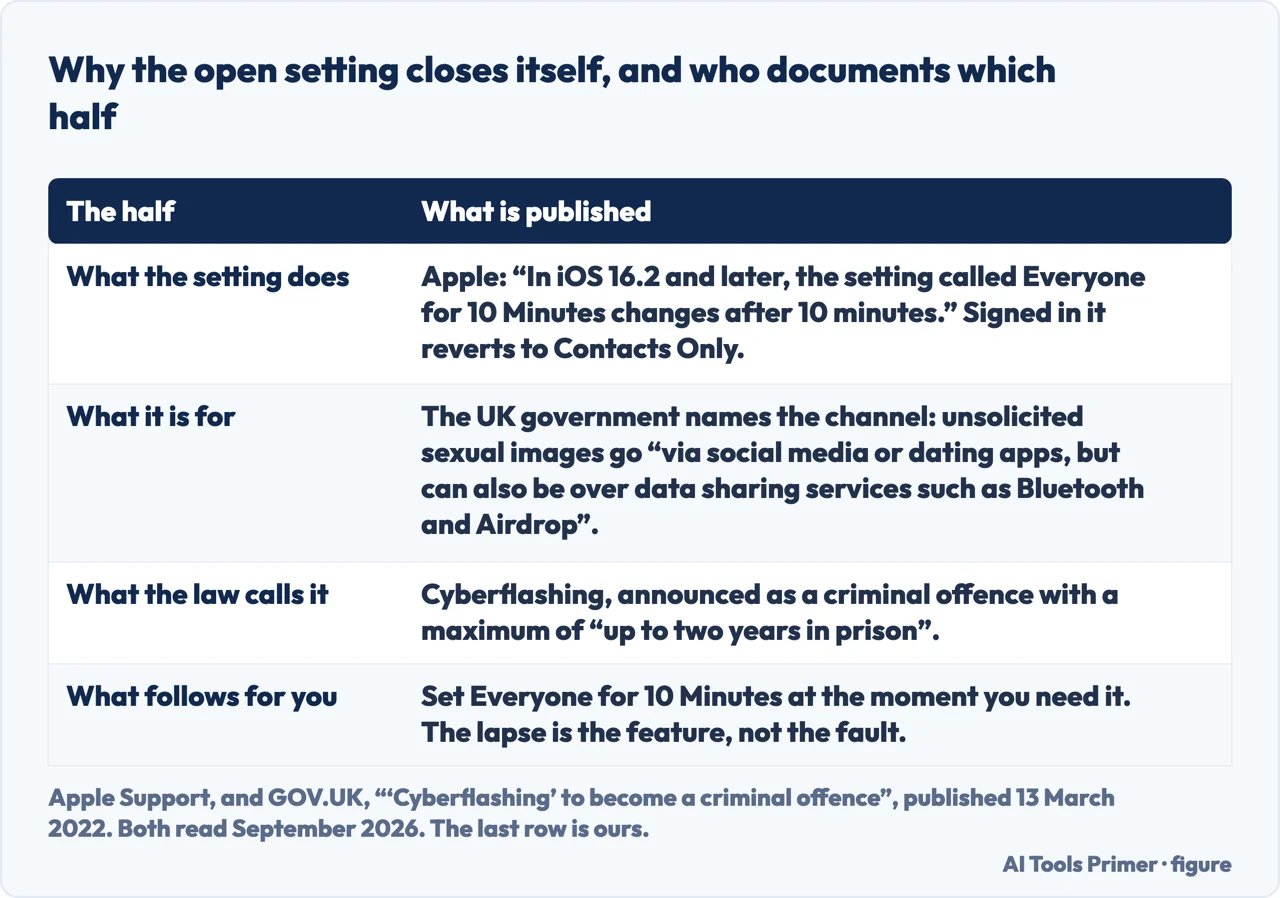
The government page does not mention Apple and Apple’s page does not mention the law. Reading the setting as an answer to the behaviour is ours rather than either publisher’s — but it is the reading that makes the ten-minute limit look like a design decision instead of an inconvenience, which is the practical difference between fighting the setting and using it.
One more failure has a cause that surprises people, and it happens between two people who genuinely are in each other’s contacts. Apple states the requirement in full: if you are sending to somebody who only accepts from contacts, “you must be in their contacts list and they need to have your Apple Account email address or phone number included in your contact card”. Being in the address book is not enough. The card has to carry the right address — and a contact saved from a work email, or from a number that is not the one on the Apple Account, will fail silently and look like a fault in AirDrop.
The sending half is the short half, and it is the same shape in every app: open the thing, tap Share, tap AirDrop, tap the person. To airdrop photos specifically, Apple’s route is Photos → Select → choose them → Share → AirDrop, and multiple photos go in one send rather than one at a time. Going the other way, to airdrop from mac to iphone, the only difference is where the control lives — the menu bar instead of Control Center — and that between your own signed-in devices nobody has to accept anything. Which is the whole of how to airdrop: the sending was never the difficult part.
Two pieces of good news to finish, both from Apple’s own pages and both rarely mentioned. Transfers are encrypted. And “if you leave Bluetooth or Wi-Fi range after an AirDrop transfer is initiated, the transfer continues over the internet” — so walking away mid-send does not necessarily lose it.
Between your own devices it is simpler still: sign both in to the same Apple Account and items are accepted and saved automatically, with no prompt to tap at the other end.
The guides below split it four ways: turning it on and the conditions around it, the reasons it fails, the privacy side of receiving from strangers, and what to use instead when AirDrop is the wrong tool — which it is for anything larger than a handful of files.
Where to start
Four ways in.
- “Where is the switch?”
- Start at turning it on
- “Someone sent me something I did not want.”
- That is receiving from strangers
- “I need to move a lot of files.”
- AirDrop is the wrong tool — the alternatives
Turning it on
The control is in a different place on each kind of device, and on the iPhone it is behind a long press rather than a tap. These guides cover each one.
Receiving from strangers
The half of AirDrop that is about consent rather than convenience. Apple has changed this repeatedly, and the current arrangement is stricter than the older instructions describe.
The alternatives
Apple is explicit that AirDrop “is best for sharing a small selection of files”. This wing is about the jobs that are bigger than that, and the sensible answers to them.
Not covered here. It will not recommend an app. AirDrop is built in, free, encrypted, and the third-party tools sold against this question are answering a question the phone already answers.
It will not tell you to leave Everyone switched on. Apple made that setting temporary deliberately, and the ten-minute limit is the feature rather than the annoyance.
And it will not guess at causes. Every failure listed here is one Apple documents, quoted, with the page it came from at the bottom. What holds instead is simple: the reverting setting and the contact-card requirement are quoted from Apple’s own support pages.
Sources
- Apple Support — How to use AirDrop on your iPhone or iPad (the prerequisites including Personal Hotspot, the Everyone for 10 Minutes route, the AirDrop code and the thirty-day window, and exactly what the setting reverts to). Published 5 May 2026 — support.apple.com, read 22 August 2026.
- Apple — Mac User Guide, Use AirDrop to send items to nearby Apple devices (the thirty-foot range, encryption, transfers continuing over the internet, the Mac control, Forget This Person, and the contact-card requirement) — support.apple.com, read 6 September 2026.
- GOV.UK — “Cyberflashing” to become a criminal offence, published 13 March 2022 (that the behaviour typically involves offenders sending an unsolicited sexual image to people via social media or dating apps but can also be over data sharing services such as Bluetooth and Airdrop; that perpetrators face up to two years in prison; that the offence covers sending such images for the purpose of sexual gratification or to cause the victim humiliation, alarm or distress; and the research it cites, that 32 percent of girls aged 12-18 surveyed had received an unsolicited nude picture of men or boys) — www.gov.uk, read 6 September 2026.
Written by Alberto Gulotta
Founder and editor of AI Tools Primer, writing from Palermo, Italy. Thirty-five years of taking computers apart, starting with a Commodore 64 — the long version is on the about page.
Something wrong on this page? Write to aitoolsprimer@gmail.com and it gets fixed.
Written on 22 August 2026 · last checked 23 September 2026.
Independence and limits
No affiliate links and no paid placements anywhere on this site. Nobody pays to appear here, and no company has seen this page before you did.
This is general information, not professional advice. Where a page touches money, health, safety or the law, it names its source and the date it was read — and your situation may still differ. See the privacy page and the cookie policy.