Asking how to backup iphone sounds like one question with one answer. It is two products with different contents, and the difference only becomes visible on the day you need the backup — which is the worst possible day to discover it.
Apple’s description is precise and almost nobody quotes it: “iCloud backups store information
and settings on your device that don’t regularly sync to iCloud.”
So it is not a copy of your phone. It is a copy of the part not already in iCloud —
device settings, Home Screen layout, app organisation. Photos and contacts are not in it if
they are already syncing, because they are already safe.
Encrypted, and it happens on its own.
The computer backupFinder, Apple Devices, or iTunes › Back Up Now
A single file on a disk you own, made over a cable, with no storage to buy and nobody else
holding it. It is the more complete of the two and the one people trust more.
And Apple states the thing that undoes that trust: “Your backup isn’t encrypted by
default.” Unencrypted, it silently leaves out the five categories below.
Encrypted only if you tick the box.
Take the iCloud side first, because that sentence of Apple’s reverses what the word promises. A backup sounds like a complete copy. It works the other way round: the things that are already syncing to iCloud are left out of the backup. Apple states the rule and not the reasoning behind it, but the rule itself is unambiguous.
That is reassuring and it has a sharp edge. Anything syncing to iCloud is not protected by the backup — it is protected by the sync, and a sync copies deletions as faithfully as it copies photographs. Delete an album by accident and it leaves every device at once. The backup is not standing behind it in the way the word suggests.
The computer backup has the opposite shape and the opposite trap. It is genuinely more complete, it costs nothing, nobody else holds it — and by Apple’s own statement it is not encrypted unless you tick a box that is off when you start.
What the tick box adds
Apple: “Encrypted backups can include information that unencrypted backups don’t.”
Saved passwords
Wi-Fi settings
Website history
Health data
Call history
Read that as the answer to a question people ask after restoring: why is it asking me to sign
in to everything again? Because the backup was made without the box ticked, and the passwords
were never in it. The same goes for years of Health data, which has no other copy.
Two footnotes from the same page: encrypted backups still exclude “Face ID, Touch ID, or device
passcode data”, and turning encryption on “immediately overwrites and encrypts your previous
backups” — so the unencrypted one you had is gone.
Which produces the practical instruction this whole guide exists to give. If you are making a backup on a computer, tick Encrypt local backup and use a password you will still have in two years. An unencrypted local backup is not a bad backup, but it is a partial one, and the parts missing are the ones you cannot rebuild by hand.
The routes themselves are short. For iCloud: Settings, your name, iCloud, iCloud Backup, then turn on Back Up This iPhone. Tap Back Up Now to do one immediately. On Windows the equivalent is the iTunes app — click the iPhone button near the top left, click Summary, then Back Up Now, with the “Encrypt local backup” checkbox and its password directly underneath.
And once the automatic backup is on, three conditions decide whether it ever actually runs. All three, together, every night.
Connected to powerNot merely charged. Plugged in, at that moment.
LockedA phone in use does not back up. Left face-up on a desk, awake, it waits.
On Wi-FiUnless the carrier offers cellular backup on a 5G model and you turned it on.
That is the answer to the commonest complaint in this whole subject — a phone that says its last backup was weeks ago. Nothing is broken. One of the three has not been true at the same time as the other two, and on a phone that charges wirelessly beside a bed while somebody reads on it, that happens for weeks at a time.
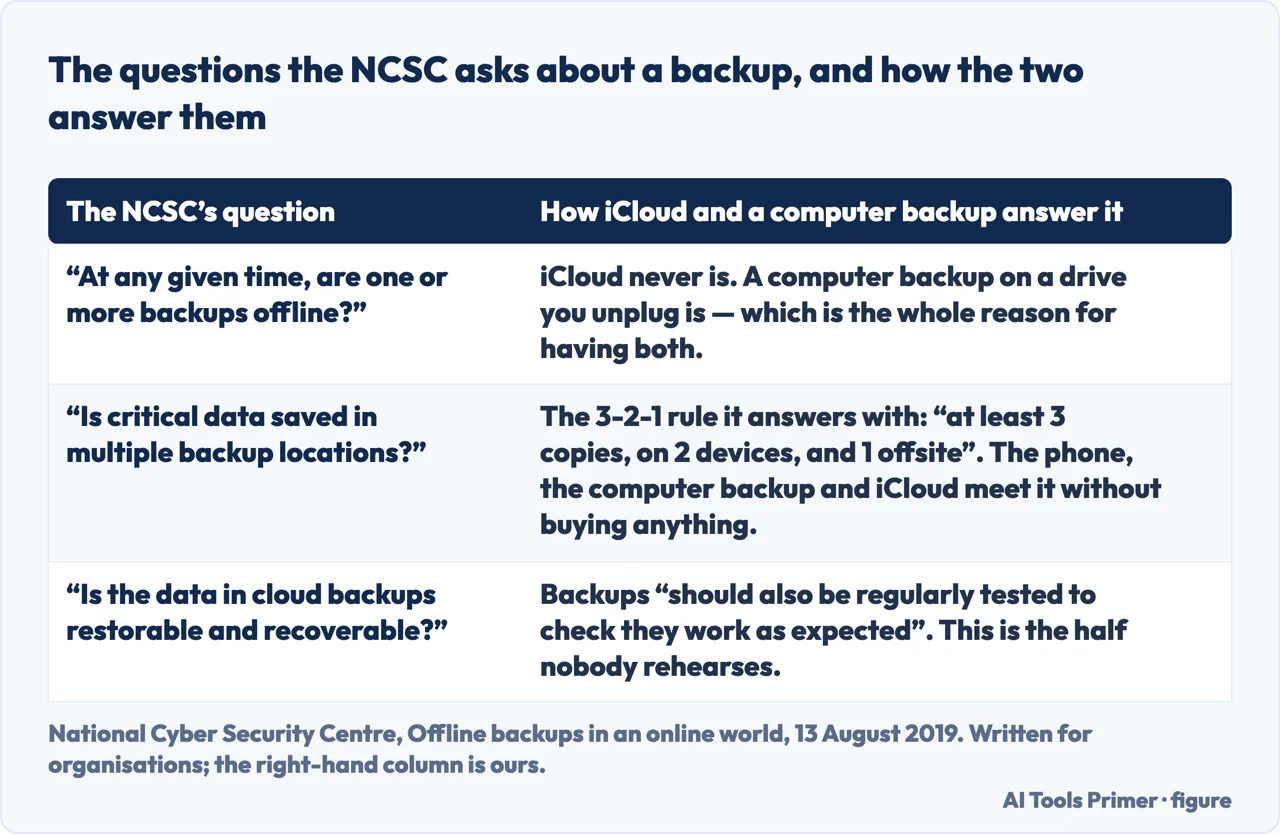
There is a question worth borrowing from the National Cyber Security Centre before choosing between the two, because it separates them more sharply than any feature list: “At any given time, are one or more backups offline?” iCloud never is — which is what makes it convenient, and also why the NCSC has seen incidents in which ransomware “compromised connected cloud storage locations containing backups”. A computer backup on a drive you unplug is offline by default. The same guidance sets out the 3-2-1 rule — “at least 3 copies, on 2 devices, and 1 offsite” — which a phone, a computer backup and iCloud satisfy without buying anything. And it ends where this guide ends: backups “should also be regularly tested to check they work as expected”.
National Cyber Security Centre. Written for organisations; the right-hand column is ours. Figure drawn by AI Tools Primer.
One last piece, because the backup is only half the job and the other half is where people find out what they have. Whether you chose to backup iphone to icloud or to backup iphone to computer, a backup you have never restored is a belief rather than a fact. It does not need testing dramatically; it needs knowing what the job asks for in advance. To restore iphone from backup you need the Apple Account password, the encryption password if you set one — and on that one Apple is blunt: you can set a new password, but “you won’t be able to use previous encrypted backups”, so the backup you were relying on is gone — and enough free space at the other end. All three are easy to have ready and impossible to invent on the day.
The guides below split it four ways: choosing between the two, the storage question that stops most iCloud backups, doing it on a computer properly, and the restore — including the part where a backup exists and cannot be opened.
They are not competitors and using both is the sensible answer. These guides are about what each one is genuinely for, and what neither of them protects you against.
Not covered here. It will not recommend third-party backup software. The two built-in routes cover this completely, and the paid tools in this category ask for full access to a phone in order to do what a cable already does.
It will not tell you iCloud is enough on its own, or that a computer backup is. They protect against different failures, and the honest answer is both.
And it will not soften the encryption point. Apple states the box is off by default, and a backup made without it does not contain your passwords. What holds instead is simple: the contents of each kind of backup and the encryption categories are Apple’s own wording.
Sources
Apple — iPhone User Guide, Back up iPhone (the iCloud route and the sentence that iCloud backups store what does not regularly sync, the three automatic conditions, and the Windows iTunes route) — support.apple.com, read 22 August 2026.
Apple Support — About encrypted backups on your iPhone, iPad, or iPod touch (the five categories encryption adds, the statement that backups are not encrypted by default, what encryption still excludes, and what resetting the password costs you). Published 7 May 2026 — support.apple.com, read 22 August 2026.
Apple Support — How to back up your iPhone, iPad, and iPod touch (the three methods Apple offers and the order it presents them in). Published 15 May 2026 — support.apple.com, read 22 August 2026.
National Cyber Security Centre — Offline backups in an online world, by James L, 13 August 2019, for the question of whether one or more backups is offline at any given time, for the incidents in which ransomware reached connected backup drives and connected cloud storage, for the 3-2-1 rule of at least three copies on two devices with one offsite, and for the instruction that backups be tested as well as made. Written for organisations — www.ncsc.gov.uk, read 6 September 2026.
AG
Written by Alberto Gulotta
Founder and editor of AI Tools Primer, writing from Palermo, Italy. Thirty-five years of
taking computers apart, starting with a Commodore 64 — the long version is on the
about page.
Written on 22 August 2026 · last checked 23 September 2026.
§
Independence and limits
No affiliate links and no paid placements anywhere on this site. Nobody pays to appear here,
and no company has seen this page before you did.
This is general information, not professional advice. Where a page touches money, health,
safety or the law, it names its source and the date it was read — and your situation may
still differ. See the privacy page and the
cookie policy.