The mechanics of how to backup photos on Android take four taps. The conditions attached to them take longer, and they are the part that decides whether the arrangement holds up over years rather than weeks.
Turning it on
Four taps, and one condition Google states before any of them: backup goes to one account.
Open the Google Photos app and sign in to your Google Account.
At the top right, tap your profile picture or initial.
Tap Photos settings, then Backup.
Turn Backup on.
Everything after that is about where the photographs land, and the first thing to know is that the destination is not a photo service with its own space. Google states it plainly: your account storage “is shared across multiple products like Google Photos, Google Drive, and Gmail”. A large mailbox and a large photo library are competing for the same allowance, and each account comes with up to 15 GB of it.
Original quality
nothing is changed
“Stored in the same resolution that you took them with no change to their
quality.”
Counts toward your Google Account storage.
Google recommends it for photos over 16 MP and video over 1080p, and for
printing large banners.
Storage saver
smaller, and it shows
“Stored at a slightly reduced quality.” Also counts toward your storage.
A photo larger than 16 MP “will be resized to 16 MP”, and may be compressed “into
a different image format, like a .jpg”.
Video above 1080p is resized down to 1080p, and “some information, like closed
captions, might be lost”.
The choice between those two used to be the choice between free and paid. It is not any more, and the date is published.
“Any photos or videos you backed up in High quality, now called Storage saver,
before June 1, 2021 don’t count toward your Google Account storage.”
That date is the hinge, and it explains a confusion this page exists partly to clear up.
Storage saver used to be free and unlimited; it is neither now. What was uploaded under
the old arrangement stays outside the count for ever, which is why a library that has been
running for a decade can look enormous and still fit. Anything added after that date counts —
both settings count — and the only difference between them is how much of the allowance
each photograph spends.
So the practical reading of the two options today is simpler than the old advice suggests. Storage saver buys you more photographs per gigabyte, not free ones — and it buys them by resizing anything over 16 MP, possibly changing the file format, and bringing video down to 1080p. Original quality spends the allowance faster and changes nothing. Neither is a trick; the trade is stated in both directions.
What will and will not go up
Google publishes the numbers, and they are worth knowing before a large file fails quietly.
Photos up to 200 MB or 200 MP. Videos up to 10 GB.
“Items must be larger than 256 x 256” — very small images are excluded.
Photos: .jpg, .heic, .heif, .png, .webp, .gif, .avif, and most RAW files.
Videos: a long list including .mov, .mp4, .avi, .wmv, .mkv and .3gp.
“You can back up photos and videos to only one Google Account at a time.”
Your Google Account storage “is shared across multiple products like Google Photos,
Google Drive, and Gmail” — and each account comes with up to 15 GB.
“If you’re inactive in Google Photos for 2 years or more, your content may be
deleted.”
Google marks that one Important and puts it above the quality options rather than in a
footnote. It is worth reading slowly, because it describes the one failure mode a backup is
supposed to be immune to: doing nothing. An archive you never open is exactly the sort
of archive people believe they have made, and this is the published condition attached to it.
The page linked from that sentence sets out the inactivity policy in full.
How to know whether it actually worked. Google publishes five
statuses that appear at the top of the library, and they are the honest answer to “is it done”:
No backup, Preparing backup, Backing up photos, Backup complete, and
Backup paused. Tapping the status tells you more. For a single photograph, tap it, then
More → About, and scroll to Details — a backed-up item shows its status and size beneath
Backed up. And if you meet the badge reading “Not enough storage to back up”, the
problem is the shared 15 GB rather than anything to do with the photograph.
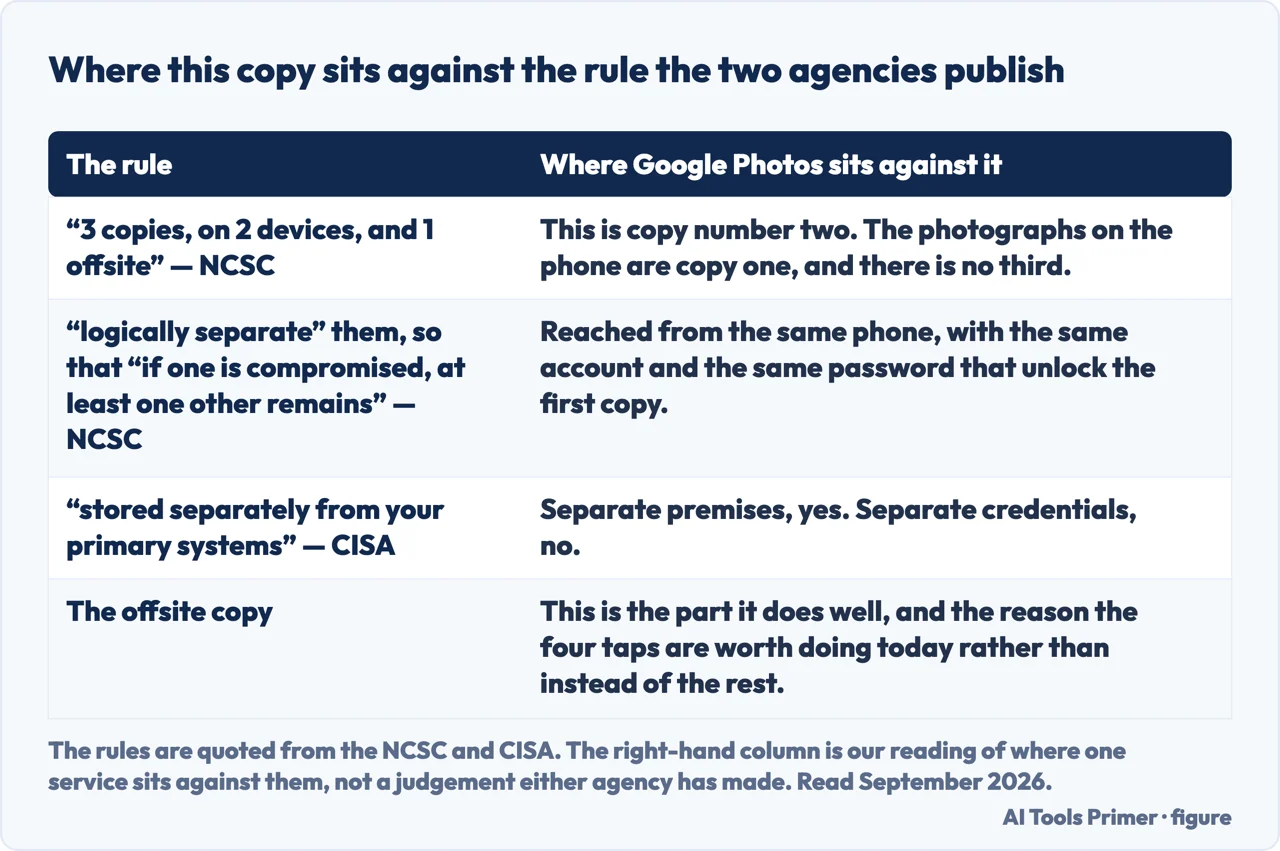
“A backup is a secure copy of your business’s critical data, stored separately from
your primary systems.”
CISA’s definition is written for businesses, and the word carrying it applies to everyone:
separately. What this page has described so far is one copy, in one account, reached by
the same phone and the same password — and, on Google’s own published condition, removable by two
years of not opening an app. The UK’s cyber security centre states the underlying rule without
reference to any product: “It is vital to keep multiple backups and to logically separate
them. Maintaining resilient backups means that if one is compromised, at least one other
remains.” Its shorthand is older than the cloud and has survived it — “at least 3 copies,
on 2 devices, and 1 offsite”. None of which makes the four taps at the top of this page
wrong. It makes them one of the three.
The rules are the agencies’. The right-hand column is our reading of where one service sits against them. Figure drawn by AI Tools Primer.
The same source names the question worth asking of whichever service you settle on, and it is not about capacity. Some services “allow you to restore modified data back to an older version, and recover deleted data for a limited time after it was deleted”, and “when choosing a cloud storage provider, you should check that these features are included in the service”. The number to go and find is the length of that limited time, because it is the width of the window in which a deletion you did not mean to make can still be undone — and it is the one figure nobody looks up until the day it has already closed.
One thing this page will not do is tell you Google Photos is a backup in the sense that a second copy on a drive is. It is a copy held by somebody else under published conditions — a shared allowance, a size limit, a format that may change, and a two-year clock. Those conditions are all reasonable and all documented; the point of listing them together is that they are rarely listed together.
And it will not recommend a third-party backup app. The one described here is the one already on the phone, and it is the one Google documents.
The guides below take it three ways: the same job on the other phone, what happens to the allowance the photographs are spending, and getting a copy somewhere you control.
Where to start
Three ways in. If storage is already full, take the second.
Not covered here. It will not tell you which quality setting to pick. That depends on how many photographs you take and how large they are, and Google publishes enough for you to work it out in a minute.
It will not recommend a third-party backup app. The documented one is already installed.
And it will not call this a complete backup strategy. It is one copy, held under conditions that are published and worth reading — which is a good thing to have and not the only thing. What holds instead is simple: the routes are Google’s own and the rules around them are the two cyber security bodies’, kept apart so you can see which is which.
Getting photos off the phone and keeping them
Copied is not moved, and synced is not backed up. Four jobs that get confused for each other.
Google, Back up photos & videos — Google Photos Help, Android (that photos and videos are saved automatically to a Google Account when backup is turned on and are private and viewable only by the signed-in user unless shared; that backup can go to only one Google Account at a time; that Google Account storage is shared across products such as Google Photos, Google Drive and Gmail; the size limits of photos up to 200 MB or 200 MP, videos up to 10 GB, and items larger than 256 x 256; the photo formats .jpg, .heic, .heif, .png, .webp, .gif, .avif and most RAW files, and the video formats listed; the route of opening the Google Photos app, tapping the profile picture or initial at the top right, tapping Photos settings then Backup, and turning Backup on; the manual Back up now command for one or several items; the badge reading “Not enough storage to back up”; the five backup statuses No backup, Preparing backup, Backing up photos, Backup complete and Backup paused; and checking a single item through More, About and Details) — support.google.com, read 22 August 2026.
Google, Choose the backup quality of your photos & videos — Google Photos Help, Android (that each Google Account comes with up to 15 GB of storage; the Important note that content may be deleted after two years or more of inactivity in Google Photos; that Original quality stores photos and videos in the same resolution with no change to their quality, counts toward account storage, and is recommended for photos over 16 MP, video over 1080p and large banner printing; that Storage saver stores at a slightly reduced quality, counts toward account storage, resizes photos larger than 16 MP down to 16 MP, may compress them into a different image format such as .jpg, resizes video above 1080p down to 1080p and may lose information such as closed captions; and that photos and videos backed up in High quality, now called Storage saver, before 1 June 2021 do not count toward Google Account storage) — support.google.com, read 22 August 2026.
CISA, Back Up Business Data — Secure Your Business (the definition of a backup as a secure copy of critical data stored separately from primary systems, and the statement that regularly backing up data is a critical part of a cybersecurity strategy together with the importance of scheduled recovery tests to verify backup integrity) — www.cisa.gov, read 26 August 2026.
National Cyber Security Centre, Offline backups in an online world — NCSC blog (the recovery rule, that some cloud storage services allow modified data to be restored to an older version and deleted data to be recovered for a limited time after deletion, with the instruction to check that these features are included when choosing a cloud storage provider; and the 3-2-1 rule, that it is vital to keep multiple backups and to logically separate them so that if one is compromised at least one other remains, with the shorthand of at least 3 copies, on 2 devices, and 1 offsite) — www.ncsc.gov.uk, read 26 August 2026.
AG
Written by Alberto Gulotta
Founder and editor of AI Tools Primer, writing from Palermo, Italy. Thirty-five years of
taking computers apart, starting with a Commodore 64 — the long version is on the
about page.
Written on 22 August 2026 · last checked 23 September 2026.
§
Independence and limits
No affiliate links and no paid placements anywhere on this site. Nobody pays to appear here,
and no company has seen this page before you did.
This is general information, not professional advice. Where a page touches money, health,
safety or the law, it names its source and the date it was read — and your situation may
still differ. See the privacy page and the
cookie policy.