A scrolling screenshot
android 12 and up- Press Power and Volume down together as usual.
- At the bottom, tap Capture more.
- Use the crop guidelines to choose how much to keep.
Google’s qualification: it works “on most screens that allow you to scroll”.

Software · guide
By Alberto Gulotta · Updated · 14 min read
How do you screen capture on an Android is a question Google answers carefully, and the care is the interesting part. Its own help page opens with a warning that the steps below it might not apply to your phone.
“Important: You’re using a custom Android version. If these steps don’t work for you, check with your device manufacturer.”
That sentence sits above Google’s own instructions — but only for some readers. Fetching the same address on 26 August 2026 with a Samsung phone’s identification returns the notice; fetching it from a Mac returns the page without it. Google shows a different page depending on the device you are reading it on, which is worth knowing before anybody tells you the note is not there. It is an unusual thing for a manufacturer’s help page to say, and it is the honest description of what Android is: Google writes the operating system, somebody else ships the phone, and the button combination is one of the things that somebody else can change. Any page that gives you a single keystroke as a fact is quietly more confident than the people who wrote the software.
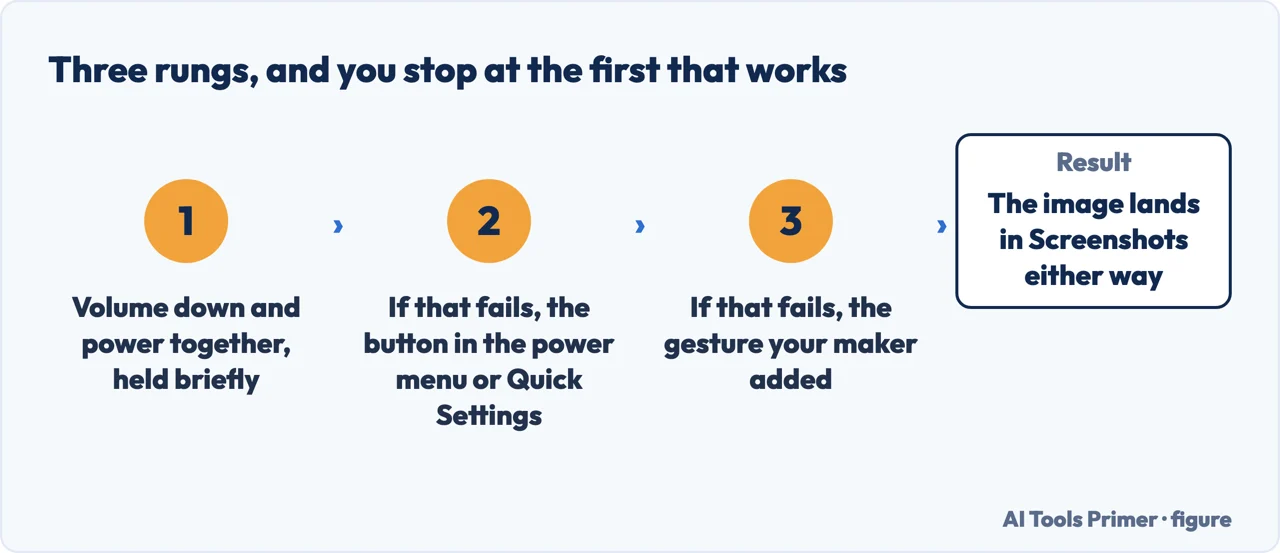
This is worth sitting with for a second before the instructions, because it changes what a correct answer looks like. On an iPhone there is one manufacturer and one answer. On Android there is one operating system and hundreds of phones whose makers can and do change the buttons. Google’s response is not to pretend otherwise but to publish a sequence that degrades gracefully.
Google’s instructions, which are a ladder rather than a step
Three rungs, and the third one is an admission.
The first rung works on most phones, which is why every other page stops there. The second is the one worth memorising, because it is the answer when a phone has remapped the buttons or when one of them is unreliable — holding Power gives you a menu with Screenshot on it, and a menu cannot be pressed at the wrong moment the way two buttons can.
A scrolling screenshot
android 12 and upGoogle’s qualification: it works “on most screens that allow you to scroll”.
Recording the screen instead
quick settingsThe scrolling screenshot is the least advertised of the three, and it turns a three-screenshot job into one image. Google is precise about both its guide and its ceiling: Android 12 and up, and “on most screens that allow you to scroll”. That second qualification is real — some apps do not offer Capture more at all, and when it is absent it is absent rather than hidden.
Before: audio and show touches on the screen are both choices you make before the recording starts, not settings you can change halfway through — so a recording made without them has to be made again. And the countdown means the first second of what you wanted is not in the file unless you waited. After: the preview of a screenshot appears at the bottom left, though Google notes that “on some phones, at the top of the screen, you’ll find Screenshot capture” — the same fragmentation, in miniature, applied to a thumbnail.
Google’s own page ends with an instruction rather than an answer — check with whoever made the phone — and that is the honest thing to say when there are hundreds of makers. It is also where this page keeps going. So here is what the check actually returns on the two phones the question is usually about.
Google’s advice stops where the phone begins. Here is the far end of it on the commonest non-Pixel phone: Samsung does not call this a scrolling screenshot at all. It calls it Scroll Capture, and it lives on a toolbar that can be switched off — which is the quiet reason the feature looks missing on a phone that has it. Settings, then “Advanced features”, then “Screenshots and screen recorder”, then “Show toolbar after capturing”.
With the toolbar on, the sequence is the familiar one plus a tap: “push the power button and volume down button to take a screenshot”, then “Tap the Scroll Capture icon”, and “the screen will automatically scroll down to capture the contents of the next screen”. To run it to the end in one movement, “long press the Scroll Capture icon”; to stop, “press any part of the screen outside of the toolbar”. Samsung adds a caveat worth having: “the scroll width ratio is automatically set, but the advance width ratio depends on the page you are capturing” — the phone decides how far each step travels, and the page gets a vote.
On a Pixel the answer is a number rather than a menu. Google gates the two features at different versions: some of the screenshot steps “work only on Android 11 and up”, and the scrolling capture works “on devices running Android 12 and up, on most screens that allow you to scroll”. If Capture more is not there, the phone may simply be older than the feature — no setting will produce it. And for the ordinary shot there is a route that needs no buttons at all: “Hey Google, take a screenshot.”
Two behaviours belong on this page because they are not faults, and neither Google’s help pages nor Samsung’s mention them. Both come from the documentation written for the people who build the apps.
An app can keep itself out of screenshots entirely. Google, to developers: “If you don’t want the contents of an app’s activity to appear in screenshots, or on non-secure displays, set the FLAG_SECURE display flag.” If a capture of one particular app never contains what was on the screen, that is the app’s decision, taken once by whoever wrote it. No setting on the phone overrides it, and nothing is broken.
And an app can be told that you took one. Since Android 14 there is an interface for exactly that, and Google describes its purpose in the same words a reader would use: “warning another user that someone took a screenshot of a messaging conversation”. Two limits come with it, both stated: the system “only detects a screenshot if the user performs a specific combination of hardware button presses”, and the app “doesn’t provide an image of the actual screenshot” — it learns that one happened, not what was in it.
Where it went. Open the Photos app, tap Collections → On this device → Screenshots. Screen recordings are one folder over, under Movies. Google adds a diagnostic worth keeping: if you don’t have the Photos app at all, you are “likely running an older Android version” — in which case open the Gallery app and go to Album view, then the Screenshots folder. The absence of one app is being used to tell you something about the age of the phone, which is a more useful hint than it first looks.
What this page will not do is give you the button combination for your particular phone as though it were universal. Google, which wrote the operating system, declines to do that. A page with no relationship to your handset at all is in a worse position to be certain, not a better one.
It also will not tell you which apps block screenshots or what happens when they do. That is a real thing, it varies by app rather than by phone, and it belongs to whichever app is doing it rather than to Android.
The guides below take the same job to the other three places people need it: the desktop, the other phone, and the case where a still image was never going to be enough.
Three ways in. If the buttons are not working, take the second rung above first.
Two button routes and an admission. Google publishes the sequence rather than a single answer, because the phone is not made by the people who made the software.
Capture more turns three images into one, on Android 12 and up, on most scrollable screens. The qualifications are Google’s own.
Two decisions to make before the countdown starts, because neither can be changed once it has.
Not covered here. It will not give you one button combination as though it applied to every Android phone. Google publishes a ladder with a manufacturer at the bottom of it, and copying only the top rung is how a wrong answer gets repeated.
It will not list which apps block screenshots. That varies by app rather than by phone and belongs to the app that is doing it.
And it will not recommend a screenshot app. Everything described here is already on the phone and documented by the people who put it there. What holds instead is simple: the three rungs are Google’s and Samsung’s own steps, and the note that your manufacturer may differ is Google’s own note, not a hedge.
The same job on the other systems.
Written by Alberto Gulotta
Founder and editor of AI Tools Primer, writing from Palermo, Italy. Thirty-five years of taking computers apart, starting with a Commodore 64 — the long version is on the about page.
Something wrong on this page? Write to aitoolsprimer@gmail.com and it gets fixed.
Written on 22 August 2026 · last checked 23 September 2026.
Independence and limits
No affiliate links and no paid placements anywhere on this site. Nobody pays to appear here, and no company has seen this page before you did.
This is general information, not professional advice. Where a page touches money, health, safety or the law, it names its source and the date it was read — and your situation may still differ. See the privacy page and the cookie policy.