side button + volume up
Apple’s wording is “quickly press and release” both at once, and the word doing the work in that sentence is quickly.

Software · guide
By Alberto Gulotta · Updated · 11 min read
The buttons are the easy half. How to screenshot on iphone has two answers — which pair to press, which depends on the phone, and what happens next, which Apple changed recently enough that guides written a year ago now describe the wrong thing.
Apple’s wording is “quickly press and release” both at once, and the word doing the work in that sentence is quickly.
The Home-button generations that put the power key on the right edge.
The older shape, with the power key on the top edge. Same gesture, different corner of the phone.
Apple repeats the same instruction on all three, and the emphasis is Apple’s rather than ours: press and release quickly. It is the one detail the wording insists on in every version of the page, which makes it the first thing to try again when a press appears to do nothing.
“After you take a screenshot in iOS 26, your device automatically displays the screenshot with quick tools available.”
Apple, on its own page, updated in June 2026. The little thumbnail in the bottom-left corner is no longer what happens. The screenshot now takes over the screen with crop, Markup, share and a save button that asks where to put it. Apple describes the old behaviour in the past tense: “In iOS 18 and earlier, a thumbnail temporarily appears in the lower-left corner.” Any guide written before that change describes the corner, and on a current phone it is describing something that is no longer the default.
If you liked the corner thumbnail — and there is a good reason to, because it let you carry on with what you were doing and deal with the picture later — it is not gone. It has become a setting, in a menu that did not use to exist.
That second item is worth a sentence of its own, because it explains a problem that looks like nothing to do with screenshots. A screenshot taken in HDR is an HEIC file; one taken in SDR is a PNG. Upload the first to a form that accepts only JPEG and PNG and it is refused, and nothing on the refusal screen will connect that to a display-quality setting you have never opened. Apple also notes that on an ordinary screen the HDR version buys you nothing: “On standard displays, HDR screenshots appear in SDR format.”
The refusal is not Apple’s doing, and the machine on the other end says so plainly. Microsoft describes the format as the ordinary output of these phones — “HEIF and High Efficiency Video Coding (HEVC) are the default file formats for photos and videos on most Apple devices running iOS 11 or later” — and states what a Windows PC needs before it can open one: “To open and downloaded HEIF and HEVC files on your Windows computer, you may need to install a codec.” It repeats the point for anything that is not an Apple device: you “may not be able to open them without additional apps”. Microsoft is writing about photographs rather than screenshots, and this page will not stretch that further than it goes — but it is the same file format, and it answers the question the refusal screen does not: the file is fine, and the computer receiving it has not been taught to read that kind.
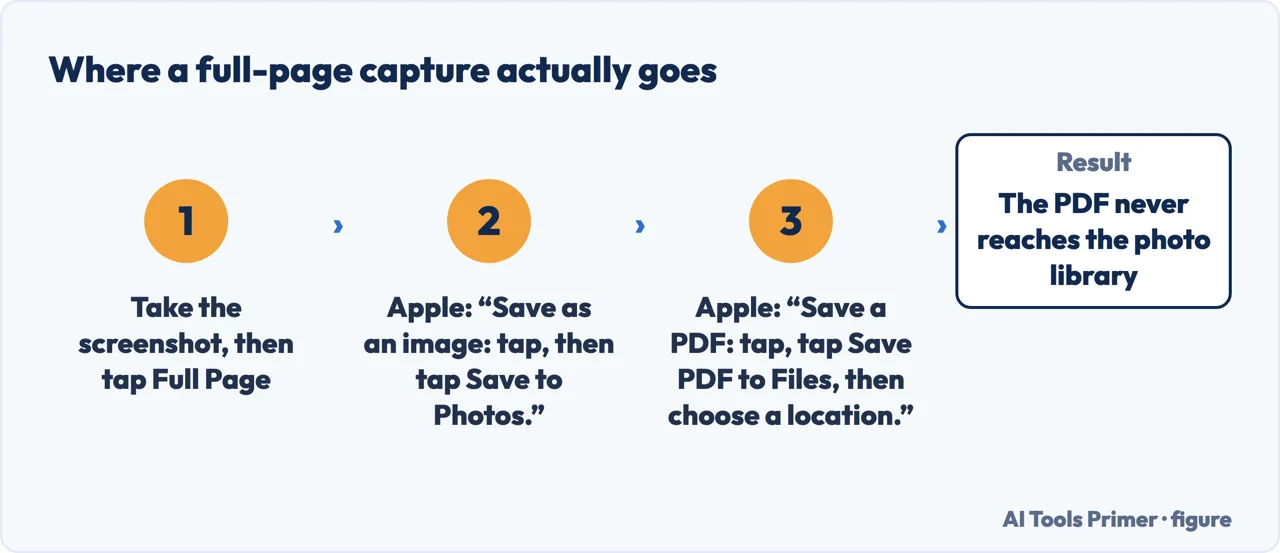
The other question people arrive with is how to capture something longer than the screen. In Safari the answer is one word that appears after you have already taken the shot: press the usual pair, then “capture content beyond your iPhone screen: tap Full Page. To see more of the screenshot, drag your finger on the preview image on the right.” What Apple’s guide no longer spells out is where the result lands, and the omission is worth noticing rather than filling in: the sentence about saving is about the ordinary kind — “to save full-screen screenshots to your photo library, swipe up, or tap, then choose an option”. A full-page capture is the other kind, and the page linked below follows it to where it actually goes.
Three ways to do it without pressing anything. Apple lists them together in one line: “instead of using hardware buttons to take a screenshot, you can use Siri, AssistiveTouch, or Back Tap”. Back Tap is exactly what it sounds like — “double or triple tap on the back of your iPhone to trigger the action you set”.
Back Tap is the one worth setting up before you need it. Settings › Accessibility › Touch › Back Tap, choose Double Tap or Triple Tap, choose Screenshot. Apple lists it as working on an iPhone 8 or later with iOS 14 or later. It is filed under Accessibility rather than anywhere near the camera or the buttons, and it is the answer when a volume key has stopped responding.
Where the ordinary ones land is documented and slightly buried: “Screenshots are automatically saved to your photo library. Go to the Photos app on your iPhone. Tap Collections, scroll down to Media Types, then tap Screenshots.” Two taps deeper than the Albums list, and worth knowing because a phone accumulates screenshots faster than anybody decides to keep them.
One last thing the current preview does that the old thumbnail did not. Before you save anything you can crop it — Apple: “Crop: drag the handles. To save a smaller portion of a full-page screenshot, tap, then drag the handles.” — which means the trimming that used to be a second trip into Photos is now part of taking the picture. On a screenshot of a receipt you will have to find again or a booking reference, that is the difference between a useful image and a screen full of app furniture.
The guides below take it four ways: the buttons themselves, what the preview now does, capturing more than one screenful, and where the files end up.
Four ways in.
Three pairs for three shapes of phone, one instruction they all share, and the routes that need no buttons at all — which matter more than they sound when one has failed.
A whole webpage, or a moving one. Two different tools, and the one that quietly saves somewhere other than your photos.
The pile nobody curates. Finding it, understanding what format the files are in, and clearing it out when the phone says it is full.
Not covered here. It will not tell you to install an app for this. Everything on this guide is already on the phone, and the one genuinely useful extra — tapping the back of it — is a setting rather than a download.
It will not describe the corner thumbnail as though it were still the default. Apple changed it, says so in the present tense, and a guide that has not noticed is a guide written before June 2026.
And it will not tell you where a full-page capture lands. Apple’s guide used to name the two ways out and no longer does, so that question is answered on the page that follows it, not guessed at here. What holds instead is simple: the three button pairs and the change to the preview are quoted from Apple’s own documentation.
The same job on the other systems.
Written by Alberto Gulotta
Founder and editor of AI Tools Primer, writing from Palermo, Italy. Thirty-five years of taking computers apart, starting with a Commodore 64 — the long version is on the about page.
Something wrong on this page? Write to aitoolsprimer@gmail.com and it gets fixed.
Written on 22 August 2026 · last checked 23 September 2026.
Independence and limits
No affiliate links and no paid placements anywhere on this site. Nobody pays to appear here, and no company has seen this page before you did.
This is general information, not professional advice. Where a page touches money, health, safety or the law, it names its source and the date it was read — and your situation may still differ. See the privacy page and the cookie policy.