
Software · guide
How to recover deleted files, in the order that works
By Alberto Gulotta · Updated · 9 min read
Look at what Google returns for how to recover deleted files: a Microsoft forum question, a download page for a recovery tool, a Reddit thread asking whether permanently deleted files can come back, a page about Google Drive, another forum post, a backup company, and a recovery vendor’s own community board. For one of the most-asked questions on the internet, there is no written guide on the first page at all.
The order to try things in
Fastest and most likely first. The first three cost nothing and need no software.
- The Recycle BinObvious, and worth ruling out first because it takes four seconds. If the file is there, right-click and Restore puts it back where it was.
- Restore previous versionsThe route almost nobody knows about, and the one this page is really about. It is below.
- Your cloud folder’s own recycle binIf the file lived in OneDrive, Google Drive or Dropbox, each keeps its own deleted-items list on the web, separate from the one in Windows. Deleting on the computer does not empty it.
- File History, if it was already set upMicrosoft: it “continuously monitors your files and folders, making regular backups to an external drive or network location”. Which means it only helps if somebody connected that drive before the file was lost.
- Recovery softwareLast, and this guide does not name one, because we have not run the comparison that would justify it. Note what the first page of results for this question is made of: two vendor pages, a download page and three forum threads.
Restore previous versions, and the trick inside it
This is the step that rescues files nobody expects to get back, and the reason it is missed is that you do not look for the file — you look for the folder it used to be in.
- Open File Explorer and “navigate to the folder that used to contain the file or folder”.
- “Right-click on the folder name, and then select Restore previous versions.” For something that sat at the top of a drive: “right-click the drive”.
- The Previous Versions tab lists what is available. Now the trick, in Microsoft’s own words: “if a file was deleted today, choose a version of the folder from yesterday, which should contain the file.”
- To look before committing: expand Open and choose Open in File History.
- To bring it back somewhere safe rather than over the top of what is there: expand Restore and select Restore to…
One note from the same page that saves a wasted search: if the file lived in a library, right-click it “in the location where it’s saved, rather than in the library”.
“The file or folder replaces the current version on your computer, and the replacement can’t be undone.”
Microsoft’s warning on the plain Restore button, read 22 August 2026. Restoring yesterday’s version of a folder over today’s does exactly that — it puts yesterday’s folder back, including yesterday’s versions of everything else in it. Use Restore to… and pick a new location instead. You can then take the one file you wanted and leave everything else alone.
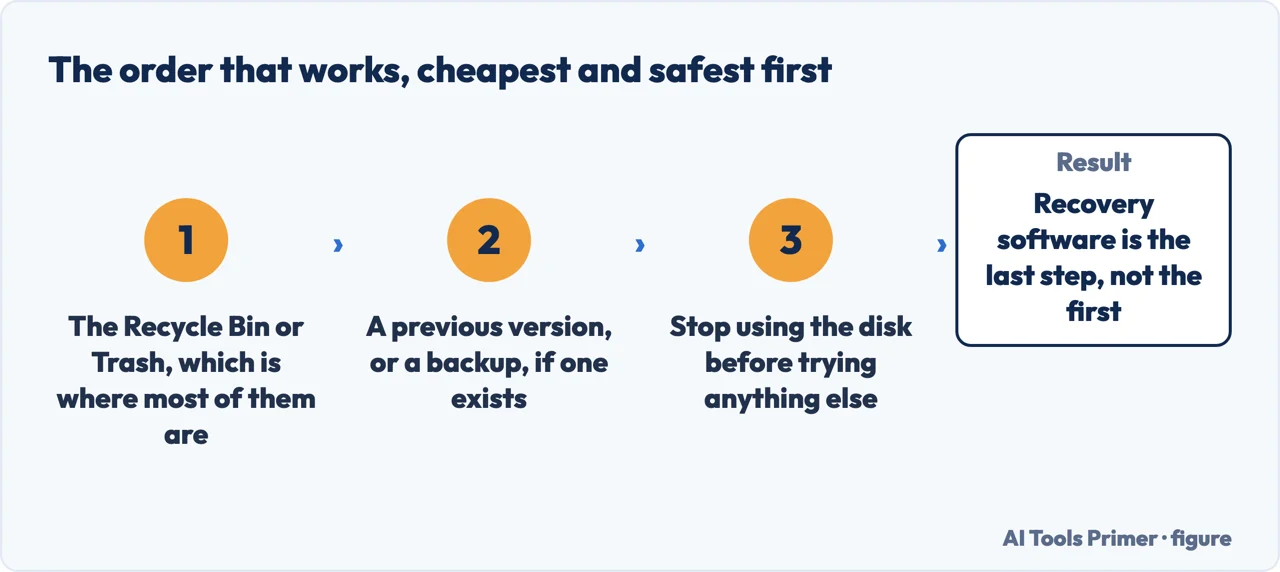
Why the second step is the one that matters. Everything else on the list depends on something having been true before the file was lost — that you noticed in time, that a cloud folder was syncing, that somebody had connected a backup drive. Restore previous versions is the one that sometimes works for people who did nothing in advance, and it is the one buried three menus deep.
It is also the step people give up on too early, because the Previous Versions tab is often empty for the file itself and they stop there. The file is gone; of course it has no versions. The folder is not gone, and the folder has versions, and one of them still has the file inside it. That single change of target is the whole technique.
On recovery software, plainly. These tools exist and some of them work. This guide does not recommend one because we have not run the test that would justify it — the same file deleted the same way, several tools, results published. Until that exists, a recommendation here would be an impression, and the first page of results is already full of those, written by the people selling the tools.
And the arrangement that makes this page unnecessary. A file that is synced to a cloud folder and backed up to a drive is not one deletion away from being gone; it is one deletion away from being in two other places. Setting that up takes an afternoon once and removes an entire category of bad day. The backups guide below is about exactly that.
And the only step that works before the file is gone. The NCSC’s guidance for small organisations is written around the three ways data actually disappears: “a ransomware attack (or other type of virus) may ‘lock’ your data so you can’t access it”, the device “might be lost, stolen, or stop working”, or you have a new one and need the data on it. Only one of those three is the accidental deletion this page is about, and none of the three is helped by recovery software after the fact. A copy that exists somewhere else is the only measure that answers all three.
The File History description, the Restore previous versions steps, the note about choosing yesterday’s folder, the library caveat and the warning that a restore cannot be undone are quoted from Microsoft’s own Windows documentation, read on 22 August 2026 and listed below. The ordering of the five routes, and the observation about what Google returns for this question, are ours.
Where to start
Four ways in.
- “I deleted it a minute ago.”
- Recycle Bin, then step two — the order to try
- “The Recycle Bin is empty.”
- Look for the folder, not the file — restore previous versions
- “It was in a synced folder.”
- That has its own bin — the order to try
- “Should I install a recovery tool?”
- Read this first — about recovery software
The order to try
Five routes, cheapest and likeliest first. Three of them need nothing installed and no money.
Restore previous versions
The built-in route that hides behind a right-click, and the change of target that makes it work.
About recovery software
The category that dominates the search results for this question, and what we will say about it only after testing.
So it does not happen again
A file in three places is not one deletion away from gone. The arrangement takes an afternoon once.
Not covered here. It will not open with a download link. Three of the five routes are already on the machine and cost nothing.
It will not name a recovery tool we have not tested. The first page of results is already full of recommendations written by the people selling them.
And it will not let you press Restore without knowing it cannot be undone. Microsoft says so, and it matters when you are restoring a whole folder to rescue one file. What holds instead is simple: the trick of restoring yesterday’s folder and the warning that a restore cannot be undone are Microsoft’s own, read on the dates this page names.
Sources
- Microsoft Support — Backup and restore with File History, including what File History backs up, the external drive or network location requirement, the Restore previous versions steps, the instruction to choose a version of the folder from before the deletion, the library caveat, Restore to… and the warning that a restore cannot be undone — support.microsoft.com, read 22 August 2026.
- Microsoft Support — Backup, restore, and recovery in Windows, for the distinction between backing up, restoring and recovery — support.microsoft.com, read 22 August 2026.
- National Cyber Security Centre — Backing up your data: the three ways data is actually lost, and why a second copy is the only measure that covers all of them — www.ncsc.gov.uk, read 4 September 2026.
Written by Alberto Gulotta
Founder and editor of AI Tools Primer, writing from Palermo, Italy. Thirty-five years of taking computers apart, starting with a Commodore 64 — the long version is on the about page.
Something wrong on this page? Write to aitoolsprimer@gmail.com and it gets fixed.
Written on 22 August 2026 · last checked 23 September 2026.
Independence and limits
No affiliate links and no paid placements anywhere on this site. Nobody pays to appear here, and no company has seen this page before you did.
This is general information, not professional advice. Where a page touches money, health, safety or the law, it names its source and the date it was read — and your situation may still differ. See the privacy page and the cookie policy.