
Software · guide
How to uninstall programs on Windows 11, and which route to use
By Alberto Gulotta · Updated · 9 min read
Microsoft documents three ways to do this, and the useful part of how to uninstall programs on Windows 11 is that they are not interchangeable. One of them reaches programs the others cannot, and Microsoft says which.
Three routes Microsoft documents, and they are not equivalent
All three end in the word Uninstall. What differs is which programs each one can reach.
- From the Start menu
- Start → All apps, find the app, press and hold or right-click it, then Uninstall.
- From Settings
- Start → Settings → Apps → Installed apps, find it, select More → Uninstall.
- From Control Panel
- Search Control Panel in the taskbar → Programs → Programs and Features → right-click the program → Uninstall or Uninstall / Change. The older screen, still there, and the one Microsoft sends you to when the newer one cannot help.
“Some apps can’t be uninstalled from the Settings app right now. For help uninstalling these apps, follow the instructions to uninstall from Control Panel.”
Microsoft’s own note, and it is the answer to a program that appears in one list and refuses to go from another. The modern Settings screen has not fully replaced the old Control Panel one, and Microsoft states the gap rather than leaving it to be discovered. If a program will not uninstall from Settings, Microsoft’s documented next step is the older screen, which is on the machine already.
Worth knowing before reaching for anything else, because it costs nothing: a route Microsoft itself names, on software you already have, tried before any tool that promises to force the issue.
The option Microsoft puts before uninstalling. On the same page, before any of the three routes: “You can try to repair a program first, if it’s just not running correctly.” Microsoft names repair as a separate action and gives one condition for it — a program that is “just not running correctly”. What repair preserves is not described on that page, so this guide will not say. What it does establish is the order: if the complaint is behaviour rather than presence, repair is the step Microsoft puts first.
Microsoft also names what to do when the uninstall itself fails: “If you get an error message when you’re uninstalling, try the Program Install and Uninstall Troubleshooter.” A stuck uninstall has a documented tool before it has a manual solution.
The distinction is worth holding on to because the two are easy to conflate. A program that crashes, or has stopped opening, or behaves oddly after an update, matches Microsoft’s condition for repair. Uninstalling is the answer to a different complaint — not wanting the program at all.
Two limits worth knowing before hunting. Microsoft: “Some apps and programs are built into Windows and can’t be uninstalled.” A missing Uninstall option is not always a fault. And on a different problem that often arrives disguised as this one: “If you’re trying to remove malware, see Stay protected with Windows Security to find out how to run a scan.” Something you did not install and cannot remove is a different subject, and Microsoft points at the scanner rather than at the uninstall list.
There is one question a program’s own maker sometimes answers where Microsoft does not, and it is the one people ask second: does removing it remove what it was holding? Google publishes it for Chrome. The removal itself does not touch your profile — bookmarks, history — unless you ask: “To delete your profile information, like bookmarks and history, check “Also delete your browsing data.”” And there is a limit no uninstall on the machine can cross: “If you are signed in to Chrome and save data in your Google Account, some information might still be on Google’s servers.” Removing a program from a computer and removing what it stored elsewhere are two jobs, and only the first one is what the three routes above do.
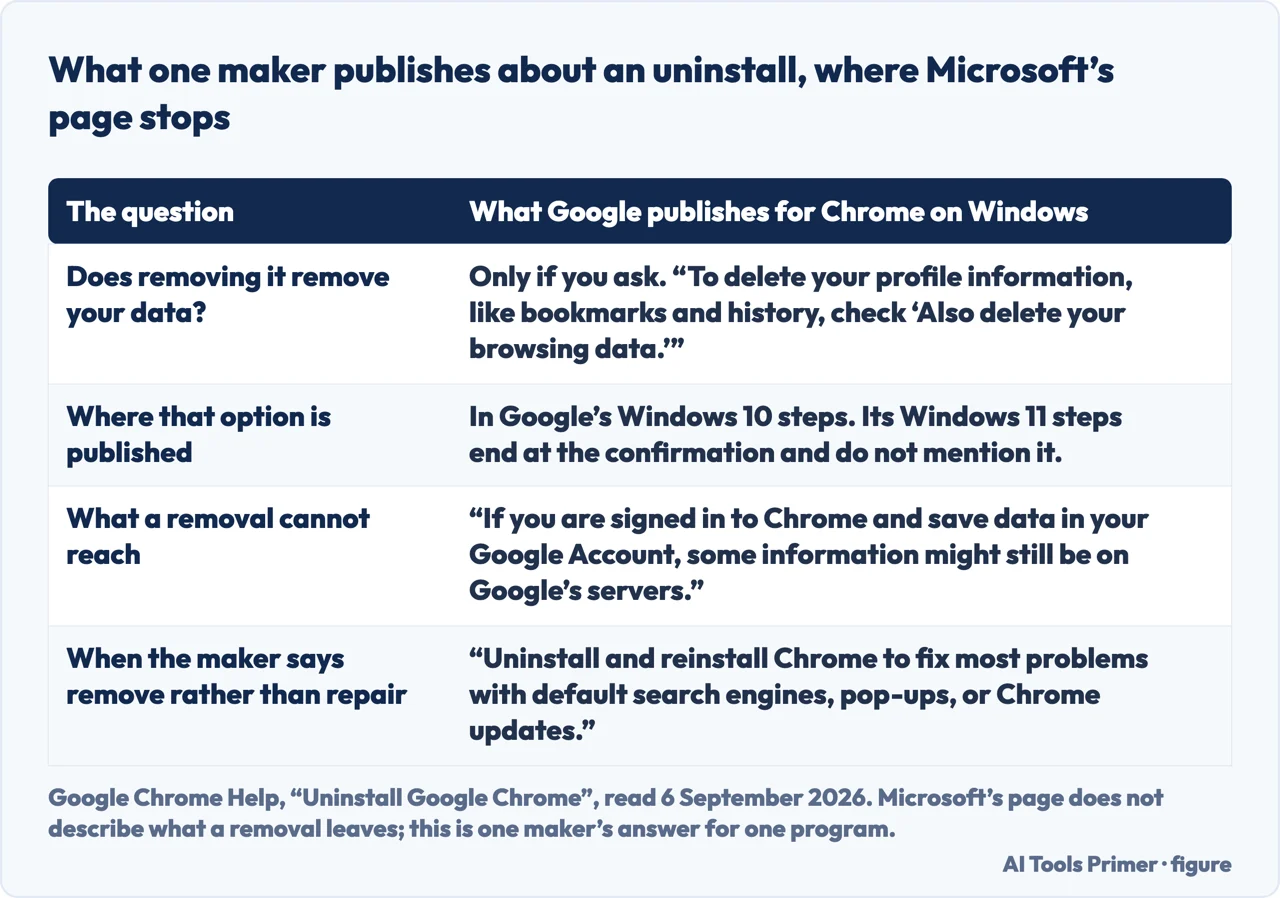
Two smaller things from the same page are worth having. The check box appears in Google’s Windows 10 steps and not in its Windows 11 ones, which end at the confirmation — so on a current machine the profile is the default outcome rather than a choice you were offered. And Google reaches for the opposite first move from Microsoft’s: where Microsoft suggests repairing a program that is “just not running correctly”, Google writes “Uninstall and reinstall Chrome to fix most problems with default search engines, pop-ups, or Chrome updates.” Same complaint, two makers, two first moves — which is the argument for checking what your program’s maker publishes before choosing between them.
One thing this guide is not going to do, because the source does not support it. Microsoft’s page describes how to remove a program; it does not describe what is left behind afterwards — no list of leftover files, no account of registry entries, no measure of how much space is recovered. Plenty could be said about that, and none of it would be quoted from the company that makes the operating system. So this guide stops where the documentation stops, and the honest summary is narrower than the question itself: these three routes are how Windows removes a program, and Microsoft names the fallback when one of them will not.
If a program cannot be found in any of the three lists, Microsoft points at two of its own pages rather than leaving you searching — one on seeing all your apps, and one on checking whether an app is installed at all. That is a more useful order than guessing: establish that it is there before working out how to remove it.
The guides below take it three ways: the three routes, the option before uninstalling, and the neighbouring questions about what is on a machine and why.
Where to start
Three ways in.
- “Just tell me where the button is.”
- Start at the three routes
- “It will not uninstall.”
- Go to when one route fails
- “It is misbehaving rather than unwanted.”
- That is repair first
The three routes
Start menu, Settings, Control Panel. Microsoft documents all three and notes that the newest of them cannot reach everything.
When one route fails
Microsoft names the fallback, and it is a screen already on the machine rather than a program to download.
Repair first
A different action with a different outcome, named by Microsoft before any of the removal routes — and the right one when the complaint is behaviour rather than presence.
Not covered here. It will not tell you in general what is left behind after an uninstall. Microsoft’s page does not describe it; the figure above is one maker’s answer for one program, and it does not transfer to the next one.
It will not recommend a forced uninstaller. Microsoft’s documented fallback is the Control Panel screen already on the machine, and its documented tool for a failing uninstall is its own.
And it will not treat a missing Uninstall option as a fault. Microsoft says some programs are built into Windows and cannot be removed. What holds instead is simple: the note that some apps must be removed from Control Panel and the suggestion to repair a program first are Microsoft’s own wording.
Sources
- Microsoft Support — Uninstall or remove apps and programs in Windows, applying to Windows 10 and Windows 11 (that there are different ways to remove apps and programs and another location can be tried if one does not show it; that some apps and programs are built into Windows and cannot be uninstalled; the suggestion to try to repair a program first if it is just not running correctly; the Start menu route via All apps; the Settings route via Apps and Installed apps, with the note that some apps cannot be uninstalled from the Settings app and that Control Panel should be used instead; the Control Panel route via Programs and Programs and Features, using Uninstall or Uninstall / Change; the pointer to pages on seeing all your apps and checking whether an app is installed; the Program Install and Uninstall Troubleshooter for error messages during uninstallation; and the pointer to Windows Security for removing malware) — support.microsoft.com, read 22 August 2026.
- Google, Uninstall Google Chrome — Google Chrome Help (the Windows 11 route through Settings, Apps and Installed apps, using More and Uninstall; the Windows 10 route, which is the one that carries the instruction to check “Also delete your browsing data” in order to delete profile information like bookmarks and history; the statement that if you are signed in to Chrome and save data in your Google Account some information might still be on Google’s servers after the profile information is deleted; and the suggestion to uninstall and reinstall Chrome to fix most problems with default search engines, pop-ups or Chrome updates) — support.google.com, read 6 September 2026.
Written by Alberto Gulotta
Founder and editor of AI Tools Primer, writing from Palermo, Italy. Thirty-five years of taking computers apart, starting with a Commodore 64 — the long version is on the about page.
Something wrong on this page? Write to aitoolsprimer@gmail.com and it gets fixed.
Written on 22 August 2026 · last checked 23 September 2026.
Independence and limits
No affiliate links and no paid placements anywhere on this site. Nobody pays to appear here, and no company has seen this page before you did.
This is general information, not professional advice. Where a page touches money, health, safety or the law, it names its source and the date it was read — and your situation may still differ. See the privacy page and the cookie policy.