
VPN · guide
How to turn off VPN on computer, and what put it there
By Alberto Gulotta · Updated · 21 min read
How to turn off VPN on computer depends on what put the VPN there. An app has its own switch. If Windows holds the connection, select Disconnect beside it in Settings > Network & internet > VPN. On a Mac, turn the service off in System Settings > VPN. If neither offers a button, read on.
Where a VPN on a Windows computer comes from
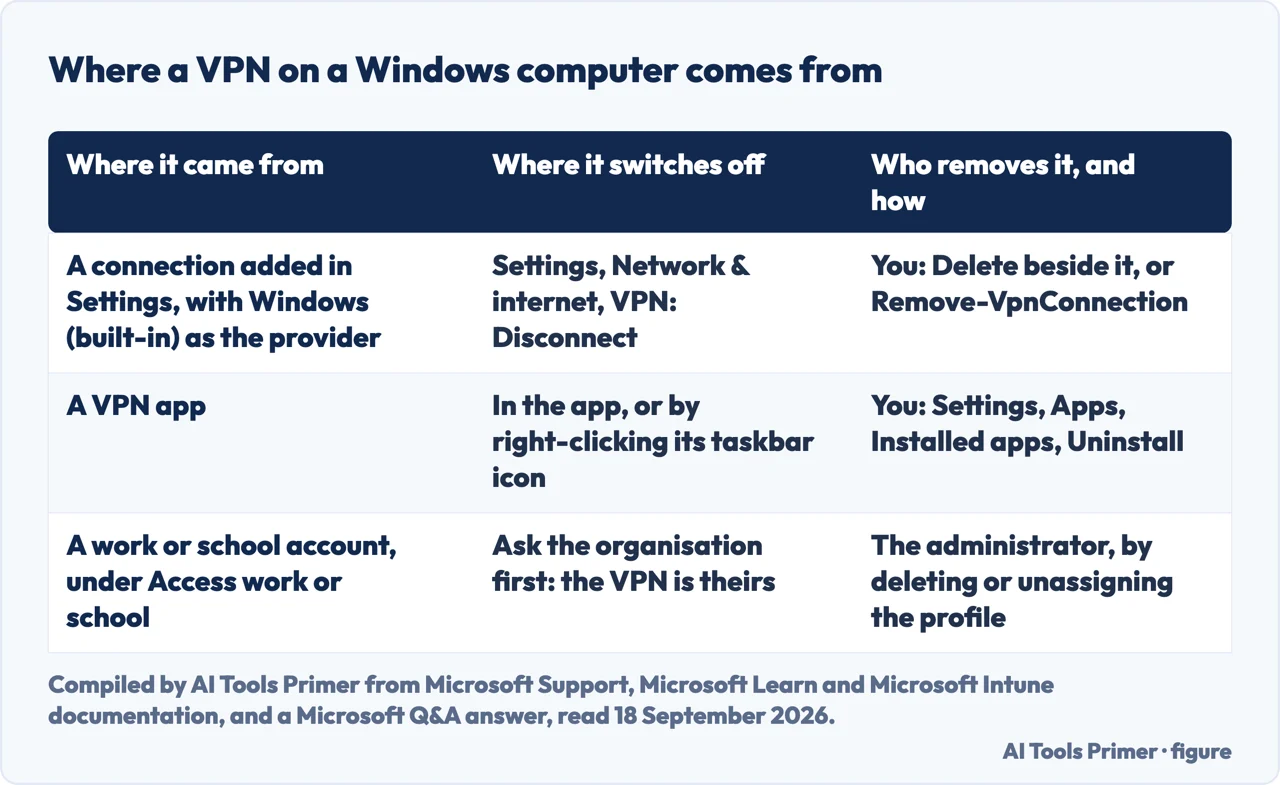
The VPN page in Windows is not itself a VPN. It is where Windows keeps the connections set up on the machine, and Microsoft’s own instructions put the two ways of setting one up side by side: “You can either create a VPN profile on your own or set up a work account to get a VPN profile from your company.” Creating one yourself means the Add a VPN connection window, where you choose Windows (built-in) as the VPN provider and type in the address of a server; the settings come from your employer or from the VPN service you subscribe to. If it is a service you pay for, Microsoft suggests looking for that service’s own app in the Microsoft Store first.
That distinction answers a question people keep asking from the wrong end. In a July 2025 question on Microsoft Q&A, someone asked how to get rid of the Windows VPN they had never wanted. The reply came from an independent advisor rather than from Microsoft, and it was that there is nothing there to get rid of: “Since this is a feature and not an app, you cannot uninstall it from the Windows 11 settings.” The page is part of Windows. What the page lists is not.
So the page acts on the connections Windows itself holds, and on nothing else. A VPN that is not listed there has no button there either — the case the documentation skips, and the one the next section is about.
When there is no Disconnect button
The fullest record of that case is a thread on Microsoft Q&A that opened on 14 April 2023 and collected 28 answers, the last on 13 November 2024. The thread is now locked. The answer from Microsoft Community Support, posted the next day, separates exactly the two kinds of VPN described above: a VPN app, closed by right-clicking its icon at the right-hand end of the taskbar, and a VPN configured in Windows, which you disconnect or delete on the VPN page. The person who asked came back to say that had solved it.
The replies that came afterwards are the interesting part: they are the ones that answer does not fit. Four later replies say there was no Disconnect or Delete button to press; four more say the VPN came back after being switched off. One is from someone who believed a Windows update had put the VPN there. Another names what it actually was: the adapters it names are Avast SecureLine’s, a WireGuard one for Ethernet and a Wintun one for wireless. The same reply states the problem the whole thread had been circling: “It doesn’t even show up as an installed or setup VPN under the VPN tab in Windows Settings to be able to change it.”
The rest of the thread names the same shape again and again. An October 2024 reply is about ExpressVPN, which turned itself back on and would not uninstall; the person who wrote it had already paid to stop it — “I have canceled the service but the VPN still gets in the way”. Two others mention the VPN inside McAfee and inside F-Secure, and one calls it Microsoft VPN and names nothing else at all. Read together, the thread is not about the VPN page. It is about VPNs that arrive inside something else — a security suite, a subscription, an app that came with the computer — and that therefore have no entry on the page where everyone goes to look.
So the order is not the one the menus suggest. It is this one, on Windows.
- Look on the VPN page first. Settings > Network & internet > VPN. If the connection is listed, choose Disconnect, or Delete to remove it altogether. That is the end of it, and most of the time it is the whole answer.
- Then look at the taskbar. If a VPN app is running, its icon sits at the right-hand end of the taskbar; right-click it to close it, as Microsoft’s answer suggests. Closing the app is not the same as removing what the app installed.
- Then look under work and school accounts. Open Settings > Accounts > Access work or school. If an account is connected there, the VPN may have come with it, and the third section below is the one to read before you touch anything.
- Then look in the app list. Settings > Apps > Installed apps, then More > Uninstall. A bundled VPN is listed under the name of the suite that carries it, not under the word VPN.
- If the uninstall fails. Restart, then select the app in Installed apps, Advanced options, and Repair, or Reset if the problem continues. Microsoft’s own page adds that some desktop apps support neither, and that the step after those is to contact the app publisher.
- Check that it stays off. A VPN that comes back has not been left on: something is switching it on, usually when you sign in or when the computer wakes, as the last reply in that thread describes.
Step four is where a bundled VPN is usually caught, and where an uninstall tends to stick, because a security suite defends itself against being removed: the longer route out of a program that will not uninstall, and, if you never chose to install it, what else came with it.
The VPN that came with a work or school account
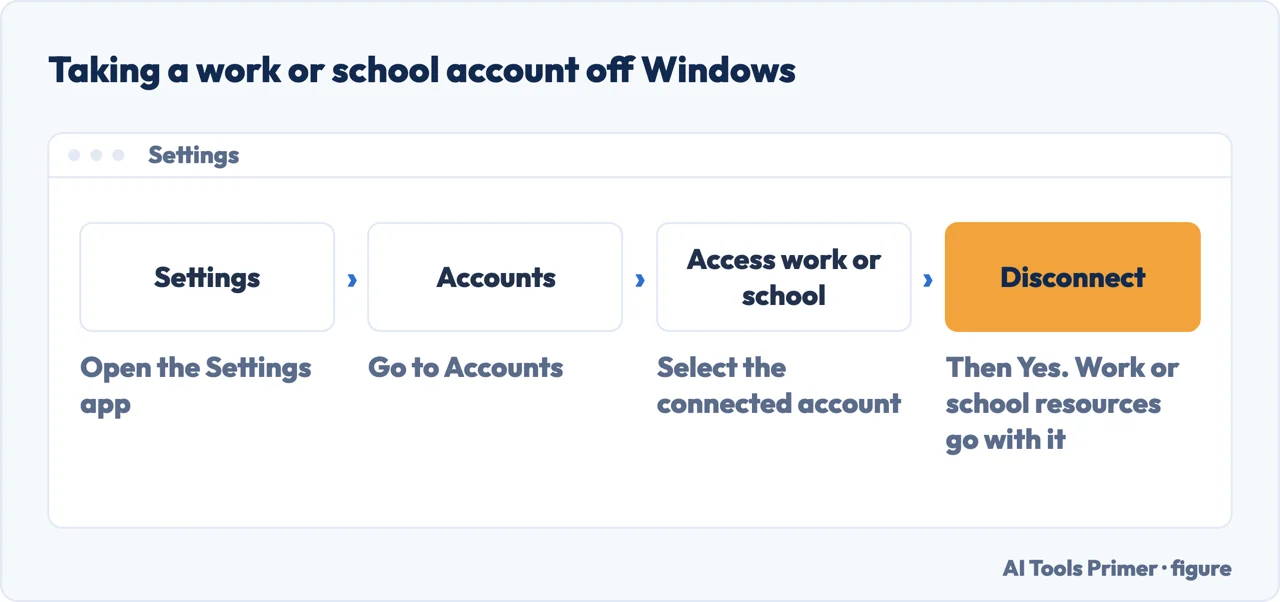
If the computer is enrolled with an employer or a school, the VPN profile belongs to them, and the first move is to ask them rather than to start deleting. On the management tools Microsoft sells for this, a VPN profile leaves a computer when the administrator deletes it or takes the device out of the group it was assigned to. Intune’s own list of what goes when a profile is removed names it directly: “Wi-Fi, VPN, certificate, and email profiles: These profiles are removed from all supported enrolled devices.” The same page warns that it is not instant — it can take up to seven hours or more for the settings to leave.
There is a way to do it from the computer, and it is worth knowing the price first. Open Settings > Accounts > Access work or school, select the account, select Disconnect, and confirm with Yes. The computer then leaves the Company Portal and can no longer install apps from it, the Intune client software is removed, and, in Microsoft’s words, “After you unregister the device, you lose device access to school or work resources.” Intune Endpoint Protection goes too, and if another antivirus was switched off while it was running, Microsoft asks you to switch that one back on.
One thing that page does not say is worth saying out loud. Its list for current Windows versions does not mention a VPN at all; the line about losing the organisation’s VPN sits in its separate list for Windows 8.1. Read strictly, Microsoft documents the VPN’s removal on the profile side and not on the unenrolment side — a reason to treat disconnecting an account as the heavy option, and to expect it to take things you did not mean to remove.
A Mac keeps the same arrangement under Apple menu > System Settings > General > Device Management, where, as Apple puts it, a system administrator may ask you to install a configuration profile to reach your network, email, VPN and other services. If a profile will not delete, Apple’s reading is that the Mac may be a managed computer: “Some profiles can only be removed by a system administrator of your Mac.” What an organisation can and cannot see once a device is enrolled is the subject of the guide to device management.
Turning a VPN off from PowerShell or the command prompt
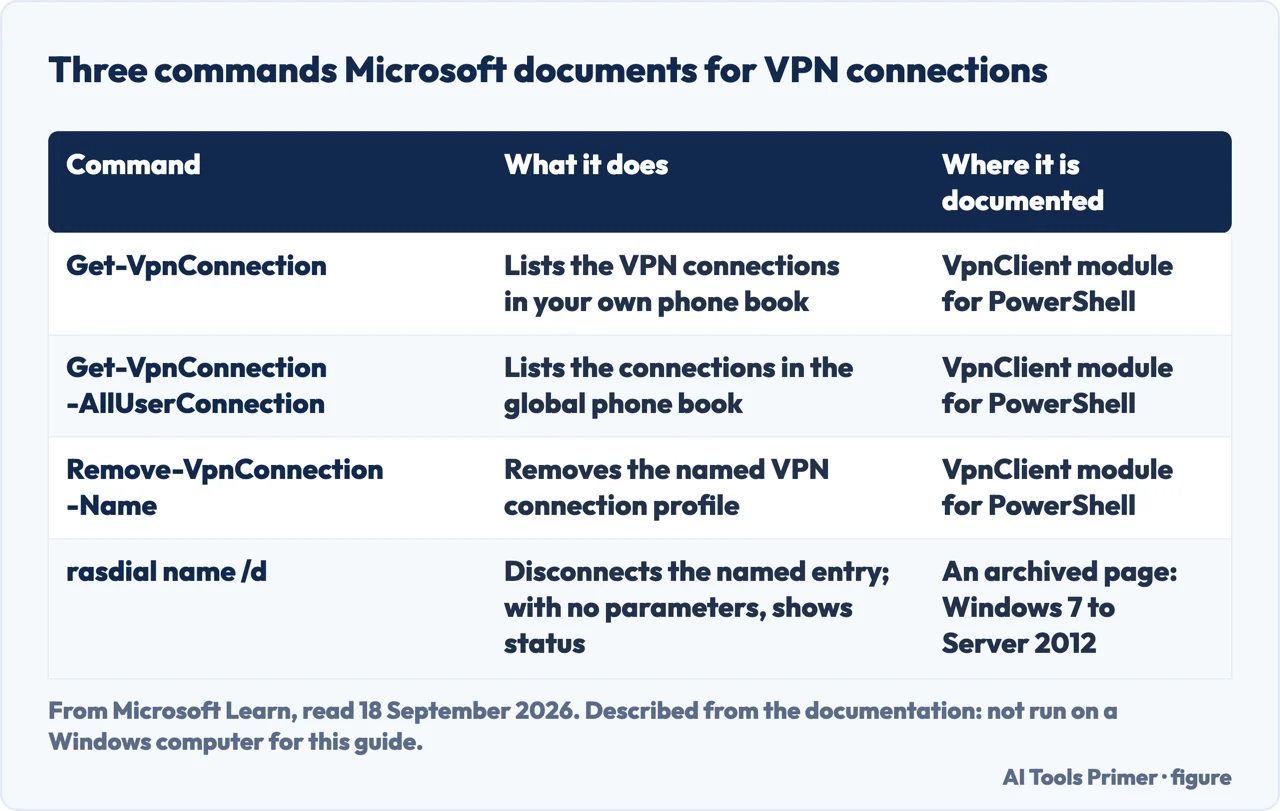
Three commands come up whenever this question is asked, and it is worth being exact about what Microsoft documents and what it does not. Two are PowerShell cmdlets from Microsoft’s VpnClient module, whose reference pages sit under Windows Server 2025 and do not say which editions of Windows include them. The third, rasdial, is documented on an archived page that applies to Windows 7, Windows 8, Windows Server 2008 R2 and Windows Server 2012, last updated in August 2016. None of the three was run on a Windows computer for this guide.
Get-VpnConnection lists what is there. Microsoft’s reference is precise about the case with no arguments: “If you do not specify a profile name, the cmdlet returns a list of all VPN connections in the phone book”. There are two phone books — your own, which the command reads by default, and a global one, which it reads when you add -AllUserConnection. What comes back includes the name of each connection and whether it is connected, which is the thing the VPN page will not tell you about a connection it does not show.
Remove-VpnConnection deletes one. Microsoft’s own example is Remove-VpnConnection -Name "Test1" -Force -PassThru; add -AllUserConnection for one in the global phone book. -Force suppresses warnings and non-terminating errors, which is a reason to leave it out the first time round: the warnings are how you find out what you are about to remove.
rasdial is the old one, and it does something the other two do not. Run with no parameters it shows the status of current connections, and followed by a connection’s name and /d it disconnects that entry. In a June 2022 question on Microsoft Q&A, someone who had set up an Always On VPN on Windows 10 following Microsoft’s documentation described the problem this page started from: “The button in vpn connection disconnects but then it automatically connects again”. Using rasdial with /DISCONNECT made the disconnection permanent, even after a restart. A comment added in November 2024 says users can do this without administrator rights, and that afterwards “there is no way to re-enable the always on feature without re-deploying the whole VPN tunnel”. On a VPN your organisation manages, that is a reason to leave rasdial alone and ask them.
Where a VPN hides on a Mac
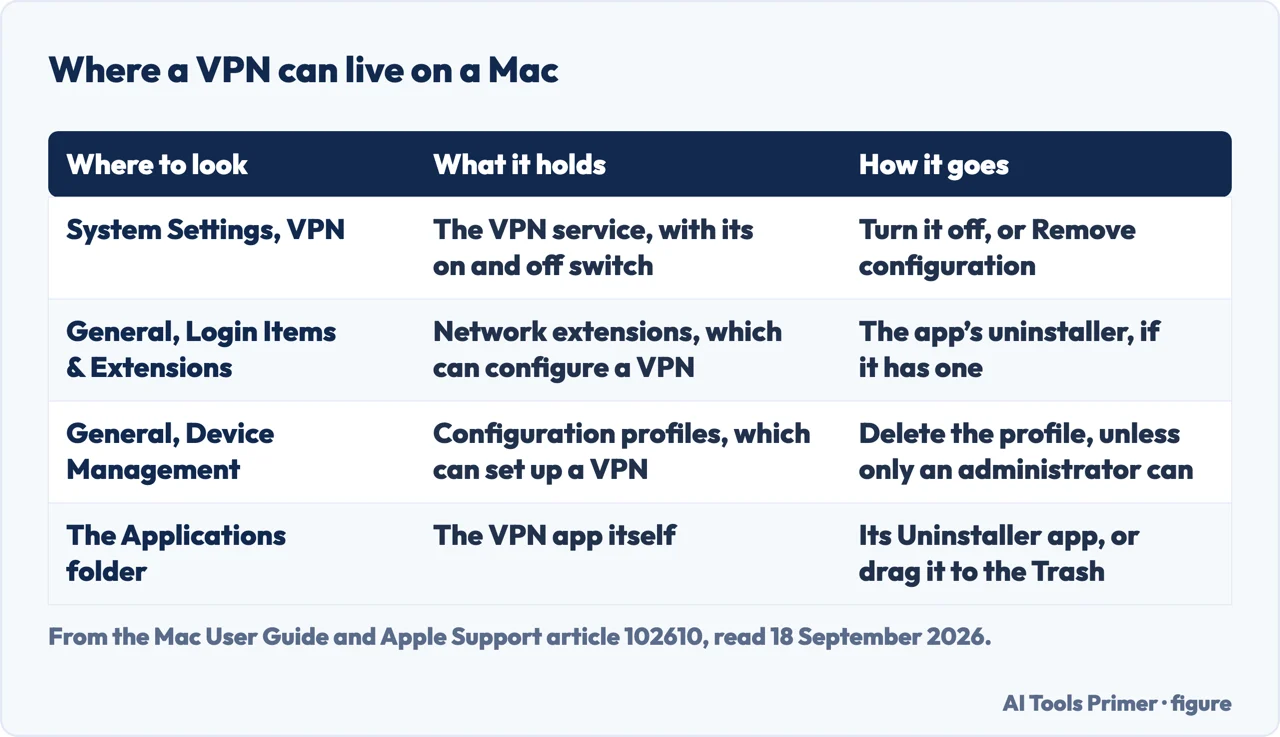
A Mac holds a VPN in more than one place, and turning the service off only deals with the first. The service is under Apple menu > System Settings > VPN, where it is turned on and off. For an L2TP VPN, Apple lists two options that end the session on their own: when you switch to a different user account, and when you log out. Neither is a fault, though both look like one.
The second place is System Settings > General > Login Items & Extensions, which is where network extensions live. Apple’s description of what those do names the VPN itself: “These allow you to customize and extend core networking features such as configuring a VPN or content filter.” The same settings hold login items, which open when you log in, and App Background Activity, which lets apps work while they are not open. Apple writes these settings for an administrator of the Mac, so on a shared or managed machine they may be someone else’s to change.
The third is the app itself. Apple’s advice for removing one is to look for an Uninstall or Uninstaller app beside it: “If it includes an uninstaller, that’s the best way to delete the app and any login items”, along with the extensions and other data the app stored elsewhere. Dragging the app to the Trash is what Apple suggests when there is no uninstaller, and Apple adds that it “doesn’t cancel any subscription that you purchased with the app.”
Network reset, and what it takes with it
Microsoft is plain about where this belongs: “Using network reset should be the last step you try.” On Windows 11 it is under Settings > Network & internet > Advanced network settings > Network reset; on Windows 10, Settings > Network & Internet > Status > Network reset. Select Reset now, confirm with Yes, and the computer restarts.
What it does is wider than a VPN: “Network reset removes any network adapters you have installed and the settings for them.” After the restart the adapters are reinstalled with their settings back at the defaults. There is a second effect, and it has nothing to do with the VPN: each network the computer knows may be set to a public network profile, in which the PC is not discoverable to other PCs and devices on the network. Microsoft presents that as the more secure setting and points to its essential network settings for making a network private again.
That is the bill for the reset, and it falls due the morning after: shared folders stop appearing, and a printer on the network goes quiet, which is worth checking against the documented reasons a printer goes offline before blaming a VPN that is no longer there. And if all of this started with a page that would not load, the reset is the wrong end of it: the test that says whether it is the site or you costs nothing and comes first. If the internet stays down after the VPN is off, a kill switch may still be blocking it: some modes keep blocking after a deliberate disconnect.
Where to start
Three ways in, depending on what you have already tried.
- “There is no Disconnect button.”
- Start from where it came from — where a windows vpn comes from
- “It is a work laptop.”
- Read this before deleting anything — work or school account
- “I would rather type a command.”
- What Microsoft documents — from powershell
Getting a program off a computer
A bundled VPN goes when the thing that carries it goes. These three are about that part.
When the computer answers to someone else
A setting you cannot change is usually a setting that belongs to somebody. These pages are about that somebody.
Before you blame the VPN
Most of the time a VPN is switched off to test it. If the fault outlived it, start from the symptom instead.
Questions people also ask
How do I turn VPN on or off?
On Windows 11, if one VPN is set up, toggling the left side of the VPN quick setting on the taskbar turns it on and off. A VPN app has its own switch, and that one wins: while the app runs, it can restore the connection you have just ended. On a Mac, the service is turned on and off in System Settings > VPN.
How do I find my VPN on my computer?
Three places. Settings > Network & internet > VPN lists the connections Windows holds. Settings > Apps > Installed apps lists VPN apps, and the suites that carry one. Settings > Accounts > Access work or school shows whether an organisation set the computer up. In PowerShell, Get-VpnConnection lists the first of the three.
Should VPN be on or off on my computer?
Microsoft describes a VPN as a way to get a more secure connection, and to reach a company’s network, from places such as a coffee shop. On a network you control, it is buying less. If an employer set it up, the choice is not yours to make and the setting will usually say so.
Why won’t my VPN turn off?
Three documented reasons. The VPN is an app, so the VPN page has no button for it. It came from a work or school account, so it is not yours to remove. Or something reconnects it on purpose at sign-in or when the computer wakes, which is a setting rather than a fault.
Not covered here. It does not cover phones and tablets. Where the switch is on an iPhone, an iPad or an Android phone, and the five settings that turn a VPN back on by themselves, are in the guide to turning a VPN off and keeping it off.
It does not cover a VPN that lives inside a browser or inside a router, and it does not explain how to take a computer out of an organisation’s management when the organisation would rather it stayed in.
The three commands in the fourth section were not run on a Windows computer for this guide. They are described from Microsoft’s own reference pages, and the page says so where they appear. What holds instead is simple: every sentence in quotation marks here comes from Microsoft or Apple documentation, or from a Microsoft Q&A discussion, each listed below and read on 18 September 2026.
Sources
- Microsoft Support — Connect to a VPN in Windows, Windows 11 and Windows 10 (the two ways a VPN profile arrives, Windows (built-in) as the provider, where the settings come from, the suggestion to look in the Microsoft Store, the VPN quick setting, and Microsoft’s own description of what a VPN connection is for) — support.microsoft.com, read 18 September 2026.
- Microsoft Q&A — How do I turn off Windows 11 VPN, it is affecting my ability to send emails, question of 14 April 2023, 28 answers to 13 November 2024, now locked (the answer from Microsoft Community Support, and the dates and count of the replies). All six pages of answers were read; the two pages the quotations come from are listed separately below — learn.microsoft.com, read 18 September 2026.
- Microsoft Q&A — the same thread, second page of answers (the reply of 26 October 2024 about ExpressVPN, and the sentence about having cancelled the service) — learn.microsoft.com, read 18 September 2026.
- Microsoft Q&A — the same thread, fourth page of answers (the reply naming the Avast SecureLine adapters, and the sentence about the VPN not showing up under the VPN tab) — learn.microsoft.com, read 18 September 2026.
- Microsoft Q&A — TURN OFF WINDOWS VPN - NOT MY VPN, question of 14 July 2025, answered by an Independent Advisor and not by Microsoft (the statement that the VPN page is a feature and not an app, and so cannot be uninstalled) — learn.microsoft.com, read 18 September 2026.
- Microsoft Q&A — rasdial /disconnect breaks AlwaysOnVpn, question of 24 June 2022, answered 3 October 2024 (the VPN that reconnects after the button, rasdial /DISCONNECT surviving a restart, and the comment of 11 November 2024 on re-deploying the tunnel) — learn.microsoft.com, read 18 September 2026.
- Microsoft Learn — Get-VpnConnection, VpnClient module for PowerShell (the behaviour with no profile name, the two phone books and -AllUserConnection, and the connection status in the output) — learn.microsoft.com, read 18 September 2026.
- Microsoft Learn — Remove-VpnConnection, VpnClient module for PowerShell (the example with -Force and -PassThru, -AllUserConnection, and what -Force suppresses) — learn.microsoft.com, read 18 September 2026.
- Microsoft Learn — Rasdial, archived page for Windows Server 2012 R2 and 2012, applying to Windows 7, Windows 8, Windows Server 2008 R2 and Windows Server 2012, last updated 31 August 2016 (the status display with no parameters, and /d to disconnect a named entry) — learn.microsoft.com, read 18 September 2026.
- Microsoft Intune — Remove your Windows device from management, last updated 9 April 2026 (the path through Accounts and Access work or school, Disconnect and the confirmation, and everything the computer loses with it, including the note about re-enabling other virus protection) — learn.microsoft.com, read 18 September 2026.
- Microsoft Intune — Common questions, answers, and scenarios with policies and profiles, last updated 20 May 2026 (what happens to a VPN profile when it is deleted or the device leaves its group, the list naming VPN profiles, and the seven hours or more) — learn.microsoft.com, read 18 September 2026.
- Microsoft Support — Uninstall or remove apps and programs in Windows, Windows 10 and Windows 11 (Installed apps and More > Uninstall, the note that some apps cannot be removed from Settings, and the Control Panel route) — support.microsoft.com, read 18 September 2026.
- Microsoft Support — Fix problems that block programs from being installed or removed, Windows 11 and Windows 10 (restart, Advanced options, Repair and Reset, the warning that not all apps support them, and the advice to contact the publisher) — support.microsoft.com, read 18 September 2026.
- Microsoft Support — Fix Wi-Fi connection issues in Windows, Windows 10 and Windows 11 (network reset as the last step, its path on Windows 11 and Windows 10, what it removes, and the public network profile it can leave behind) — support.microsoft.com, read 18 September 2026.
- Apple, Mac User Guide — Change VPN settings on Mac (the path to VPN in System Settings, turning the service on and off, and the two L2TP options that end a session by themselves) — support.apple.com, read 18 September 2026.
- Apple, Mac User Guide — Change Login Items & Extensions settings on Mac (network extensions and what they configure, login items, App Background Activity, and the fact that these settings are written for an administrator of the Mac) — support.apple.com, read 18 September 2026.
- Apple, Mac User Guide — Change Device Management settings on Mac (where configuration profiles are listed, why an administrator asks for one, and the profiles only an administrator can remove) — support.apple.com, read 18 September 2026.
- Apple Support article 102610 — Delete or uninstall apps on Mac, published 8 June 2026 (looking for an Uninstaller beside the app, what an uninstaller takes with it, dragging to the Trash, and the subscription that is not cancelled) — support.apple.com, read 18 September 2026.
Written by Alberto Gulotta
Founder and editor of AI Tools Primer, writing from Palermo, Italy. Thirty-five years of taking computers apart, starting with a Commodore 64 — the long version is on the about page.
Something wrong on this page? Write to aitoolsprimer@gmail.com and it gets fixed.
Written on 22 September 2026 · last checked 21 October 2026.
Independence and limits
No affiliate links and no paid placements anywhere on this site. Nobody pays to appear here, and no company has seen this page before you did.
This is general information, not professional advice. Where a page touches money, health, safety or the law, it names its source and the date it was read — and your situation may still differ. See the privacy page and the cookie policy.