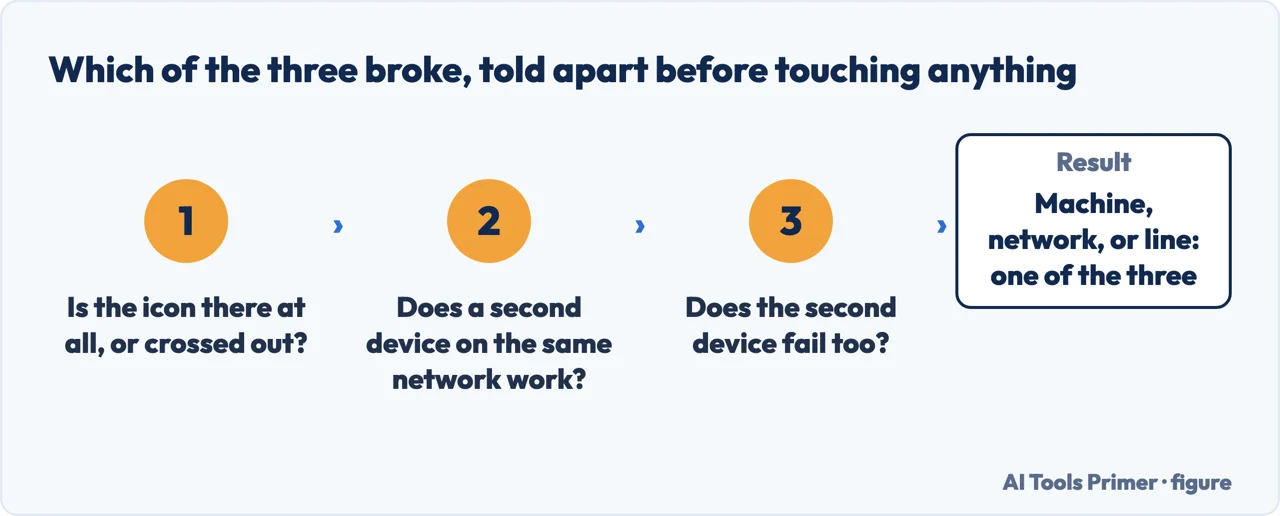
Unplugging the box is where why is my wifi not working ends up, and it is the fourth step in Microsoft’s own list rather than the first. Doing it first throws away the information that would have told you whether it was going to help. There are three quite different faults behind this sentence, and two of them announce themselves before you touch anything.
Two questions, and two of the three are ruled out. Figure drawn by AI Tools Primer.
The first announcement is the icon in the corner of the screen. Microsoft documents what each one means, and the difference between two of them is the difference between an evening’s work and a phone call to your provider.
ConnectedThe network is fine
Microsoft: “You’re connected to Wi-Fi and the Internet. You should be in good shape.”
If you see this and things still do not work, the agency of the fault has moved: “the problem
might be with a specific app or website or a firewall blocking your Internet
connection.” Nothing on this page will fix that, because nothing on this page is broken.
No InternetYou are on, the network is not
Microsoft: “Your device doesn’t have an Internet connection.” The Wi-Fi part worked — your
device joined — and the part beyond the router did not.
This is the state people describe as “the Wi-Fi is not working” when the Wi-Fi is working
perfectly and the line into the building is down.
That distinction is the one worth carrying away from this guide. Wi-Fi and the internet are two separate things joined at the router. The Wi-Fi is the stretch between your device and the box; the internet is everything past it. A phone that says it is connected but loads nothing is telling you the first part worked. Restarting the phone will not help, because the phone is not the part that has stopped.
“On another laptop or phone, try to connect to the same network. If you can connect,
the source of the problem is likely due to your device.”
Microsoft’s sixth step, and the one worth doing sixth-from-first. It costs one trip to another room and it
halves the problem: either every device in the house is off, in which case stop touching the laptop
and go and look at the router — or it is one device, in which case the router is innocent and
restarting it will disconnect everybody else for nothing.
If the second device also fails, the fault is on the network side and the restart is worth doing — but in the order Microsoft gives, which has more in it than pulling a plug.
Restarting the box, in Microsoft’s order
Unplug the router from the power source.
Then unplug the modem. “Some modems have a backup battery. If you unplug the modem and
lights stay on, remove the battery.” A modem that never actually lost power has not been
restarted, and this is why the trick sometimes appears not to work.
Wait “at least 30 seconds or so.” Not two seconds. This is the whole step.
Modem first, back in. “The lights on the modem will blink. Wait for them to stop
blinking” — before the router goes anywhere near the socket.
Then the router, and a few minutes for both. And Microsoft’s warning, worth reading
before you start: “everyone that is connected to your Wi-Fi network will be temporarily
disconnected.”
The reason to follow that as written is that it describes two machines rather than one. Microsoft frames restarting them as something that “helps create a new connection to your Internet service provider”, and then carves out the households where the sequence does not apply: “If you have a cable modem/Wi-Fi router combo device, you only need to follow the steps for the single device.” That exception is the clearest sign that where there are two boxes, the numbering is doing work.
And the thing that explains the two networks with almost the same name. Microsoft:
“Many consumer Wi-Fi routers broadcast at two different network frequency bands: 2.4 GHz and
5 GHz. These will appear as separate networks in the list of available Wi-Fi networks.”
So the entry you have been ignoring for two years with a 5 at the end of its name is not a
neighbour’s. It is your own router, offering the other band. Microsoft’s advice when one of them
will not behave is simply to “try connecting to the other network”, which costs nothing and is a
good deal quicker than unplugging anything.
If the problem is one device rather than the network, Microsoft’s step is the one that feels like giving ground rather than fixing anything: forget the network and rejoin it. Settings, Network & internet, Wi-Fi, Manage known networks, select it, Forget — then reconnect and type the password again. It is worth knowing where that password is before you start, because forgetting a network is exactly the moment you discover you never knew it.
Two further steps exist for the stubborn cases, and they are worth naming so you know they are there rather than reaching for them early. Microsoft lists five commands, run in order as administrator, that “manually reset the TCP/IP stack, release and renew the IP address, and flush and reset the DNS client resolver cache”. And after those, uninstalling the network adapter driver and restarting, which Windows follows by installing the latest one — an approach Microsoft explicitly ties to a symptom: “consider this approach if your network connection stopped working properly after a recent update.”
That last clause does something the rest of the page does not: it tells you when to reach for a step rather than how to perform it. If everything was fine on Tuesday and wrong on Wednesday, what changed on Tuesday night is a better question than any of the eight steps.
The same three-way split, on the other kind of device. Google’s troubleshooting for Android puts the checks in the same order this page does — the device, then the network, then the line — and starts from the cheapest one: turn the connection off and on, then try a different network before concluding anything about the router. That ordering is not platform advice. It is the only way to find out which of the three is broken without changing two things at once and learning nothing.
The guides below take it four ways: reading the icon, deciding whether it is you or the network, restarting properly, and the fixes that apply to one machine only.
Before any fix, the free diagnosis. Windows distinguishes being on the network from having an internet connection, and they fail for different reasons.
Not covered here. It will not tell you to restart the router first. Microsoft puts it fourth, it disconnects everybody in the building, and half the time the fault is on one device.
It will not treat Wi-Fi and the internet as the same thing. They fail separately, the icon says which, and reading it first is free.
And it will not recommend a signal booster before the diagnosis. A weak signal and a dead line look identical from an armchair and are fixed by entirely different purchases. What holds instead is simple: the icon meanings and the restart order are quoted from Microsoft’s own troubleshooting documentation, with the network commands.
Sources
Microsoft Support — Fix Wi-Fi connection issues in Windows (the meanings of the Connected and No Internet icons, the eight general troubleshooting steps in order, the second-device test, the modem and router restart sequence including the backup battery and the thirty seconds, the 2.4 GHz and 5 GHz bands, the five network commands, and the note tying the driver step to a recent update) — support.microsoft.com, read 6 September 2026.
Google Play Help — Fix internet connection problems on Android devices: the same three-way split checked in the same order, on a device that is not the one this page is about — support.google.com, read 4 September 2026.
AG
Written by Alberto Gulotta
Founder and editor of AI Tools Primer, writing from Palermo, Italy. Thirty-five years of
taking computers apart, starting with a Commodore 64 — the long version is on the
about page.
Written on 22 August 2026 · last checked 23 September 2026.
§
Independence and limits
No affiliate links and no paid placements anywhere on this site. Nobody pays to appear here,
and no company has seen this page before you did.
This is general information, not professional advice. Where a page touches money, health,
safety or the law, it names its source and the date it was read — and your situation may
still differ. See the privacy page and the
cookie policy.