Two quite different problems arrive at how to find wifi password, and only one of them has an answer. One is that a device in your hand has been on this network for two years and you cannot remember what you typed. The other is that you want on to a network you have never joined. The first is four taps. The second has no technical answer at all, and the first line of Microsoft’s own page says why.
“You can find it on a Windows PC that has connected to your Wi-Fi network.”
Microsoft, in its own opening sentence, saying the thing that decides whether any of this is for
you. Every route on this guide reads a password your device is already holding. None of them
reaches a network the device has never joined, and nothing that claims to do that is worth
installing. If you have never been on the network, the answer is the person whose network it is.
With that settled, the routes are short and the two big systems have arranged them almost identically: one place for the network you are on, a second place for the ones you have left. If the reason you want it is to put a visitor on the network, there is a route that never shows the password to anybody — sharing a wifi password sets the two side by side, with the six conditions Apple attaches to the quiet one.
On an iPhone or iPad
Settings › Wi-Fi › the Info button › tap the Password field
Then unlock it with your passcode, Face ID or Touch ID. Apple gives a guide for this:
iOS 16 and iPadOS 16.1 or later. Below that the password is simply not shown.
For a network you are not currently on, the step that is not where you would look: tap Edit in the
upper-right corner, authenticate, then use the Info button beside a network with a lock icon.
On Windows
Settings › Network & internet › Properties › Wi-Fi network password › Show
That is the network you are on. For the others, Microsoft points at the same button in a
different room: the Manage known networks page, “by selecting any network and then Show
next to Wi-Fi network password.”
And beside the revealed password Windows puts something more useful than the password.
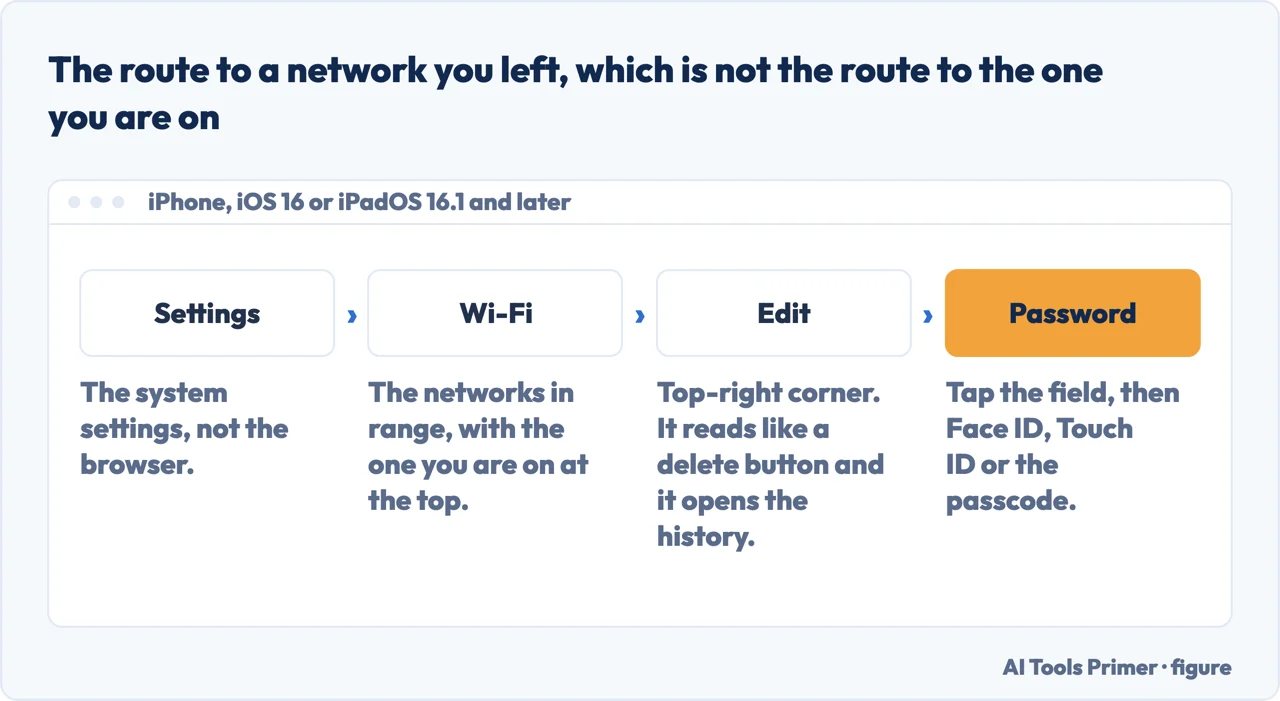
The Apple half has a detail worth pulling out, because it is the difference between this working and not. The password of your current network is behind the Info button. The passwords of every other network you have ever joined are behind Edit, in the top-right corner of the Wi-Fi screen — a word that sounds like it is there to delete things, and which in fact unlocks the whole history once you authenticate. That is the route for the office you left, the flat you moved out of, or the hotel you are going back to.
The route for the office you left and the hotel you are going back to. It is not the route to the network you are on. Figure drawn by AI Tools Primer.
Since iOS 18 there is a second door to the same list: the Passwords app has a Wi-Fi section, and Apple documents finding, copying and sharing network passwords from there. Whether that or the Wi-Fi screen is quicker depends on which app you already have open, but the Passwords app is the one that lets you search by name rather than scroll.
The part of Microsoft’s instruction that solves the actual problem. After you reveal the
password, Windows offers a QR code, and the next line is the whole answer for getting a visitor
online: “On another device, scan the QR code to connect if the device supports it, or connect
to Wi-Fi as you normally would and enter your Wi-Fi password when prompted.”
A camera pointed at a screen, and nobody has read a password aloud, spelled a character twice, or
written it on the back of an envelope that stays on the fridge for two years.
Apple has its own version of the same idea, and it is genuinely elegant when it works: the other person taps the network name on their phone, a prompt appears on yours, you tap Share Password, and the password is never seen by anybody. When it does not work, the reason is a condition that is not met — and Apple sets out five of them under a heading called Before you begin.
Why the Share Password prompt does not appear — Apple’s own list
Both devices on the latest version of iOS, iPadOS or macOS.
Wi-Fi and Bluetooth on — both, on both devices. Nothing about sharing a Wi-Fi password
suggests Bluetooth is involved, and Apple’s list of conditions is where it is stated.
Each person signed in to their Apple Account.
Each person has the other’s Apple Account email or phone number saved in Contacts.
Not their usual number — the one attached to their Apple Account.
Personal Hotspot off on either device, and the two kept close together.
The fourth of those is the strictest, and the easiest to have wrong without knowing. Sharing depends on the two devices recognising each other as contacts, and specifically on the address or number attached to the other person’s Apple Account being in your Contacts. A colleague saved under a work mobile they do not use for their Apple Account leaves that condition unmet, and the prompt simply does not appear. Apple’s own fallback is the honest one: “have the other person enter the password manually.”
Two things worth saying about the password itself once you have it. It is what any device needs in order to join the network — which is the reason to prefer the QR code or the share prompt when you are handing it to a visitor, and the reason to change it rather than reveal it if you are not sure who has it. And a password you can read off your own phone is a password anybody holding your unlocked phone can read too, which is an argument for the passcode being a real one.
The guides below take it four ways: the phone, the computer, handing it to somebody else without saying it out loud, and the case where none of this applies because the network is not yours.
Two lists in two places: the network you are standing in, and every network you have ever joined. The second one is behind a button that does not look like it.
The other half of this question, answered honestly. There is no route on this guide to a network you have not joined, and the pages that promise one are selling something.
Not covered here. It will not tell you how to get on to somebody else’s network. Every documented route here starts from a device that has already joined, and the tools sold against the other half of this question do not do what they say.
It will not suggest an app for this. Both Apple and Microsoft show the password themselves, behind an authentication step, and anything that offers to do it for you is asking for more access than the job needs.
And it will not treat the password as a small thing. It is what lets a device join the network at all, which is why two of the guides above are about handing over something else instead. What holds instead is simple: the routes on both systems and the five conditions for sharing are quoted from Apple’s and Microsoft’s own documentation.
Sources
Apple Support — Find your saved Wi-Fi passwords on iPhone or iPad (the iOS 16 and iPadOS 16.1 requirement, the route for the current network, the Edit button for previously joined networks and the lock icon, and the Passwords app in iOS 18). Published date given on the page: 27 May 2026 — support.apple.com, read 22 August 2026.
Apple Support — How to share your Wi-Fi password from your iPhone or iPad (the five conditions, including Bluetooth, the Apple Account, the Contacts requirement and Personal Hotspot, and the fallback of entering it manually). Published date given on the page: 17 March 2026 — support.apple.com, read 22 August 2026.
Microsoft Support — Connect to a Wi-Fi network in Windows, section Find your Wi-Fi network password in Windows (the statement that it is found on a PC that has connected to the network, the Properties and Manage known networks routes, and the QR code offered alongside) — support.microsoft.com, read 6 September 2026.
AG
Written by Alberto Gulotta
Founder and editor of AI Tools Primer, writing from Palermo, Italy. Thirty-five years of
taking computers apart, starting with a Commodore 64 — the long version is on the
about page.
Written on 22 August 2026 · last checked 23 September 2026.
§
Independence and limits
No affiliate links and no paid placements anywhere on this site. Nobody pays to appear here,
and no company has seen this page before you did.
This is general information, not professional advice. Where a page touches money, health,
safety or the law, it names its source and the date it was read — and your situation may
still differ. See the privacy page and the
cookie policy.