iPhone or iPad
Apple’s steps- Settings → Wi-Fi.
- Turn Wi-Fi on. “Your device automatically searches for available Wi-Fi networks.”
- Tap the network’s name. “You might be asked to enter the network’s password first, or agree to terms and conditions.”

Software · guide
By Alberto Gulotta · Updated · 10 min read
At home this is a few steps: open the settings, pick the network, type the password. The other case is a hotel, an airport or a café, where the phone can join the network and still not load a page until its login page has been completed.
iPhone or iPad
Apple’s stepsWindows 11
Microsoft’s stepsOn Windows 10, Microsoft’s steps start from the Network icon on the taskbar and end with a Yes or No on whether other PCs and devices on the network can discover yours.
What each system shows on screen. Apple: “Look for the blue checkmark next to the network name, and the Wi-Fi icon in the upper corner of your screen. This means you’re successfully connected.” Microsoft’s Windows 11 steps describe the opposite signal: “the Disconnected icon appears when you’re not connected”. If the network you expect is not listed at all, Microsoft’s Windows 11 steps name the control for it: “you can manually start a new Wi-Fi scan by selecting the Refresh network list”.
For a home or an office network that is the whole of it: pick the name, type the password, and check what the screen shows. For a password you do not have, Apple’s advice is to “contact your network administrator”; Microsoft’s page shows how to read a saved password on a Windows PC that has already connected to the network.
One small convenience is worth knowing because it removes the typing entirely. Microsoft, for Windows 11: “On Windows devices that have a camera, you can use it to scan a QR code to quickly connect to a Wi-Fi network without needing to manually enter network details.” It adds where these turn up — “in public places like coffee shops” — or on another Windows device.
Which brings us to the case this page exists for.
“Captive networks are public networks that you subscribe to and pay for. They’re also called ‘subscription’ or ‘Wi-Fi Hotspot’ networks. You can find these networks in coffee shops, internet cafes, hotels, airports…”
This is where the simple version stops working, and it has a name. Joining the network and reaching the internet are two separate events — the phone connects, and then a login screen has to appear and be dealt with. Apple’s instruction is patient: “Tap the name of the network, then wait for a login screen to appear.” And a warning worth having before a holiday: “When you use captive Wi-Fi networks, fees and other charges might apply.”
The distinction in that box is the thing to hold on to. Being connected to the network is not the same as being on the internet. On a captive network the connection succeeds first, and a page then has to appear asking for a user name and password, an email address, or a tick on some terms. When nothing loads, the connection may not have failed: the login may not have happened yet.
Apple also gives another route: “tap the More Info button next to the network’s name, then tap Join Network.”
The three options that look alike
If you joined through the More Info button and the captive network then says it has no internet, Apple offers three options that do quite different things.
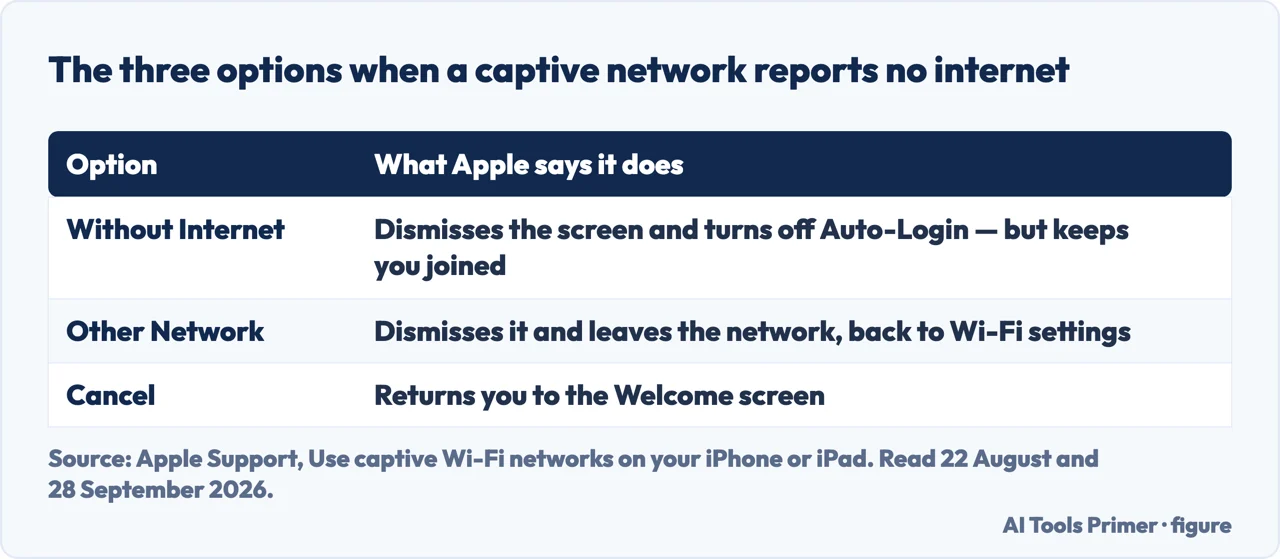
One more Cancel matters, the one on the login page itself: “When you tap Cancel on the login screen, you disassociate the device from the captive Wi-Fi network.”
There is a matching setting for the network you have already used once and want back automatically. Apple: your devices “can remember network and login information so that you can automatically reconnect to that network when you’re in range” — and if that is not happening, tap More Info beside the name and “make sure that Auto-Join is on”.
What this page will not do is tell you which public network is safe to use. That is a different question. The guides on HTTP and HTTPS and on private DNS cover part of it, and Microsoft documents one protection on the device itself, for places such as shopping malls: random hardware addresses, which make it “harder for people to track you when your device scans for networks and connects”.
Nor will it help with a network whose password you do not have, beyond asking the administrator or reading the password on a PC already connected.
The guides below take it three ways: passwords and pairing, a shared network, and a connection that does not work.
Three ways in. If you are in a café and nothing loads, take the second.
Pairing headphones, finding and changing a Wi-Fi password, and scanning a QR code.
HTTPS, private browsing and private DNS: what each one covers.
Wi-Fi that will not work, a slow connection, and resetting network settings on an iPhone.
Not covered here. It will not tell you a public network is safe. How you joined it says nothing about that.
It will not recover a password you were not given. Apple says to contact the network administrator.
And it will not treat “connected” as “working”: on a captive network, Apple’s steps put a login between the two. What holds instead is simple: every step and every warning about a café login screen is Apple’s or Microsoft’s own, and this page adds no shortcut of its own.
Written by Alberto Gulotta
Founder and editor of AI Tools Primer, writing from Palermo, Italy. Thirty-five years of taking computers apart, starting with a Commodore 64 — the long version is on the about page.
Something wrong on this page? Write to aitoolsprimer@gmail.com and it gets fixed.
Written on 22 August 2026 · last checked 30 September 2026.
Independence and limits
No affiliate links and no paid placements anywhere on this site. Nobody pays to appear here, and no company has seen this page before you did.
This is general information, not professional advice. Where a page touches money, health, safety or the law, it names its source and the date it was read — and your situation may still differ. See the privacy page and the cookie policy.