
Software · guide
How to scan a QR code on computer, without uploading it
By Alberto Gulotta · Updated · 8 min read
People search how to scan a qr code on computer in one of two situations: the code is on the screen in front of them and pointing a phone at their own monitor feels absurd, or the code is on paper and the phone is not to hand. Both have straightforward answers, and the first page of Google gives a worse one.
What almost every result for this question asks you to do
Upload the image to their website. Of the eight results on the first page today, the top one is an online scanner, the second is a QR code company, the third is a browser extension, and two others are forum threads asking browser makers to build the feature in.
Think about what uploading means here. The entire risk of a QR code is that the link inside it is hidden from you. The proposed solution is to hand that hidden link, and the image containing it, to a third party you found on Google — and then trust their report of what it says. That is a strange trade for a task your own computer can do.
The ways that do not involve uploading anything
In order of how little you have to install.
- Windows: the Camera app, already installed Microsoft lists it plainly among the app’s tasks: “Scan codes, including QR Codes and barcodes”, alongside scanning documents and whiteboards. Open Start, type Camera, and hold the code up to the webcam. Nothing leaves the machine. Microsoft Support, read 21 August 2026
- Any computer: point your phone at the screen Obvious once said, and the fastest route when the code is displayed on your monitor. The iPhone Camera shows the link without opening it, which is exactly the pause you want. Reduce the screen brightness slightly if it will not read — a bright screen photographs badly.
- A browser extension Works, and adds a permanent piece of software with access to what you browse in order to solve an occasional problem. Reasonable if you scan codes daily; disproportionate if you do it twice a year.
- An online scanner Last, and only for a code you already know is harmless — a ticket of your own, a Wi-Fi code from your own router. Never for one that arrived unexpectedly, which is the case where the answer matters.
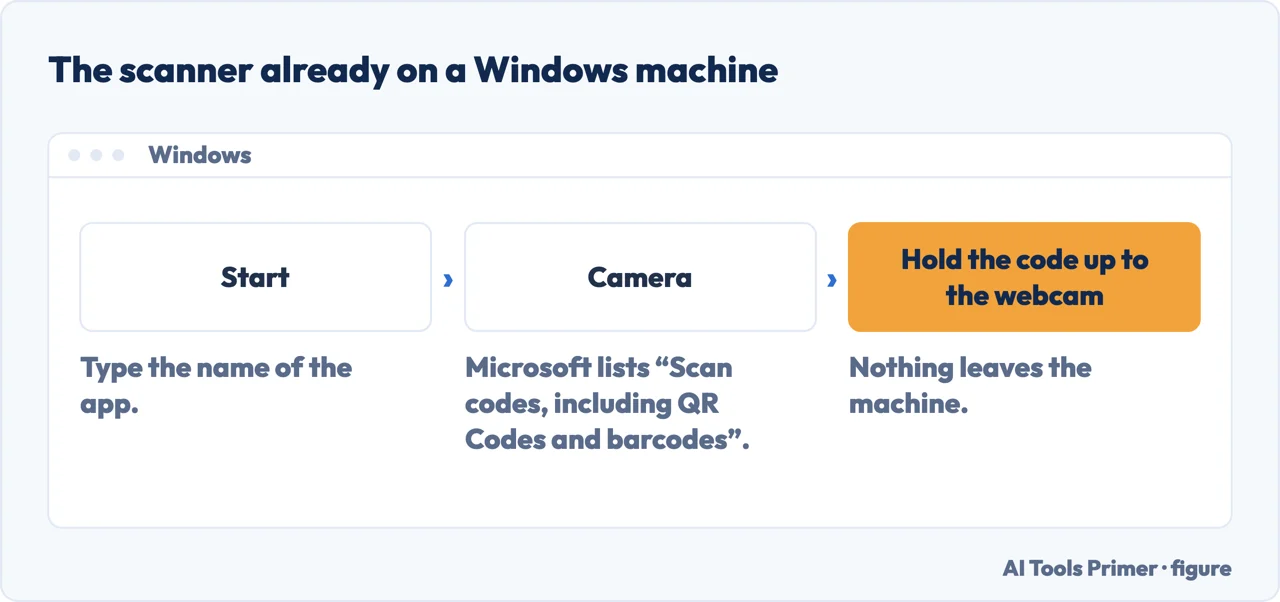
The Windows answer is the interesting one, because almost nobody knows it is there. The Camera app is not only for taking photographs — Microsoft lists code scanning as one of five things it does, next to scanning documents and whiteboards. If your machine has a webcam, you already have a QR scanner, and it works on anything you can hold up to it.
On a Mac we could not find a documented built-in equivalent, and rather than assert one either way, we will say what we checked: Apple documents QR scanning for iPhone and iPad in the iPhone User Guide, and we found no equivalent instruction for macOS. If you are on a Mac, the phone-at-the-screen route is the one that needs nothing installed.
Now the part that survives whichever method you used. Reading a QR code gives you a link. It does not tell you whether the link is safe, and the whole reason a code can be dangerous is that the address is hidden until you decode it. The US Federal Trade Commission puts the check plainly: “If you see a QR code in an unexpected place, inspect the URL before you open it. If it looks like a URL you recognize, make sure it’s not spoofed — look for misspellings or a switched letter.”
Read the domain — the part immediately before the first single slash — and nothing else. Everything after it can be made to say whatever is reassuring, and that is precisely what it is for.
The FTC also gives the rule that matters most on a computer, where codes usually arrive in messages rather than on parking meters: “Don’t scan a QR code in an email or text message you weren’t expecting — especially if it urges you to act immediately.” The alert lists the standard pretexts — a package that could not be delivered, a problem with your account, suspicious activity noticed — and every one of them is built on hurry.
A note on the codes that are supposed to be there. Plenty of legitimate services use QR codes on a screen: signing into an app on your phone, adding an account to an authenticator, pairing a device. Those are fine, and they share a property worth noticing — you started the process. You clicked something, and the code appeared as a result. A code you did not ask for is the category that deserves the check.
And the one thing not to do, which the upload sites make easy: do not decode a suspicious code and then open the link anyway to see what happens. Decoding is the safe half; visiting is the part that can cost you something. If the address does not resolve to somewhere you recognise, the answer is to stop, not to look.
The Windows capability is quoted from Microsoft Support and the security advice from a Federal Trade Commission consumer alert, each read on 21 August 2026. Where we did not find documentation — the macOS case — the page says so rather than filling the gap.
Where to start
Four ways in.
- “The code is on my screen right now.”
- Second option above — then before you open it
- “It arrived in an email.”
- Read before you open it
- “I want to do it on my phone instead.”
- That is on a phone
- “I already opened it.”
- Go to if it went wrong
Before you open it
Decoding a code and following it are two different acts, and only one of them can cost you anything.
On a phone
The device the codes were designed for, where the built-in behaviour already includes the pause you need.
If it went wrong
Everybody eventually follows a link they should not have. What limits the damage is set up beforehand.
The machine itself
The Camera app is one of several things already installed that people go looking online for.
Not covered here. It will not send you to an online scanner. Uploading the image hands a stranger the hidden link that was the only thing worth worrying about.
It will not recommend a browser extension for an occasional task. Permanent access to your browsing is a large price for something you do twice a year.
And it will not claim macOS has a built-in scanner. We looked and did not find documentation for one, and saying so is more useful than guessing. What holds instead is simple: the Windows capability is quoted from Microsoft Support and the security advice from a Federal Trade Commission alert, read on the dates this page names.
Sources
- Microsoft Support — How to use the Windows Camera app, which lists scanning codes, including QR Codes and barcodes, among the app’s functions — support.microsoft.com, read 21 August 2026.
- Federal Trade Commission — Scammers hide harmful links in QR codes to steal your information, consumer alert published December 2023 — consumer.ftc.gov, read 21 August 2026.
Written by Alberto Gulotta
Founder and editor of AI Tools Primer, writing from Palermo, Italy. Thirty-five years of taking computers apart, starting with a Commodore 64 — the long version is on the about page.
Something wrong on this page? Write to aitoolsprimer@gmail.com and it gets fixed.
Written on 21 August 2026 · last checked 23 September 2026.
Independence and limits
No affiliate links and no paid placements anywhere on this site. Nobody pays to appear here, and no company has seen this page before you did.
This is general information, not professional advice. Where a page touches money, health, safety or the law, it names its source and the date it was read — and your situation may still differ. See the privacy page and the cookie policy.