
Images · guide
How to resize a photo on iPhone, without an app
By Alberto Gulotta · Updated · 9 min read
Search how to resize a photo on iphone and you will be offered a dozen apps before anybody asks what you are trying to do. That question is worth answering first, because the word covers three different jobs and the phone already handles two of them.
“Resize” means three different things
And an iPhone does two of them properly, without any app.
Almost everyone arriving at this question wants the first or the second. Working out which one takes five seconds and saves you downloading an app you do not need.
Cropping, in Apple’s own steps
- “Go to the Photos app on your iPhone.”
- “Tap a photo or video to open it”, then tap the edit button.
- “Crop manually: Drag the rectangle corners to enclose the area you want to keep in the image, or pinch open or closed.”
- Or “Crop to a standard preset ratio”, choosing “an option such as Square, Wallpaper, 9:16, or 5:7”.
- “Tap Done to save your edits.”
The detail that traps people. Apple: “When you drag a corner, the crop tool keeps the original aspect ratio of the photo. To change the aspect ratio, tap the lock at the top-right corner of the photo to unlock the aspect ratio.” If dragging a corner refuses to give you the shape you want, that lock is why — and nothing else on the screen explains it.
There is also a faster route Apple documents for when you are simply looking at a picture: “pinch the photo to zoom in. When the photo appears as you want it cropped, tap Crop in the top-right corner of the screen.”
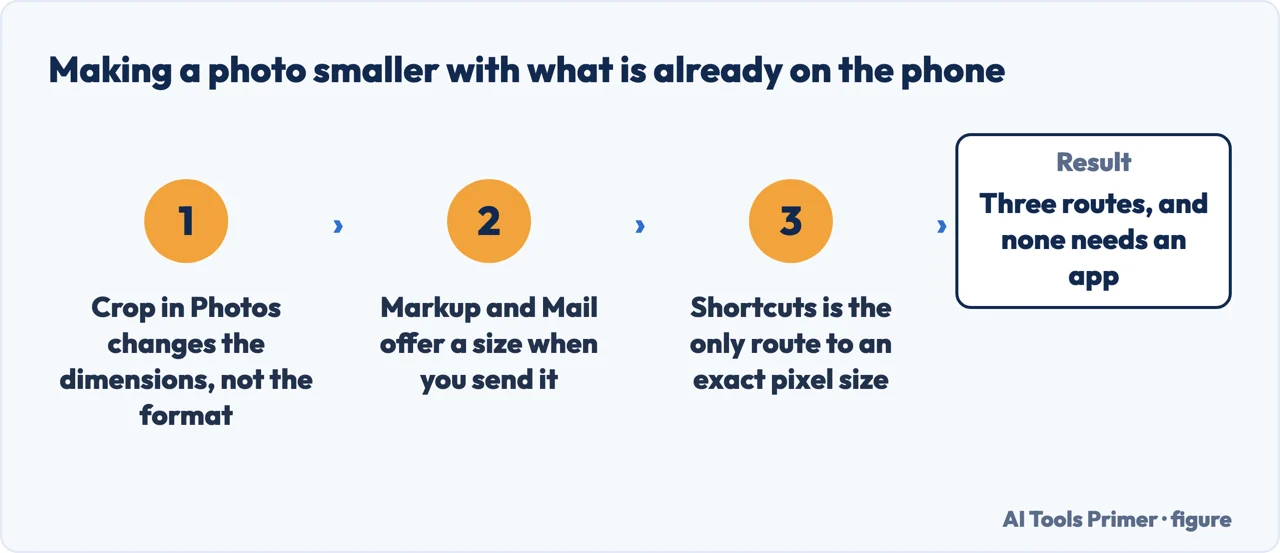
The second job — making the file smaller rather than differently shaped — is not in Photos at all, which is why people conclude the phone cannot do it. It is in the Preview app, which now ships on iPhone. Apple: “You can export a PDF or image as a HEIC, JPEG, JPEG-2000, PDF, PNG, or TIFF file. You can also compress the file”, and the export sheet has a size control: “Drag the slider left for a smaller file size or right for higher quality.” That is the answer to an upload box complaining about megabytes.
Nothing you do here is permanent, and that changes how you should approach it. Apple: “To undo edits after you save, open the photo or video, tap, then tap Revert.” The original is kept. Cropping hard, regretting it and going back costs nothing.
The same feature has a second edge worth knowing. “When you use iCloud Photos, any edits you make to your photos and videos are saved across all your devices.” Convenient when you meant it — surprising when you cropped a photo on your phone and someone opens the album on the family iPad and finds it cropped there too.
Which leaves the third job. If a form demands an image of exact pixel dimensions — a passport photo specification, a forum avatar, a system that rejects anything but 800 by 600 — neither built-in app will ask you for those numbers, and no amount of pinching will produce them reliably. That is the one case on this guide where something else is genuinely needed, and the guides below say what to look for rather than naming a favourite.
The number is not yours to choose
- What the form wants. A UK digital passport photo must be “at least 600 pixels wide and 750 pixels tall” and “at least 50KB and no more than 10MB”. The same government’s photo for a visa application must be “at least 50KB and no more than 6MB” and “a jpg or jpeg file”. One government, two services, four megabytes apart — which is why no app can tell you the right size, and the form always can.
- What the email adds on top. Microsoft, documenting message size limits: “Base64 encoding increases the size of the message by approximately 33%, so the value you specify should be approximately 33% larger than the actual message size you want enforced.” Its own worked example: “if you specify a maximum message size value of 64 MB, you can expect a realistic maximum message size of approximately 48 MB.” What travels is not the file as it sits on the phone, so a photo comfortably under a stated ceiling can still come back.
Read the requirement before opening anything. Both of those are jobs the phone already does — a pixel guide is a crop, a megabyte ceiling is the Preview slider — but only once you know which number you are aiming at. Guessing produces a file that is smaller, tidier and still refused.
One consequence of those two numbers is an order of operations, and the two steps are not interchangeable. Crop first, compress second. Cropping removes pixels, and pixels are what the file is made of, so a crop has already made the file smaller before the slider is touched — whereas a file squeezed to just under a ceiling and cropped afterwards has thrown away quality it never needed to lose. The pixel guide is also the harder of the two to satisfy late: once a photo is below 600 pixels wide, no slider puts them back.
And one requirement on that list cuts against everything else here. Among what a UK digital passport photo must be, GOV.UK lists “unaltered by computer software”, and for a visa it is spelled out: “Your photo must not be altered by computer software or through other means (for example, by adding a filter).” Where that line falls between framing a photo and improving one is not stated, and this page will not invent the boundary — on an identity document the strict reading is the safe one, which means getting the framing right in the camera rather than in an editor.
The phrasings people use split along the same lines. How to resize an image on iphone and resize photo iphone are the general version. How to adjust photo size on iphone tends to come from somebody thinking about file size rather than shape. And how to resize a photo for printing on iphone or for wallpaper are the two specific destinations with their own rules — printing cares about resolution, wallpaper cares about the shape of your screen, and Apple’s preset list includes a Wallpaper option precisely because of the second.
Where to start
Four ways in.
- “The file is too big to upload.”
- Go to making it smaller
- “It has to be exact pixel dimensions.”
- That is exact sizes
Making it smaller
The upload box problem. Fewer pixels, harder compression, or a different format — three levers, and they are not equivalent.
Exact sizes
The genuine gap. When a specification names numbers, the built-in tools stop being enough — and this is the point at which installing something starts to look necessary.
Not covered here. It will not send you to an app store for a job the phone already does. Two of the three meanings of “resize” are built in, and the third is stated plainly as the exception.
It will not describe a step it has not read on Apple’s own page. Where the wording is Apple’s, it is in quotation marks with the date.
And it will not rank the resizing apps yet. That needs the same set of pictures — a photograph, a screenshot full of small text, a logo with a transparent background — through each of them, with what each app asks for in return set beside the result. What holds instead is simple: each step and limitation is Apple’s own wording, with the passport and visa requirements quoted from GOV.UK and the encoding overhead from Microsoft.
More on photographs
Other guides on photographs and their formats, in no particular order.
- The same job, in the other places it comes up
- WebP to JPG: why you keep meeting it
- PNG to JPG: what the conversion costs you
- How to convert HEIC to JPG, and how to stop needing to
- How to remove metadata from photos — and what stays behind
- How to recover deleted photos from iPhone, and the clock
Sources
- Apple Support — Crop, rotate, flip, or straighten photos and videos on iPhone, including the aspect ratio lock and Revert — support.apple.com, read 21 August 2026.
- Apple Support — Export or compress PDFs and images in Preview on iPhone, including the file size slider — support.apple.com, read 16 September 2026.
- GOV.UK, Get a passport photo: digital photos (that a digital photo must be clear and in focus, in colour, unaltered by computer software, at least 600 pixels wide and 750 pixels tall, and at least 50KB and no more than 10MB) — www.gov.uk, read 26 August 2026.
- GOV.UK, Take a photo of your face for a visa application or permission (that the photo must be at least 600 pixels wide and 750 pixels tall, at least 50KB and no more than 6MB, a jpg or jpeg file and vertically orientated, and that it must not be altered by computer software or through other means, for example by adding a filter) — www.gov.uk, read 26 August 2026.
- Microsoft, Message size and recipient limits in Exchange Server — Microsoft Learn (that Base64 encoding increases the size of a message by approximately 33%, so a configured limit should be set approximately 33% larger than the message size actually intended, with the worked example that a 64 MB maximum message size gives a realistic maximum of approximately 48 MB) — learn.microsoft.com, read 26 August 2026.
Written by Alberto Gulotta
Founder and editor of AI Tools Primer, writing from Palermo, Italy. Thirty-five years of taking computers apart, starting with a Commodore 64 — the long version is on the about page.
Something wrong on this page? Write to aitoolsprimer@gmail.com and it gets fixed.
Written on 21 August 2026 · last checked 23 September 2026.
Independence and limits
No affiliate links and no paid placements anywhere on this site. Nobody pays to appear here, and no company has seen this page before you did.
This is general information, not professional advice. Where a page touches money, health, safety or the law, it names its source and the date it was read — and your situation may still differ. See the privacy page and the cookie policy.