
Docs · guide
How to scan a document on iPhone, and on Android
By Alberto Gulotta · Updated · 7 min read
How to scan a document on iphone is asked by people who have already tried the obvious thing — photographing the page — and been sent back to do it again. Both phones have a real document scanner built in, neither is in an app called Scanner, and neither costs anything.
iPhone and iPad
The Notes app
- Open Notes and start or open a note.
- Tap the camera button, then Scan Documents.
- Hold the page in frame. Apple documents an automatic capture: keep the phone steady and it takes the shot itself when it detects the edges of the page.
- Adjust the corners if it got them wrong, scan further pages, then finish.
Apple’s documentation is explicit about the result: the document is saved as a PDF in the note. Not a photograph — a PDF.
Android
The Google Drive app
- “Open the Google Drive app”.
- “At the bottom right, tap Camera”, then “Point your device’s camera at a document”.
- Adjust it: Google lists “Crop & Rotate”, “Filter” and “Clean”, plus Add for another page and Retake.
- “Tap Done”, name the file, then save.
And the step nobody expects to be a choice: “To save the scanned document in a specific format, select either .pdf or .jpg.”
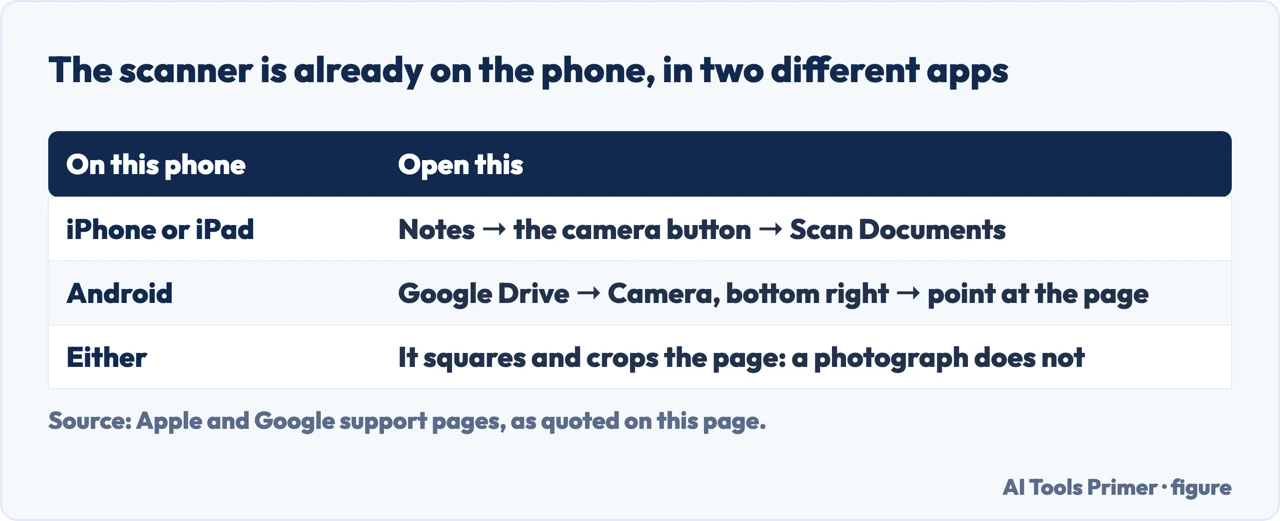
Nothing needs installing on either. On an iPhone the scanner lives inside Notes, which is why people who look for a scanning app never find it. On Android it lives inside Google Drive, for the same reason.
Tapping the camera button in a note offers Scan Text and Scan Documents, one above the other, and the difference is not cosmetic. Scan Documents ends with a picture of the page: Apple’s own last line is “the document is saved as a PDF in the note”. Scan Text ends with words you can edit — “in supported languages, you can insert scanned text using the camera”, and the step that does it is “drag or use grab points to select text, then tap Insert”.
So the right choice depends on what happens next. If the page has to be sent — a signed form, a receipt you will need again later, a passport page — the PDF is the answer, because it stays a faithful image of the original. If the page has to be reused — a paragraph to quote, an address to paste, a serial number to type into a form — Scan Text skips the whole business of scanning and then re-typing, and puts the characters straight into the note.
Apple attaches one condition to the second and none to the first: Scan Text works “in supported languages”, and it links the list rather than promising every alphabet. Scan Documents has no such restriction — a photograph of a page is a photograph whatever is written on it.
Why this beats photographing the page
- Taken at an angle, so the page is a trapezium
- Your shadow across one corner
- The table, your sleeve, the guide
- Several megabytes, in colour, per page
- One file per page, in no particular order
- Corners detected and the page squared up
- Filters that flatten shadow and paper colour
- Cropped to the document and nothing else
- Far smaller, which matters at the upload box
- All pages in one PDF, in order
Same camera, same lighting, same thirty seconds. The difference is entirely in what the software does with the frame — and it is the difference between a document somebody accepts and one they ask you to send again. Almost every rejected upload described as “the photo was too big” or “they said it was unreadable” started life as a photograph rather than a scan.
That last point is the whole guide, really. The searches around this one — scan documents, how to scan with my phone, how do i scan with my phone, how to scan a document with phone — are almost all from somebody holding a phone and a piece of paper, believing they need something they do not have. They already have it.
One practical note before the guides below, because it is where scans go wrong most often. Put the page on something plain and dark rather than a patterned tablecloth, and stand so the light is behind you rather than behind the page. Edge detection works by finding the boundary of the paper; a busy background and a shadow across the corner are the two things that defeat it. When the automatic capture refuses to fire, that is almost always why — and moving one step to the side fixes more attempts than any setting.
Where to start
Four ways in.
- “I have an iPhone.”
- It is above. Then after the scan
- “I have an Android phone.”
- Also above. Then after the scan
- “It came out crooked or unreadable.”
- Go to getting a clean scan
- “It has to be signed.”
- That is signing and sending
Getting a clean scan
The difference between a scan somebody accepts and one they send back is almost never the phone. It is the surface, the light and the angle.
After the scan
What you have now is a PDF on a phone. Getting it where it needs to go, at the size it needs to be, is the rest of the job.
Signing and sending
The commonest reason a document is scanned at all: somebody needs it back, signed, today.
Not covered here. It will not recommend a scanning app for a job the phone already does. Both systems ship one, and both save straight to PDF.
It will not tell you a scan is as good as an original. Where a document has to be legible to a person who can reject it, the guide says what to check before sending.
And it will not rank the scanning apps yet. That verdict needs the same awkward documents — a creased receipt, a bound page, a passport, a form in faint blue ink — through each of them, with the results shown at the size they will actually be read. What holds instead is simple: the steps on this page are taken from Apple’s and Google’s own documentation.
Paper you will have to find again
Getting something off paper and into a file that still opens, is small enough to send, and counts when somebody asks for it.
- The same job, in the other places it comes up
- How to organize receipts, and how long to keep them
- How to sign a PDF, and whether it counts
- Compress PDF files: what actually shrinks
Sources
- Apple Support — Scan text and documents in Notes using the iPhone camera, including automatic capture and the note that the document is saved as a PDF — support.apple.com, read 21 August 2026.
- Google Drive Help — Scan documents with the Google Drive app, Android tab, including the crop, filter and clean options and the choice between .pdf and .jpg (the page serves different steps per platform, and the steps quoted here are the ones on the Android tab) — support.google.com, read 16 September 2026.
Written by Alberto Gulotta
Founder and editor of AI Tools Primer, writing from Palermo, Italy. Thirty-five years of taking computers apart, starting with a Commodore 64 — the long version is on the about page.
Something wrong on this page? Write to aitoolsprimer@gmail.com and it gets fixed.
Written on 21 August 2026 · last checked 5 September 2026.
Independence and limits
No affiliate links and no paid placements anywhere on this site. Nobody pays to appear here, and no company has seen this page before you did.
This is general information, not professional advice. Where a page touches money, health, safety or the law, it names its source and the date it was read — and your situation may still differ. See the privacy page and the cookie policy.