
Software · guide
How to fix printer offline, in the published order
By Alberto Gulotta · Updated · 11 min read
How to fix printer offline is worth starting with a distinction: Offline is a status Windows is reporting, not a place the printer has gone. Microsoft’s own framing is a printer that “appears as Offline even though it is powered on and connected”.
That framing matters because it changes what you are looking for. The printer is fine; the question is why the computer has stopped believing so. Microsoft publishes seven steps for that, in an order, and the order is more useful than the steps.
Microsoft’s general troubleshooting, in Microsoft’s order
Seven steps. The order is the useful part — reinstalling is sixth, not first.
- Unplug and restart the printer.
“Turn off your printer and unplug it, wait 30 seconds, plug your printer back in, and then turn the printer back on.” - Check it is on the same Wi-Fi network as your device.
Microsoft points at the printer’s own built-in menu, or its manual. - Set it as the default printer.
Settings → Bluetooth & devices → Printers & scanners → select it → Set as default. - Check the print queue.
Open print queue, then the ellipsis, then Cancel all if anything is pending. - Restart the Print Spooler service.
- Remove the printer and add it again.
Printers & scanners → select → Remove → Yes. Then Add device. - Restart the PC.
“To refresh the services and components necessary for your device to communicate with your printer.”
The thing to notice is what sits at six. Removing and reinstalling the printer is the second-to-last thing Microsoft suggests, after the network, the default, the queue and the spooler — and it is the first thing most advice reaches for. Reinstalling is slow, and it works by accident: it happens to reset several of the earlier steps at once, which is why it sometimes works and why it teaches you nothing when it does.
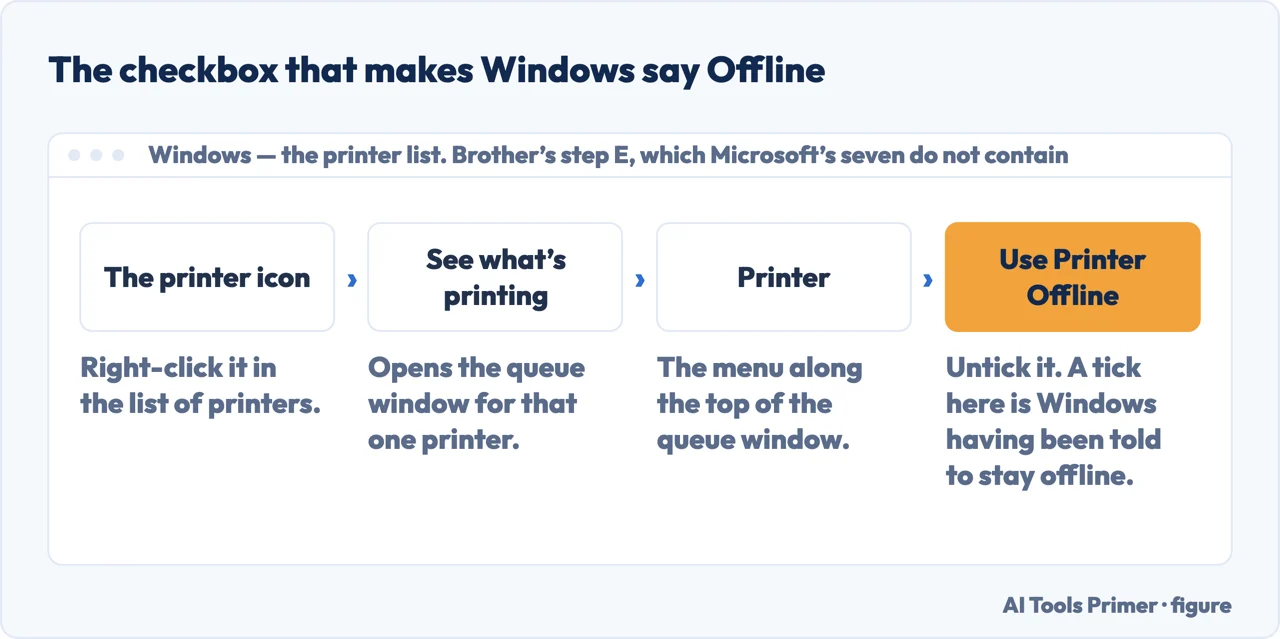
Microsoft’s seven are general, and general is the point of them. But a printer manufacturer publishes its own list for the same status, and two of its steps name causes that are not on Microsoft’s list at all. Brother’s step E is the first, and it is the shortest fix on this page: Offline can be a setting rather than a symptom. Its route is to right-click the printer, then “See what’s printing > Printer > Use Printer Offline (removes the checkmark)”. A tick there is Windows having been told to stay offline, and nothing in the seven steps unticks it.
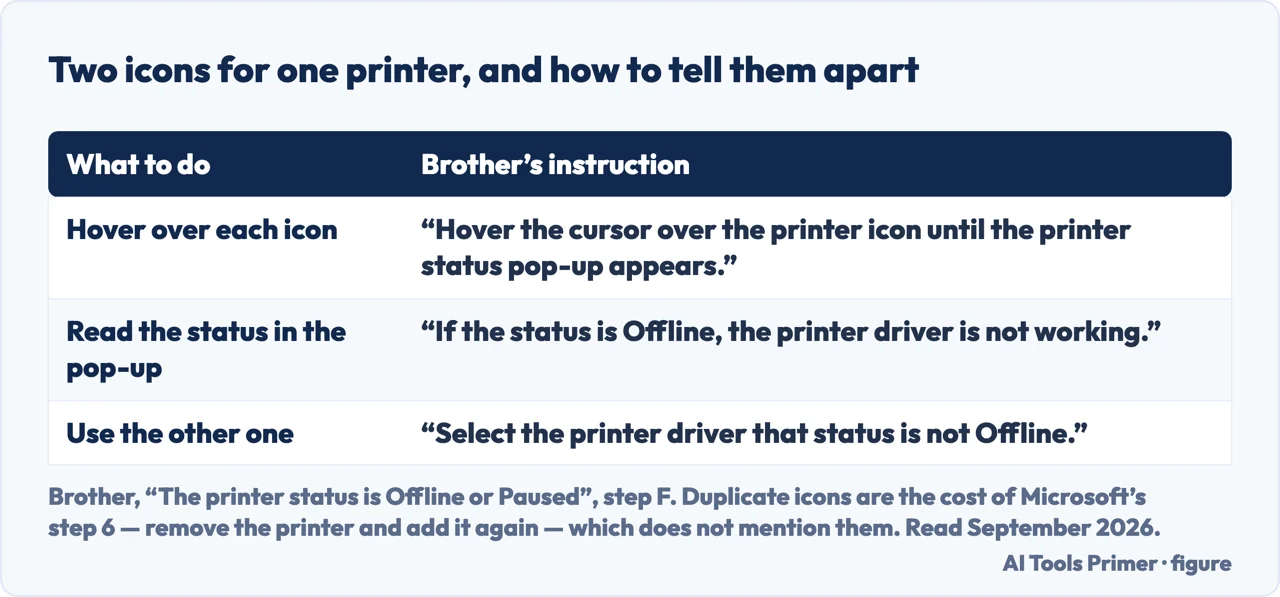
The second is the cost of step six. Removing a printer and adding it again — or moving the cable to a different USB port — can leave two icons for one machine, and Brother is the one who says how to choose between them: “Hover the cursor over the printer icon until the printer status pop-up appears. If the status is Offline, the printer driver is not working. Select the printer driver that status is not Offline.” Microsoft’s step six does not mention that this can happen, which is the sort of thing you find out while it is happening.
“If you don’t see the Set as default option, the Let Windows manage my default printer option may be selected. You’ll need to turn that off before you can choose a default printer manually.”
Step three has a trapdoor, and this is it. The option you were told to click is missing, because a different setting is holding it. Nothing on screen explains the connection — the button is simply not there — which is exactly the kind of dead end that makes people skip to reinstalling. Microsoft prints the explanation; almost nothing that copies these steps carries it with them.
Step five, in full, because the name is unhelpful. The Print
Spooler is the service that holds the queue. Microsoft’s route: “Go to Search in the
taskbar, type services, and then select Services in the list of results.
Scroll down to the Print Spooler service, select and hold (right-click) it, and select
Restart.” It comes fifth rather than first for a reason — it clears the machinery around
the queue, which only helps once you have established that the printer, the network and the
default are all as they should be.
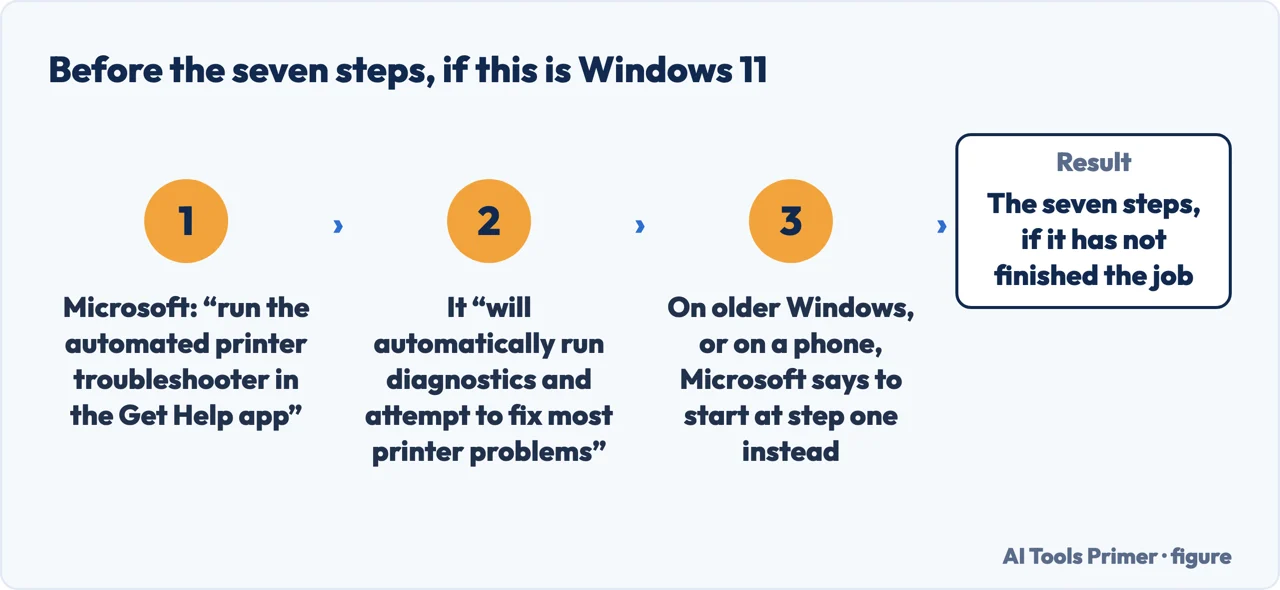
Before any of the seven, Windows 11 has a shortcut worth taking. Microsoft’s advice is to “start by running the automated printer troubleshooter in the Get Help app”, which “will automatically run diagnostics and attempt to fix most printer problems”. On older Windows, or on a mobile device, Microsoft says to skip straight to the seven steps above.
Microsoft publishes a note that has nothing to do with the printer: “Microsoft is aware of some ARM PCs not being able to add or install a printer when using an installer provided by the printer manufacturer” — whether that installer came in the box or from the manufacturer’s website.
The instruction is to skip the manufacturer’s installer and add the printer through Windows instead, unless the manufacturer says otherwise. And to find out whether this applies: Settings → System → About, then under Device specifications, an ARM machine lists “ARM based processor” next to System type. Microsoft names Copilot+ PCs as an example.
One thing this page will not do is rank the seven by how often they work. Microsoft publishes an order, not a frequency, and inventing a hit rate for each step would be dressing a guess as a statistic.
It will not send you to the printer manufacturer’s support site as a first move either — except in the ARM case above, where Microsoft explicitly says the opposite: use Windows rather than the manufacturer’s installer.
And it will not recommend driver-updating software. The steps above are Microsoft’s, they are free, and a tool that offers to do them for you is selling the order rather than the answer.
Where to start
Three ways in. If you are on Windows 11, take the first before anything else.
- “Just fix it.”
- The automated troubleshooter first — the seven steps
- “Set as default is missing.”
- A different setting is holding it — the hidden trapdoor
- “It is a new Copilot+ PC.”
- Skip the maker’s installer — if it is an arm pc
The seven steps
Power cycle, network, default, queue, spooler, reinstall, restart. Microsoft’s order, in which reinstalling comes sixth rather than first.
The hidden trapdoor
A setting that removes the button another step tells you to press, with nothing on screen to connect the two. Microsoft explains it; most copies of these steps do not.
If it is an ARM PC
Microsoft says some ARM machines cannot install a printer from the manufacturer’s own installer, and names Copilot+ PCs as an example.
Not covered here. It will not rank the steps by how often they work. Microsoft publishes an order rather than a frequency, and a made-up hit rate would look like data.
It will not point you at the printer manufacturer first. Microsoft’s own steps come first — and in the ARM case it says explicitly not to use the manufacturer’s installer.
And it will not recommend a driver updater. Everything above is free, published, and takes about ten minutes end to end. What holds instead is simple: the published order is Microsoft’s order, kept as published, and this page does not reshuffle it into something that sounds more clever.
The printer jobs
Everything that happens between pressing print and holding the page.
- The same job, in the other places it comes up
- Why is my printer not printing when the queue accepts it
- How to fix printer streaks, and which half to look in
- A printer test page proves one thing at a time
- How to set up a printer without the software in the box
Sources
- Microsoft, Troubleshooting offline printer problems in Windows — Microsoft Support, applies to Windows 11 and Windows 10 (the description of a printer that appears as Offline even though it is powered on and connected; the advice for Windows 11 users to start by running the automated printer troubleshooter in the Get Help app, which runs diagnostics and attempts to fix most printer problems, and for users of older Windows or a mobile device to skip to general troubleshooting; the seven general troubleshooting steps in order — turning the printer off, unplugging it, waiting 30 seconds, plugging it back in and turning it on; checking that the printer is connected to the same Wi-Fi network using the printer’s built-in menu or manual; setting the printer as default through Settings, Bluetooth & devices and Printers & scanners, with the note that if the Set as default option is not visible the “Let Windows manage my default printer” option may be selected and must be turned off first; checking the print queue through Open print queue and using the ellipsis to Cancel all pending jobs; restarting the Print Spooler service by searching for services in the taskbar, selecting Services, right-clicking Print Spooler and selecting Restart; removing the printer through Printers & scanners with Remove and Yes and then reinstalling it with Add device; and restarting the PC to refresh the services and components needed to communicate with the printer — together with the note that Microsoft is aware of some ARM PCs being unable to add or install a printer using an installer provided by the printer manufacturer, the instruction to add the printer through Windows instead unless the manufacturer gives different guidance, the naming of Copilot+ PCs as an example of an ARM PC, and the check under Settings, System, About and Device specifications where ARM devices list an ARM based processor next to System type) — support.microsoft.com, read 22 August 2026.
- Brother — “The printer status is Offline or Paused”, support FAQ for the HL-L2350DW (the lettered steps for Windows: step C, that if the check mark is not on the Brother machine you right-click its icon and select Set as default printer; step D, deleting all printer jobs through See what’s printing, Printer, Cancel All Documents; step E, that for a status of Offline you go to See what’s printing, Printer, Use Printer Offline to remove the checkmark, with Pause Printing as the equivalent for a status of Paused; and step F, that where a copy of the machine’s icon is listed you hover the cursor over each printer icon until the status pop-up appears, that a status of Offline means the printer driver is not working, and that you should select the printer driver whose status is not Offline) — support.brother.com, read 6 September 2026.
Written by Alberto Gulotta
Founder and editor of AI Tools Primer, writing from Palermo, Italy. Thirty-five years of taking computers apart, starting with a Commodore 64 — the long version is on the about page.
Something wrong on this page? Write to aitoolsprimer@gmail.com and it gets fixed.
Written on 22 August 2026 · last checked 23 September 2026.
Independence and limits
No affiliate links and no paid placements anywhere on this site. Nobody pays to appear here, and no company has seen this page before you did.
This is general information, not professional advice. Where a page touches money, health, safety or the law, it names its source and the date it was read — and your situation may still differ. See the privacy page and the cookie policy.