How to set up a printer is shorter than the box suggests, and both Microsoft and Apple say so on their own pages. A new printer arrives with a disc, or a card pointing at a download page, and starting there is the obvious move — it is also the fallback rather than the first step, in each company’s own words.
Microsoft: “Windows supports most printers out of the box so in most cases,
special printer drivers or software doesn’t need to be installed.”
Apple: “When you add a printer, macOS uses AirPrint to connect to the printer. With AirPrint, you can print without
installing an app, additional drivers, or other software that could compromise your
privacy.”
Two companies, two operating systems, the same instruction — and Apple attaches a reason to it
that goes beyond convenience. The disc in the box and the download on the manufacturer’s site
are the fallback, not the first step. Both vendors reach for them only when the printer turns
out not to be supported directly.
Why there is a route without the disc at all
AirPrint is Apple’s name for it and Windows has its own, but neither company invented the
thing underneath. It is a published standard, and the body that publishes it describes it as
“a PWG standard that allows personal computers and mobile devices to find and print to
networked and USB printers without using vendor-specific software”. On what that
means in practice: today’s printers of this kind work “without the need to
download and install driver software or configure print queues”.
And the number that decides whether this page applies to your printer:
“98% of all printers sold today support IPP/2.0 and DNS-SD” — the two
things the standard is built on. Worth reading with the source in view: the Printer Working
Group is an industry body whose members are the printer makers themselves, so that is their own
figure about their own products. It is still the only published one, and it names the clients
it covers: “Chrome OS, CUPS, Linux, macOS, Windows”.
Which is why the disc in the box is usually the wrong first move, rather than a
shortcut you are skipping. If the printer is recent, the operating system already knows how to
talk to it, and the manufacturer’s installer is adding software on top of a conversation
that would have happened anyway.
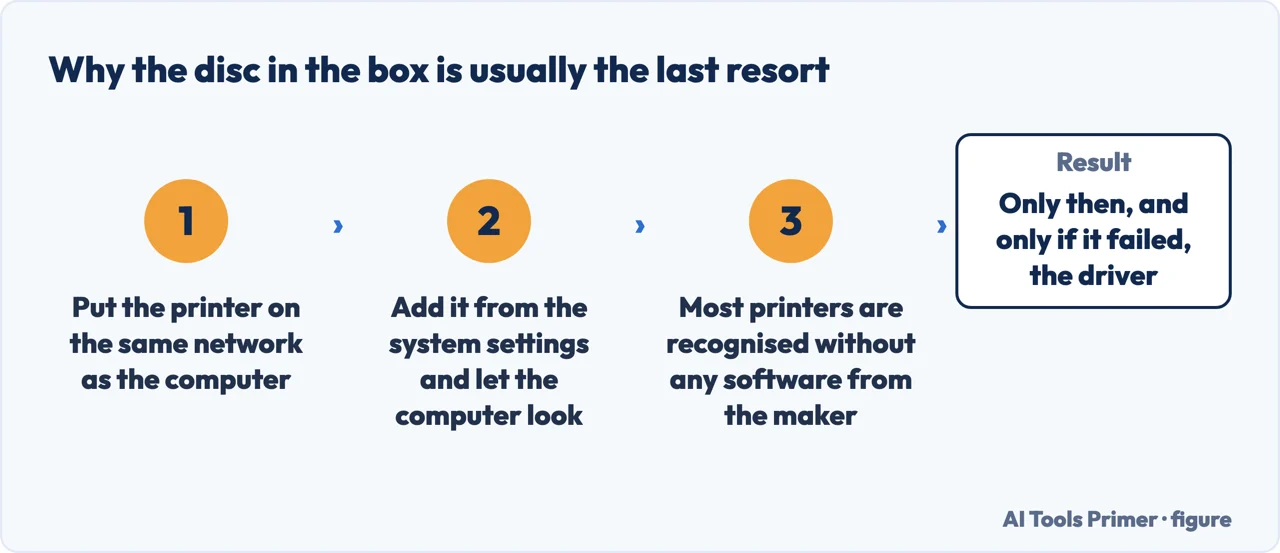
The disc in the box comes last, not first. Figure drawn by AI Tools Primer.
The practical consequence is worth stating plainly: plug it in, or put it on the Wi-Fi, and look before you install anything. If the printer appears, the job is done and the manufacturer’s software was never needed. If it does not, that software is still there and still an option.
Windows
Settings › Bluetooth & devices › Printers & scanners ›
Add a printer & scanner › Add device
Plugged in by cable, it usually needs none of this: Microsoft says a directly connected
printer “normally installs automatically”.
And a note worth having before you give up: “It might take a few minutes for the list
of printers to finish populating.”
Mac
System Settings › Printers & Scanners ›
Add Printer, Scanner, or Fax
And often nothing at all: “If your Mac and printer are already connected to the same Wi-Fi
network, the printer might be available to you without any setup.”
Apple also names a shortcut: open Print Center from Spotlight, then Printer › Add
Printer.
One caveat Microsoft publishes about its own newest machines, and it inverts the usual
advice. On some ARM PCs — the example given is Copilot+ PCs — a printer cannot be added
when using an installer provided by the printer manufacturer. Microsoft’s fix is to
ignore that installer and follow the Windows route instead.
To check whether a machine is one of them: Start › Settings › System › About, and under Device
specifications an ARM device “have ARM based processor listed next to System type”.
Microsoft adds the sensible caveat that if the printer manufacturer has different guidance, follow
theirs.
That ARM note is unusual enough to be worth reading twice. It is a manufacturer telling you that somebody else’s installer is the thing breaking the installation, on hardware the manufacturer sells. It is also dated, in the sense that it describes a situation Microsoft says it is aware of — so on a recent machine it is worth trying the Windows route first regardless, because that is the advice either way.
When the printer is on the network and still will not appear
It may not be on the network yet. Apple: “If your printer isn’t connected to the
network, you need to add it” — using the printer’s own instructions, not the computer’s.
The cable that sets up the wireless. The counter-intuitive one, in Apple’s words: “If
you have a Wi-Fi printer, you might need to connect the printer to your Mac with a USB
cable to set up Wi-Fi printing.”
Adding it by address instead. If it still will not appear, a network printer can be
added as an IP printer, provided it supports one of AirPrint, HP Jetdirect (Socket), LPD
or IPP. Apple’s warning about that route is short: “Some printers connected using these generic
protocols may offer limited features.”
The second item on that list is the one that sounds like a misprint. A cable, to set up wireless printing. Apple gives the step without a reason attached, and this guide is not going to invent one — what matters is that it is in the current instructions, so an instruction sheet telling you to plug in the printer first is not necessarily out of date.
One thing that is true on both systems and worth checking before any of this. Apple puts it under Before you begin: unpack the printer, install the ink or toner, add paper, turn it on, “and make sure it’s not displaying any errors”. A printer with a warning light is a printer that may be refusing to announce itself, and no amount of clicking Add Device on the computer will change that.
The guides below take it four ways: the software you probably do not need, the two routes, the printer that will not appear, and the machines where the usual advice is reversed.
Not covered here. It will not tell you to install the manufacturer’s software first. Microsoft and Apple both say it is usually unnecessary, and Microsoft names a case where it is the fault.
It will not treat a missing printer as a computer problem by default. Apple’s own list starts with the printer: powered, loaded, and showing no errors.
And it will not skip the cable step because it sounds obsolete. It is in Apple’s instructions, it is needed once, and it is how a printer with no keyboard learns your network. What holds instead is simple: the statement that drivers are usually unnecessary and the ARM caveat are quoted from Microsoft’s and Apple’s own documentation.
The printer jobs
Everything that happens between pressing print and holding the page.
Microsoft Support — Add or install a printer in Windows (the statement that a directly connected printer normally installs automatically and that Windows supports most printers out of the box without special drivers, the Settings route through Bluetooth & devices to Printers & scanners, the note that the list can take a few minutes to populate, and the caveat about ARM PCs including Copilot+ PCs where a manufacturer’s installer may prevent installation, with the Settings › System › About check) — support.microsoft.com, read 6 September 2026.
Apple — macOS User Guide, Add a printer to your printer list so you can use it on Mac (the statement that macOS uses AirPrint and that printing needs no app, additional drivers or other software that could compromise your privacy, the Before you begin checks, the note that a printer on the same Wi-Fi network might need no setup, the Print Center shortcut, the USB cable step for setting up a Wi-Fi printer, and the IP printer protocols with the warning about limited features) — support.apple.com, read 16 September 2026.
Printer Working Group, IPP Everywhere — an industry body whose members are the printer makers, so the figures are their own (that the standard lets computers and mobile devices find and print to networked and USB printers without using vendor-specific software; that printers of this kind work without downloading and installing driver software or configuring print queues; that 98% of all printers sold today support IPP/2.0 and DNS-SD; and that the clients covered include Chrome OS, CUPS, Linux, macOS and Windows) — www.pwg.org, read 26 August 2026.
AG
Written by Alberto Gulotta
Founder and editor of AI Tools Primer, writing from Palermo, Italy. Thirty-five years of
taking computers apart, starting with a Commodore 64 — the long version is on the
about page.
Written on 22 August 2026 · last checked 23 September 2026.
§
Independence and limits
No affiliate links and no paid placements anywhere on this site. Nobody pays to appear here,
and no company has seen this page before you did.
This is general information, not professional advice. Where a page touches money, health,
safety or the law, it names its source and the date it was read — and your situation may
still differ. See the privacy page and the
cookie policy.