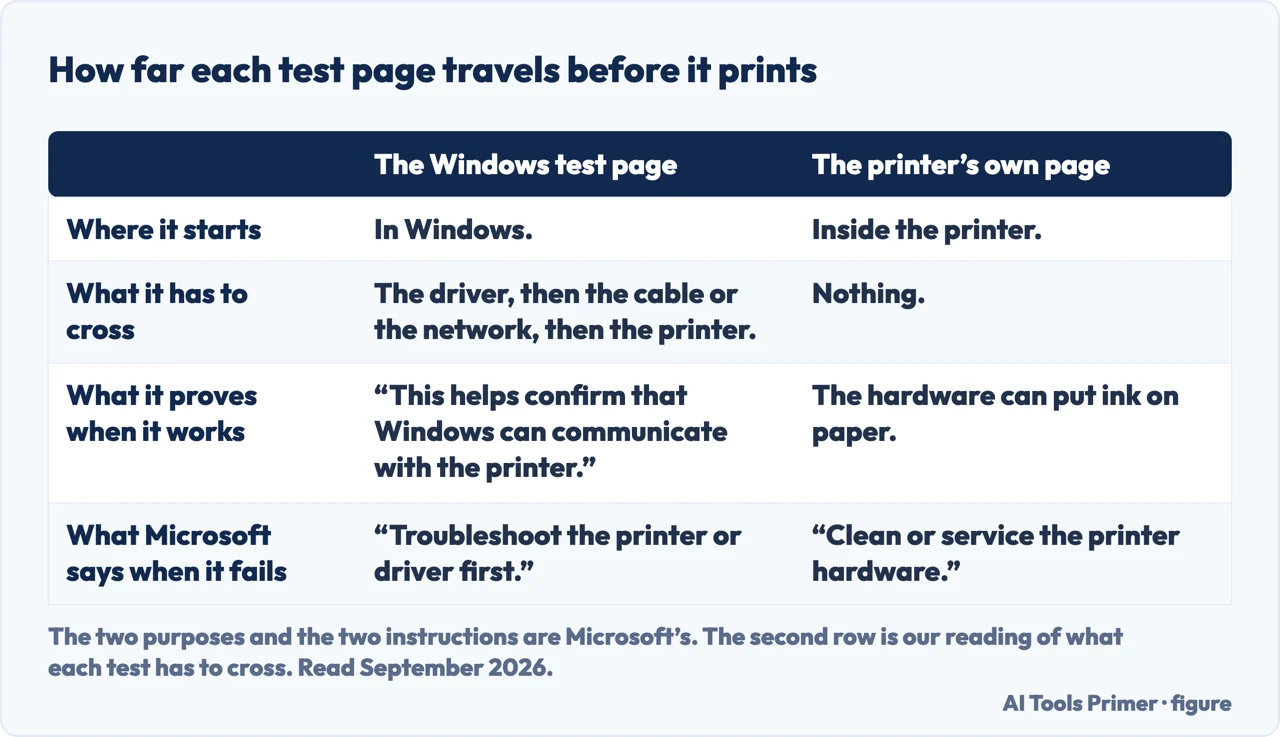
A printer test page is not one thing — there are two, and they prove different things. Microsoft uses both, in different places, and states a different purpose for each.
From Windows
through the driver and the network
Microsoft’s stated purpose: “This helps confirm that Windows can
communicate with the printer.”
Microsoft’s stated purpose: “This helps determine whether the issue is with
Windows or the printer.”
“Print a test page directly from the printer’s control panel.”
The menu is the printer maker’s, not Microsoft’s — usually under Reports, Setup or
Maintenance.
Read those two purposes side by side and the distinction does the work. The Windows page travels the whole chain — application, driver, cable or network, printer — so it proves that the chain is intact. The printer’s own page starts inside the printer and never touches any of that, so it proves only that the hardware can put ink on paper. Neither is a general test, and printing the wrong one tells you something true about a question you were not asking.
The reason the two are not interchangeable. The second row is our reading of what each test crosses. Figure drawn by AI Tools Primer.
What each outcome tells you
Microsoft attaches an instruction to every result rather than leaving you to interpret it.
The printer’s own page prints badly. → “Clean or service the printer hardware.” The computer is not involved and cannot be
the cause.
The printer’s own page prints fine. → The hardware is working. Whatever is wrong is on the Windows side, and the remaining
steps are worth reading.
The Windows test page does not print at all. → “Troubleshoot the printer or driver first.” Do not go looking inside the app you were
trying to print from.
The Windows test page prints, but your document does not. → Windows can reach the printer. The problem is above that — the app, the file, or its
print settings.
Which one to print first. If the printer produces marks, streaks
or faded output, start with the printer’s own page — it removes the computer from the
question in one step. If nothing comes out at all, or only one program refuses to print,
start with the Windows page, because the question there is whether the two machines are
talking. The two tests are not interchangeable and neither is a general health check: each one
answers a single question, which is why Microsoft uses them in different places for different
reasons.
That advice has a gap in it, though, and it opens the moment you follow it. Microsoft can send you to the printer’s own control panel without knowing what the button is called on your printer. The manufacturers do know, and they do not agree.
Epson, for what is nominally the same instruction: “You can check the print head
nozzles using the control panel on your product.” And the sheet is read rather than merely
counted — “Check the printed pattern to see if there are gaps in the lines.” Brother, on a
machine that lives on a network: “The Network Configuration Report lists the network
configuration, including the network print server settings.”
One instruction, several different sheets — and the difference matters at the moment you
are standing in front of the machine.
Epson’s is a nozzle check: a pattern whose gaps say the print head is clogged, with the remedy
offered on the spot — “If there are gaps or the pattern is faint, select Clean the print head”.
Brother’s report is not about ink at all. It prints the machine’s identity on the network, down
to a default node name of “BRN123456abcdef” for a wired network. One tells you whether the
printer can print; the other tells you where the printer is. Both begin inside the printer,
which is exactly what makes either of them worth having: they answer without asking the computer
anything.
“Select Print a test page to confirm that the printer is working and then
select Finish.” — and elsewhere: “You can print a test page to make sure the printer is
working correctly. If you’ve installed the printer but it doesn’t work, check the manufacturer’s
website for troubleshooting information or driver updates.”
There is a third appearance, inside the add-a-printer wizard, and it is the one that goes past unnoticed. It is offered at the end of installation as the last step,
which is the right moment for it — a test page printed there confirms the thing you have just
finished doing, before you find out the hard way in the middle of something urgent.
One consequence is worth stating plainly, because it saves the most time. A Windows test page that prints correctly ends a large class of investigation. The driver works, the connection works, the printer works, the queue works. Anything still going wrong is happening above all of that — inside the program you are printing from, or in the file, or in that program’s own print settings.
And the reverse is just as useful. Microsoft’s instruction when the Windows test page fails is to “troubleshoot the printer or driver first” — not to repair the application, not to reinstall anything else. The failure has located itself.
What this page will not do is tell you where the test page button is on your printer. That menu belongs to the manufacturer and the wording differs by machine; Microsoft says “the printer’s control panel” and leaves the rest to the people who built it, which is the honest position rather than a gap.
It also will not tell you what a correct test page should look like. Windows prints one thing, every manufacturer prints something else, and the useful question is not whether it matches a picture but whether it came out at all and whether it came out clean.
Where to start
Three ways in. If the page comes out marked, take the second one first.
One leaves from Windows and travels the whole chain. One starts inside the printer and travels none of it. Microsoft gives each a different stated purpose.
Not covered here. It will not tell you where the button is on your printer. That menu is the manufacturer’s, and Microsoft says only “the printer’s control panel”.
It will not describe what a correct test page looks like. Every manufacturer prints something different, and the question is whether it arrived and whether it was clean.
And it will not treat a test page as a health check. Each of the two answers one question, which is exactly why they are useful and exactly why they are not interchangeable. What holds instead is simple: each test page proves what its maker says it proves, in the maker’s own words, and this page claims nothing more on the makers’ behalf.
The printer jobs
Everything that happens between pressing print and holding the page.
Microsoft, Fix printing problems in Word, Excel, or other apps — Microsoft Support, applies to Windows 11 and Windows 10 (step 4, “Print a test page from Windows 11”, with the stated purpose that it helps confirm that Windows can communicate with the printer; the route of selecting Start, Settings, Bluetooth & devices, Printers & scanners, selecting the printer, selecting Printer properties and, on the General tab, selecting Print Test Page; and the instruction that if the test page does not print, the printer or driver should be troubleshot first) — support.microsoft.com, read 22 August 2026.
Microsoft, Fix poor print quality in Windows (Blurry, faded, or streaked prints) — Microsoft Support (step 2, “Check basic print quality from another source”, with the stated purpose that it helps determine whether the issue is with Windows or the printer; the instruction to print a test page directly from the printer’s control panel; and the two outcomes — cleaning or servicing the printer hardware if the test page also looks poor, and continuing with the Windows steps if it looks fine) — support.microsoft.com, read 6 September 2026.
Microsoft, Fix printer connection and printing problems in Windows — Microsoft Support (the instruction within manual printer installation to select Print a test page to confirm that the printer is working and then select Finish; and the tip that a test page can be printed to make sure the printer is working correctly, with the advice to check the manufacturer’s website for troubleshooting information or driver updates if an installed printer does not work) — support.microsoft.com, read 22 August 2026.
Epson, Checking the Nozzles Using the Product Control Panel — Epson product documentation (that the print head nozzles can be checked using the control panel on the product; the steps through Setup, Maintenance and Print Head Nozzle Check; the instruction to check the printed pattern to see if there are gaps in the lines; and the choice offered afterwards between finishing and cleaning the print head when there are gaps or the pattern is faint) — files.support.epson.com, read 26 August 2026.
Brother, Print the Network Configuration Report — Brother product documentation for HL-L5210DN, HL-L5210DW, HL-L6210DW, HL-L6410DN and HL-L6415DW (that the Network Configuration Report lists the network configuration including the network print server settings, and that the default Node Name shown on it is BRN123456abcdef for a wired network or BRW123456abcdef for a wireless network, where the trailing characters are the machine’s MAC address) — support.brother.com, read 26 August 2026.
AG
Written by Alberto Gulotta
Founder and editor of AI Tools Primer, writing from Palermo, Italy. Thirty-five years of
taking computers apart, starting with a Commodore 64 — the long version is on the
about page.
Written on 22 August 2026 · last checked 23 September 2026.
§
Independence and limits
No affiliate links and no paid placements anywhere on this site. Nobody pays to appear here,
and no company has seen this page before you did.
This is general information, not professional advice. Where a page touches money, health,
safety or the law, it names its source and the date it was read — and your situation may
still differ. See the privacy page and the
cookie policy.