
Screens · guide
Computer monitor display issues, and what each test proves
By Alberto Gulotta · Updated · 16 min read
Computer monitor display issues have a first check that costs nothing and is not a cable. Microsoft puts it above every hardware step, and it is two keys.
“Press the Windows logo key + P to make sure that the Extend option is selected.”
Microsoft’s first instruction is not about a cable. Windows can be sending the right signal to the wrong place — duplicating instead of extending, or projecting to one screen only — and none of that is a fault. It is a setting with a keyboard shortcut, it takes two seconds, and it comes before every hardware step on the page for the good reason that hardware is expensive to eliminate and this is free.
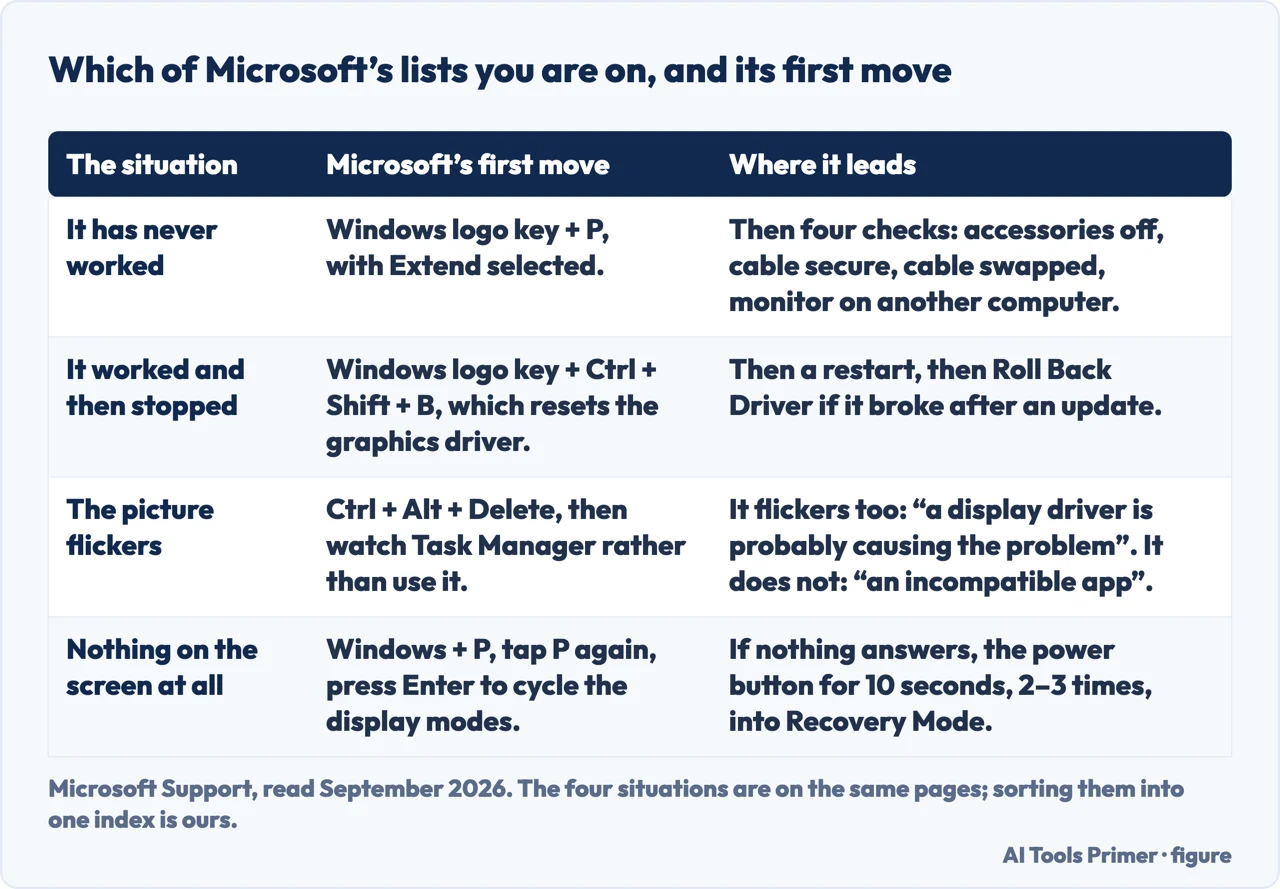
Then four checks, and three of them are tests
Microsoft attaches a conclusion to each rather than leaving you to draw one.
- Disconnect all accessories. “Connected docks, dongles, adapters and other hardware can cause conflicts.”
- Check the cable is secure. The only one of the four that is not a test.
- Change the cable. “If the new one works, you know the previous cable was faulty.” A conclusion, stated.
- Try the monitor on a different computer. “This can help to isolate whether the issue is with the monitor or the primary system”
Look at what those four have in common. Three of them end in a conclusion rather than a hope — change the cable and either it works, in which case the old one was faulty, or it does not, in which case the cable is eliminated. Move the monitor to another computer and one of the two is cleared. That is a different activity from trying things, and it is why the order is worth following rather than skimming.
That third conclusion holds cleanly when a cable is dead. It quietly stops holding at high resolutions, because an HDMI cable is not a wire that either conducts or does not. HDMI’s licensing body sells tiers, not wires: there are several cable types and certification programs, “each designed to meet a particular performance standard”.
The numbers behind those tiers are exactly what a swap test cannot see. Premium HDMI Cables are certified, in the licensing body’s words, “for ultra-reliable performance for 4K/UltraHD at up to 18Gbps bandwidth”; the Ultra High Speed HDMI Cable, by contrast, “is applicable for system configurations supporting up to 48Gbps maximum bandwidth and 8K@60 and 4K@120 formats”. A cable can be in perfect condition and still be the fault — good enough for the resolution you used to run, not for the one you are running now. A display that behaves until the resolution or the refresh rate goes up is worth suspecting the cable for, even a cable that has never given trouble.
Length is the other limit nobody prints on a plug. VESA attaches DisplayPort’s top rate to a distance: the newest cables “enable up to four-lane UHBR20 link rate support – a maximum throughput of 80 Gbps – over an active cable up to three meters in length”. Neither the rating nor the length is something Windows can report, which is the whole reason they belong beside Microsoft’s four checks rather than inside them. None of this is advice about what to buy — it is the one fact the swap test cannot supply on its own.
The disconnect-everything step deserves its own moment, because it is the one people do partially. Microsoft says all accessories, and names the culprits: “docks, dongles, adapters and other hardware can cause conflicts”. A dock that has worked for a year is still an accessory, and leaving it in place because it has always been fine is how a test stops being a test.
Two more things to try before blaming the monitor. If the computer has more than one video output, Microsoft says to move the cable to another — “typical ports are HDMI, VGA, DVI, and DisplayPort” — because a dead port looks exactly like a dead monitor. And if there is more than one graphics card, the default one can be switched, though Microsoft is candid that it cannot tell you how: “steps to change the default display adapter vary by device, so contact the manufacturer”. The same honesty applies to the second-monitor question: a graphics card may simply not support more than one, and “for information on how many monitors your display adapter can support, contact its manufacturer”.
The tests above all assume a picture you can look at. Two failures need their own test — a screen that flickers, and a screen showing nothing at all — and Microsoft documents each of them separately from the connection steps.
Microsoft narrows this one to two suspects before any tool is opened: “Screen flickering in Windows 11 is usually caused by a display driver issue or incompatible app.” Telling them apart costs one keystroke, and the test has the same shape as every other one on this page — a thing that either shows the fault or does not.
“Press Ctrl + Alt + Delete to open Task Manager”, then watch it instead of using it. “If Task Manager flickers along with everything else on the screen, a display driver is probably causing the problem.” “If Task Manager doesn’t flicker while the rest of the screen is flickering, an incompatible app is probably causing the problem.” Microsoft does not explain why the distinction holds, and this page will not invent a reason for it — but the instruction is precise enough to act on, and it halves the problem in one keystroke.
There is also a reset worth trying before any of it: “In some cases, pressing Windows logo Key + Ctrl + Shift + B to reset your graphics driver may fix your issue. If this does not work, see if restarting helps.”
And if the screen is blank rather than flickering. Microsoft’s first two moves there are both keystrokes, and neither involves opening anything: “Press Windows + Ctrl + Shift + B to reset the graphics driver”, and “Press Windows + P, then tap P again and press Enter to cycle through display modes”. The second is the one that rescues a monitor wrongly declared dead — the picture may be going to a display that is not the one you are looking at. If nothing answers at all, the route out is deliberate rather than violent: “force shutdown your PC by holding the power button for 10 seconds. Repeat this 2–3 times until Windows enters Recovery Mode”, then “Troubleshoot > Advanced Options > Startup Settings > Restart” and “F5 to boot into Safe Mode with Networking”.
And then the one that saves money rather than time.
“If you are trying to use a display splitter to extend your display to more than one external monitor, you won’t be able to. The splitter is duplicating the same signal instead of creating two independent signals.”
This is the sentence worth reading before buying anything. A splitter cannot produce two different pictures, because it is not making a second signal — it is copying one. No driver, setting or update changes that, and a great deal of the frustration in this subject is somebody trying to configure their way out of a physical limitation. Microsoft names the two things that do work: a docking station, or, on a USB-C port, a USB adapter: “if you have a USB-C port, you may be able to use a USB adapter to give your device an additional video output port”.
If the setup used to work and stopped
A different list, and it starts with a key combination almost nobody knows exists.
- Press Windows logo key + Ctrl + Shift + B to reset the graphics driver. The screen blinks; nothing is closed.
- If that does nothing, restart — and if a restart does nothing, Microsoft says to shut down fully and turn the device back on, which is a different operation.
- If it broke after an update: Device Manager → Display adapters → right-click → Properties → Driver tab → Roll Back Driver.
- “If you don’t see a roll back option, reinstall your display driver” — uninstall the
device, restart, then update the driver.
Microsoft’s own aside is the useful part: “Make sure to write down the remaining instructions before you restart.” You are about to be without a display driver.
That last list applies to a different situation and it is worth keeping the two apart. A setup that never worked and a setup that stopped working have different causes, and Microsoft separates them on the page. Rolling back a display driver on a monitor that has never produced a picture is treating a symptom that has not appeared yet.
What this page will not do is tell you which cable or adapter to buy. Microsoft names the port types and the two device categories that add a video output, and stops there; so does this page, because nothing here has been tested against a monitor that would not display.
It will not tell you how to switch graphics cards either. Microsoft says explicitly that the steps vary by device and points at the manufacturer, and inventing a general procedure would be more confident than the people who wrote the operating system.
And it will not tell you the monitor is dead. One of the four checks above establishes that on a different computer, in about two minutes, which is better than any opinion.
Where to start
Three ways in. If you have never seen a picture on it, take the first.
- “It has never worked.”
- Two keys before any cable — the first check and four tests
- “I want a second monitor.”
- A splitter cannot do it — more than one screen
- “It worked until yesterday.”
- A different list entirely — when it used to work
The first check and four tests
Windows key + P before anything physical, then four checks of which three end in a conclusion rather than a hope.
More than one screen
A splitter copies a signal rather than making a second one. Microsoft names the two things that actually add a video output.
When it used to work
A graphics driver reset nobody knows about, a full shut down that is not a restart, and a roll back for the update that broke it.
Not covered here. It will not tell you which cable or adapter to buy. Microsoft names the port types and the two categories of device that add a video output, and nothing here has been tested.
It will not invent a way to switch graphics cards. Microsoft says the steps vary by device and points at the manufacturer, and a general procedure would be more confident than the people who wrote Windows.
And it will not tell you the monitor is dead. One of the four checks settles that on a different computer in about two minutes. What holds instead is simple: what each test proves is Microsoft’s or Dell’s own conclusion, and the cable figures come from the bodies that certify cables rather than from a shop.
When the keyboard or the screen will not do as it is told
Input that stops arriving, or arrives changed into something you did not type, and the two minutes that tell you whether it is hardware.
- The same job, in the other places it comes up
- How to turn off autocorrect when it is three settings
- Surface keyboard not working, and the step most models lack
- How to fix keyboard not typing when nothing is broken
- How to fix phone screen unresponsive touch, in four steps
Sources
- Microsoft, Troubleshoot external monitor connections in Windows — Microsoft Support, applies to Windows 11 and Windows 10 (the instruction to press the Windows logo key + P and make sure the Extend option is selected before other troubleshooting; the basic hardware checks of disconnecting all accessories because connected docks, dongles, adapters and other hardware can cause conflicts, making sure the cable is secure, changing the cable with the note that if the new one works the previous cable was faulty, and trying the external monitor with a different system to isolate whether the issue is with the monitor or the primary system; the suggestions to try another video output port with the typical ports named as HDMI, VGA, DVI and DisplayPort, and to switch the default display adapter where more than one is present, with the note that the steps vary by device and the manufacturer should be contacted; the note that a display adapter may not support more than one monitor and that its manufacturer should be contacted for that information; the statement that a display splitter cannot be used to extend a display to more than one external monitor because it duplicates the same signal instead of creating two independent signals; the docking station and USB adapter options for devices with a single video output port; and, for a setup that has stopped working, the graphics driver reset with Windows logo key + Ctrl + Shift + B, restarting and then fully shutting down and turning the device back on, rolling back the display driver through Device Manager, Display adapters, Properties and the Driver tab, and reinstalling the display driver with the instruction to write down the remaining instructions before restarting) — support.microsoft.com, read 22 August 2026.
- Microsoft, Troubleshoot screen flickering in Windows — Microsoft Support, applies to Windows 11 and Windows 10 (that screen flickering in Windows 11 is usually caused by a display driver issue or an incompatible app, and that checking whether Task Manager flickers determines which; that pressing Windows logo Key + Ctrl + Shift + B to reset the graphics driver may in some cases fix the issue and that restarting should be tried if it does not; the instruction to press Ctrl + Alt + Delete to open Task Manager, or Ctrl + Shift + Esc if it does not appear; that if Task Manager flickers along with everything else on the screen a display driver is probably causing the problem; that if Task Manager does not flicker while the rest of the screen does, an incompatible app is probably causing it; the Device Manager routes to roll back, update and uninstall the display driver; the Settings route to uninstall an incompatible app; and the note that starting the PC in safe mode may be necessary to follow the steps) — support.microsoft.com, read 24 August 2026.
- Microsoft, Troubleshooting blank screens in Windows — Microsoft Support (the instruction to press Windows + Ctrl + Shift + B to reset the graphics driver; to press Windows + P, then tap P again and press Enter to cycle through display modes; to press and hold the power button for 20 seconds; to press Ctrl + Shift + Esc to open Task Manager; to force shutdown by holding the power button for 10 seconds and repeat two to three times until Windows enters Recovery Mode; to navigate to Troubleshoot, Advanced Options, Startup Settings and Restart, and press F5 to boot into Safe Mode with Networking; and to reach System Restore through Troubleshoot and Advanced Options) — support.microsoft.com, read 24 August 2026.
- HDMI Licensing Administrator, HDMI Cables — Different Cable Types (that there are several HDMI cable types and certification programs, each designed to meet a particular performance standard; that Premium HDMI Cables are certified for ultra-reliable performance for 4K/UltraHD at up to 18Gbps bandwidth including 4K60, HDR and expanded colour spaces; and that the Ultra High Speed HDMI Cable, introduced in the HDMI 2.1 Specification, is applicable for system configurations supporting up to 48Gbps maximum bandwidth and 8K@60 and 4K@120 formats) — www.hdmi.org, read 26 August 2026.
- VESA, DisplayPort FAQ — DisplayPort.org (that DP80LL low-loss ultra-high-bit-rate cables enable up to four-lane UHBR20 link rate support, a maximum throughput of 80 Gbps, over an active cable up to three meters in length) — www.displayport.org, read 26 August 2026.
Written by Alberto Gulotta
Founder and editor of AI Tools Primer, writing from Palermo, Italy. Thirty-five years of taking computers apart, starting with a Commodore 64 — the long version is on the about page.
Something wrong on this page? Write to aitoolsprimer@gmail.com and it gets fixed.
Written on 22 August 2026 · last checked 23 September 2026.
Independence and limits
No affiliate links and no paid placements anywhere on this site. Nobody pays to appear here, and no company has seen this page before you did.
This is general information, not professional advice. Where a page touches money, health, safety or the law, it names its source and the date it was read — and your situation may still differ. See the privacy page and the cookie policy.