
Screens · guide
Laptop half screen white, and what the working half tells you
By Alberto Gulotta · Updated · 15 min read
A laptop half screen white is one of the few display faults that comes with its own evidence. The half that still shows the picture properly proves the machine is producing a good image, which rules out most of what the internet will suggest. Two tests confirm it in about five minutes.
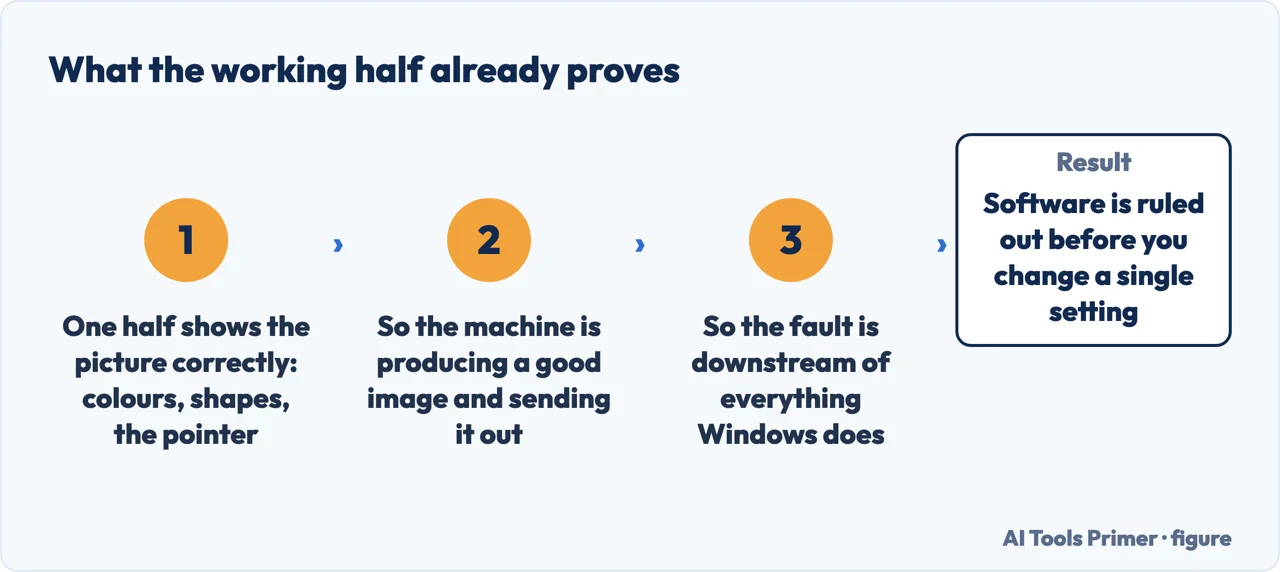
What has been written about this fault is unusual even by the standards of broken screens. Google showed seven results for this question on 11 September 2026; the five recorded for this guide are a thread, a manufacturer’s user forum, a post in a Facebook group, six years of accumulated answers, and one repair site — four conversations and no documentation. There is not even an AI summary at the top pulling the guesses together. So the first thing worth doing is separating what can be established from what is being repeated.
- Turn the brightness up all the way, once. It sounds beneath the problem, and Dell puts it first for a reason: “the computer might be on, but the screen could appear blank because the display brightness is set to its lowest level”. Ten seconds, and it clears a whole family of false alarms before you start.
- Plug in an external monitor. This is the move that settles it, and Dell says exactly why it works: “Connecting an external monitor bypasses your computer’s LCD and can help identify if there is an issue with the screen”. If the outside screen is perfect, Dell’s conclusion on its display page is that “your laptop’s screen may have hardware issue”.
- Run the panel test the maker built in. On a Dell, hold D and press power; on a Lenovo, Fn plus left Ctrl plus power. It runs before the operating system loads and fills the screen with solid colours, so a white half has nowhere to hide. Dell states the limit of what it proves in one sentence: “These tests only check your screen hardware. They do not check your Windows settings, graphics drivers, or software.” The key presses for each maker are in a vertical black line on a laptop screen.
- Open and close the lid slowly, watching the boundary. If the white area changes as the lid moves, that is worth writing down and showing to whoever quotes for the repair. Again: this is an observation to record, not a diagnosis — no maker page read for this guide describes it.
- Photograph it, with the date. Whether the white half is growing, shrinking or static is the one fact that changes what to do, and it is a comparison rather than a memory.
- Only then price it. On a laptop the panel can be replaced on its own, which is the one advantage this fault has over the same thing on a phone. Whether it is worth doing depends on the machine, not on the screen.
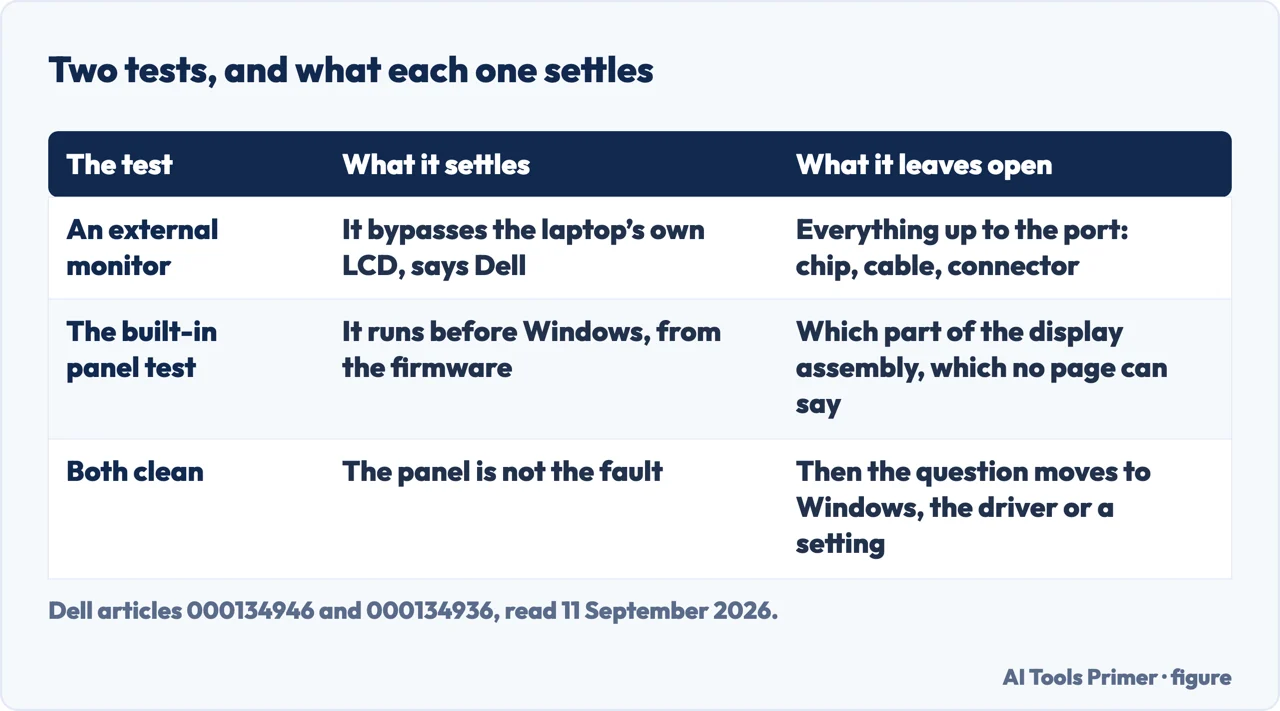
The external monitor is the test to run first, and the reason is in Dell’s phrasing. It does not check the screen — it bypasses it. Everything from the graphics chip to the cable to the port is still in the picture; only the laptop’s own panel is taken out. So a perfect image on the external screen does not mean the graphics hardware is fine in general, it means the fault lives between the point where the picture leaves the machine and the point where you look at it. The built-in panel test narrows it further, because it runs before the operating system and produces its colours from the machine’s own firmware.
What the makers do and do not say
Lenovo publishes the clearest vocabulary anybody has for marks on a display, in its guide to damage it considers the customer’s. It is worth reading for what it contains and for what it does not.
- It has an entry for a line. “Vertical Line”, defined as “Vertical line appears when LCD is on.” That is the neighbouring fault, and it has its own page here.
- It has entries for patches. A white spot and a black spot or patch, both “Internal crystal liquid cell damage, shape or location might vary”; and a yellow spot, “Pixel damage from compression”. Those are areas with edges, the size of a thumb or a corner.
- It has an entry for a crack. “The internal glass has cracked and has liquid crystal inside the display panel along the crack.” The one that travels.
- It has nothing for half a screen. No entry, no definition, no name. Four documents were read in full for this page on 11 September 2026 — Lenovo’s document HT104148, Dell’s articles 000134946 and 000134936, and Dell’s laptop display troubleshooting page — and not one of them uses the words half the screen, in any order, anywhere. They describe screens that are black, blank, lined or marked, and never this. That is a statement about those four documents on that date and not about every maker. So this page does not name a cause either — it tells you how to prove which side of the machine it is on, and then what that is worth.
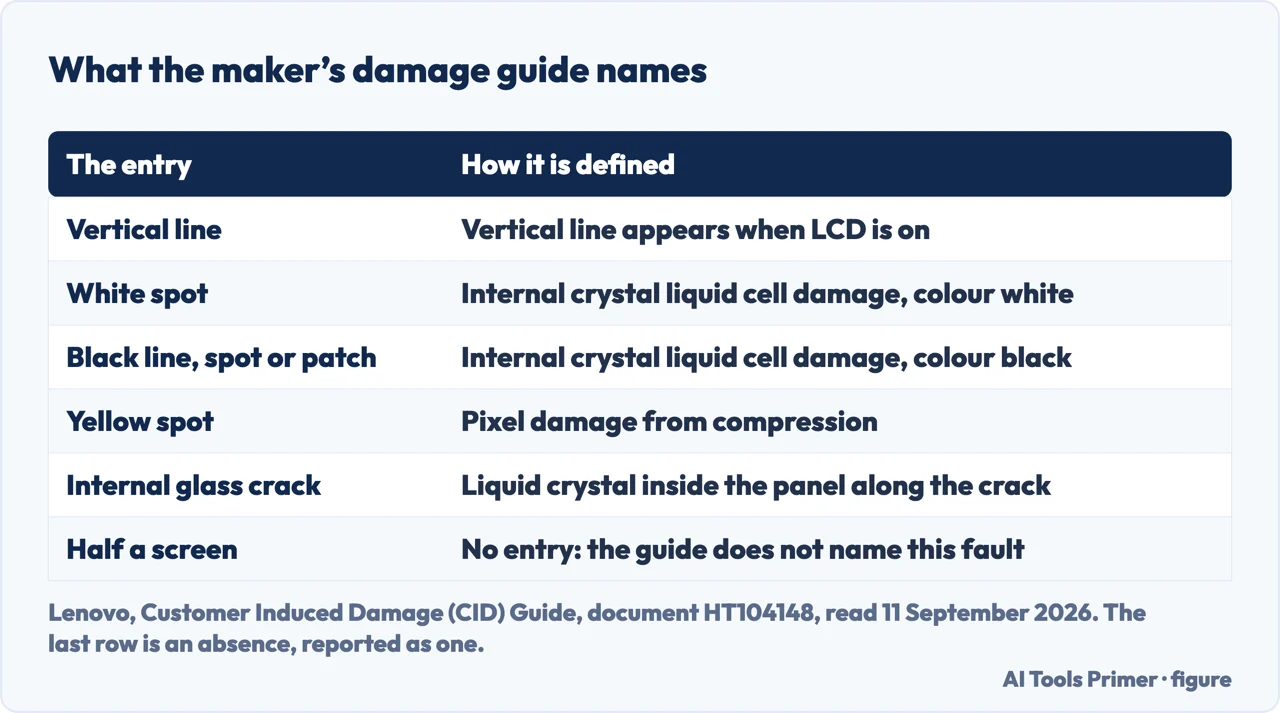
That absence is worth a moment, because it is the difference between this page and the forum threads it sits beside. Three of those four could be read for this page, and between them they name a cause — the ribbon cable, the panel, the connector — each of which is somebody’s inference from their own machine. Lenovo and Dell, who see thousands of these and who have a financial reason to classify them precisely, publish names for lines, spots, patches and cracks in the four documents read here, and no name for this. The honest position is that the tests tell you which half of the machine is at fault, and that none of those four documents tells you which part inside that half. A repair centre with the laptop in its hands can say more; a page cannot.
The decision at the end is not technical, and it is the part the forums never reach. A replacement panel on a laptop that is four or five years old competes with the price of a different laptop, not with the price of the fault. Two things are worth checking before spending: whether the machine can take the next version of Windows at all, and whether the money would buy more somewhere else — a drive, memory, or simply the next machine sooner. And if the panel is going to be replaced, the laptop leaves your hands for a few days: that is the moment a backup stops being a good habit and becomes the thing standing between you and losing everything on it.
Two neighbouring cases, in case this is not quite yours. If the screen is entirely white from the moment you press power — no working half, nothing before Windows — then the question starts at the machine rather than at the panel, and a computer that will not boot is the route. And if what you have is a line or a patch rather than a whole half, the shape is the diagnosis: a vertical black line, black marks and pressure marks are three different pages because they are three different faults.
Where to start
Three ways in. If nothing on the screen is right, including at startup, the third one is not your page.
- “What does the working half tell me?”
- More than you think — what the good half proves
- “Which half of the machine is it?”
- Two tests — the two tests
- “What is it actually called?”
- Nothing, and that matters — the name that does not exist
What the good half proves
A screen that is half right is a machine that is producing a right picture. That single observation removes most of the advice this question attracts.
The two tests
An external monitor bypasses the panel; the built-in test runs before the operating system. Between them they place the fault without opening anything.
The name that does not exist
The makers name lines, spots, patches and cracks, and not this. Where the documentation is silent, this page says so instead of borrowing a diagnosis from a forum.
Questions people also ask
Why is my laptop screen half-screen?
No manufacturer page read for this guide names a cause for it, and neither will this one. What the tests establish is the side of the machine: if an external monitor is perfect and the built-in panel test still shows the white half, the fault is in the display assembly rather than in Windows or the graphics driver.
What could be causing half of my screen to be white?
The honest answer is the shape of the evidence rather than a part number. The half that works proves the machine is generating a correct image; the two tests prove whether the picture is fine until it reaches the panel. Beyond that, a repairer with the laptop open can say more than any page.
Is the white screen of death fixable?
That name covers more than one fault, so the answer depends on which you have. A screen that is white from the moment you press power, before anything loads, is a different question from one that is half white with the other half working — and only the second is what this page is about.
How do I fix my laptop when the screen is white?
Start with brightness, then an external monitor, then the maker’s panel test. Dell explains why the monitor comes early: it “bypasses your computer’s LCD”. If the fault survives both tests, what is left is a panel replacement, priced against what the laptop is worth.
Does it matter if the white area changes when I move the lid?
Write it down and show it to whoever quotes for the repair. It is the kind of detail that helps somebody holding the machine, and it is not something any manufacturer page read for this guide describes, so this page records it rather than interpreting it.
Not covered here. It will not name the broken component. The documentation does not, and the forums that do are each describing one machine.
It will not cover a screen that is white from the moment you press power. With no working half there is no evidence to start from, and the question belongs with the machine rather than the panel.
And it will not price a panel. None of the four support pages read for this guide publishes a figure, and the only number worth having is a quote on your own laptop set against what the laptop is worth. What holds instead is simple: what the working half tells you is Dell’s own reasoning, and the absence of an entry for half a screen is reported as an absence.
Sources
- Dell, How to Fix a Black Screen or Display Issues on a Dell Laptop — article 000134946 (the ordered fixes for a blank or black laptop screen: raising the brightness first, with the note that the computer might be on while the screen appears blank because the display brightness is at its lowest level; connecting an external monitor, with the explanation that this bypasses the computer’s LCD and can help identify whether there is an issue with the screen; disconnecting external devices, since accessories such as external hard drives, USB devices, Wi-Fi antennas, printers and VR headsets can interfere with the boot process; and the driver and update routes, including reaching Task Manager with Ctrl, Alt and Delete and creating a new task with explorer.exe, disabling fast startup, and uninstalling the latest quality update through the recovery environment) — www.dell.com, read 11 September 2026.
- Dell, How to Test Your Dell Laptop Screen — article 000134936, last modified 1 June 2026 (the built-in panel test that starts from off, before Windows loads, and its colour sequence; and the statement of what it does and does not cover, that these tests only check the screen hardware and do not check Windows settings, graphics drivers or software) — www.dell.com, read 11 September 2026.
- Dell, Laptop Screen Not Working: Fix Common Display Issues (the external monitor check, connecting the laptop to a known-good monitor with HDMI, DisplayPort or another compatible cable, and its conclusion that if the external monitor displays correctly the laptop screen may have a hardware issue) — www.dell.com, read 11 September 2026.
- Lenovo, Customer Induced Damage (CID) Guide — Laptops, Tablets, Desktops, document HT104148 (the display section, whose entries name a surface glass crack, an internal glass crack with liquid crystal along the crack, a vertical line that appears when the LCD is on, a white spot and a black line, spot or patch described as internal crystal liquid cell damage, and a yellow spot described as pixel damage from compression. Read here for what it lists and for what it does not: there is no entry for half a screen, and that absence is reported as an absence) — support.lenovo.com, read 11 September 2026.
Written by Alberto Gulotta
Founder and editor of AI Tools Primer, writing from Palermo, Italy. Thirty-five years of taking computers apart, starting with a Commodore 64 — the long version is on the about page.
Something wrong on this page? Write to aitoolsprimer@gmail.com and it gets fixed.
Written on 11 September 2026 · last checked 23 September 2026.
Independence and limits
No affiliate links and no paid placements anywhere on this site. Nobody pays to appear here, and no company has seen this page before you did.
This is general information, not professional advice. Where a page touches money, health, safety or the law, it names its source and the date it was read — and your situation may still differ. See the privacy page and the cookie policy.