
Screens · guide
HP laptop monitor issues: what HP says to try and what needs repair
By Alberto Gulotta · Updated · 12 min read
HP laptop monitor issues sort by what the screen shows. HP's document sends a blurry or stretched picture to the resolution and driver settings, a blank screen to an external monitor, and lines or large white or black areas to a repair. Microsoft adds a Task Manager test for flicker and a shortcut for a blank screen.
| What the screen does | First move | Where it comes from |
|---|---|---|
| Blurry, fuzzy or stretched | Restart, set the recommended resolution, then update the graphics driver and BIOS | HP Support |
| Blank, laptop running | Hard reset, then an external monitor over DisplayPort or HDMI | HP Support |
| Blank, any Windows PC | Windows + Ctrl + Shift + B resets the graphics driver | Microsoft Support |
| Flickering | Open Task Manager: if it flickers too, suspect the display driver; if not, an app | Microsoft Support |
| Vertical lines, a solid green line, jagged lines or large white or black areas | No adjustment; HP says the screen requires repair | HP Support |
Sort the fault by what the screen shows
HP’s support page for display and touchscreen issues lists the common problems as the inability to adjust brightness, a screen that is blurry, flashing, blinking or fuzzy, an unresponsive touchscreen, and a black-and-white or blank screen. It offers PC Hardware Diagnostics, a Windows-based tool that needs Windows 7 or later, to diagnose hardware failures related to the screen, and an automated virtual assistant. The steps themselves sit in a second HP document for notebooks and All-in-One PCs, Troubleshooting screen issues (Windows 11, 10), which tells you to find the section that matches the problem and follow its steps. A third HP document covers the case where the lights are on and a fan or hard drive can be heard but the screen stays blank. This page follows that sorting and adds Microsoft’s two pages on blank and flickering screens.
Blurry, stretched or choppy
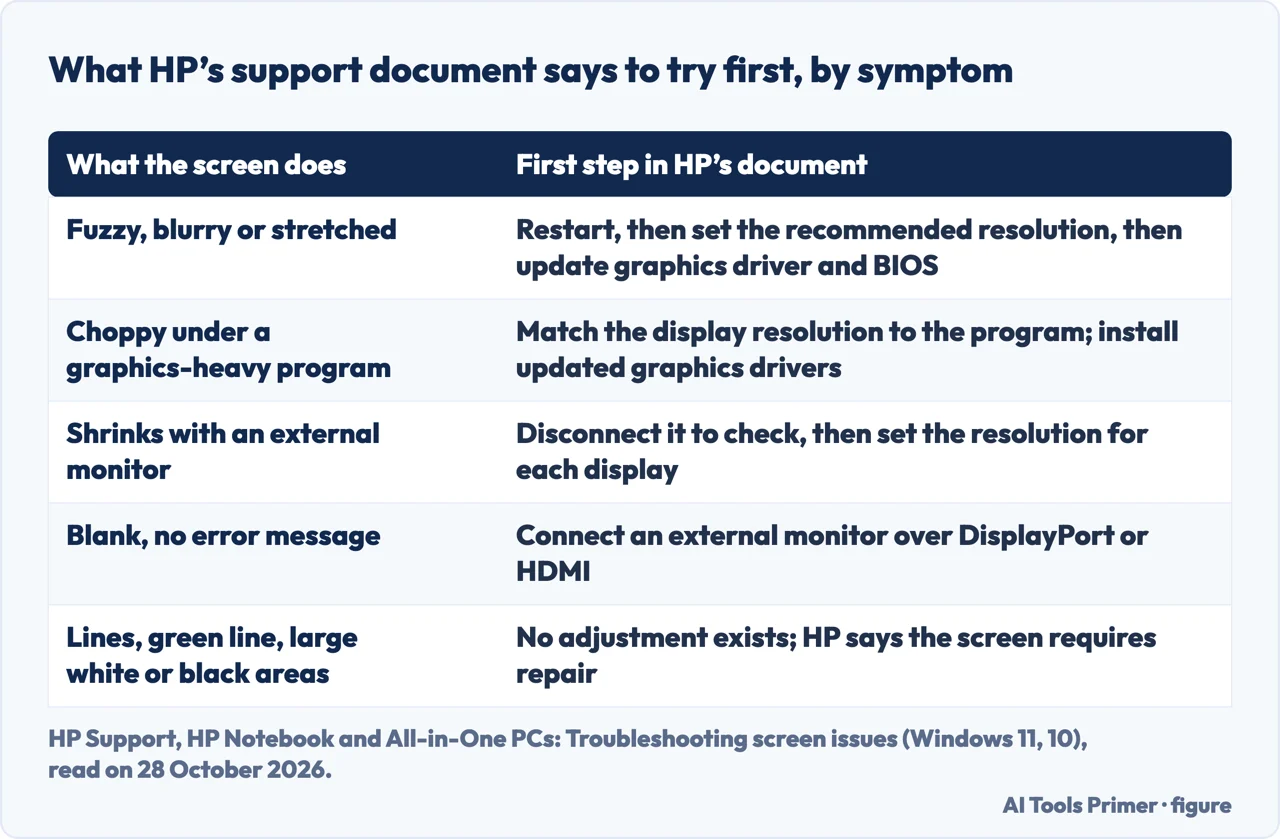
For fuzzy text, edges that are slightly blurry or an image stretched out of proportion, HP names three causes: an improper screen resolution, incorrect graphics driver settings, and an outdated BIOS or graphics driver. Its order is to restart first, because some display problems resolve on their own; then to search for resolution, select Change the resolution of the display and pick the recommended one, which HP says gives the sharpest image; then to update the graphics driver. HP gives two routes for that, HP Support Assistant version 8 or later, which is not available for Windows 10 in S mode, and Windows Update, where Windows 11 keeps optional updates under Advanced options. If the problem persists, HP points to the latest BIOS and graphics drivers from its own site. A game that exits improperly may leave the resolution unrestored, HP adds.
The same document handles two more cases. When the picture is normally clear but turns choppy in a program with high graphics needs, it says to make the display resolution match the program and to install updated graphics drivers. When the image shrinks with black borders after an external monitor is connected, it says the cause is that the two screens do not share a native resolution and that the graphics control usually defaults to the lower one for both; disconnect the monitor to check, reconnect it, and set the resolution of each display in Display settings, where some models also offer Duplicate and Extend. Models with a high-performance chip or a second graphics processor may add an advanced graphics control, reached by right-clicking the desktop: Graphics Properties or Graphics Options for Intel, Vision engine or Catalyst Control for AMD, the NVIDIA Control Panel for Nvidia.
Flickering
Microsoft’s page says screen flickering in Windows 11 is usually caused by a display driver issue or an incompatible app, and gives one test to tell which: open Task Manager with Ctrl + Alt + Delete, or with Ctrl + Shift + Esc if it does not appear. If Task Manager flickers together with everything else, a display driver is probably the cause; if it stays steady while the rest flickers, an incompatible app is. For the driver, Microsoft says to roll it back in Device Manager if Windows Update recently changed it (Display adapters, then the adapter’s Properties, the Driver tab and Roll Back Driver), and otherwise to update or uninstall it; if the roll-back option is unavailable, Windows has no earlier driver to return to. For an app, update it from Microsoft Store or the maker’s site, or uninstall apps one by one, restarting after each. Microsoft also says Windows + Ctrl + Shift + B may fix the problem and that restarting is the next thing to try if it does not.
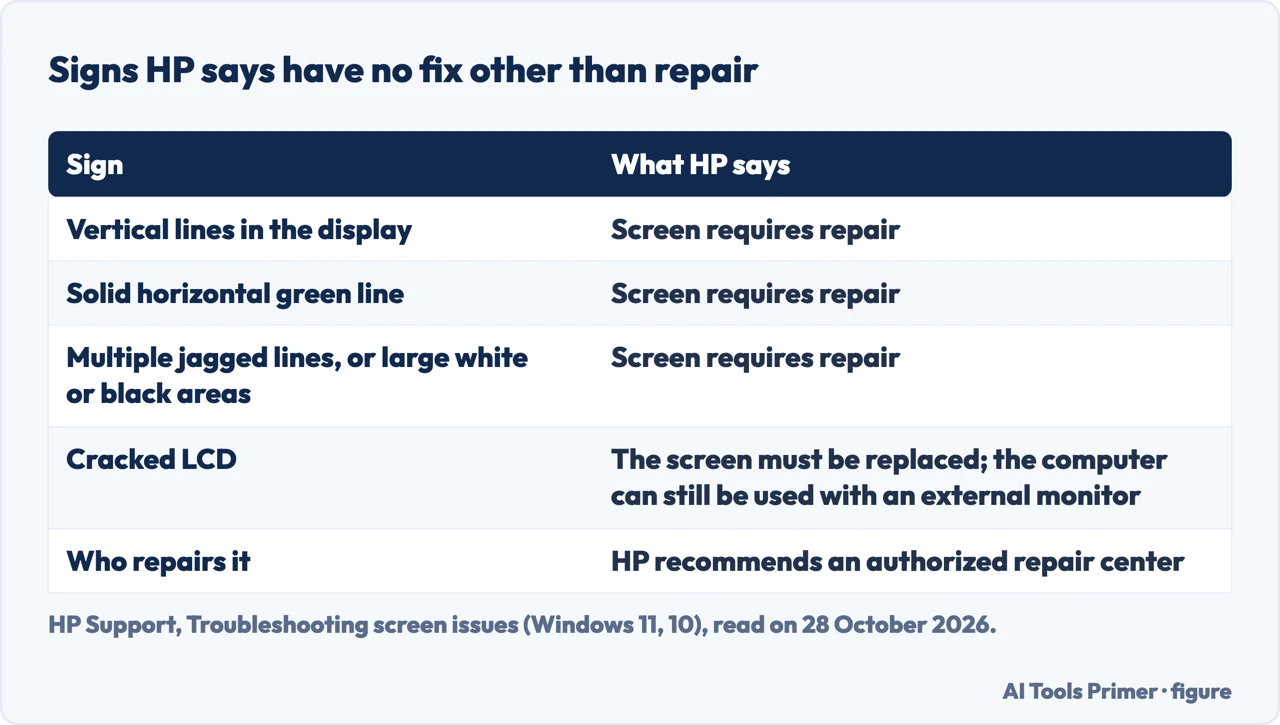
HP draws the line differently. Under its heading for a screen that flickers, has lines or shows distorted colours, the HP document lists only conditions it treats as hardware, with no adjustment to make: the next section sets them out.
What HP says needs a repair
In the HP screen-issues document, the conditions with no software fix are vertical lines in the display, a solid horizontal green line, multiple horizontal or vertical jagged lines, large white or black areas, and horizontal and vertical lines with a large white area. HP says there are no adjustments or corrective actions for these, and the screen requires repair. A cracked LCD can show in several patterns, can be seen as early as the BIOS startup screens, before Windows loads, and means the screen must be replaced; HP says the computer can be used meanwhile by connecting it to an external monitor, and it recommends an authorized repair center. Separately, HP says LCD technology means a certain number of pixels might not display correctly, and that a display with too many defects in one area may obstruct viewing; it advises installing the latest BIOS and graphics drivers to rule out software causes. It points to a further HP document on LCD panel defects, which we did not read.
A blank screen on a laptop that is running
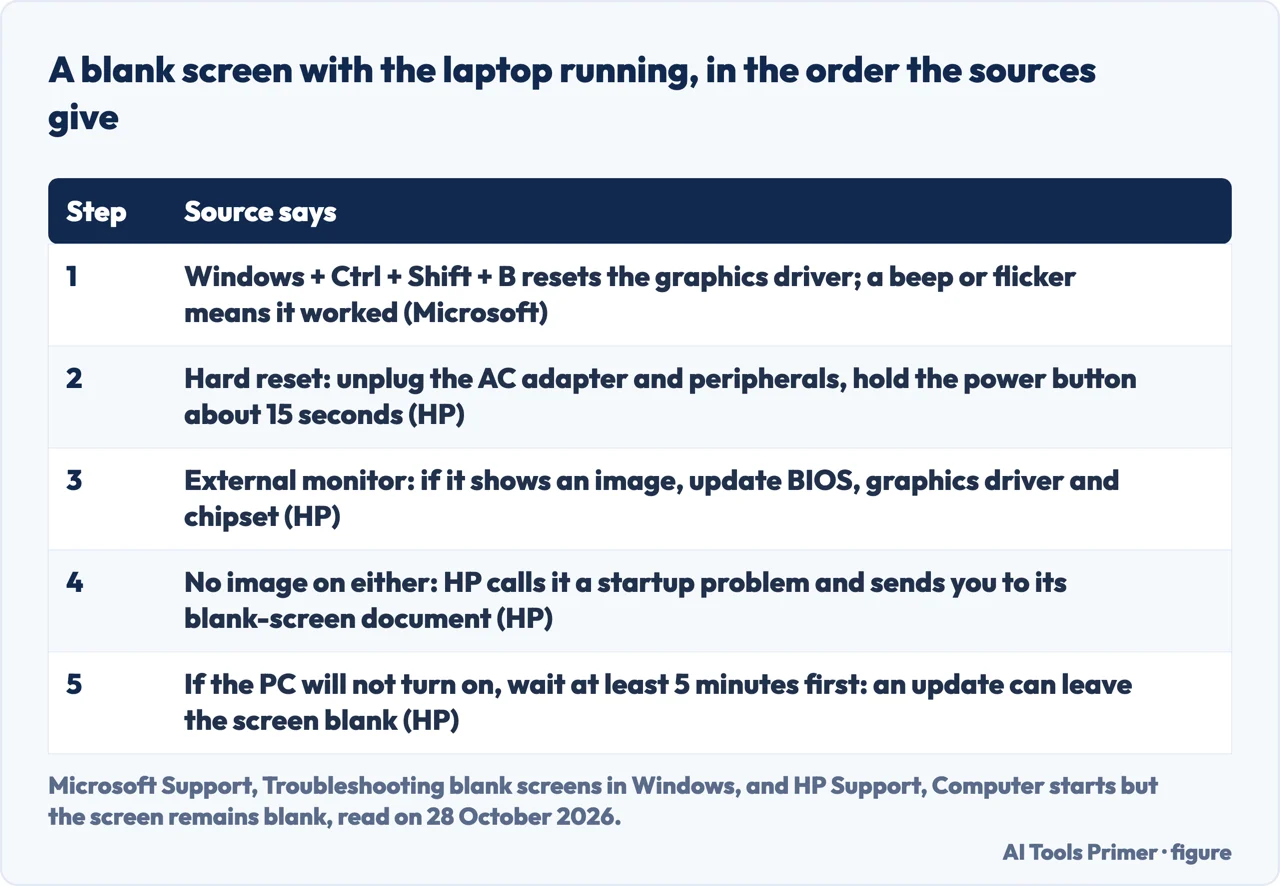
HP’s blank-screen document is for the case where the lights come on and a fan or hard drive can be heard but nothing shows on the LCD. It begins with a wait: if the computer does not turn on, give it at least five minutes, because it may be installing a Windows or BIOS update or detecting new hardware, and the screen can stay blank for several minutes. Interrupting an update might damage the computer, HP says. Then comes a hard reset: turn the computer off, disconnect the AC adapter, remove discs and memory cards, disconnect printers, scanners, external drives and USB flash drives, hold the power button for about 15 seconds with the adapter still unplugged, reconnect the adapter and switch on.
Next HP tests the screen with an external monitor, because a black screen can come from a corrupted graphics driver or a problem with the LCD backlight. If the laptop picture does not appear on the monitor, HP says to press F4 or the key with the symbol it shows until the picture appears. If an image appears there, HP suspects a graphics driver conflict with the notebook screen and says to install the latest graphics and chipset drivers and, if one is available, a BIOS update. If the external monitor also shows nothing, HP says the LCD may be defective and to contact HP, and its screen-issues document calls a no-image result on both screens a startup problem. Without a monitor, HP says pressing F8 at power-on may offer an Enable low-resolution video option if the screen works at BIOS level.
HP also documents a BIOS recovery that works even with a blank screen: with the notebook off and on AC power, hold Windows + B, press the power button for one second and release; the power light stays on, the screen stays blank for about 40 seconds and the HP BIOS Update screen appears. It relies on a copy of the previous BIOS that the hard drive stores when you upgrade it. Microsoft’s page for blank screens starts one step earlier: check the connections, then press Windows + Ctrl + Shift + B to reset the graphics driver, after which you should hear a beep or see a flicker. It adds Windows + P to cycle display modes, Ctrl + Alt + Delete to reach Task Manager, and holding the power button for 20 seconds to force a restart. Its longer path goes through Safe Mode, a driver update or roll-back, restarting Windows Explorer and System Restore.
The numbers differ between sources. HP says about 15 seconds on the power button for its hard reset and Microsoft says 20 for a forced restart; the Google AI box says about 30, which neither document says.
What we did not use
We ran no tool and no step on an HP laptop, and we did not run PC Hardware Diagnostics. We read HP Tech Takes’ general guide to monitors that will not work, but it is not about laptops and we did not cite it. We downloaded two articles from the HP Support Community, one a knowledge-base article on intermittent black screens and one a thread on an external monitor that will not connect, and did not use them: the community site says the opinions in them are the authors’, not HP’s. We did not read the Reddit thread, the HP Tech Takes black-screen guide or the videos. The two HP documents were read on regional copies of the English pages, Slovenia and Hong Kong, whose addresses are in the sources. Touchscreens, which HP’s hub also covers, and external monitors that are not detected are outside this page.
Where to start
Four ways in.
- “It is blurry or stretched.”
- Blurry, stretched or choppy — blurry
- “It flickers.”
- Flickering — flicker
- “It is blank.”
- A blank screen on a laptop that is running — black
- “Is it a repair?”
- What HP says needs a repair — repair
Marks and lines
The lines, patches and halves that point at the panel.
Flicker, backlight and the connection
The tests that tell the screen from the system.
Questions people also ask
How to fix display problem in HP laptop?
HP’s document sorts the fault by what the screen shows: a restart, the recommended resolution and updated graphics drivers and BIOS for a blurry picture; an external monitor for a blank one; and a repair for lines, a solid green line or large white or black areas.
Why is my HP monitor not displaying anything?
HP says a black screen can come from a corrupted graphics driver or a problem with the LCD backlight, and tests it by connecting an external monitor. Microsoft suggests Windows + Ctrl + Shift + B first, which resets the graphics driver.
What is the most common problem with HP laptops?
None of the sources we read ranks HP laptop faults by how common they are. HP’s display hub lists the common screen problems as brightness that will not adjust, a blurry or flickering screen, an unresponsive touchscreen and a blank screen.
Why is my HP monitor glitching?
Microsoft says flickering is usually a display driver or an incompatible app and gives a Task Manager test to tell which. HP lists vertical lines, a solid green line, jagged lines and large white or black areas as conditions that need a screen repair.
Not covered here. We ran no tool and no step on an HP laptop. The statements come from two HP Support documents, HP’s display hub and two Microsoft Support pages, all read on 28 October 2026.
The search volume and difficulty behind this page come from a Semrush reading of 29 August 2026, older than the 60 days the site normally allows.
Sources
- HP Support — Display and touchscreen issues — support.hp.com, read 28 October 2026.
- HP Support — HP Notebook and All-in-One PCs: Troubleshooting screen issues (Windows 11, 10) — support.hp.com, read 28 October 2026.
- HP Support — HP PCs: Computer starts but the screen remains blank (Windows 11, 10) — support.hp.com, read 28 October 2026.
- Microsoft Support — Troubleshooting blank screens in Windows — support.microsoft.com, read 28 October 2026.
- Microsoft Support — Troubleshoot screen flickering in Windows — support.microsoft.com, read 28 October 2026.
Written by Alberto Gulotta
Founder and editor of AI Tools Primer, writing from Palermo, Italy. Thirty-five years of taking computers apart, starting with a Commodore 64 — the long version is on the about page.
Something wrong on this page? Write to aitoolsprimer@gmail.com and it gets fixed.
Written on 28 October 2026.
Independence and limits
No affiliate links and no paid placements anywhere on this site. Nobody pays to appear here, and no company has seen this page before you did.
This is general information, not professional advice. Where a page touches money, health, safety or the law, it names its source and the date it was read — and your situation may still differ. See the privacy page and the cookie policy.