
Screens · guide
ASUS notebook black screen: what ASUS says to try by power light
By Alberto Gulotta · Updated · 11 min read
An ASUS notebook black screen with the power light on is first a wait, then a test. ASUS now says a notebook can stay black 5 to 10 minutes after a battery, memory or reset change; its 2023 article said 1 to 3. Next come an external monitor and, if needed, BIOS recovery.
| Situation | What the sources say | Where it comes from |
|---|---|---|
| Power light on, nothing on screen | Try an external monitor and Windows logo key + P; if it works, install the display driver from ASUS | ASUS Support |
| After a battery, memory or reset change | Wait on power: ASUS now says 5 to 10 minutes of black screen, and its 2023 article said 1 to 3 | ASUS Support |
| Power or charge light flashing | BIOS recovery: wait about 5 to 8 minutes for a window, then about 2.5 to 3.5 hours | ASUS Support |
| Black after the Windows welcome screen | Suspect the graphics driver: enter Safe Mode and reinstall it | ASUS Support |
| Any Windows PC with a blank screen | Windows + Ctrl + Shift + B resets the graphics driver; a beep or flicker means it worked | Microsoft Support |
The wait ASUS now puts at 5 to 10 minutes
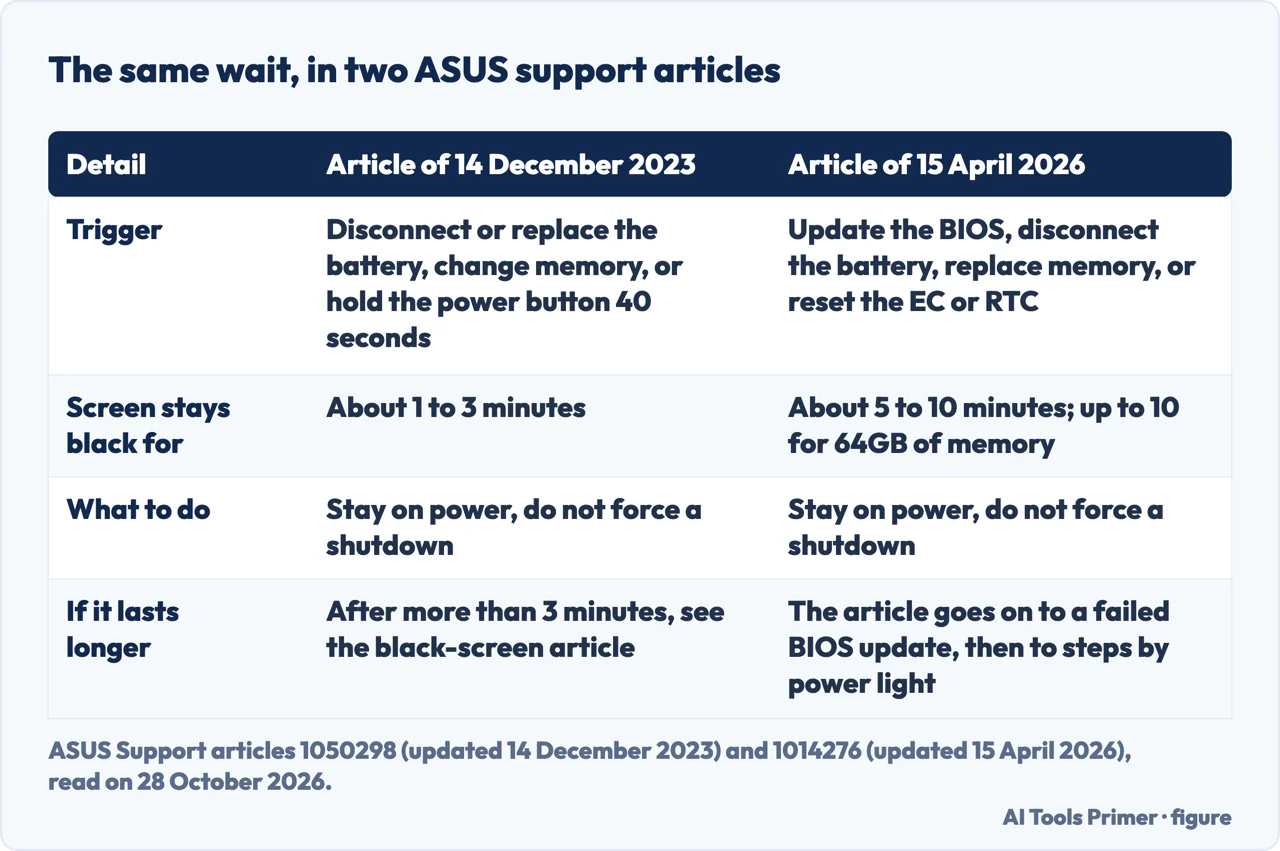
ASUS Support’s article on boot failure and black screens, updated on 15 April 2026, opens with a case that looks like a dead laptop: the screen stays black after a BIOS update, a disconnected battery connector, replaced memory modules, or a reset of the embedded controller (EC) or the real-time clock (RTC). ASUS says the next start needs a full memory training, with nothing on the screen, that it takes about 5 to 10 minutes depending on the memory size, and up to 10 for 64GB, and that you should keep the device on power, avoid a forced shutdown and wait. It adds that devices with an Intel Lunar Lake platform or higher, and a resolution below 2880 by 1800 with a refresh rate below 120 Hz, may show the words Working on Memory Training during that time.
An older ASUS article, updated on 14 December 2023, covers the case of a power light that is on with no display after disconnecting or replacing the battery, replacing memory with a different capacity or brand, or holding the power button for 40 seconds to reset the EC. It gives the memory training as about 1 to 3 minutes and says that if there is still no display after more than 3 minutes, you should go to the black-screen article. Both articles were on ASUS’s site when we read them, and they give different times for the same wait. We did not test either on a machine, so for a given model the safer reading is the longer one, and the instruction not to force a shutdown is the same in both.
What to try, by what the light does
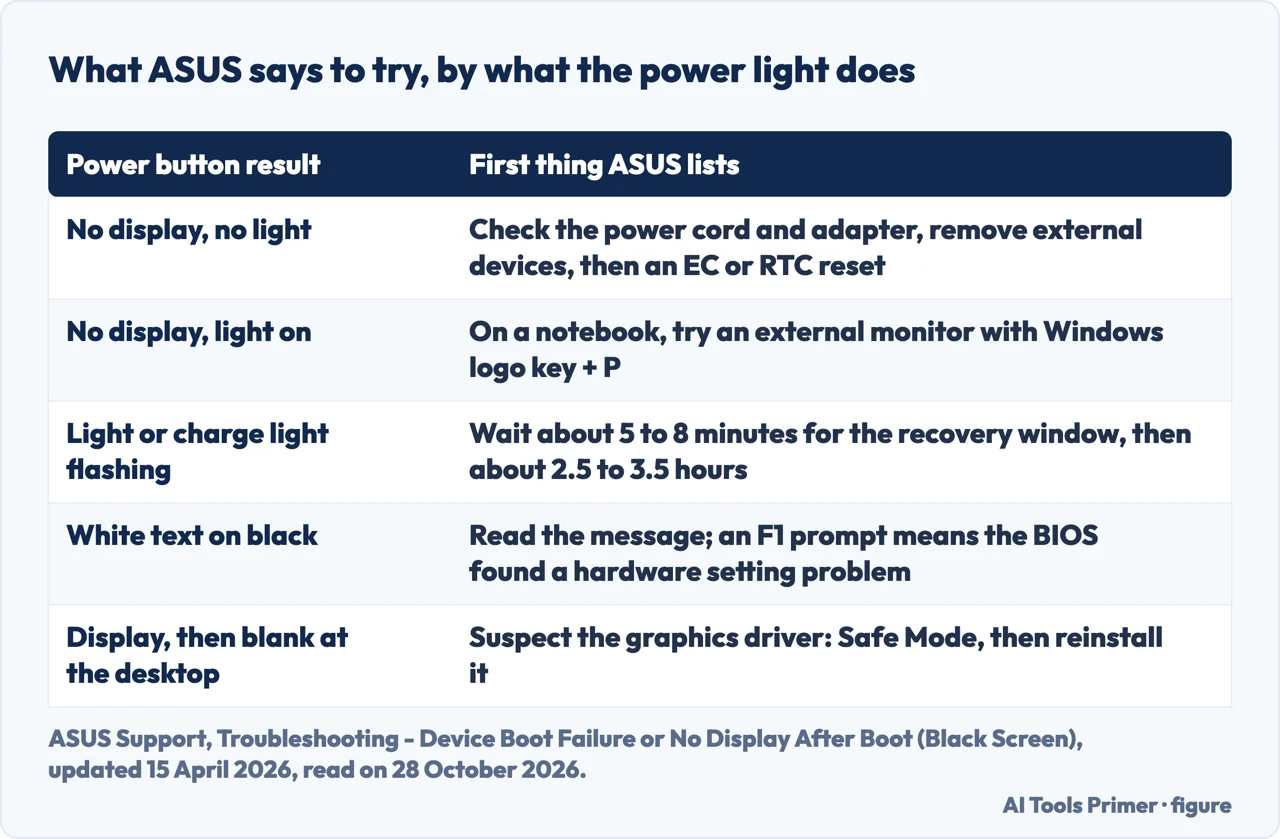
For a notebook that does not start, the 2026 article sorts the steps by what happens when you press the power button. With no display and no power light, it starts with the power cord, the adapter, the extension cord switch and the wall socket, the original adapter and its connector, and any visible damage. It then says to remove all external devices, including keyboards, mice, external drives, printers, memory cards, discs and adapter cards in the card reader, to undo any recently added drive or memory, to disconnect the adapter and do an EC or RTC reset, and then to reconnect and press the power button.
With the power light on and no display, for a notebook, all-in-one or gaming handheld, ASUS says to connect an external monitor and press the Windows logo key + P to switch the display mode. If the external monitor works, it says to install the display driver from the ASUS Support site, and if the device has two graphics adapters, an integrated and a dedicated one, to make sure both are on the latest version on ASUS’s site. If that does not help, it says to try Microsoft’s shortcut, then to detach the external monitors, disconnect the adapter and perform the EC or RTC reset, and finally to try BIOS recovery. If the power or battery charge light is flashing, ASUS says the BIOS ROM is preparing recovery and the screen will stay black; wait about 5 to 8 minutes until the progress window appears, and then, by its estimate, about 2.5 to 3.5 hours, on power and without a forced shutdown.
If white text on black appears, ASUS says to check first whether it matches a failed BIOS update, and otherwise to read the message: it names S.M.A.R.T Status Bad, which has its own article, and a prompt to press F1, which it says means the BIOS found a hardware configuration problem and shows which; pressing F1 opens the setup, where the BIOS settings can be restored to default. If the screen works through the Windows welcome screen and goes black at the desktop, ASUS suspects the graphics driver, says to enter Safe Mode and reinstall it. If none of this resolves it, ASUS says to contact its local customer service.
The Windows shortcut both sources give
Microsoft’s page on blank screens in Windows lists the shortcut among its basic steps: press Windows + Ctrl + Shift + B to reset the graphics driver, and you should hear a beep or see the screen flicker if it worked. ASUS names the same keys, calls them Microsoft’s shortcut, and says they can restore display-related settings and sometimes resolve display issues. Microsoft’s other basic steps are to check that the device is charged or plugged in and that an external monitor is connected and on; to press Windows + P, then P again and Enter, to cycle through display modes; to use Ctrl + Alt + Delete to reach Task Manager if the security screen appears; and to hold the power button for 20 seconds to force a restart. For a screen that is black after an update or a blinking cursor, Microsoft says the cause is often an incompatible driver or incomplete update, or, for a blinking cursor, that the UEFI or BIOS cannot find a boot device.
When the BIOS is the problem
The 2026 article gives three screens for a failed BIOS update. On the first, ASUS says to wait 60 seconds or choose Yes to start an automatic update, with the device on power. On the second, it says to use another computer to download the model’s BIOS file from ASUS Support, put it in the root of a FAT32 USB drive, hold the power button for 15 seconds until the power light goes off, insert the drive with the power cable connected and turn on; the update completes by itself. On the third, a black screen after boot with the power light on and no text, it says to try an EC or RTC reset. ASUS says never to force a shutdown during a BIOS update and to keep the device on power.
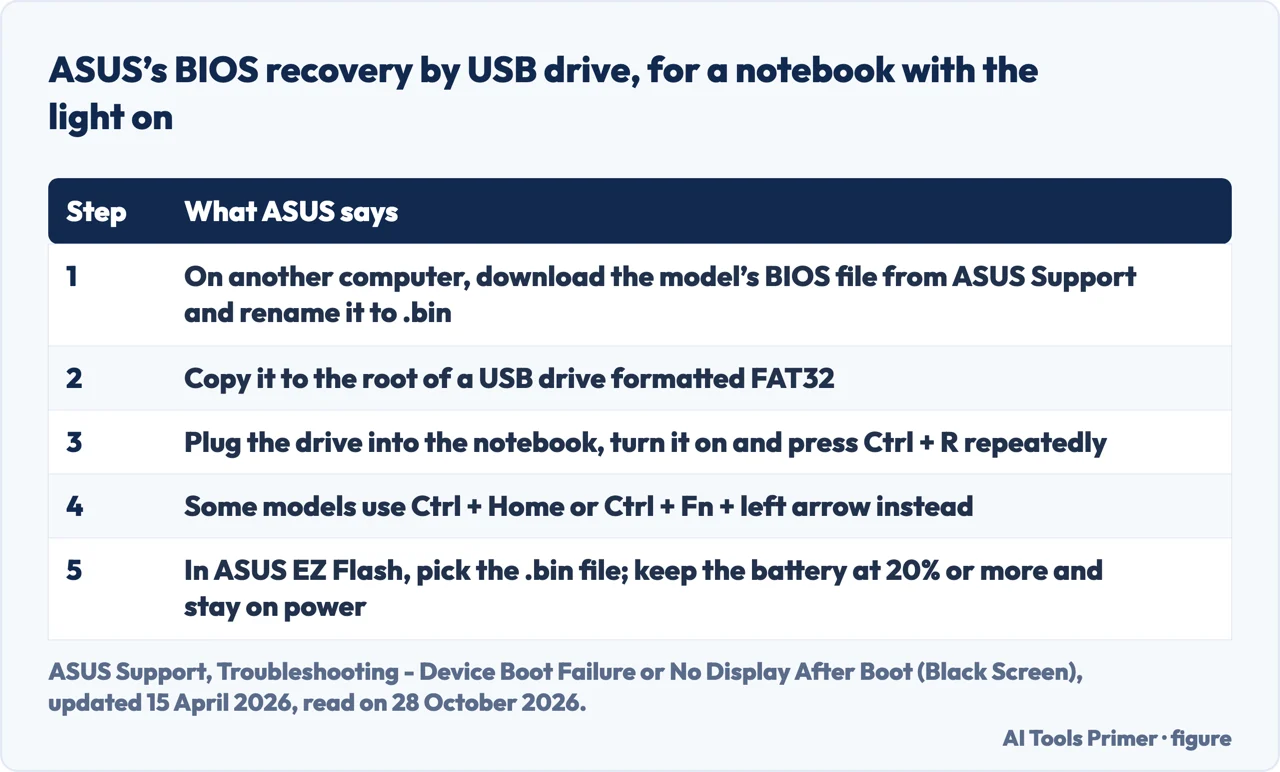
For the general case of a notebook with the light on and no display, the same article describes BIOS recovery by USB drive: download the latest BIOS file made for the ASUS EZ Flash utility, extract it and rename the extension to .bin, copy it to the root of a FAT32 USB drive, plug the drive into the affected device, turn it on and press Ctrl + R repeatedly. ASUS says some models use Ctrl + Home or Ctrl + Fn + the left arrow instead, and that the device restarts into the ASUS Firmware Update screen. There you choose the .bin file and confirm, with the battery at 20% or more and the power connected; the device restarts by itself.
What we did not use
We ran no step on an ASUS laptop. We did not read the iFixit answer, the ROG forum thread, the Linus Tech Tips thread or the JustAnswer page that Google listed for the key, and we did not follow the ASUS articles on resetting the EC and RTC, entering Safe Mode, or downloading drivers, which the two ASUS articles link to; the exact steps for those are not here. The Google AI box begins with the Windows shortcut and its text was cut off in our read, so we do not use it. Both ASUS articles say they may not suit every product in a series and that screens and steps can differ by software version. Desktops and the desktop-only graphics card case are not covered.
Where to start
Four ways in.
- “It went black after I changed something.”
- The wait ASUS now puts at 5 to 10 minutes — wait
- “The light is on but nothing shows.”
- What to try, by what the light does — light
- “Is there a shortcut?”
- The Windows shortcut both sources give — shortcut
- “Could it be the BIOS?”
- When the BIOS is the problem — bios
Black screens elsewhere
A half, a Chromebook and a laptop from another maker.
Telling the screen from the machine
The tests that say which half is broken.
Questions people also ask
Why is my laptop turning on but the screen is black?
ASUS says a lit power light means the motherboard is receiving power. Its article lists a memory training wait of 5 to 10 minutes after a hardware or reset change and a failed BIOS update, then steps by the light, and for a notebook the first test is an external monitor.
How do I get my ASUS laptop out of hibernation mode?
The ASUS articles we read do not cover waking from hibernation; ASUS lists a separate article on unable to wake from sleep or hibernate mode, which we did not open.
How to force an ASUS laptop to turn on?
ASUS tells you not to force a shutdown during memory training, a BIOS update or BIOS ROM recovery. Its resets are EC and RTC resets, and for a failed update on the second screen, holding the power button for 15 seconds until the light goes off. Microsoft says 20 seconds forces a restart.
Why is my PC stuck on a black screen?
Microsoft ties a blank screen to a stalled process or driver issue with a cursor, to display output or a corrupted profile at login, to an incompatible driver after an update, and to a UEFI or BIOS that cannot find a boot device when a cursor blinks.
Not covered here. We ran no step on an ASUS laptop. The statements come from two ASUS Support articles (updated 15 April 2026 and 14 December 2023) and a Microsoft Support page, all read on 28 October 2026.
The search volume and difficulty behind this page come from a Semrush reading of 29 August 2026, older than the 60 days the site normally allows.
Sources
- ASUS Support — Troubleshooting: Device Boot Failure or No Display After Boot (Black Screen) — www.asus.com, read 28 October 2026.
- ASUS Support — No Display Upon Power On, but Power Indicator Light is On — www.asus.com, read 28 October 2026.
- Microsoft Support — Troubleshooting blank screens in Windows — support.microsoft.com, read 28 October 2026.
Written by Alberto Gulotta
Founder and editor of AI Tools Primer, writing from Palermo, Italy. Thirty-five years of taking computers apart, starting with a Commodore 64 — the long version is on the about page.
Something wrong on this page? Write to aitoolsprimer@gmail.com and it gets fixed.
Written on 28 October 2026.
Independence and limits
No affiliate links and no paid placements anywhere on this site. Nobody pays to appear here, and no company has seen this page before you did.
This is general information, not professional advice. Where a page touches money, health, safety or the law, it names its source and the date it was read — and your situation may still differ. See the privacy page and the cookie policy.