
Screens · guide
Fixing a Chromebook black screen of death, from charger to recovery
By Alberto Gulotta · Updated · 10 min read
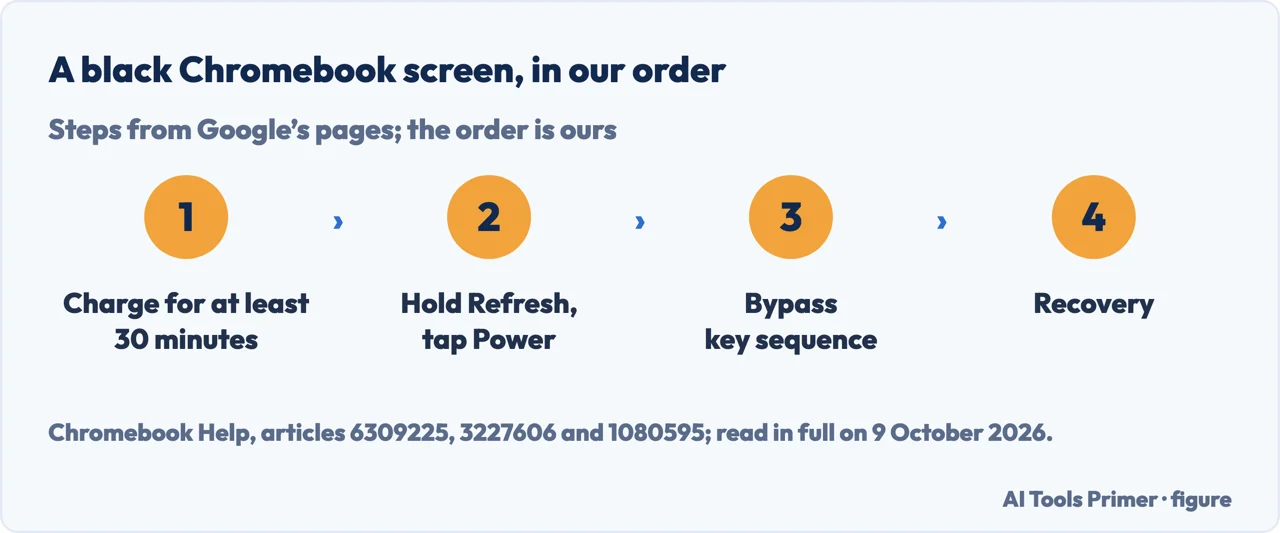
For a Chromebook black screen of death, the steps are Google’s and the order is ours: charge it for at least 30 minutes, then a hard reset. If the screen is still completely blank, a bypass key sequence that can erase user data; then recovery, which erases everything. iFixit says a sign of life means a screen issue.
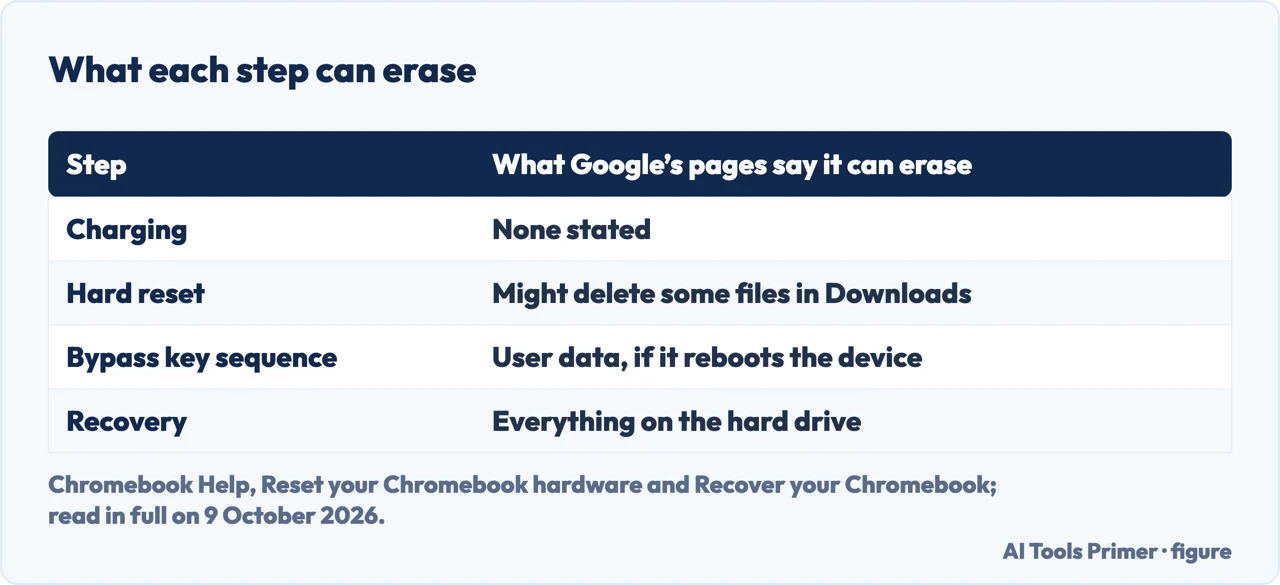
| Step | What it involves | What it can erase | Page |
|---|---|---|---|
| Charge | At least 30 minutes, after checking the cable and the outlet | None stated | |
| Brightness and display | The brightness keys; Ctrl + Maximize to pick the internal display | None stated | iFixit |
| Hard reset | Hold Refresh, tap Power | Some files in Downloads, Google says it might | |
| Bypass key sequence | For a completely blank screen; an administrator can block it | User data, if it reboots the device | |
| Recovery | Reinstalls ChromeOS from the internet or a USB drive | Everything on the hard drive |
Black, or something else. This page is for a screen that shows nothing. A picture that flickers, looks wrong or is the wrong size is in a glitching Chromebook screen; half a screen is in half black screen, and a picture that is there but barely visible in a display backlight that stops working.
Power first, then the steps that erase
- Plug it in and wait. Google says to check the light that usually comes on while it charges, and to charge it for at least 30 minutes; if it isn’t charging, to check that the cables are fully plugged in and the outlet works, then unplug the charger from the wall and the Chromebook and plug it back into the Chromebook first, then the wall.
- Rule out brightness and the display setting. iFixit says to try the brightness keys, and Ctrl + Maximize (F4 or F5) to switch between the internal and an external display, and to disconnect all external USB devices.
- Hard reset. Turn the Chromebook off, press and hold Refresh and tap Power, and release Refresh when it starts up. Google says to try it only after other ways have failed.
- Bypass key sequence. Google says you can try it if the screen is still blank after the hard reset; its cautions are below.
- Recovery. It reinstalls ChromeOS and erases everything on the Chromebook’s hard drive. Google’s Fix hardware page says to contact the Chromebook’s manufacturer if trouble remains after its steps.
A sign of life. Google’s page for a Chromebook that won’t turn on says that if it is charging and still won’t turn on after 30 minutes, the next step is recovery; if it isn’t charging and the cable steps don’t help, to reset the Chromebook. iFixit says that a Chromebook with active cooling should be heard powering on its fans, and that on one with passive cooling the status LED can show whether it receives sufficient power. A Chromebook that turns off and on over and over has its own line on Google’s page: recover it.
The hard reset, and the Chromebooks that do it differently
Most Chromebooks. Off, hold Refresh, tap Power, release Refresh at startup. Google also gives Back + Refresh + Power held for at least 10 seconds, and on tablets Volume Up and Power for at least 10 seconds. It restarts the hardware, such as the keyboard and touchpad, and might delete some files in the Downloads folder.
The exceptions Google lists. An Acer, ASUS or Samsung Chromebox and an LG Chromebase: turn it off, remove the power cable and plug it back in. The Acer AC700 and Cr-48: remove the battery and put it back. The ASUS Chromebit: remove the power adapter for several seconds. The Lenovo ThinkPad X131e: power adapter out, battery out and back in. The Samsung Series 5 and Series 5 550: with the adapter out, press a paperclip into the reset hole and hold it while reconnecting the adapter.
When the screen is still completely blank
The sequence. Google’s page calls it the verification bypass key sequence, for a device with a completely blank screen even after the hard reset: press and hold Power, double tap Refresh, release Power; then press and hold Power, double tap Refresh and release Power again.
What it costs. Google says that if the sequence reboots the device, its user data is erased, it has an unsecured version of firmware, and it restarts automatically after 15 minutes. The page doesn’t say how to return to the secured firmware. Google says the administrator can block the sequence; on a Chromebook from work or school it may then do nothing, in our reading.
After it. If the steps don’t fix the problem, the same page points to a factory reset; Google’s recovery page puts a factory reset before recovery, for a Chromebook you can sign in to.
Recovery: ChromeOS reinstalled, everything erased
What it does. Google says recovery removes and reinstalls the operating system, and permanently erases everything on the Chromebook’s hard drive, downloaded files included. On a Chromebook used at work or school, Google says to ask the administrator for help. For older Chromebooks Google says updates may not be supported and recovery isn’t possible.
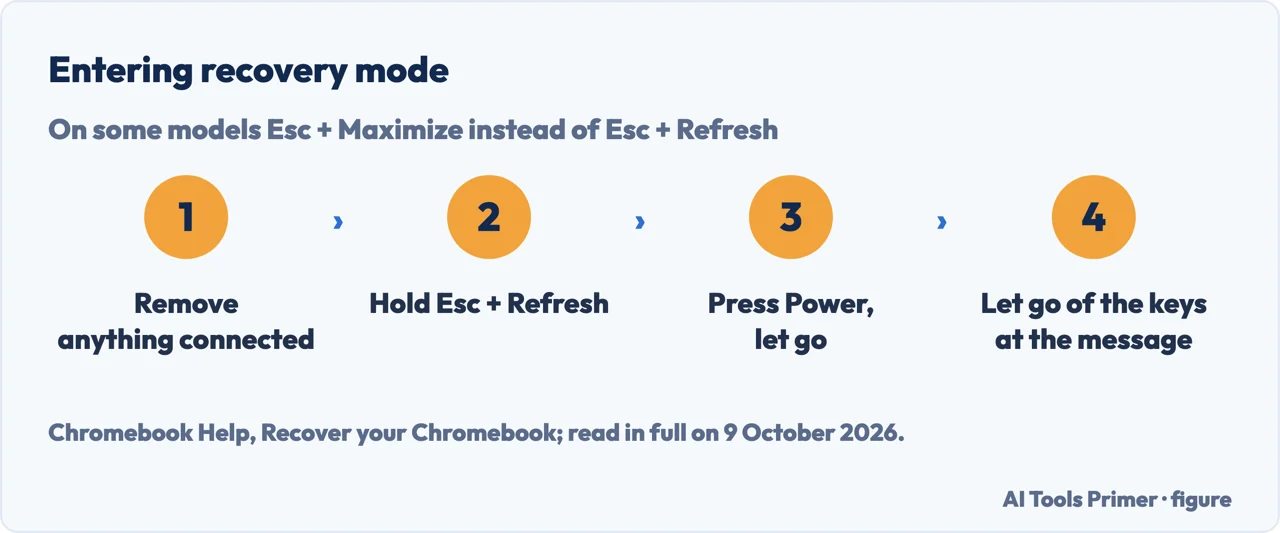
Recovery mode. Remove anything connected, such as a mouse or an external hard drive. Press and hold Esc + Refresh, then press Power and let go of it; on some models Esc + Maximize. Let go of the other keys when a message shows. On a Chromebook tablet, Volume Up, Volume Down and Power for at least 10 seconds.
Google’s two recovery options. Recover using internet connection, on newer Chromebooks. Otherwise a USB flash drive of at least 8 GB, prepared on another computer with Chrome and the Chromebook Recovery Utility extension, then Recover using external disk. In the extension, Google says to select the model from a list or type its model number, which is at the bottom of the error message on the Chromebook’s screen.
When it’s the hardware
The external-monitor test. iFixit’s guide says to connect the Chromebook to a monitor or TV: if ChromeOS works there and won’t switch back to the main screen, the main display is likely defective or broken. iFixit’s basic checks start from the charging indicator light: if the computer shows a sign of life, iFixit says, it is a screen issue.
Power. If the screen only turns on with the charger connected, iFixit says the battery is the likely problem; certain Chromebooks have a pinhole reset button on the bottom or side, pressed with a paperclip. If resetting hasn’t worked and there is no sign of life, iFixit says it is probably a faulty battery.
Inside the case. iFixit’s last causes are a cracked or liquid-damaged display, a loose or damaged display cable under the bezel, and the motherboard. iFixit says checking the display cable involves some dismantling; this page doesn’t cover opening the Chromebook. Google’s Fix hardware page sends a problem that survives its steps to the manufacturer, and points to Diagnostics for the battery.
A second screen. When the trouble is an external monitor that isn’t seen at all, that is second monitor not detected, and a monitor that shows the wrong thing is in computer monitor display issues. Google’s pages name the Refresh, Back and Maximize keys and give them no F numbers; the F4 or F5 for Maximize and the F3 for Refresh are iFixit’s.
Where to start
Five ways in.
- “It looks dead.”
- Power first — the order
- “The light is on.”
- A sign of life — a sign of life
- “The reset did nothing.”
- Still blank — blank screen
- “I’m ready to erase it.”
- Recovery — recovery
- “Is it the screen itself?”
- The hardware — hardware
Other screen faults
A picture that misbehaves, part of a screen, and the light behind it.
Questions people also ask
What to do if your Chromebook turns on but the screen is black?
iFixit says a sign of life, such as the charging light, means a screen issue: try the brightness keys, Ctrl + Maximize for the internal display, and an external monitor. Then Google’s hard reset, Refresh held while tapping Power; for a screen still completely blank, its bypass key sequence, which can erase user data.
Is the black screen of death fixable?
Google’s pages give the steps — charging, a hard reset, the bypass key sequence, recovery; the order here is ours — and its Fix hardware page sends what is left to the Chromebook’s manufacturer. iFixit also lists hardware causes: the battery, the display, the display cable and the motherboard.
How do I recover my Chromebook if the screen is black?
Recovery mode is Esc + Refresh held, then Power; recovery reinstalls ChromeOS and erases everything on the hard drive. Its steps are followed on screen. For a screen that stays black, iFixit’s external-monitor test can help tell the display from ChromeOS; trying it first is our suggestion.
How do you restart an unresponsive Chromebook?
For a Chromebook that crashes or freezes, Google says to turn it off and back on, and to close all apps and browser windows. Its hard reset page says to try one only after other ways have failed: turn it off, hold Refresh and tap Power. It might delete some files in Downloads.
Not covered here. It does not cover opening the Chromebook, replacing its parts, or managed devices beyond what an administrator can block.
Sources
- Chromebook Help — Fix hardware and system problems — support.google.com, read 9 October 2026.
- Chromebook Help — Reset your Chromebook hardware — support.google.com, read 9 October 2026.
- Chromebook Help — Recover your Chromebook — support.google.com, read 9 October 2026.
- iFixit — Chromebook Black Screen (troubleshooting guide, Jacob Mehnert and one contributor) — www.ifixit.com, read 9 October 2026.
Written by Alberto Gulotta
Founder and editor of AI Tools Primer, writing from Palermo, Italy. Thirty-five years of taking computers apart, starting with a Commodore 64 — the long version is on the about page.
Something wrong on this page? Write to aitoolsprimer@gmail.com and it gets fixed.
Written on 9 October 2026.
Independence and limits
No affiliate links and no paid placements anywhere on this site. Nobody pays to appear here, and no company has seen this page before you did.
This is general information, not professional advice. Where a page touches money, health, safety or the law, it names its source and the date it was read — and your situation may still differ. See the privacy page and the cookie policy.