
Screens · guide
How to turn off touchscreen on Chromebook with Search + Shift + T
By Alberto Gulotta · Updated · 8 min read
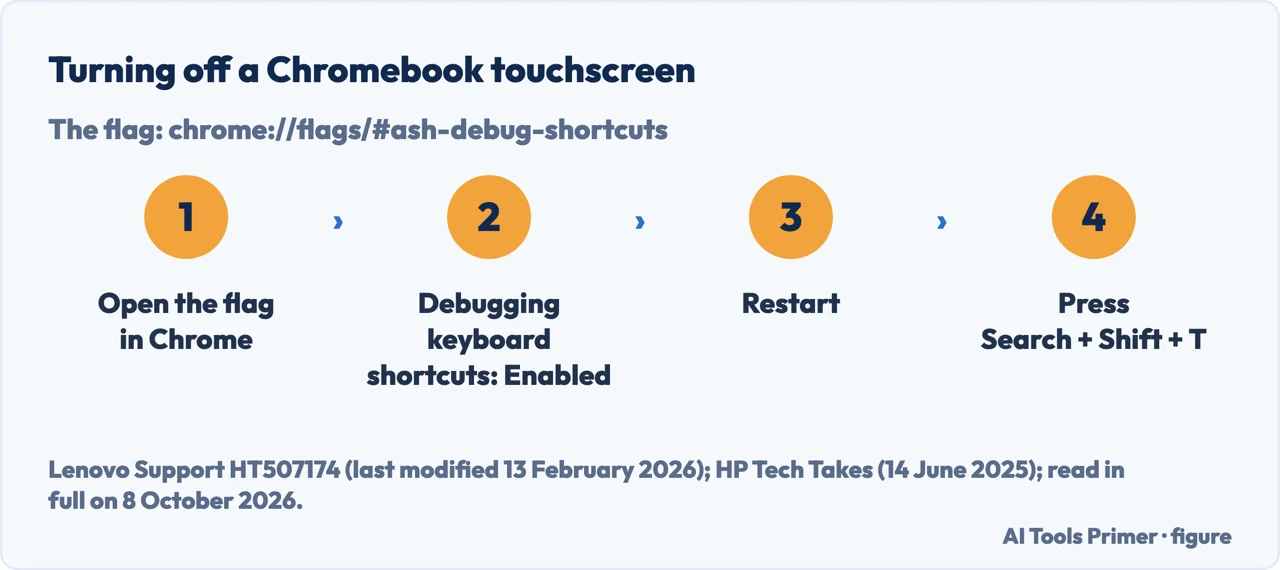
How to turn off touchscreen on Chromebook: Lenovo’s steps, written for its 300e and 500e Chromebooks, are to open chrome://flags/#ash-debug-shortcuts, enable Debugging keyboard shortcuts, restart, then press Search + Shift + T to switch the touchscreen off, and the same keys to switch it back on. The Google Chromebook Help pages read here give no setting for it.
| What | What the pages say |
|---|---|
| The shortcut | Search + Shift + T, once a flag is enabled (Lenovo, HP) |
| The flag | chrome://flags/#ash-debug-shortcuts, Debugging keyboard shortcuts enabled, then a restart (Lenovo, for its 300e and 500e) |
| A setting for it | None on the Google Chromebook Help pages read here; HP says some models have one |
| The touchpad | A setting in Accessibility (Google), or Search + Shift + P, in a note to the same steps (Lenovo) |
| Flags in general | Experimental, may change between updates and may reset during major updates (HP) |
- Open the flag. In Chrome, type chrome://flags/#ash-debug-shortcuts in the address bar, as Lenovo’s steps say.
- Find Debugging keyboard shortcuts. Lenovo says there is a search box at the top of the flags page, and that Disable is selected by default.
- Set it to Enabled. HP says to change the setting from Default to Enabled; Lenovo says to click Enable.
- Restart. Lenovo says to select the Relaunch Now icon to restart Chrome; HP says to restart the Chromebook when prompted.
- Press Search + Shift + T. After signing in again, the same three keys turn the touchscreen off and back on. HP says the change is immediate and that a short notification confirms it.
Turning it back on. Press Search + Shift + T again. HP adds that you can set the flag back to Default on chrome://flags and restart. For a touchscreen that isn’t working, Google’s own steps, which don’t mention the flag, are to wipe off dust or dirt, then reset the Chromebook hardware, then reset it to factory settings, testing after each, and to contact the manufacturer if none of that works; a screen that ignores touches is also in a touch screen that doesn’t respond.
When the touchscreen keeps working
A case on Google’s forum. In March 2023, a Chromebook owner wrote on the Chromebook Community that Search + Shift + T didn’t turn the touchscreen off, and that after enabling the flag and restarting, the flags page showed it disabled again. A volunteer Product Expert asked for the build details, from chrome://os-settings/help and Additional details. The thread is locked; its recommended answer gives the same flag steps, and it records no other fix.
What HP warns about flags. HP’s guide says flags are experimental, may change between updates, may reset during major system updates, and that some versions of ChromeOS may not include this one. Our reading of that warning, not HP’s words: after an update, check whether the flag still says Enabled.
A school or work Chromebook. For education and work devices, HP says to check policy restrictions before enabling Developer Mode, one of the routes below.
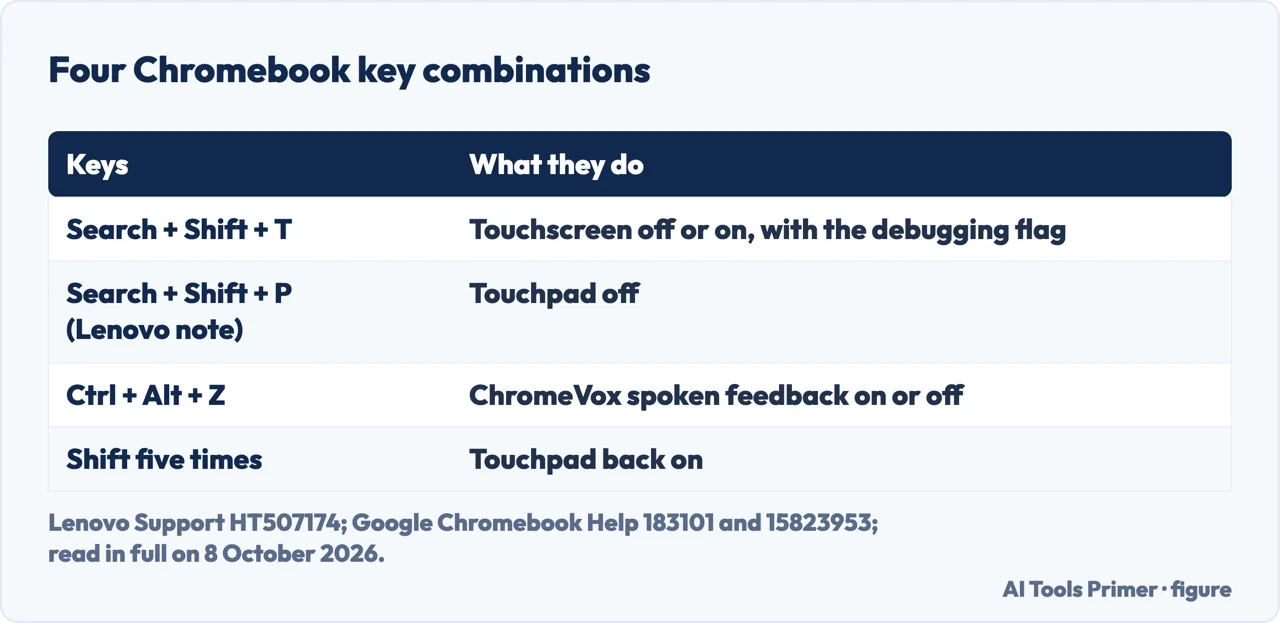
Shortcuts that sit nearby. In Google’s list of Chromebook shortcuts, Ctrl + Alt + Z turns ChromeVox, the spoken feedback, on or off; Ctrl + Shift + the Rotate key turns the screen 90 degrees; and Search + L locks the screen. In tablet mode, Google says connecting a mouse switches the Chromebook back to laptop mode, and Power + Volume down takes a screenshot; other screenshot keys are in screenshots on a tablet with a keyboard.
If it is the touchpad you want off
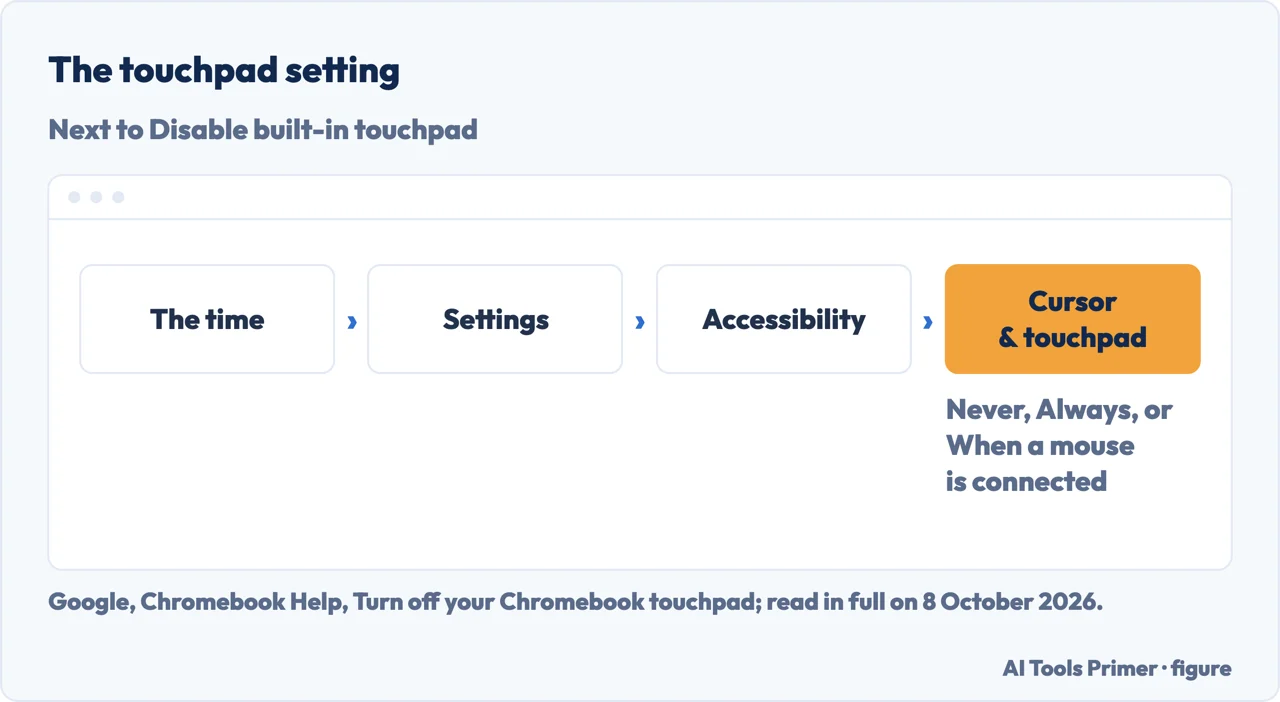
Google’s setting. Select the time at the bottom right, then Settings, Accessibility, Cursor & touchpad, and next to Disable built-in touchpad choose Never, Always, or When a mouse is connected. Google says that if you choose Always and don’t confirm within 30 seconds, the touchpad goes back to the default.
Turning it back on. Google says to press the Shift key five times.
With the flag. In a note to the same steps, Lenovo says Search + Shift + P disables the touchpad.
The other routes HP describes
A setting, on some models. HP says some Chromebooks include a touchscreen control in Settings, and suggests looking under the device and display options and in Accessibility. The Google Help pages read here don’t list one.
Developer Mode. HP also describes terminal commands that need Developer Mode, and warns that turning Developer Mode on wipes the device with a Powerwash, and that turning it off again needs another. This page doesn’t give those steps.
A physical cover. HP mentions a thick, non-conductive screen protector as a temporary answer, and says it may affect screen clarity or brightness, and that some sensitive touchscreens may still register through thin materials.
Which versions. Lenovo’s article was first published on 11 September 2018 and last modified on 13 February 2026; HP’s guide is dated 14 June 2025; the forum thread is from March 2023. None of them names a ChromeOS version, and the Google Help pages give no date; Lenovo’s article lists the 300e and 500e Chromebooks as the systems it applies to. A picture that flickers or breaks up is in a glitching Chromebook screen, and a single faulty pixel in dead pixels.
Where to start
Five ways in.
- “Where do I start?”
- The flag and the shortcut — the flag and the shortcut
- “It still responds.”
- When it does not stay off — when it does not stay off
- “I want it back.”
- Turning it back on — turning it back on
- “It is the touchpad.”
- The touchpad — the touchpad
- “Is there another way?”
- Other routes — other routes
More on screens
When the screen does something it shouldn’t.
Questions people also ask
How do I disable the touchscreen?
On a Chromebook, Lenovo’s steps are to enable the Debugging keyboard shortcuts flag at chrome://flags/#ash-debug-shortcuts, restart, and press Search + Shift + T. HP says flags are experimental and may reset during major updates; that the shortcut can then stop working is our reading.
What does Ctrl+Alt+Z do on a Chromebook?
In Google’s list of Chromebook keyboard shortcuts, Ctrl + Alt + Z turns ChromeVox, the spoken feedback, on or off. The touchscreen toggle Lenovo and HP give is Search + Shift + T, with the debugging flag enabled.
How do I turn on the touchscreen on a Chromebook?
If you switched it off with Search + Shift + T, press the same keys again. HP also says you can set the debugging flag back to Default and restart. For a touchscreen that isn’t working, Google’s steps are to clean the screen, reset the hardware, then reset to factory settings.
Not covered here. It does not cover touchscreens on Windows laptops, managed devices locked by an administrator, or Developer Mode commands.
Sources
- Lenovo Support HT507174 — How to disable the Touchscreen on a Chromebook (published 11 September 2018, last modified 13 February 2026): the flag, Search + Shift + T, Search + Shift + P — support.lenovo.com, read 8 October 2026.
- HP Tech Takes — How to Turn Off Touchscreen on Chromebook: Benefits and Step-by-step Guide (14 June 2025): flags, settings on some models, Developer Mode, restoring — www.hp.com, read 8 October 2026.
- Chromebook Community — How do i turn OFF touchscreen (thread, 25–26 March 2023) — support.google.com, read 8 October 2026.
- Google, Chromebook Help — Chromebook keyboard shortcuts: Ctrl + Alt + Z, rotating and locking the screen — support.google.com, read 8 October 2026.
- Google, Chromebook Help — Use the Chromebook touchscreen: fixing touchscreen problems — support.google.com, read 8 October 2026.
- Google, Chromebook Help — Use your Chromebook as a tablet — support.google.com, read 8 October 2026.
- Google, Chromebook Help — Turn off your Chromebook touchpad — support.google.com, read 8 October 2026.
Written by Alberto Gulotta
Founder and editor of AI Tools Primer, writing from Palermo, Italy. Thirty-five years of taking computers apart, starting with a Commodore 64 — the long version is on the about page.
Something wrong on this page? Write to aitoolsprimer@gmail.com and it gets fixed.
Written on 9 October 2026.
Independence and limits
No affiliate links and no paid placements anywhere on this site. Nobody pays to appear here, and no company has seen this page before you did.
This is general information, not professional advice. Where a page touches money, health, safety or the law, it names its source and the date it was read — and your situation may still differ. See the privacy page and the cookie policy.