
Screens · guide
Dead pixel repair laptop screens, and the free route people miss
By Alberto Gulotta · Updated · 16 min read
Dead pixel repair on laptop screens starts with a count, not a tool. A dead pixel cannot be revived by anything you install — the maker of the panel says so — but on a good number of laptops a single faulty bright pixel already entitles you to a new screen under the warranty you are holding.
The search results for this question are mostly the remedy itself: a site that flashes colours at the screen, another site that flashes colours at the screen, and threads of people saying it worked or did not. What none of them carries is the position of the companies that build the panels, and the two makers read for this guide — Dell and Apple — say it in plain words.
“Do not attempt to fix stuck pixels yourself.”
That is Dell, on its own pixel page, about the class of remedy that fills the search results for this question. It gives four reasons and none of them is about warranties alone: “They can cause further damage to your display”, “They may void your warranty”, “Applying pressure can crack the screen or damage internal components”, “Software tools are not officially supported by Dell and may not work”. The company that would sell you the replacement panel is the one telling you not to risk needing it.
Dell separates the two faults that get called by the same name, and only one of them is even arguably fixable. A stuck or bright pixel is on when it should be off; a dead or dark one is off and staying off. The flashing tools are aimed at the first. About the second, Dell writes: “A dead pixel has stopped working completely. No software or other methods can bring it back to life.” That single sentence removes most of the reason people arrive here at all, which is why so few of the pages that answer them are willing to print it.
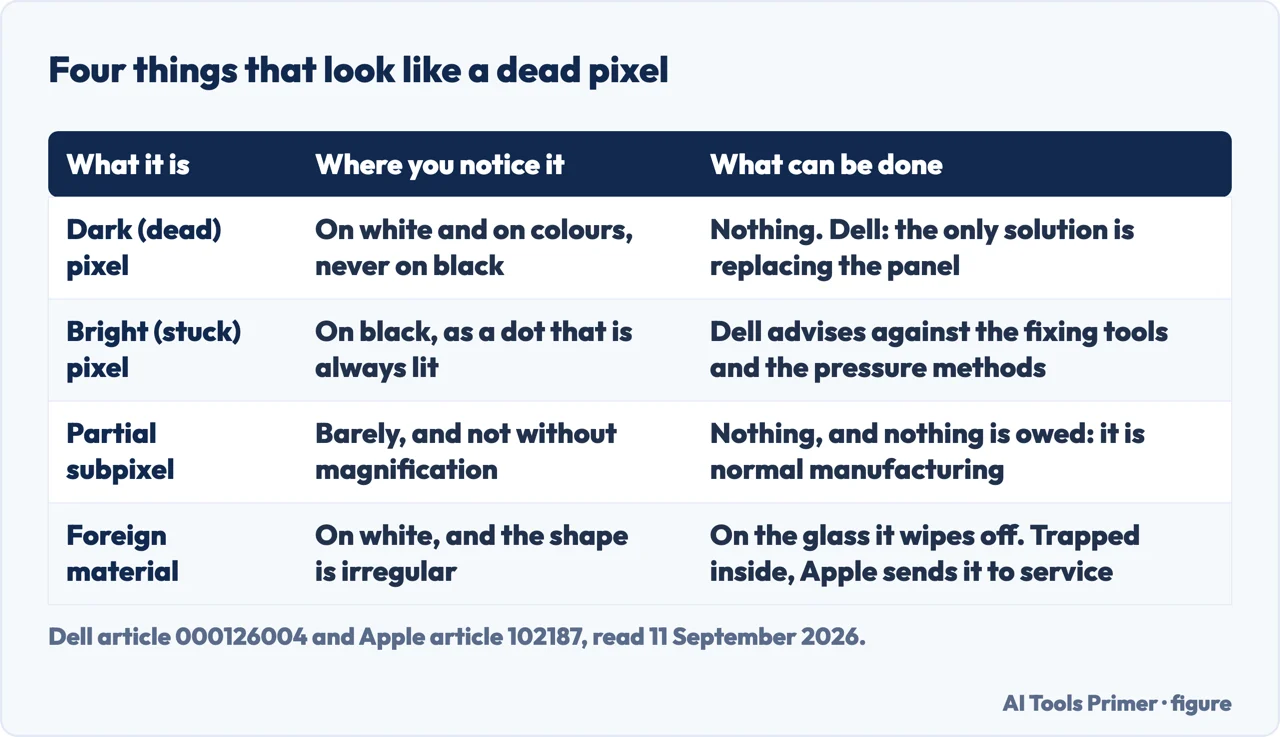
Four things that look like a dead pixel
Only two of them are pixel faults at all, and the other two behave completely differently. The distinction is not pedantry: it decides whether anything can be done.
- A dark pixel — the actual dead one. Dell: “All three subpixels in one pixel are permanently turned off”, showing “A black dot that you can see on white or colored backgrounds (but not on black backgrounds)”. Dell’s verdict is one line long: “The only solution is replacing the display panel.”
- A bright pixel — the stuck one. All three subpixels permanently on: “A bright white dot that’s always visible, especially on dark backgrounds.” This is the one the tools claim to release, and the one Dell says to leave alone.
- A partial subpixel — not a defect at all. Dell describes it as “typically less than half the size of a full subpixel element” and says that “Partial subpixel anomalies appear on nearly all LCD displays”. It will not be replaced under any policy, and the reason is that it is normal manufacturing.
- Foreign material — a dot that is not part of the screen. Apple: “In many cases pixel anomalies are caused by a piece of foreign material that is trapped somewhere in the display or on the front surface of the glass panel”, and it gives you the tell: “Foreign material is typically irregular in shape and is usually most noticeable when viewed against a white background.” On the surface it comes off with a lint-free cloth. Trapped inside, Apple says it “must be removed by an Apple Authorized Service Provider or Apple Retail Store”.
Before any of that, though, there is a cheaper question, and it is the one Apple answers. A dot on the screen is not necessarily a pixel: it can be something sitting on the glass or caught behind it. Apple’s test is a shape and a background — irregular rather than square, most visible on white — and the remedy for the half of them that are on the surface is a cloth. It costs nothing to rule out and it is why every serious procedure, including Dell’s, starts by cleaning the screen.
- Clean the screen before you count anything. Dell’s own first line, and the reason is the fourth item above: “Sometimes what looks like a stuck pixel is usual dust or dirt.” A clean, lint-free cloth; nothing wet, nothing abrasive.
- Put solid colours on the screen, one at a time. On a Dell laptop the maker’s own route is the diagnostics: restart, press F12 repeatedly when the Dell logo appears, choose Diagnostics, and “The screen cycles through solid colors”. The point of solid colours is that each one hides a different fault and exposes another.
- Look for the right thing on each colour. Dell says exactly what: “On black : Look for any bright dots”, “On white : Look for any dark dots”, “On red, green, blue : Look for dots that don’t match the background color”.
- Count them, and write down what kind and where. This is the step people skip, and it is the one that turns a nuisance into a claim. Dell asks for the count of bright pixels or subpixels, the count of dark ones, and where they are on the screen.
- Compare the count with your maker’s published tolerance, not with a forum. For a Dell laptop the table is short and it is on the same page: at HD+ (1600 x 900) or higher, the allowance is 0 bright pixels or subpixels, up to 5 dark subpixels, up to 5 combined; at HD (1366 x 768) or lower, up to 2 bright and up to 5 dark. And judge it at the distance the policy names: “Normal viewing distance (recommended) is about 35 to 50 cm”, with the naked eye.
- If you are over the line, go to the maker before you go anywhere else. The claim is the repair, and it is free inside the warranty period. Dell’s Premium Panel Exchange runs “for your entire warranty period”, standard or extended.
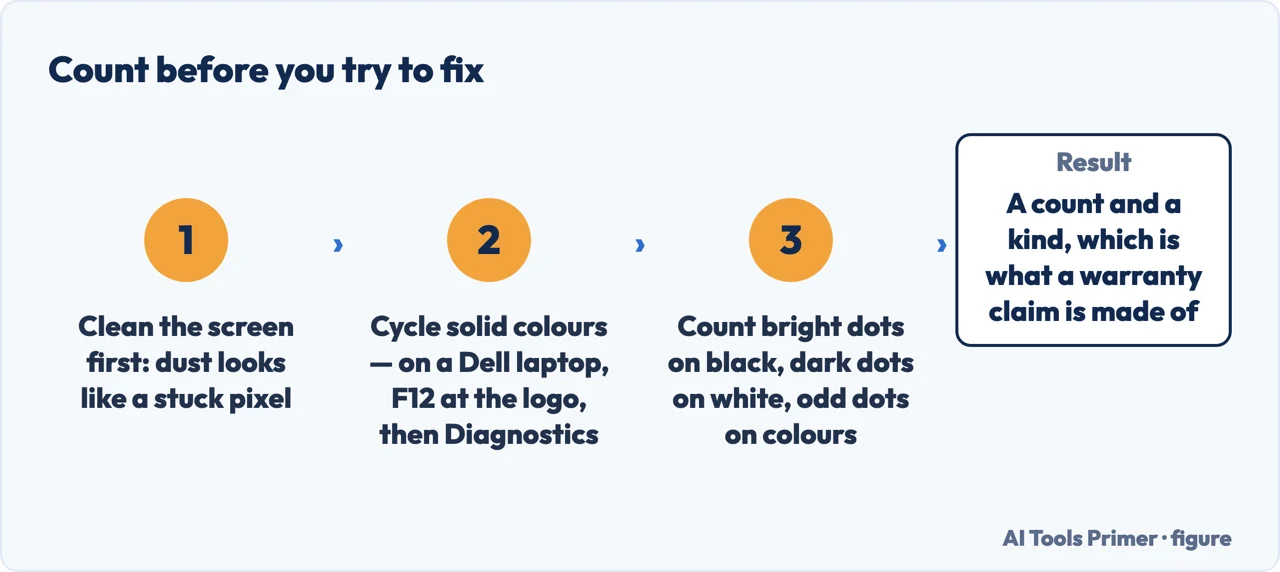
The counting step is the one that changes the outcome, and it takes five minutes. The reason it matters is that pixel policies are written in numbers and categories — bright against dark, pixel against subpixel — and a claim made in those terms is answered in those terms. Dell also settles the question of whether waiting helps: “A stuck pixel stays stuck until the monitor is replaced. It won’t get better or worse on its own.” There is nothing to be gained by giving it a fortnight.
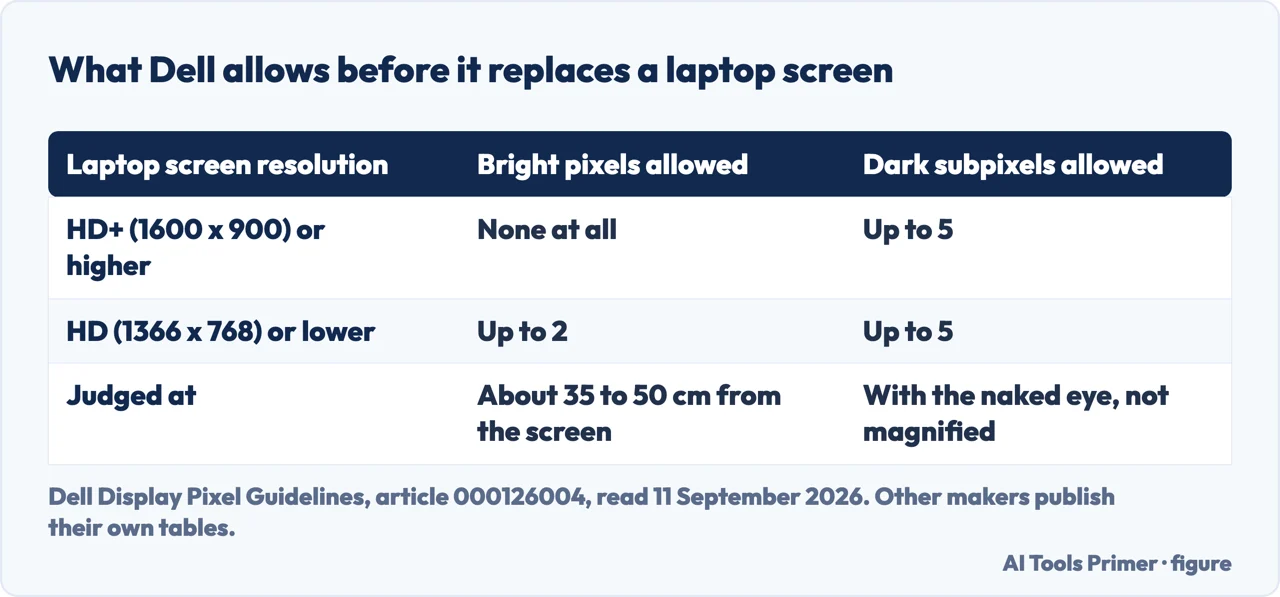
The fact that changes what this question is worth. Dell’s Premium Panel Exchange covers, among other things, “All Dell laptops with HD+ resolution (1600 x 900) and higher”, and on those the tolerance for a bright pixel is zero: “This guarantee means zero tolerance for bright pixels on eligible displays. If you see even one bright pixel during your warranty period, we’ll replace your display.” So on a large part of the laptops sold in the last decade, the answer to “how do I repair this dead pixel” is that you do not repair it at all — you count it, you check the table, and you ask for the panel you are already entitled to. It is worth checking whether your own maker publishes the same kind of table before you spend an evening with a pixel-flashing website.
One caution about the part of the internet this question leads to. The pressure technique that circulates for stuck pixels — a cloth, a fingertip, a rub on the spot — is the thing Dell singles out: “Applying pressure can crack the screen or damage internal components”. A panel that has been pressed hard can end up with a mark of its own, which is the subject of black pressure marks on a laptop screen, and that mark is not covered by anybody’s pixel policy. If what you are looking at is not a sharp dot but a soft-edged patch, you are already in that other question rather than this one.
And if the dots are not dots at all but a straight line, this page is the wrong one: a line runs across many pixels at once and comes from somewhere else entirely, which is a vertical black line on a laptop screen. The same goes for a whole area that has gone pale or dark rather than a handful of points.
Where to start
Three ways in. If the dot has soft edges rather than sharp ones, take the third: it is probably not a pixel.
- “Do the fixing tools work?”
- What the panel makers say — what the makers say
- “How do I get it replaced?”
- Count, then check the table — count then claim
- “Mine is a patch, not a dot.”
- Then it is a different fault — not a pixel at all
What the makers say
The two makers read for this guide — Dell and Apple — both put in writing what to do about a pixel fault, and it is not what the search results recommend.
Count, then claim
The published tolerances are the useful part of this subject: they turn a nuisance into a warranty claim, and they are written in a vocabulary worth borrowing.
Not a pixel at all
Sharp dot, soft patch, straight line and spreading stain are four different faults, and only the first is what this page is about.
Questions people also ask
Do dead pixel fixers actually work?
Not on a dead pixel: Dell states that “No software or other methods can bring it back to life” and that the only solution is a new panel. On a stuck one, Dell says the tools “are not officially supported by Dell and may not work”, and advises against them because of what they can damage.
How much does it cost to fix a dead pixel?
A dead pixel is not repaired, it is replaced: Dell says “The only solution is replacing the display panel.” The Dell page cited here does not price that panel. Apple publishes a cost table, but for iPhone screens, and adds “We’ll inspect your device to determine the final service fee.” Count the faults against your maker’s tolerance: that costs nothing.
Can dead pixels go away on their own?
Dell answers this one directly: “A stuck pixel stays stuck until the monitor is replaced. It won’t get better or worse on its own.” A dot that does change, or moves, is something else — often foreign material rather than a pixel.
How many dead pixels are allowed before a replacement?
It depends on the maker and the panel. Dell publishes a table: on its laptops at HD+ (1600 x 900) or higher the allowance is zero bright pixels or subpixels and up to five dark subpixels; at HD (1366 x 768) or lower it is up to two bright and up to five dark.
Are dead pixels harmful?
This page will not say. Neither of the two sources it is built on makes any claim about harm, and the question is about eyes rather than about screens.
Not covered here. It will not show you how to use a pixel-flashing tool. The company that builds the panels advises against the whole class of remedy, and printing the instructions next to that warning would pretend the two weigh the same.
It will not quote a repair price for a laptop panel. The Dell page read for this guide does not publish one, and the only price on a page cited here belongs to a different part on a different machine — Apple’s table is for iPhone screens. The only numbers here that are both public and checkable are the tolerances.
And it will not turn into a page about one brand. Dell is quoted because Dell publishes the table; the useful move is to look for the same table from whoever made your laptop. What holds instead is simple: the warranty tolerances are Dell’s own published ones and the repair boundary is Apple’s, neither softened to make the page more comforting.
Sources
- Dell, Dell Display Pixel Guidelines — article 000126004 (the definitions of pixel, subpixel and partial subpixel, and of bright or stuck and dark or dead pixels and subpixels; the statement that only stuck pixels and subpixels visible at normal viewing distance count toward warranty evaluation and that partial subpixel anomalies are not defects under industry standards or Dell’s warranty policy; the recommended normal viewing distance of about 35 to 50 cm, and about 100 to 150 cm for large format monitors; the instruction not to attempt to fix stuck pixels, with the four reasons given — further damage, a voided warranty, cracking the screen or damaging internal components by applying pressure, and software tools not being officially supported and possibly not working; the statement that a dead pixel cannot be fixed and that the only solution is replacing the display panel; the Premium Panel Exchange guarantee, its zero tolerance for bright pixels, the list of covered series including all Dell laptops with HD+ resolution (1600 x 900) and higher, and its duration across the whole warranty period; the pixel policy tables for monitors, laptops and all-in-one computers, including the laptop rows of 0 bright and up to 5 dark subpixels at HD+ or higher and up to 2 bright and up to 5 dark at HD or lower; the procedures for checking a monitor and a laptop, including unplugging the video cable to reach the floating box, pressing F12 at the Dell logo to reach Diagnostics and the colour cycle, and what to look for on black, white and coloured backgrounds; and the answer that a stuck pixel stays stuck until the monitor is replaced and will not get better or worse on its own) — www.dell.com, read 11 September 2026.
- Apple, About LCD display pixel anomalies for Apple products released in 2010 and later — article 102187 (the explanation that each subpixel has a corresponding transistor and that a transistor which does not work perfectly leaves the affected subpixel dark or bright; the note that with millions of subpixels a low number of such transistors is possible and that pixel anomalies can occur in a small percentage of panels; and the part that changes the diagnosis — that in many cases pixel anomalies are caused by a piece of foreign material trapped somewhere in the display or on the front surface of the glass panel, that foreign material is typically irregular in shape and usually most noticeable when viewed against a white background, that material on the front surface can be easily removed with a lint free cloth, and that material trapped within the screen must be removed by an Apple Authorized Service Provider or Apple Retail Store) — support.apple.com, read 11 September 2026.
- Apple, Apple Service and Repair for iPhone Screens (the estimated service cost table, which lists a figure for screen damage per iPhone model and not for a laptop panel; with the statements that Apple will inspect the device to determine the final service fee, that estimated fees are for out-of-warranty service from Apple and may be subject to tax, and that Apple Authorized Service Providers can set their own service fees) — support.apple.com, read 11 September 2026.
Written by Alberto Gulotta
Founder and editor of AI Tools Primer, writing from Palermo, Italy. Thirty-five years of taking computers apart, starting with a Commodore 64 — the long version is on the about page.
Something wrong on this page? Write to aitoolsprimer@gmail.com and it gets fixed.
Written on 11 September 2026 · last checked 7 October 2026.
Independence and limits
No affiliate links and no paid placements anywhere on this site. Nobody pays to appear here, and no company has seen this page before you did.
This is general information, not professional advice. Where a page touches money, health, safety or the law, it names its source and the date it was read — and your situation may still differ. See the privacy page and the cookie policy.