
Screens · guide
MacBook Pro yellow screen: what to check first
By Alberto Gulotta · Updated · 9 min read
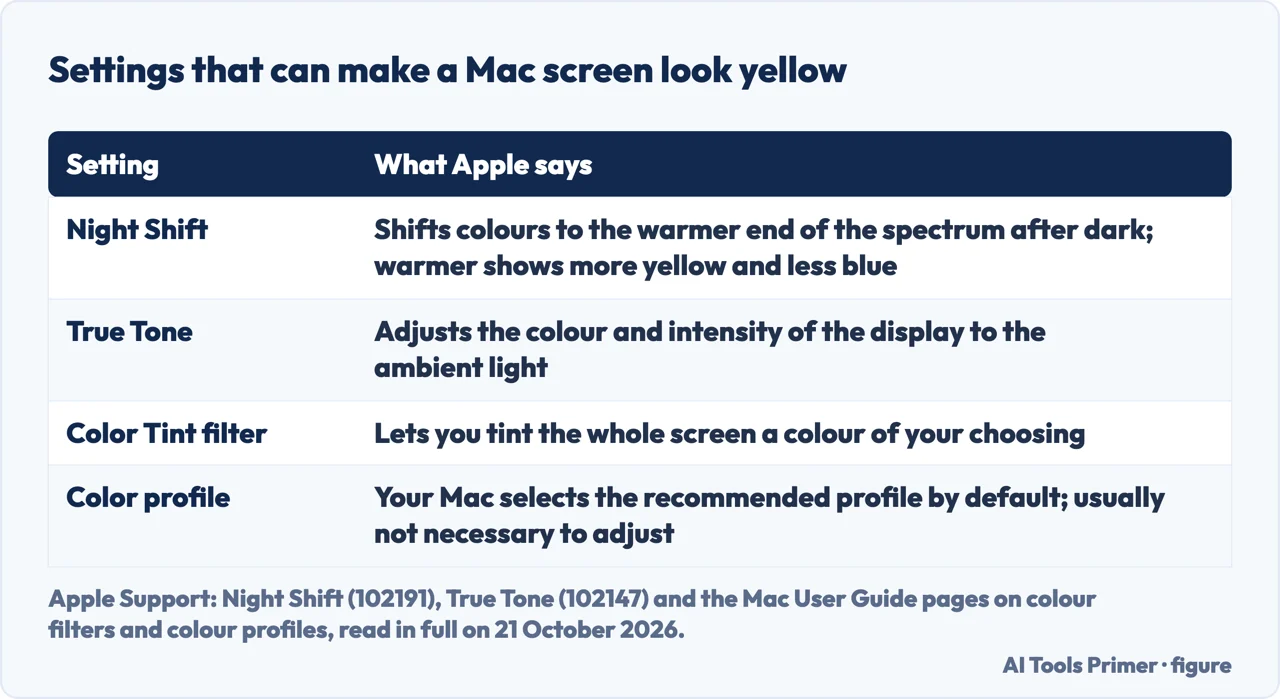
MacBook Pro yellow screen: before you suspect the display, check the settings Apple documents. Night Shift, True Tone and a Color Tint filter can all push a screen towards yellow, and Apple Diagnostics tests the built-in display if the colour stays wrong with them off.
| Setting | What Apple says |
|---|---|
| Night Shift | Shifts the display’s colours to the warmer end of the spectrum after dark; warmer colour temperatures show more yellow and less blue |
| True Tone | Adjusts the colour and intensity of the display to match the ambient light; appears only for displays that support it |
| Colour filters | Can tint the screen a colour of your choosing (Color Tint), with an intensity slider |
| Colour profile | Your Mac selects the recommended profile by default, so it isn’t usually necessary to adjust it |
| Apple Diagnostics | Tests hardware; in macOS Tahoe 26 and later you choose a diagnostic, such as the built-in display |
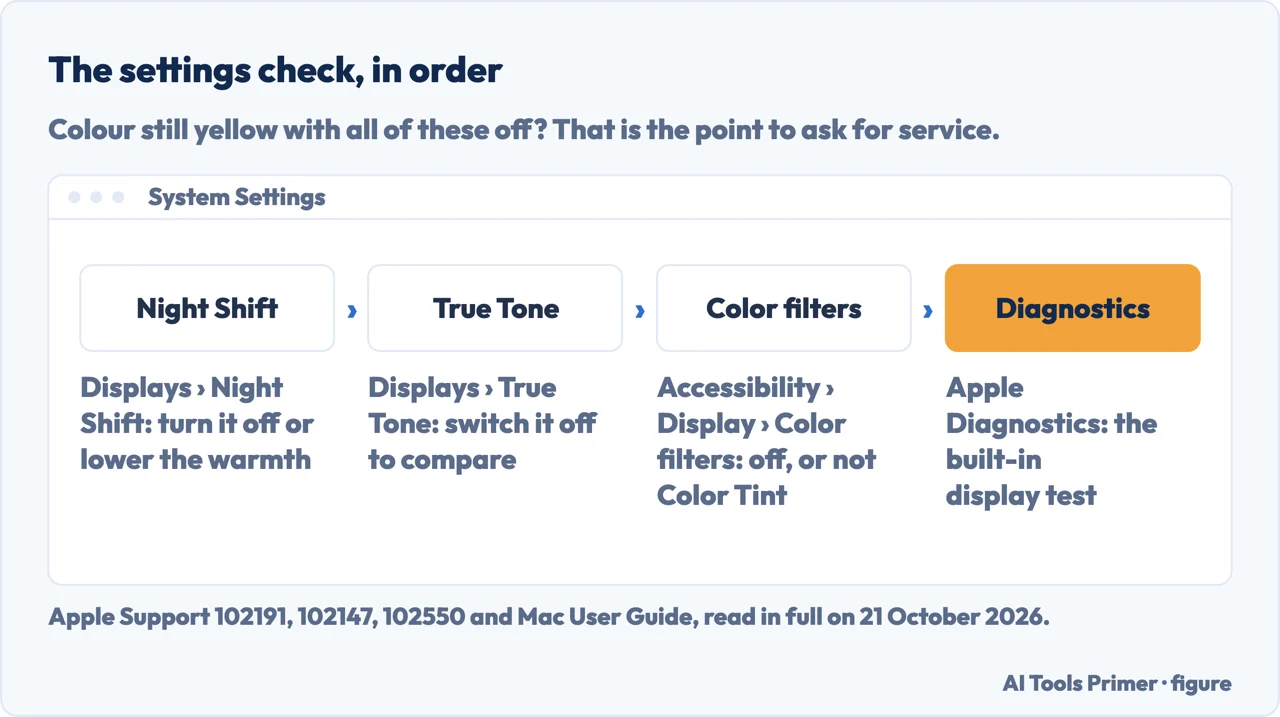
- Night Shift. Apple says to choose Apple menu > System Settings, click Displays, then Night Shift (available only on Macs that support it). There you can turn it off until sunrise or the scheduled time, or make the colour temperature less warm.
- True Tone. In Displays, select your display and look for True Tone. Apple says it adjusts to the room’s light, so the screen looks different in different rooms. Switching it off to compare is our suggestion, not Apple’s.
- Colour filters. In System Settings, Accessibility, Display, Apple says to go to Color Filters. If a filter is on, check its type: Color Tint tints the whole screen. Apple says turning on Night Shift or inverting colours turns colour filters off, except Grayscale.
- Colour profile or preset. Apple says the default profile is the recommended one. For a 14-inch or 16-inch MacBook Pro from 2021 or later it says to see Displays settings, where a Preset menu offers built-in reference modes.
- Another screen. With the settings above off, plug in an external display. If it shows normal colour while the built-in screen stays yellow, the fault is in our reading the built-in display or its connection: that is a deduction, set out below.
- Apple Diagnostics. Shut down, disconnect everything except keyboard, mouse, display, Ethernet and power, then on a Mac with Apple silicon hold the power button until Options appears and hold Command-D; on an Intel Mac hold D as it starts. In macOS Tahoe 26 and later, Apple says you choose a diagnostic, such as the built-in display.
Why another screen tells you something
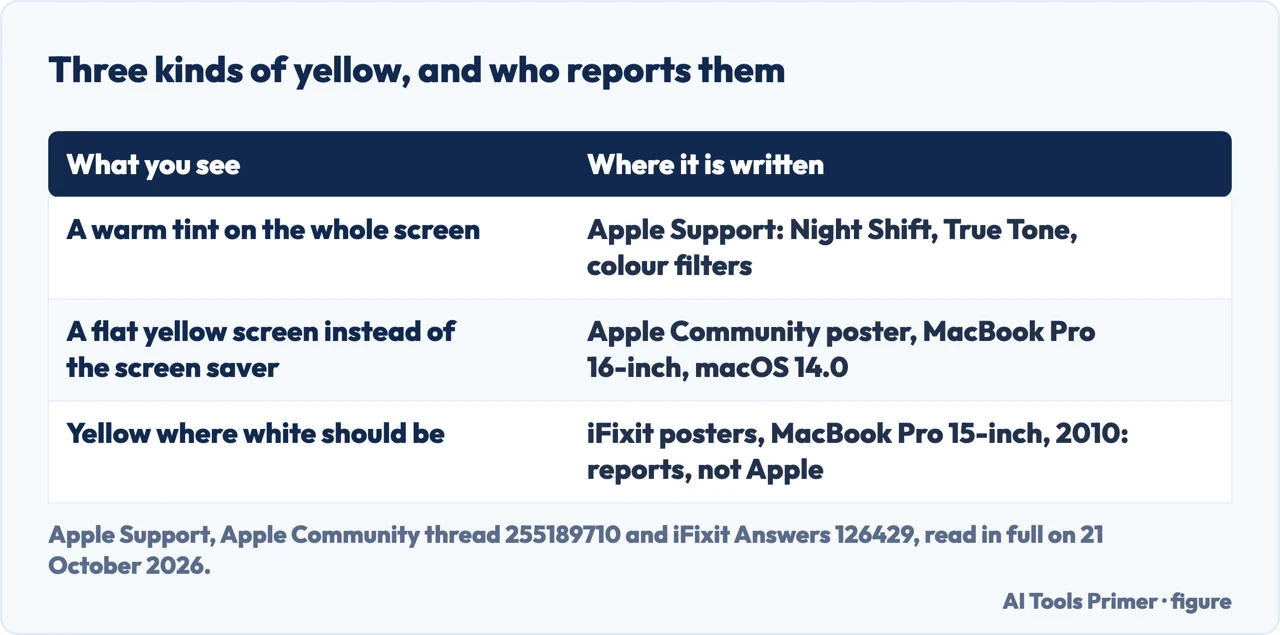
Where the idea comes from. In an iFixit thread about a 15-inch MacBook Pro from 2010, whose poster saw yellow where white should be, a reply in April 2013 said the poster’s screenshots looked fine, and that connecting an external monitor would probably show the image was OK. That was one user’s guess on an old model.
Our reasoning. Night Shift and True Tone are display settings, so a screenshot is unlikely to show them, and they may also be applied to a second screen. That is why the settings come first: once they are off, a normal external display beside a built-in one that stays yellow points away from software. This is our deduction, not an Apple statement, and we have not tested it on a faulty Mac.
A yellow screen instead of the screen saver
What one poster wrote. In an Apple Community thread, a poster with a 16-inch MacBook Pro on macOS 14.0 wrote on 8 October 2023 that a yellow screen showed instead of a screen saver after updating to Sonoma, with no settings changed. Later that day the poster replied that the screen saver settings still had Ventura selected, and that after changing that there was no more yellow screen.
Others in the thread. A reply suggested shutting down and restarting the Mac more than once after an upgrade. A poster wrote in April 2024 that a yellow screen showed up instead of the Sonoma screen saver, randomly, with settings that seemed to be fine; another wrote in May 2024 that a restart solved it temporarily and that after three days the yellow screen was back. These are users’ reports, not Apple statements, and they describe a screen saver or wallpaper, not a screen that is yellow all the time. For a broader look, see computer screen problems and safe mode.
Yellow where white should be: what users reported on an old MacBook Pro
The thread. An iFixit Answers thread of April 2013 concerns a MacBook Pro 15-inch Unibody, mid 2010: the poster saw red vertical lines and flickering green dots, which went, leaving yellow where white should be. The poster wrote on 1 May 2013 that it had fixed itself.
What replies said. One reply in April 2013 said to run Apple Hardware Test first, that a damaged or badly seated display cable was the first suspect, and that if the connections were fine the display had probably gone bad. A reply of February 2014 said lifting a plastic tab on the display cable, without unplugging it, made the screen normal again. These are users’ reports on a 2010 model, not Apple statements, and they involve opening the Mac, which this page does not cover. Today the equivalent first step is Apple Diagnostics. A backlight that has gone out altogether is in display backlight stops working.
When to ask for service. Apple says that if Apple Diagnostics shows reference codes and you can’t resolve the issue yourself, you might need service, and to give the code to the Apple Store, Authorized Service Provider or Independent Repair Provider that repairs the Mac. What a display repair involves and costs, from Apple’s repair page, is in black lines on a MacBook Pro screen; back up first with backing up a MacBook.
Where to start
Four ways in.
- “Where do I start?”
- The settings check — settings check
- “Why another screen?”
- The reasoning — why another screen
- “Yellow instead of the screen saver.”
- What one poster wrote — yellow screensaver
- “Is it the hardware?”
- What users reported — hardware reports
Other colour faults on a screen
A cast, a tint and a frame of the wrong colour each have their own test.
Questions people also ask
Why does my MacBook have a yellow tint?
Apple says Night Shift shifts the display’s colours to the warmer end of the spectrum after dark, and that warmer colour temperatures show more yellow and less blue. True Tone and a Color Tint filter also change the look of the screen. If the tint stays with all of them off, Apple Diagnostics has a test for the built-in display.
How do I make my Mac screen more yellow?
On a Mac that supports Night Shift, Apple says you can make the colour temperature more or less warm when Night Shift is on, and that warmer shows more yellow. A Color Tint filter in Accessibility settings is another way, with an intensity slider.
Not covered here. It does not cover opening a MacBook Pro, replacing the display yourself, or a yellow cast on an external display.
Sources
- Apple Support — Use Night Shift on your Mac (article 102191, published 10 February 2026) — support.apple.com, read 21 October 2026.
- Apple Support — Use True Tone on Mac (article 102147, published 10 March 2026) — support.apple.com, read 21 October 2026.
- Apple, Mac User Guide — Change display colors on Mac to make it easier to see what’s onscreen — support.apple.com, read 21 October 2026.
- Apple, Mac User Guide — Change the color profile on Mac — support.apple.com, read 21 October 2026.
- Apple, Mac User Guide — Displays settings on Mac — support.apple.com, read 21 October 2026.
- Apple Support — Use Apple Diagnostics to test your Mac (article 102550, published 19 December 2025) — support.apple.com, read 21 October 2026.
- Apple Community — Yellow screen instead of a screensaver on my MBP (posts from October 2023 to May 2024) — discussions.apple.com, read 21 October 2026.
- iFixit Answers — Screen yellow where white should be, MacBook Pro 15″ Unibody Mid 2010 (posts from 2013 to 2020) — www.ifixit.com, read 21 October 2026.
Written by Alberto Gulotta
Founder and editor of AI Tools Primer, writing from Palermo, Italy. Thirty-five years of taking computers apart, starting with a Commodore 64 — the long version is on the about page.
Something wrong on this page? Write to aitoolsprimer@gmail.com and it gets fixed.
Written on 21 October 2026.
Independence and limits
No affiliate links and no paid placements anywhere on this site. Nobody pays to appear here, and no company has seen this page before you did.
This is general information, not professional advice. Where a page touches money, health, safety or the law, it names its source and the date it was read — and your situation may still differ. See the privacy page and the cookie policy.