
Screens · guide
MacBook Pro black lines bottom screen: what to check first
By Alberto Gulotta · Updated · 10 min read
MacBook Pro black lines bottom screen: before paying for a display, run two checks. Take a screenshot with Shift-Command-3 and look at it on another device: in our reading, lines missing from the picture point at the display. Then run Apple Diagnostics, which from macOS Tahoe 26 lets you choose a test for the built-in display.
| What | What Apple says |
|---|---|
| Apple Diagnostics | Tests internal hardware; from macOS Tahoe 26 you choose a test, such as the built-in display |
| Starting it | Apple silicon: hold the power button, release it at Options, then hold Command-D. Intel: hold D at startup |
| Bright or dark spots | The display may have pixel anomalies; with a high number, contact Apple or an Authorized Service Provider |
| Flickering | Check the cables and adapters between Mac and display; nearby devices may cause interference |
| 2016 13-inch backlight programme | A very small percentage of two 2016 models might show bright areas along the bottom; the programme has ended |
| Warranty | One year against manufacturing issues; accidental damage is not covered |
- Take a screenshot while the lines show. Apple’s shortcut for the whole screen is Shift, Command and 3 pressed together; Apple says the screenshot saves to the desktop, unless you have changed where screenshots go.
- Look at it on another screen. Send it to a phone, or open it on another computer. If the lines aren’t in the picture, they are not in what the Mac is drawing: that reasoning is ours, set out below.
- Shut down and disconnect accessories. For Apple Diagnostics, Apple says to keep only keyboard, mouse, display, Ethernet and power connected, with the Mac on a hard, flat, stable surface with good ventilation.
- Start Apple Diagnostics. On a Mac with Apple silicon, hold the power button, release it when Options appears, then hold Command-D until the Mac restarts. On an Intel Mac, hold D as it starts, or Option-D if D doesn’t work.
- Choose a test, and keep any code. Apple says that in macOS Tahoe 26 and later you choose a diagnostic, such as the one for the built-in display; earlier versions run automatically. If you see reference codes, Apple says to give them to the Apple Store, Authorized Service Provider or Independent Repair Provider that repairs the Mac.
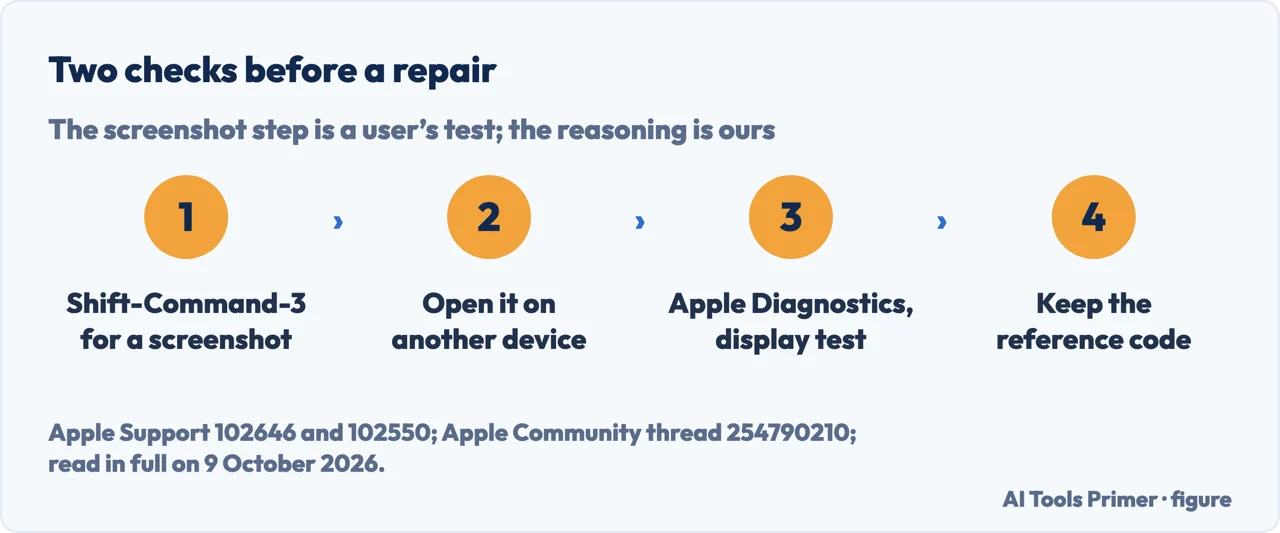

Why a screenshot tells you something
Where the test comes from. In the Apple Community thread on black horizontal lines on a MacBook Pro, a poster with a 15-inch MacBook Air (M2, 2023) wrote on 1 August 2024 that the lines showed in a screenshot on the Mac but not when the same picture was opened on an iPhone; the poster wrote of being within the one-year warranty, and that Apple replaced three parts: the lid angle sensor, the display and the bottom case.
Our reasoning. A screenshot records the image the Mac produces, not the light the panel gives out. If the image is clean and the screen isn’t, the fault sits between the two: the display or what connects it. If the lines are in the picture too, look at software first. This is a deduction, not an Apple statement, and Apple Diagnostics is Apple’s tool for diagnosing problems with the Mac’s internal hardware.
A second screen. A reply in the same thread suggested connecting an external display: if it works fine, the reply says the problem is likely the MacBook Pro’s display; if it shows the lines too, the issue may be the graphics card. How to read an external monitor that misbehaves is in computer monitor display issues.
What one poster tried. In the same thread, the poster with the MacBook Air wrote that a software update and a PRAM and SMC reset did not remove the lines. On an Intel-based Mac, Apple lists Option-Command-P-R at startup to reset NVRAM or PRAM, and Shift to start in safe mode; on a Mac with Apple silicon, startup options come from holding the power button. What safe mode can and can’t prove is in safe mode.
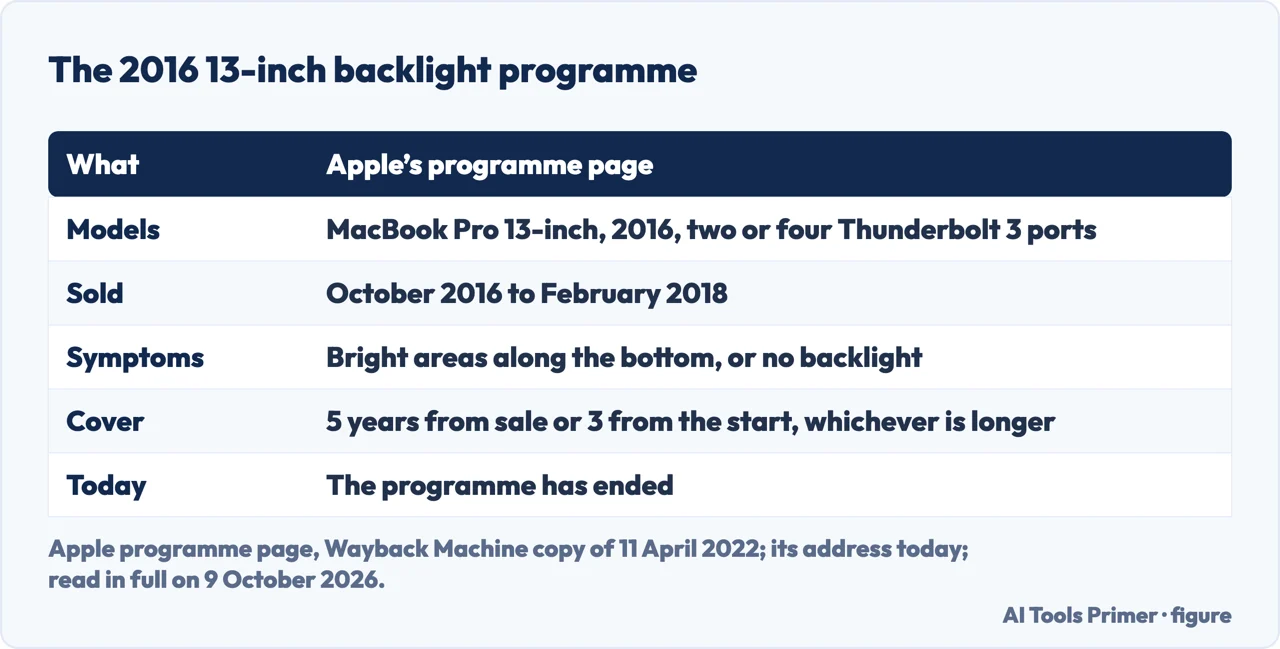
The 2016 13-inch backlight programme
What it covered. Apple’s 13-inch MacBook Pro Display Backlight Service Program said a very small percentage of displays might show vertical bright areas along the entire bottom of the screen, or a backlight that stops working completely, on units sold between October 2016 and February 2018. Two models were eligible: MacBook Pro (13-inch, 2016, Four Thunderbolt 3 Ports) and MacBook Pro (13-inch, 2016, Two Thunderbolt 3 Ports). Apple said no other Mac notebook was part of it.
How long. Five years after the first retail sale, or three years from the programme’s start, whichever was longer; it did not extend the standard warranty. We read it in the Wayback Machine’s copy of 11 April 2022, which says “Information as of 2021-01-15”.
Today. On 9 October 2026 the programme’s address leads to an Apple page saying the program has ended, and it is not among those on Apple’s Service Programs page. To see whether a Mac is one of the two models, Apple says to choose About This Mac from the Apple menu. A backlight that has gone out altogether is in display backlight stops working.
What Apple’s display page says. Its Mac User Guide page for display problems, in the version for macOS Ventura 13, says to check that Mac and display are connected with good quality cables and adapters if the display flickers, that interference from nearby electrical devices may also cause it, and that bright or dark spots may be pixel anomalies; for a high number of anomalies, or an Apple display whose problem can’t be corrected, it says to contact Apple or an Apple Authorized Service Provider, and warns that repairs by untrained people or with non-genuine parts may affect safety and function. Single dots rather than lines are in dead pixel repair on a laptop.
What posters report. In the Apple Community thread, several people wrote that the lines went away with the lid tilted towards the keyboard, at about 45 degrees. Two wrote that an authorised service centre told them the whole display had to be replaced because the cable is not replaced on its own. These are reports from users, not Apple statements. A vertical line on a laptop of another make is in a vertical black line on a laptop screen.
The repair. Apple’s repair page for Mac laptops says the final fee is set after inspection, that its estimates are for out-of-warranty service and may be subject to tax, and that Authorized Service Providers can set their own fees. The Apple Limited Warranty covers manufacturing issues for one year and not accidental damage, in addition to consumer law where you live. Backing up is in backing up a MacBook.
Where to start
Five ways in.
- “Where do I start?”
- Two checks — two checks
- “Why a screenshot?”
- The reasoning — why the screenshot
- “Mine is a 2016 13-inch.”
- The programme — the 2016 programme
- “Others have this too?”
- What posters report — what posters report
- “What will it cost?”
- The repair — repair
Other marks on a laptop screen
Lines, bruises and dots each have their own test.
Questions people also ask
How do I fix black lines on my screen?
On a MacBook Pro, a screenshot viewed on another device shows, in our reading, whether the lines are in the image; Apple Diagnostics, which from macOS Tahoe 26 has a test for the built-in display, checks the internal hardware. If you can’t resolve the issue, Apple says you might need service.
How much does it cost to fix lines on a MacBook screen?
Apple’s repair page says it inspects the Mac to set the final fee, and that its estimates are for out-of-warranty service; Authorized Service Providers set their own. In the Apple Community thread, one poster with a 2019 model was quoted $598 plus tax by Apple, and another about $700 by a repair shop for a 2016 one.
Not covered here. It does not cover opening a MacBook Pro, replacing the display yourself, or faults of external displays connected to a Mac.
Sources
- Apple Support — Use Apple Diagnostics to test your Mac (article 102550): starting it on Apple silicon and Intel, the display test from macOS Tahoe 26 — support.apple.com, read 9 October 2026.
- Apple Support — Take a screenshot on Mac (article 102646) — support.apple.com, read 9 October 2026.
- Apple, Mac User Guide (macOS Ventura 13) — If your Mac display doesn’t look right — support.apple.com, read 9 October 2026.
- Apple, Mac User Guide — Diagnose problems on Mac: what Apple Diagnostics does not check — support.apple.com, read 9 October 2026.
- Apple Support — 13-inch MacBook Pro Display Backlight Service Program, Wayback Machine copy of 11 April 2022 (“Information as of 2021-01-15”) — web.archive.org, read 9 October 2026.
- Apple Support — Apple Service Program status (the programme’s address today) and Apple Service Programs — support.apple.com, read 9 October 2026.
- Apple Support — Identify your MacBook Pro model (article 108052) — support.apple.com, read 9 October 2026.
- Apple Support — Mac startup key combinations (article 102603, Australian edition) — support.apple.com, read 9 October 2026.
- Apple Support — Apple Service and Repair for Mac laptops — support.apple.com, read 9 October 2026.
- Apple Community — How to remove black horizontal lines appearing on the screen of MacBook Pro (posts from April 2023 to March 2025) — discussions.apple.com, read 9 October 2026.
Written by Alberto Gulotta
Founder and editor of AI Tools Primer, writing from Palermo, Italy. Thirty-five years of taking computers apart, starting with a Commodore 64 — the long version is on the about page.
Something wrong on this page? Write to aitoolsprimer@gmail.com and it gets fixed.
Written on 9 October 2026.
Independence and limits
No affiliate links and no paid placements anywhere on this site. Nobody pays to appear here, and no company has seen this page before you did.
This is general information, not professional advice. Where a page touches money, health, safety or the law, it names its source and the date it was read — and your situation may still differ. See the privacy page and the cookie policy.