
Screens · guide
Black pressure marks on laptop screen, and who pays for them
By Alberto Gulotta · Updated · 16 min read
Black pressure marks on laptop screen have a name in the makers’ own paperwork, and the name carries a decision with it. Lenovo files the mark left by compression under damage caused by the customer, which is the part of the paperwork that says a repair will be charged for. Knowing that first changes what to do next.
Start with what this mark is, because the words in circulation blur it with something else. A pressure mark is not a dead pixel. A dead pixel is one addressable point that has stopped working, it is the size of a point, and its edges are sharp. A pressure mark is damage to the liquid crystal layer over an area, so it has the shape of whatever pressed on it — a corner, a key, a thumb — and its edges fade. That difference is the whole of this page, because the two faults are covered by two different documents and only one of the two has a published tolerance you can argue with.
The words the makers use, and why they matter
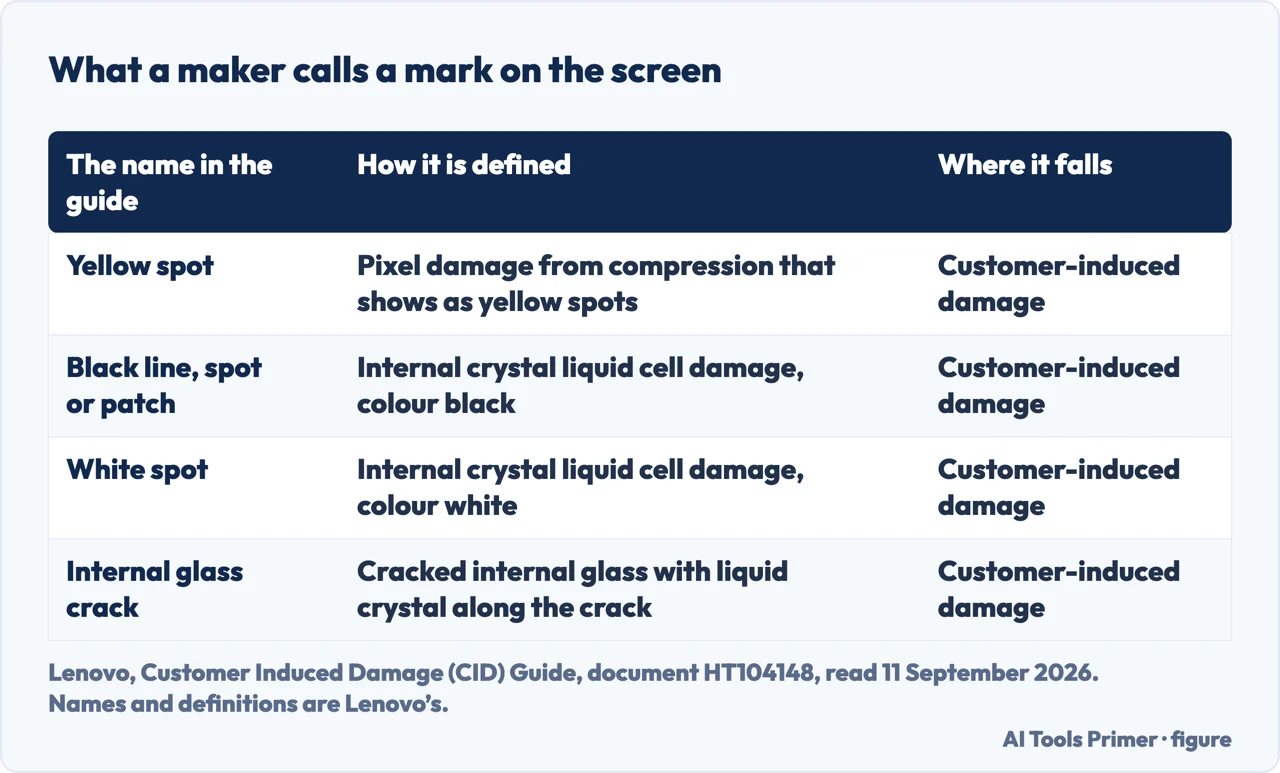
Lenovo publishes a guide to damage it considers caused by the customer. Its display section is a short vocabulary for exactly these marks, and each entry is a decision about who pays.
- Yellow spot. “Pixel damage from compression that shows as yellow spots.” This is the pressure mark named outright, and the cause is in the definition: compression. Yours may read darker than yellow depending on what is behind it.
- Black line, Black spot, Black patch, other. “Internal crystal liquid cell damage, shape or location might vary and the color is black.” The same family seen from the dark side, and the reason a mark with soft edges is not a pixel: the damage is to cells, not to one addressable point.
- White spot. “Internal crystal liquid cell damage, shape or location might vary and the color is white.” The pale version of the same thing, which is why it is a separate question with the same answer about cover.
- Internal glass crack. “The internal glass has cracked and has liquid crystal inside the display panel along the crack.” The one that spreads. If a mark is growing week by week, this is the entry to read, not the one above.
What makes that list unusual is who wrote it and what for. It is not a troubleshooting page: it is the guide a manufacturer gives for deciding whether a fault is the machine’s doing or the owner’s, and Lenovo says so in its opening line — the guide exists because claims arrive for “products which have failed due to reasons not covered by the Lenovo Standard Limited Warranty”. When your mark matches a row in a list like that, you have learnt something that no repair blog can tell you: how the conversation is going to go.
“Applying pressure can crack the screen or damage internal components”
Dell writes that on its pixel page, as one of four reasons not to try the home remedies for a stuck pixel. It is worth reading twice on this page, because the remedy most often recommended for a mark on a screen — press it, rub it, work it out with a cloth — is the mechanism that produces the mark this page is about. A pressure mark is what a screen does when something pushes on it. Pushing on it again is not a repair strategy.
- Look at the edges before anything else. A pressure mark is soft-edged and shaped like whatever pressed on it; a dead pixel is a single sharp point that does not blur. The difference decides which rules apply to you, because pixel tolerances count points and say nothing about marks.
- Put the screen through the maker’s own panel test. On a Dell that is holding D and pressing power; on a Lenovo it is Fn plus left Ctrl plus power. The reason to bother on this fault is what Dell’s extended version adds to the colour cycle: it asks you to look for “Pressure marks or spots” and for “Signs of cracks or spider-web patterns in the glass”. The test that the makers built recognises this mark as a category.
- Photograph it, with the date. Not for sentiment: every conversation that follows — warranty, insurance, a quote, a sale — turns on whether the mark is spreading. Two photographs a month apart answer that; memory does not.
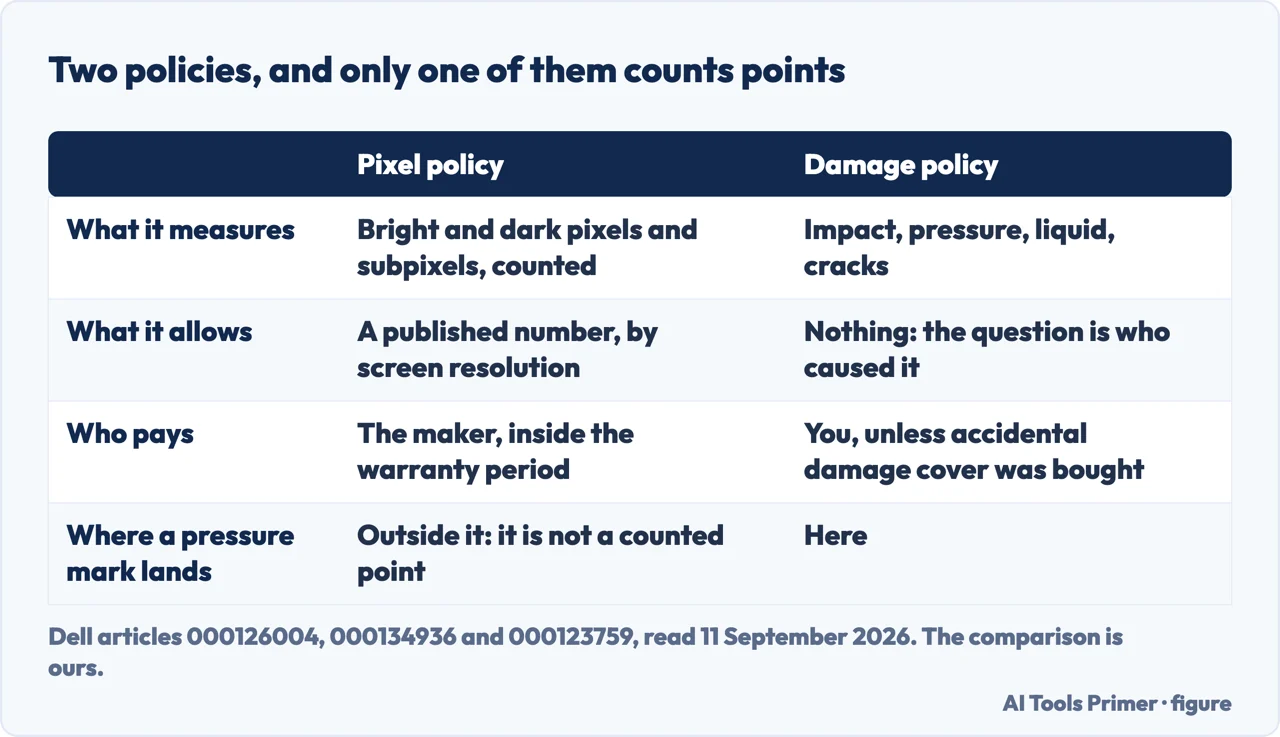
- Check which document covers you, because there are two and they are not the same. A pixel policy counts bright and dark points against a published tolerance. A damage policy is about impact and pressure, and it is where this mark lands. Lenovo’s guide exists because “Lenovo receive claims under warranty for products which have failed due to reasons not covered by the Lenovo Standard Limited Warranty”, and Dell says the same thing in one line: “Physical damage to the screen typically is not covered under standard warranty”.
- Then decide, rather than treat. Neither maker documents a way to remove a pressure mark, and this page is not going to invent one. What is left is a real decision: live with it, replace the panel, or replace the machine — and the answer depends on where the mark sits and what the laptop is worth, not on how bad it looks in the first week.
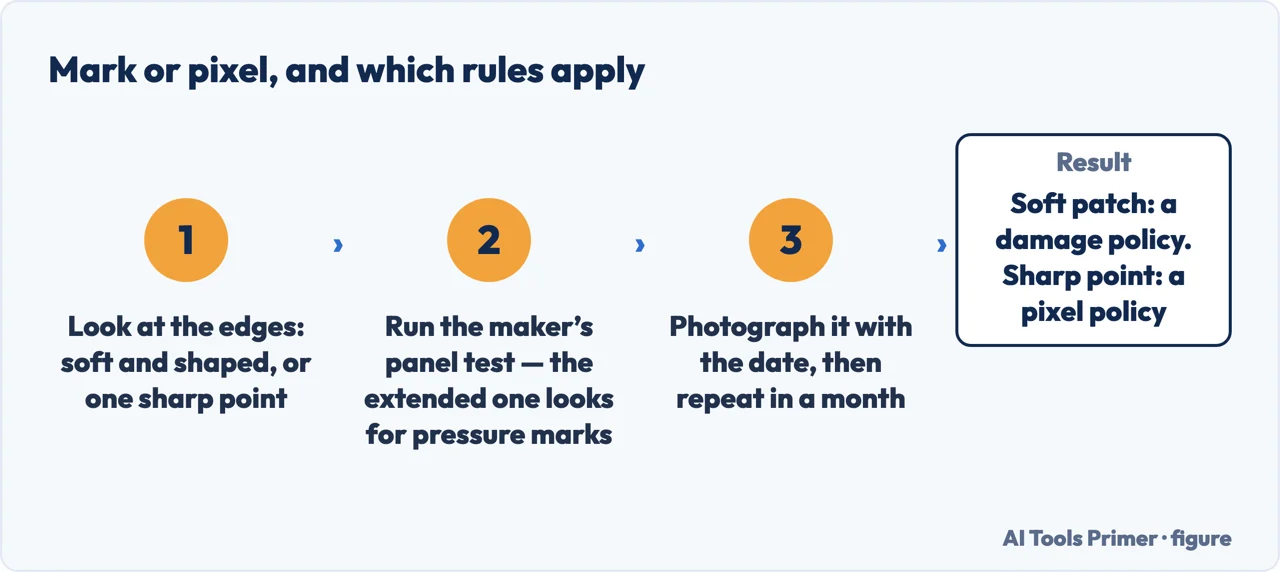
The panel test is worth running even though the mark is already visible, and the reason is that it separates two things that look alike on an ordinary screen full of windows. Dell’s basic test fills the screen with one colour at a time so that a fault has nowhere to hide, and its extended version — on laptops with a recent BIOS — adds the two things a colour cycle cannot judge: the cracks and the pressure marks. If the mark shows in the test, the damage is in the panel and nothing on the computer side will change it. The panel test, maker by maker has the key presses for each machine.
About the remedies. Search results for this fault are full of them — rub it with a cloth, warm it, press around the edge — and none of the four sources this page is built on documents any of them. Dell is the only one that mentions the technique at all, and it mentions it to say what it costs: “They can cause further damage to your display”, “They may void your warranty”. There is no honest way to write a procedure out of that. What this page can say instead is what a pressure mark does over time, and even there the right answer is a measurement rather than a promise: Lenovo distinguishes the compressed cell from the cracked one, and a crack is the entry that is described as having liquid crystal along it. If the mark is growing, the photographs will show it.
The last piece is the machine around the mark. A mark in a corner of a screen you look past is not the same problem as one in the middle, and a panel replacement on a five-year-old laptop competes with the price of a different laptop rather than with the price of the fault. Whether the machine can take the next version of Windows is a fair thing to check before spending anything on it, and if it can, the cheap things that make an old laptop usable again are a better use of the same money than a perfect screen.
The cover that would have paid for this is sold as an option. Dell: “Dell offers Accidental Damage (Complete Care) as an optional service available at the time of purchase for Dell laptops, Venue phones, and tablets”, and “If such damage occurs and you do not have Accidental Damage coverage, you will be responsible for the full cost of repairs.” Lenovo’s equivalent is Accidental Damage Protection, an “optional service offering that covers accidental damage to machines which is not covered under the Standard Lenovo Limited Warranty”, and its own examples include a “damaged or broken LCD”. It is too late for this mark, and it is worth knowing for the next machine.
Where to start
Three ways in. If the mark is a sharp point rather than a soft patch, the second one is the page you want.
- “What is this mark, exactly?”
- What the makers call it — what the makers call it
- “Is it a pixel or a mark?”
- The test that tells them apart — mark or pixel
- “Will anyone pay for it?”
- Two policies, one of them yours — who pays for it
What the makers call it
A short vocabulary published by a manufacturer for deciding whose fault a display fault is. It is the most useful page in this subject and almost nobody quotes it.
Mark or pixel
Sharp point or soft patch: the difference decides which published document applies, and the makers’ own panel test is what settles it.
Who pays for it
Standard warranty, accidental damage cover, or you. The answer was mostly decided on the day the machine was bought, which is the one piece of advice worth carrying forward.
Questions people also ask
How to fix pressure marks on laptop screen?
Neither Dell nor Lenovo documents a way to remove one, and this page will not invent one. What they do document is that pressing on a screen “can crack the screen or damage internal components”, which is what most circulating remedies ask you to do.
How to fix black marks on laptop screen?
First find out whether it is a mark or a pixel: run the maker’s panel test and look at the edges. A pixel fault may be covered by a published tolerance; a mark is physical damage, and Dell states that it “typically is not covered under standard warranty”.
How to get rid of pressure spots on screen?
The only route either maker describes is replacing the panel. Whether that is worth doing depends on where the mark sits and what the machine is worth, and both are worth working out before asking for a quote.
Why is my screen getting black spots?
Lenovo’s definition covers the common cause: “Internal crystal liquid cell damage, shape or location might vary and the color is black.” Something has pressed on or struck the panel. A spot that spreads rather than sits still matches its entry for an internal glass crack instead.
Does a pressure mark spread?
It depends which of the two faults you have, and that is why the photographs matter. Lenovo lists compressed cells and a cracked internal glass as separate entries, and describes the crack as having liquid crystal along it. A month apart, two pictures answer this better than any rule of thumb.
Not covered here. It will not print a home remedy. Four sources were read for this page and not one of them documents a way to remove a pressure mark; the only one that mentions the technique mentions it to warn against it.
It will not quote a panel price. None of the four support pages read for this guide publishes one, and a figure from a site that sells the part is a price with an interest attached to it.
And it will not tell you the mark is harmless. Whether it stays put or spreads is the one thing that matters here, and it is something to measure on your own screen rather than to be reassured about. What holds instead is simple: who pays is answered with the warranty documents themselves, and the page names the optional cover by the name its maker gives it.
Sources
- Lenovo, Customer Induced Damage (CID) Guide — Laptops, Tablets, Desktops, document HT104148 (the purpose of the guide, which is that claims arrive under warranty for products that failed for reasons the Lenovo Standard Limited Warranty does not cover; the list of what the Limited Warranty does not cover, including failure or damage resulting from misuse, abuse, accident, modification, an unsuitable physical or operating environment, natural disasters, power surges or improper maintenance; the display section, with its named entries for a surface glass crack, an internal glass crack described as having liquid crystal inside the display panel along the crack, a vertical line that appears when the LCD is on, a white spot and a black line, spot or patch both described as internal crystal liquid cell damage whose shape or location might vary, a yellow spot described as pixel damage from compression, a cracked OLED panel, surface and backlight scratches, liquid spillage and LCD corrosion; and the description of Accidental Damage Protection as an optional service offering, sold in some regions, that covers accidental damage not covered under the Standard Limited Warranty, with examples including liquid spilled on or in the unit, drops, falls and other similar impact, electrical surge and a damaged or broken LCD) — support.lenovo.com, read 11 September 2026.
- Dell, How to Test Your Dell Laptop Screen — article 000134936, last modified 1 June 2026 (the built-in panel test and the colour sequence it runs; the enhanced version on laptops with an updated BIOS, which adds signs of cracks or spider-web patterns in the glass and pressure marks or spots to what the test asks you to look for; the statement that these tests only check the screen hardware and do not check Windows settings, graphics drivers or software; and the reading of a result that shows cracks, pressure marks or spider-web patterns, which is that the glass is damaged and that physical damage to the screen typically is not covered under standard warranty) — www.dell.com, read 11 September 2026.
- Dell, Dell Display Pixel Guidelines — article 000126004 (the instruction not to attempt to fix stuck pixels, with the reasons that the methods can cause further damage to the display, may void the warranty, and that applying pressure can crack the screen or damage internal components; and the pixel policy tables themselves, which count bright and dark pixels and subpixels against a published tolerance and say nothing about marks over an area) — www.dell.com, read 11 September 2026.
- Dell, Repair Options for Cracked and Broken LCD Screens on Dell Laptops, Tablets, and Phones — article 000123759, last modified 28 April 2026 (that Dell offers Accidental Damage, Complete Care, as an optional service available at the time of purchase, and that if such damage occurs without that coverage the owner will be responsible for the full cost of repairs) — www.dell.com, read 11 September 2026.
Written by Alberto Gulotta
Founder and editor of AI Tools Primer, writing from Palermo, Italy. Thirty-five years of taking computers apart, starting with a Commodore 64 — the long version is on the about page.
Something wrong on this page? Write to aitoolsprimer@gmail.com and it gets fixed.
Written on 11 September 2026 · last checked 23 September 2026.
Independence and limits
No affiliate links and no paid placements anywhere on this site. Nobody pays to appear here, and no company has seen this page before you did.
This is general information, not professional advice. Where a page touches money, health, safety or the law, it names its source and the date it was read — and your situation may still differ. See the privacy page and the cookie policy.