
Screens · guide
Black marks on computer screen, and how to tell them apart
By Alberto Gulotta · Updated · 15 min read
Black marks on computer screen come from four different things, and telling them apart costs nothing. Dust sits on the glass. A dark pixel is one point that has stopped working. A patch is damaged crystal underneath. A crack spreads. Four tests, in order of price, separate them before anybody is paid.
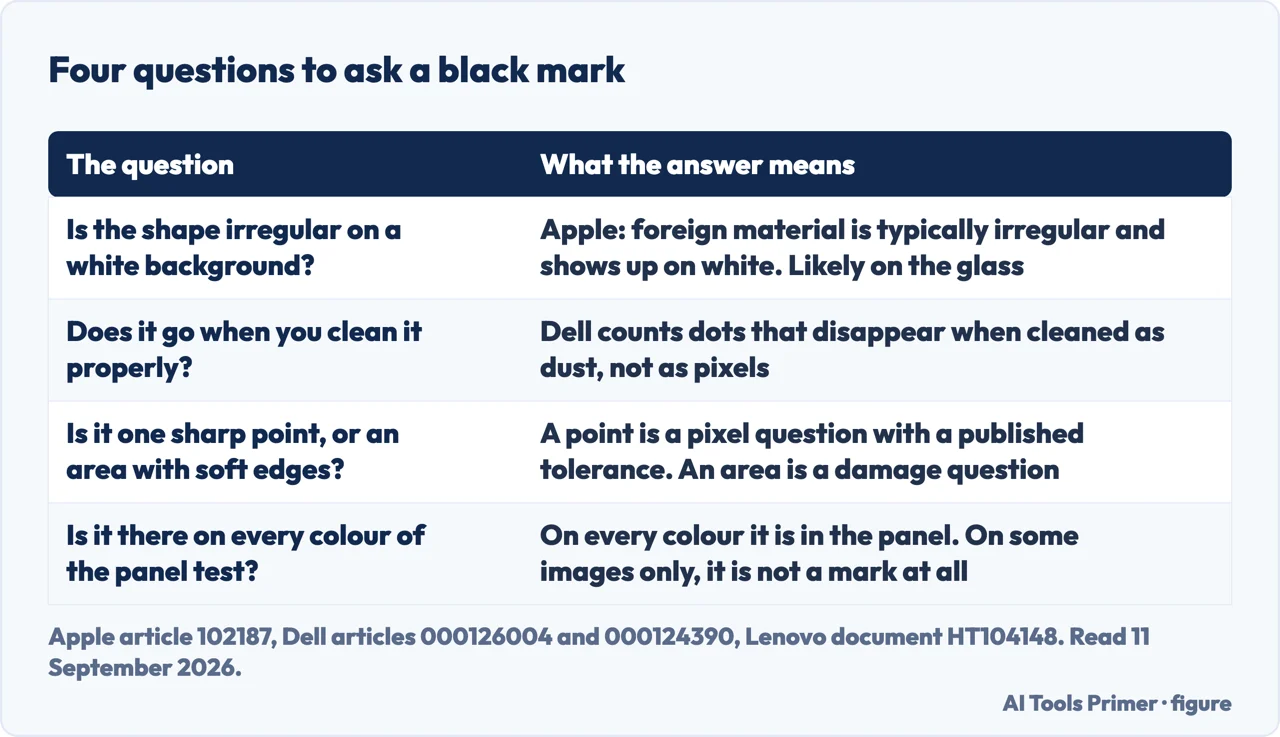
The reason to insist on the order is that the first two answers are free and the last two are not. Yet the pages that come up for this question start at the expensive end: of the five results on the first page, one is a shop, one sells replacement panels, one is a seven-year-old community answer and one is a user’s question on a Microsoft forum — which looks like documentation and is not. The documentation exists, it is published by the people who build the panels, and it contains the tests.
“Foreign material is typically irregular in shape and is usually most noticeable when viewed against a white background.”
Apple’s sentence is the cheapest test in this whole subject and it takes about four seconds. A fault inside the panel is geometric — a point, a straight line, an area with an edge; something that landed on the screen is not. Open a blank white document and look at the mark with that in mind, and a good share of these questions end there, because the answer is a cloth.
Four black things, and only one of them is a pixel
Two makers publish the vocabulary. It is worth having, because the four behave differently over time and only one of them is counted by anybody’s warranty tolerance.
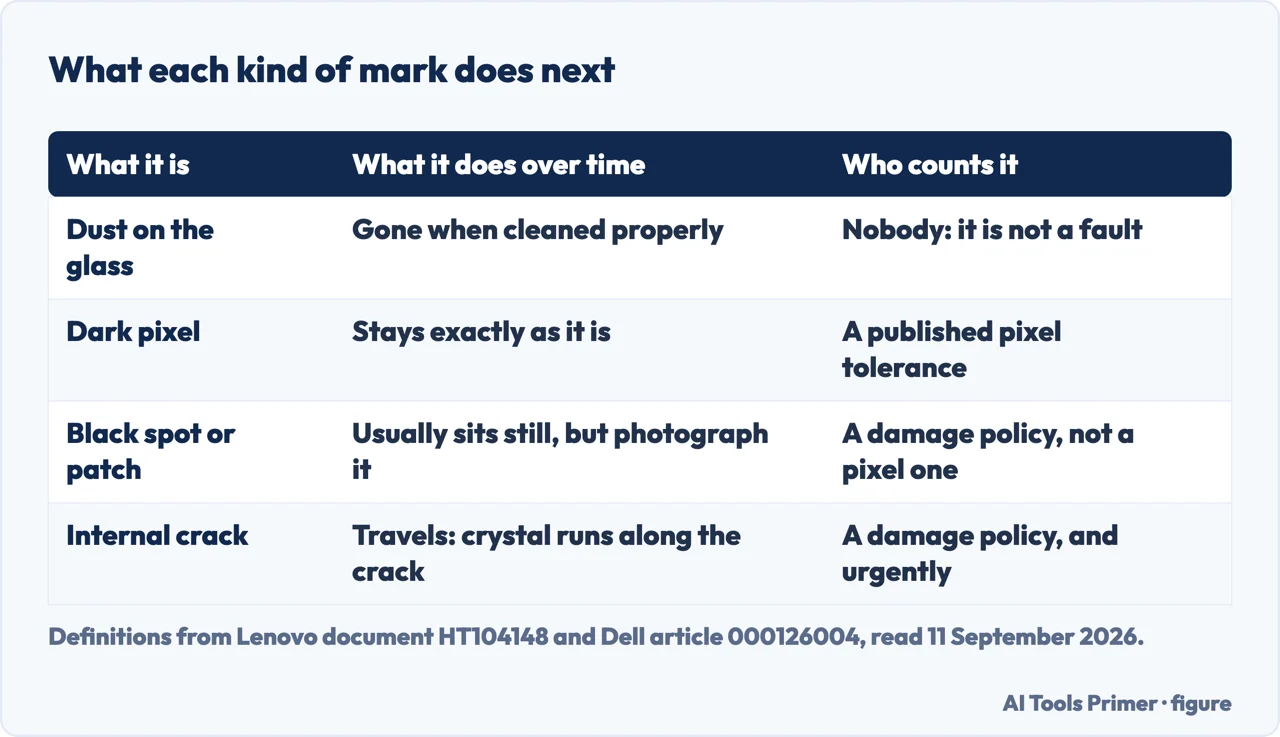
- Dust, or something on the glass. Dell’s own exclusion list, under what is not a stuck pixel: “Dots that disappear when you clean the screen (these are dust)”. Free to rule out, and the reason every serious procedure starts with a cloth.
- A dark pixel. Dell: “All three subpixels in one pixel are permanently turned off”, which you see as “A black dot that you can see on white or colored backgrounds (but not on black backgrounds)”. Sharp, tiny, and the only one of the four that a published pixel tolerance will count: see dead pixel repair on a laptop.
- A black spot or patch. Lenovo’s definition: “Internal crystal liquid cell damage, shape or location might vary and the color is black.” An area rather than a point, with soft edges. This is where a knock or a press ends up, and it is the subject of black pressure marks on a laptop screen.
- An internal crack. Lenovo again: “The internal glass has cracked and has liquid crystal inside the display panel along the crack.” The one that travels. If the mark is bigger this month than last, this is the entry that describes it, and the photographs are the evidence.
Notice what that list does that a symptom search cannot: it separates things by what they are rather than by what they look like on the day you noticed them. A dark pixel and a small black patch look identical in a photograph, and they have nothing in common — one is a fault in a single addressable point that a published tolerance may replace for nothing, the other is physical damage that the same document explicitly does not cover. Everything else on this page is about establishing which of the two you are looking at.
- Put a white background behind it. A blank document, full screen. Apple’s rule does the work here: irregular shape, most visible on white, likely to be something that landed on the screen rather than something in it.
- Clean it the way the maker says, not the way the internet says. Dell’s instruction is a soft, clean microfibre cloth “that is lightly dampened with water”, and its caution is the useful half: “Do not use benzene, thinner, ammonia or ammonia-based cleaners, abrasive cleaners or compressed air.” It also warns off detergents, “as they can leave a milky film on the monitor”. Unplug it first, and do not press: Dell writes that you should not “put pressure directly on the LCD screen as it may cause irreparable cracks”.
- If it is still there, look at its edges and its size. A single sharp point is a pixel question. An area with a soft edge is a damage question. A line is a third thing again, and it goes to a vertical black line on a laptop screen.
- Run the maker’s panel test and watch the mark on every colour. On a Dell laptop: restart, press F12 at the logo, choose Diagnostics; the screen then cycles through solid colours. Dell tells you what to look for on each: “On white : Look for any dark dots”. A mark that is there on every colour is in the panel; one that appears only on some images is not a mark at all.
- Photograph it against white, with the date. The one thing that decides what happens next is whether it spreads, and that is a measurement over weeks. Two photographs, a month apart, in the same light.
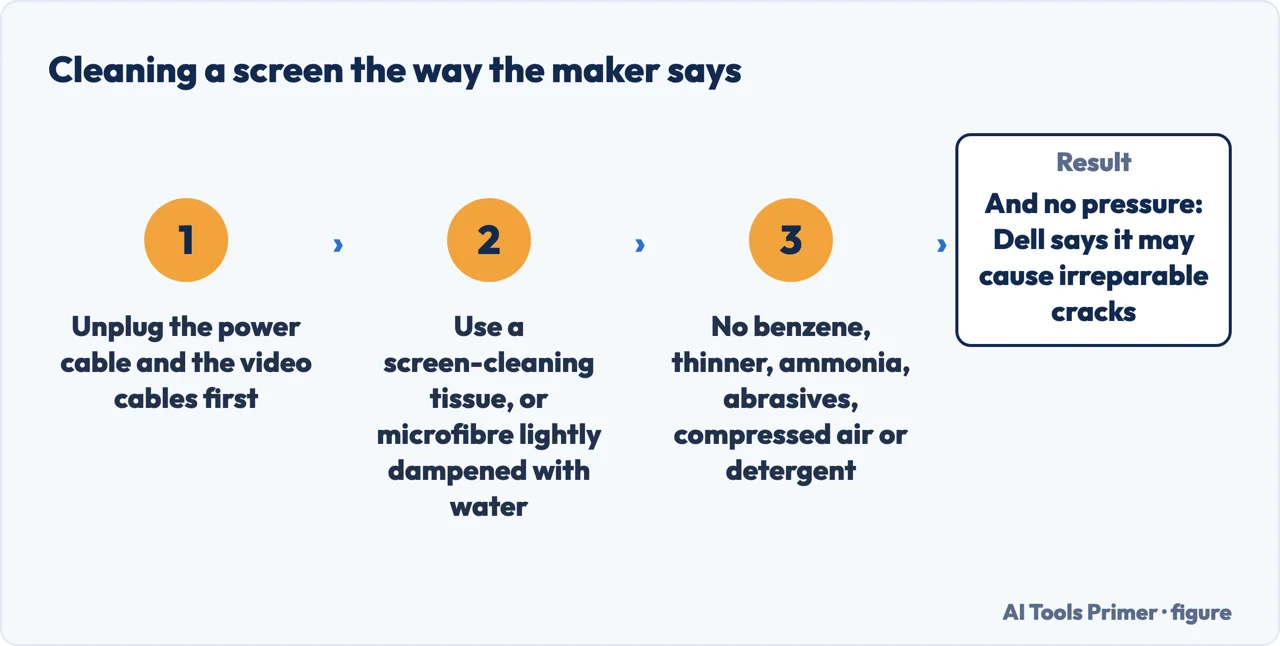
The cleaning instructions are worth following exactly, because half of them are about what not to do. Dell’s maintenance guidance, written for its own monitors, recommends “a special screen-cleaning tissue or solution that is suitable for the anti-static coating on LCD panels” or a microfibre cloth lightly dampened with water, and then rules out the things people reach for: benzene, thinner, ammonia and ammonia-based cleaners, abrasive cleaners, compressed air, and detergents of any kind. Apple adds the other half of the answer for the marks a cloth cannot reach: foreign material trapped inside “must be removed by an Apple Authorized Service Provider or Apple Retail Store”. Between those two sentences sits most of what can honestly be said about removing a black mark from a screen.
One caution that belongs here rather than anywhere else, because this is the page people reach while holding a cloth. Pressing on the screen while cleaning is how a mark gets made. Dell says it twice, in two different documents: do not “put pressure directly on the LCD screen as it may cause irreparable cracks”, and, about the pixel remedies that circulate, “Applying pressure can crack the screen or damage internal components”. The mark you would be making is the one described in black pressure marks on a laptop screen, and it is not covered by anything.
A word about the question Google keeps attaching to this one: black spots in vision. They are not the same thing and the difference is easy to establish. A mark on a screen stays where the screen is: it does not move when your eyes move, it is in the same place for anybody else looking at the screen, and it disappears when the screen is off. Anything that behaves differently is not a computer problem, and this page has nothing useful to say about it — that is a question for a person who examines eyes, and neither source behind this page says a word on the subject.
And if what you are seeing is not a mark but the whole picture misbehaving — shivering, dimming, going out and coming back — the tests here are the wrong ones. Monitor flickering has the pair that fits that case, and a monitor with display problems covers the rest of what a screen can get wrong while the panel itself is perfectly healthy.
Where to start
Three ways in. If the mark is a single sharp point, the third one is the page that has the numbers.
- “Is it on the glass or in it?”
- The four tests — the four tests
- “How do I clean it without making it worse?”
- The maker’s own method — cleaning it properly
- “It is a dot, not a patch.”
- Then it is counted, not judged — when it is a pixel
The four tests
White background, cloth, edges, colour cycle. In that order, because the first two are free and the last two decide whether money is involved.
Cleaning it properly
The maker’s method is mostly a list of things not to use, and the pressure that people apply while cleaning is itself a way of damaging a panel.
When it is a pixel
One sharp point is the only one of the four that a published tolerance counts, and that changes it from a repair into a claim.
Questions people also ask
How to repair black spots on screen?
Only one of the four causes can be repaired at home, and it is the one that is not damage: dust or marks on the glass, removed with a microfibre cloth lightly dampened with water. Damage to the crystal layer underneath is a panel replacement, and none of the four support pages read for this guide documents a home remedy for it.
Why are there black marks on my screen?
Lenovo’s definition covers the common case — “Internal crystal liquid cell damage, shape or location might vary and the color is black” — which usually means something pressed on or struck the panel. Dust, a dark pixel and an internal crack are the other three, and each one has a test.
Will the black spot on my screen go away?
Dust will, once cleaned properly. A pixel will not: Dell states that a stuck pixel “stays stuck until the monitor is replaced. It won’t get better or worse on its own.” Damaged crystal does not repair itself either, and a crack tends to grow, which is why the dated photographs matter.
Is it the screen or my eyes?
A mark on a screen stays in one place on the screen, is visible to anyone else looking at it and disappears when the screen is off. Anything that moves with your eyes is not a screen fault, and this page stops there: it is built on two display makers’ documentation, which says nothing about eyes.
Can I clean a screen with alcohol or glass cleaner?
Dell’s guidance rules out a list of them by name — benzene, thinner, ammonia and ammonia-based cleaners, abrasive cleaners and compressed air — and warns that detergents of any kind “can leave a milky film on the monitor”. Its own recommendation is a screen-cleaning tissue or solution made for LCD coatings, or a microfibre cloth lightly dampened with water.
Not covered here. It will not name a product to clean your screen with. Dell describes the kind of tissue or solution to use and the things to avoid; a brand recommendation here would be an opinion dressed as a source.
It will not tell you what a panel costs. None of the four support pages read for this guide publishes a figure, and the sites that do sell the part.
And it will not answer a question about eyesight. It is built on two display makers’ documentation, and that documentation has nothing to say about eyes. What holds instead is simple: how to tell them apart is Apple’s, Lenovo’s and Dell’s own descriptions, kept under their own names so you can see who disagrees with whom.
Sources
- Apple, About LCD display pixel anomalies for Apple products released in 2010 and later — article 102187 (the explanation of pixels, subpixels and the transistor behind each one; the statement that in many cases pixel anomalies are caused by a piece of foreign material trapped somewhere in the display or on the front surface of the glass panel; the test of shape and background, that foreign material is typically irregular in shape and usually most noticeable when viewed against a white background; and the two destinations, a lint free cloth for material on the front surface and an Apple Authorized Service Provider or Apple Retail Store for material trapped within the screen) — support.apple.com, read 11 September 2026.
- Lenovo, Customer Induced Damage (CID) Guide — Laptops, Tablets, Desktops, document HT104148 (the display section of the guide, with its named entries and definitions: a black line, spot or patch described as internal crystal liquid cell damage whose shape or location might vary and whose colour is black; a white spot described in the same terms; an internal glass crack described as cracked internal glass with liquid crystal inside the display panel along the crack; a vertical line that appears when the LCD is on; and a yellow spot described as pixel damage from compression — all of them inside a guide whose stated purpose is to identify damage that the Lenovo Standard Limited Warranty does not cover) — support.lenovo.com, read 11 September 2026.
- Dell, Dell Display Pixel Guidelines — article 000126004 (the description of a dark or dead pixel as all three subpixels permanently turned off, seen as a black dot on white or coloured backgrounds but not on black; the list of what is not a stuck pixel, which includes dots that disappear when the screen is cleaned, described as dust; the checking procedure with its colour cycle and the instruction to look for dark dots on white; the warning that applying pressure can crack the screen or damage internal components; and the answer that a stuck pixel stays stuck until the monitor is replaced and will not get better or worse on its own) — www.dell.com, read 11 September 2026.
- Dell, How to Run a Diagnostic Test on a Dell Monitor — article 000124390 (the display maintenance guidelines: the recommendation of a special screen-cleaning tissue or solution suitable for the anti-static coating on LCD panels; the caution against benzene, thinner, ammonia or ammonia-based cleaners, abrasive cleaners and compressed air; the soft clean microfibre cloth lightly dampened with water and the warning that detergents of any kind can leave a milky film; the instruction not to put pressure directly on the LCD screen as it may cause irreparable cracks; and the warning to unplug the power and video cables before cleaning) — www.dell.com, read 11 September 2026.
Written by Alberto Gulotta
Founder and editor of AI Tools Primer, writing from Palermo, Italy. Thirty-five years of taking computers apart, starting with a Commodore 64 — the long version is on the about page.
Something wrong on this page? Write to aitoolsprimer@gmail.com and it gets fixed.
Written on 11 September 2026 · last checked 23 September 2026.
Independence and limits
No affiliate links and no paid placements anywhere on this site. Nobody pays to appear here, and no company has seen this page before you did.
This is general information, not professional advice. Where a page touches money, health, safety or the law, it names its source and the date it was read — and your situation may still differ. See the privacy page and the cookie policy.