
Screens · guide
How to clean MacBook screen smudges the way Apple says
By Alberto Gulotta · Updated · 11 min read
How to clean MacBook screen smudges, in Apple’s words: shut the Mac down, unplug the power adapter, and wipe the screen with a soft, lint-free cloth dampened with water only. Apple allows one step more for stubborn smudges, a cloth moistened with 70 percent isopropyl alcohol, and it lists what never to use.
Apple publishes the steps on two pages and adds two cases that change them. This page puts the pages side by side and marks which advice in the forums Apple does not give.
| What | What Apple says | Where |
|---|---|---|
| Water on a soft, lint-free cloth | The cleaning step for the screen of a MacBook, MacBook Pro or MacBook Air, after you shut down and unplug the adapter | How to clean your Apple products |
| 70 percent isopropyl alcohol on the cloth | For hard-to-remove smudges or fingerprints on the display | How to clean your Apple products |
| Window and household cleaners, acetone, aerosols, solvents, ammonia, abrasives, hydrogen peroxide | Do not use them to clean the screen | Mac User Guide |
| Cleaner sprayed on the screen | Never: it may drip inside the display and cause damage | Mac User Guide |
| Nano-texture display | A polishing cloth or another microfiber cloth made for electronic displays | Nano-texture display page |
Apple’s steps, in order
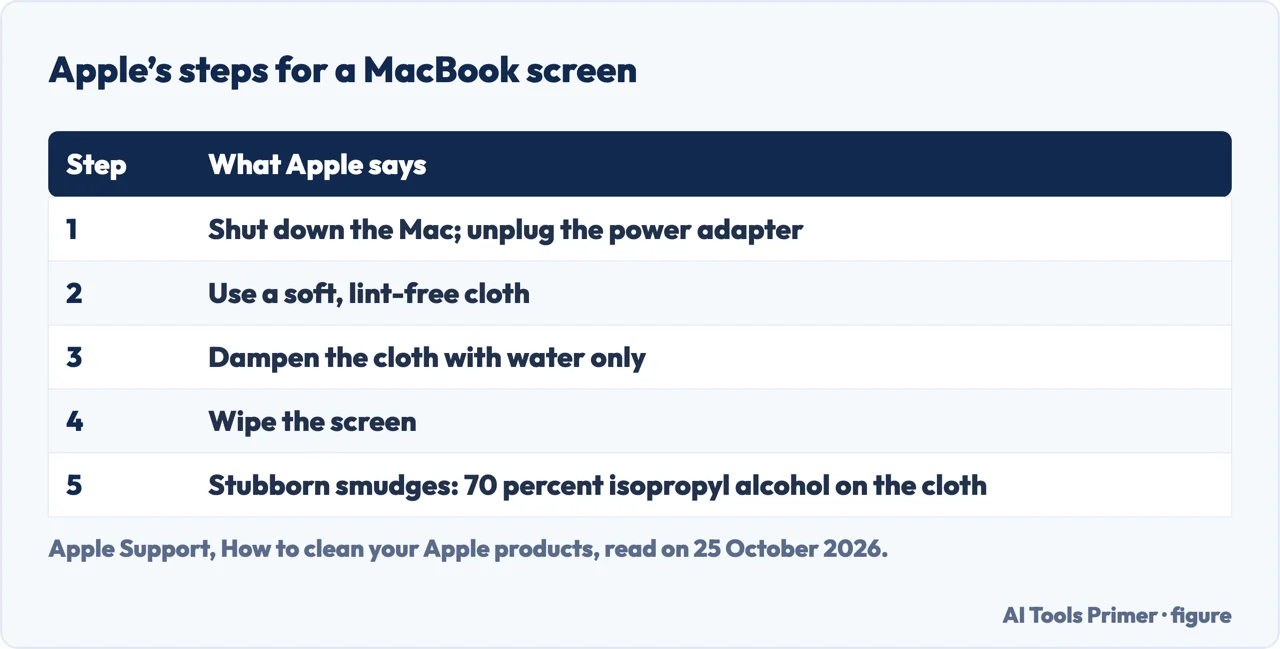
Apple’s page on cleaning its products gives the routine for a MacBook in two sentences: first shut down the computer and unplug the power adapter, then “Dampen a soft, lint-free cloth with water only” and use it to clean the screen. The Mac User Guide says the same with one more item: disconnect the power cord and any connected devices. Neither page tells you to dust the screen with a dry cloth first on a MacBook; that step is written for an Apple-manufactured external display, where the guide says to use the cloth that came with it, or another soft, dry, lint-free cloth, to wipe any dust, and to slightly dampen the cloth only if more cleaning is needed.
The same page opens with tips for every Apple product, and several apply to a screen:
- Use only a soft, lint-free cloth. Avoid abrasive cloths, towels, paper towels or similar items.
- Avoid excessive wiping, which might cause damage.
- Keep liquids away from the product, and don’t get moisture into any openings.
- Don’t spray cleaners directly onto the item.
For fingerprints and smudges that water leaves behind, Apple allows one step more: “a cloth moistened with a 70-percent isopropyl alcohol (IPA) solution”, used to gently wipe the display or enclosure of a Mac laptop. A MacBook Pro from 2016 or later with a Touch Bar and Touch ID gets the same treatment: Apple says to clean those the way you clean the display.
What not to use
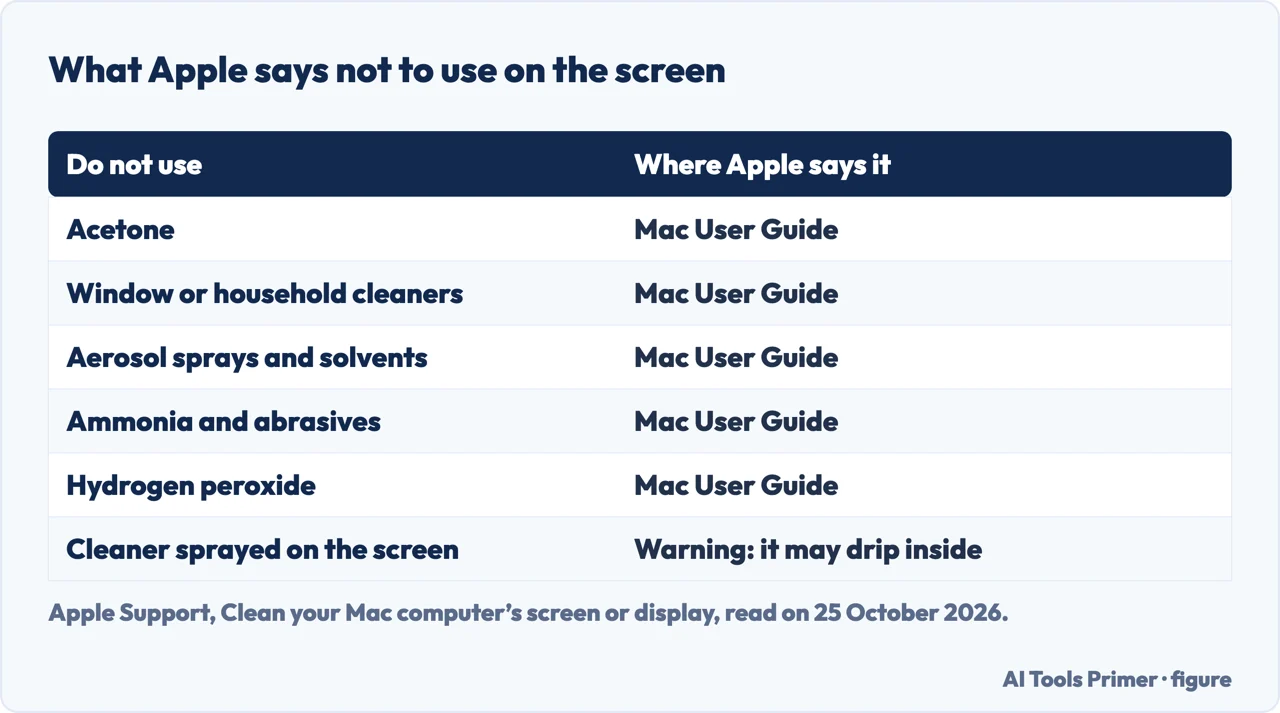
The Mac User Guide puts its warning first: “Don’t clean the screen with a cleaner containing acetone.” It then lists what else to keep away: window cleaners, household cleaners, aerosol sprays, solvents, ammonia, abrasives and cleaners containing hydrogen peroxide. The other warning is a physical one: “Never spray cleaner directly on the screen. It may drip inside the display and cause damage.” Apple’s method dampens the cloth, not the glass.
Apple’s general page also answers the disinfectant question for its products. Using a 70 percent isopropyl alcohol wipe, a 75 percent ethyl alcohol wipe or Clorox Disinfecting Wipes, you may gently wipe the hard, nonporous surfaces of the product, such as the display, keyboard or other exterior surfaces. It adds: “Don’t use products containing bleach or hydrogen peroxide.” That is the page for all products from iPhone to iMac; the steps for a MacBook screen are the ones above.
If the display is nano-texture
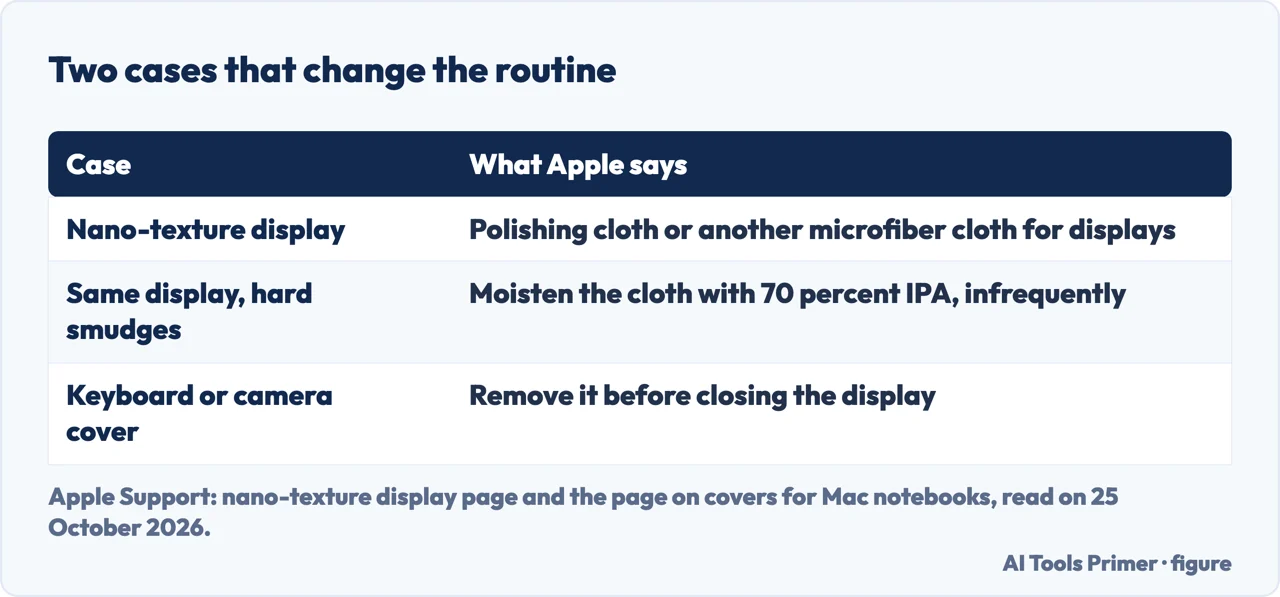
Some Apple displays have a nano-texture finish, and Apple lists MacBook Pro among the products that can have one as an option, along with iMac, Apple Studio Display, Apple Pro Display XDR and iPad Pro (M4). Apple’s page on them says the cleaning methods are the same for each product. You can remove dust or smudges with a clean Apple Polishing Cloth, with a different microfiber cloth made for electronic displays, or with a fabric made from a blend of cotton and Elastane or spandex. For infrequent cleaning of hard-to-remove smudges, you can moisten the cloth with a 70-percent isopropyl alcohol solution.
The page does not mention plain water for this finish, so we do not say what water does to it. Apple also tells you how to wash the cloth: hand-wash the polishing cloth with dish soap and water, then let it air dry for at least 24 hours. Apple’s Mac User Guide says that the screen of an iMac or an Apple display is either nano-texture glass or standard glass; the Apple pages that we read do not say how to tell the two apart.
Covers, and closing the lid
Apple has a separate page for a related cause of damage. If you use a camera cover, palm rest cover or keyboard cover with a Mac notebook, remove it before closing the display. The reason it gives: to enable the thin design of Mac notebooks, the clearance between the display and the top case is engineered to tight tolerances, and leaving any material on the display, keyboard or palm rest might interfere with the display when it is closed and cause damage to it. That page is about preventing damage, not about wiping marks off. For marks that do not wipe off, the pages on lines at the bottom of a MacBook Pro screen and on black marks on a screen start from a test.
If liquid gets in
Apple’s general page is plain about it: “If liquid makes its way inside your Apple product, get help from an Apple Authorized Service Provider or Apple Store as soon as possible.” It adds that liquid damage isn’t covered under the Apple product warranty or AppleCare Protection Plans, though you may have rights under consumer law. The page on liquid detected on an iPhone covers a different product and a different alert.
What the forums say, and what Apple says
In a thread on AppleVis from 11 February 2025, one user prefers alcohol wipes for a quick job and, for a thorough one, a microfiber cloth with distilled water or alcohol of 90 proof or more, on the grounds that “90 proof or better is safer for electronics” and that distilled water is non-conductive. Apple’s pages that we read name water and 70 percent isopropyl alcohol, and say nothing about distilled water or a stronger alcohol, so the advice to use them rests on the poster, not on Apple.
A thread on MacRumors Forums, started on 20 July 2024, makes another claim: one user writes that the display has “a VERY thin sprayed-on anti-glare coating” that cleaning wears away; another poster says they do not recommend glass cleaner. Apple’s pages that we read do not describe a coating or say that cleaning wears it. They do say to avoid excessive wiping, which might cause damage, and they do rule out window cleaners. A poster in the same thread asks whether dust on a damp cloth can scratch the screen; the Apple pages we read do not address that question.
Where to start
Five ways in.
- “What are the steps?”
- Apple’s order — steps
- “Can I use a glass cleaner?”
- What not to use — never
- “My display has a matte finish.”
- Nano-texture — nano
- “I use a keyboard cover.”
- Closing the lid — covers
- “The forums say something else.”
- What backs it — forums
When the marks stay
Marks and tints on a MacBook screen that cleaning does not remove.
Cleaning other parts
Cleaning a fan and a charging port, and what to do when liquid is detected.
Questions people also ask
What is the best way to clean a MacBook screen?
Apple says to shut down the Mac, unplug the power adapter, dampen a soft, lint-free cloth with water only and wipe the screen. For hard-to-remove smudges it allows a cloth moistened with 70 percent isopropyl alcohol.
Can I use glass cleaner on a MacBook screen?
Apple’s Mac User Guide says not to use window cleaners, household cleaners, aerosol sprays, solvents, ammonia, abrasives or cleaners containing hydrogen peroxide, and never to spray cleaner directly on the screen.
How do I clean a nano-texture MacBook Pro display?
Apple lists a clean Apple Polishing Cloth, another microfiber cloth made for electronic displays, or a cotton and Elastane blend, with 70 percent isopropyl alcohol on the cloth only for infrequent hard smudges.
Is it safe to use a keyboard cover on a MacBook?
Apple says to remove a camera cover, palm rest cover or keyboard cover before closing the display, because anything left on the display, keyboard or palm rest might interfere with the display and cause damage.
Not covered here. We did not clean a screen for this page. The steps come from Apple Support (How to clean your Apple products; Clean your Mac computer’s screen or display; How to clean your nano-texture Apple display; Using a camera cover, palm rest, or keyboard cover on a Mac notebook), read on 25 October 2026. Menu and model names follow those pages.
The threads on AppleVis and MacRumors Forums are users’ opinions, not Apple guidance. Reddit and Quora in the results were not read. Cleaning the keyboard, the camera, the speakers and the case, and the Mac desktop and external displays, are not covered.
The search volume and difficulty behind this page were read in Semrush on 29 August 2026.
Sources
- Apple Support — How to clean your Apple products — support.apple.com, read 25 October 2026.
- Apple Support — Clean your Mac computer’s screen or display (Mac User Guide) — support.apple.com, read 25 October 2026.
- Apple Support — How to clean your nano-texture Apple display — support.apple.com, read 25 October 2026.
- Apple Support — Using a camera cover, palm rest, or keyboard cover on a Mac notebook — support.apple.com, read 25 October 2026.
- AppleVis — How do you clean your mac’s screen? (11 February 2025) — www.applevis.com, read 25 October 2026.
- MacRumors Forums — Best Tips for Safely Cleaning Your MacBook Screen (thread started 20 July 2024) — forums.macrumors.com, read 25 October 2026.
Written by Alberto Gulotta
Founder and editor of AI Tools Primer, writing from Palermo, Italy. Thirty-five years of taking computers apart, starting with a Commodore 64 — the long version is on the about page.
Something wrong on this page? Write to aitoolsprimer@gmail.com and it gets fixed.
Written on 25 October 2026.
Independence and limits
No affiliate links and no paid placements anywhere on this site. Nobody pays to appear here, and no company has seen this page before you did.
This is general information, not professional advice. Where a page touches money, health, safety or the law, it names its source and the date it was read — and your situation may still differ. See the privacy page and the cookie policy.