
Software · guide
How to clean laptop fan dust from the vents, and when to open it
By Alberto Gulotta · Updated · 10 min read
How to clean laptop fan dust, as Dell, HP and Lenovo describe it: turn the laptop off, unplug it, and blow short bursts of compressed air into the vents, holding the can upright. HP says the computer doesn’t need opening to clean the vents. Dell advises against vacuum cleaners; without compressed air, HP’s blog allows one on its lowest setting.
| What | What the makers say |
|---|---|
| Before you start | Turn it off and unplug it (Dell, HP, Lenovo); Lenovo’s fan article also removes the battery, but not one that isn’t detachable |
| The tool | Compressed air in short bursts, the can held upright (Dell) |
| Opening the laptop | Not necessary to clean the vents (HP) |
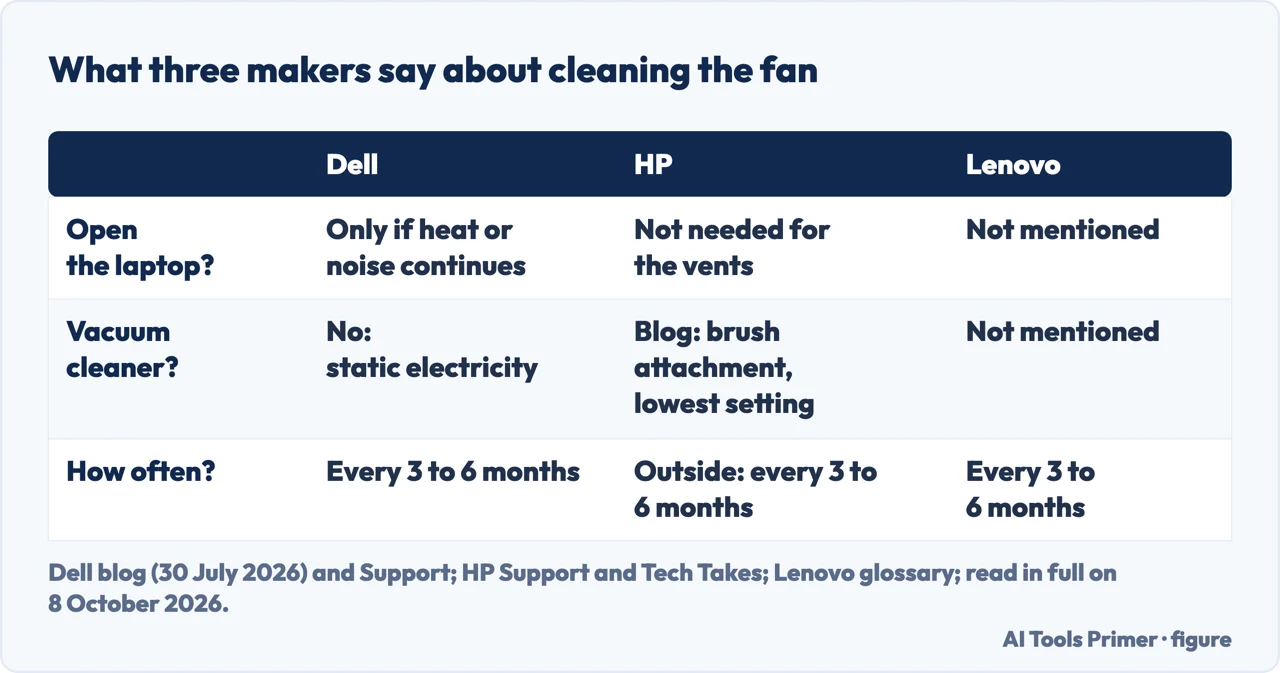
| A vacuum cleaner | No: it can generate static electricity (Dell). HP’s blog allows one with a brush attachment on its lowest setting when there is no compressed air |
| How often | Every three to six months, depending on where you work (Dell’s blog, Lenovo) |
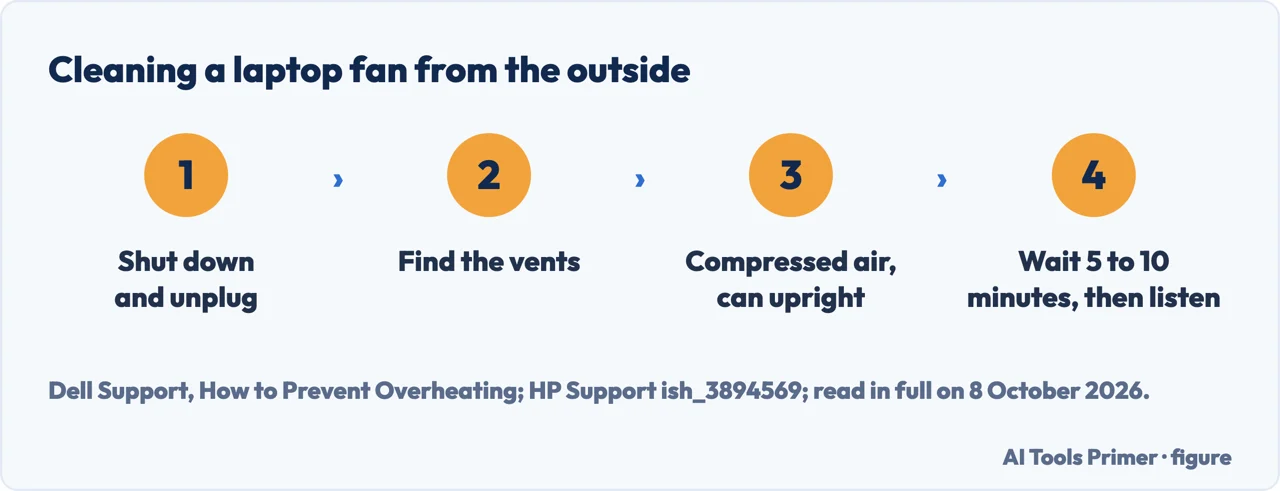
- Shut it down and unplug it. Dell’s blog says to shut down the operating system completely and disconnect every power source, and to remove the battery if it is an external, detachable pack.
- Find the vents. HP says they are usually underneath and on the sides; Dell’s support page says the back and the bottom. HP adds that some of its laptops have no vents at all.
- Blow short bursts of compressed air into them. Dell says to hold the can upright to avoid moisture building up, and its blog says not to force the fan to spin fast.
- Wipe around the vents. Dell’s step is a dry microfibre cloth for the dirt left around the openings.
- Let it cool, then listen. HP waits five to ten minutes before reconnecting the power and turning the laptop on, then says to listen to the fans.
Signs, and how often. Dell’s blog names overheating, loud or constantly running fans, slower performance and unexpected shutdowns, and says dust makes the fan work harder, which also drains the battery. Dell’s blog and Lenovo both say every three to six months; Dell adds more often in homes with pets or a lot of dust, and HP’s blog gives the same span for cleaning the outside, and says the inside can be cleaned annually or when you notice performance issues. A laptop that slows down when hot is in laptop overheating, and other reasons for a slow machine are in why a computer is slow.
A vacuum, a brush or compressed air
Dell says no to a vacuum. Its support page says vacuum cleaners can generate static electricity that might damage the parts inside, and its blog adds that too much suction or airflow can damage the fan’s bearings. The blog lists household blowers alongside vacuums.
HP’s blog allows one. Without compressed air, it suggests a soft brush, or a vacuum cleaner with a brush attachment on its lowest setting, for the vents and the keyboard. The two pages disagree, and this page does not settle it; compressed air is the tool all three makers name.
Liquids. Dell’s blog says not to spray liquids into the vents. HP’s blog says never to spray a cleaner directly onto the laptop.
Opening the laptop
When. Dell’s blog says opening it should happen only if overheating or loud fan noise continues after cleaning from the outside, and that some recent ultrabooks are hard to open because of glued parts or hidden screws; then the outside is the safest choice.
Dell’s steps. Unscrew the bottom cover with a precision magnetic screwdriver, keeping track of where each screw goes, remove the screws holding the fan cover, spray short bursts across the fan blades and the copper heat sinks, and wipe the plastic housing with a slightly damp paper towel without letting moisture touch the motherboard. Then put everything back before you power it on.
The warranty. HP’s blog says to check the laptop’s manual first, because opening some models may void the warranty, and that cleaning inside is for people comfortable with basic hardware or for a professional. Lenovo says the same about replacing a fan yourself. Microsoft offers service guides for some Surface repairs, for people who are technically experienced and have the right tools.
When not to. Dell says to switch off, unplug and stop using the computer if the case, keyboard or trackpad is swollen or lifting, if there is a burning or chemical smell, or if it is too hot to touch after shutting down. It says to contact Dell Technical Support, and not to open it or remove a swollen battery yourself.
A fan that has stopped, or sounds wrong
Stopped. Lenovo says to shut the laptop down straight away to prevent damage from heat, then clean the fan and the vents, and to get professional help if that doesn’t fix it. HP says a fan that makes a loud growling noise or isn’t moving has a problem of its own.
Spins, then stops. Dell’s blog says blades that spin only briefly at startup may point to a loose connection, that a BIOS update can refresh the thermal profiles, and that otherwise the part may need replacing.
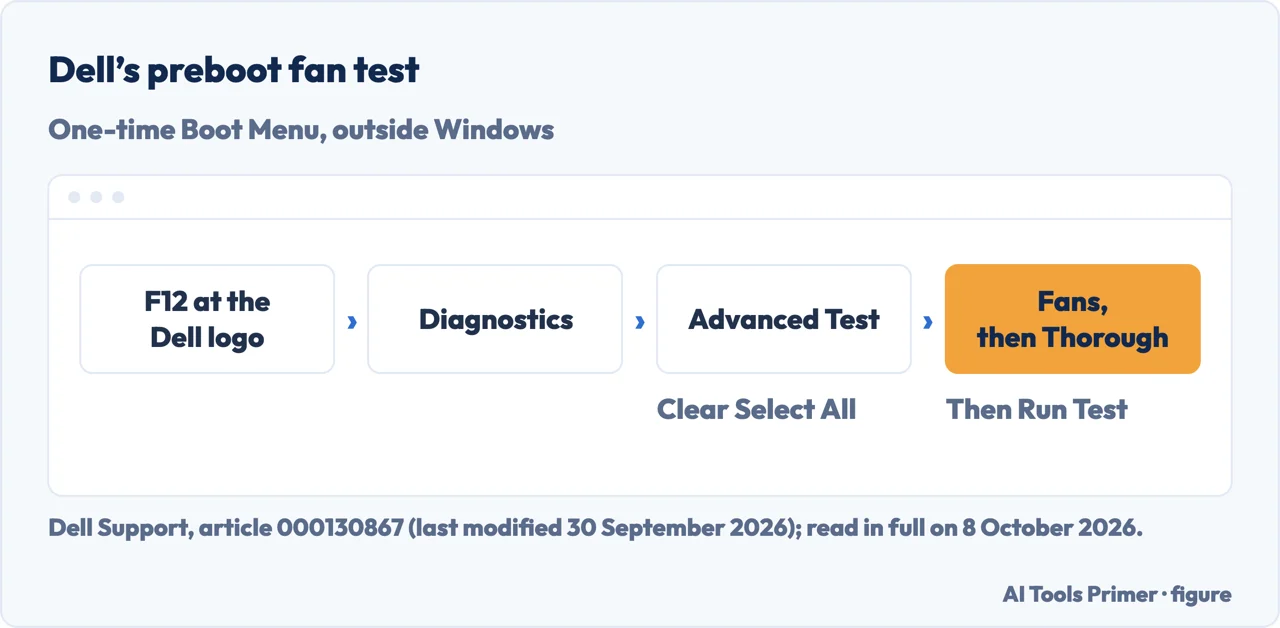
Testing it on a Dell. Dell’s preboot fan test: press F12 at the Dell logo to open the One-time Boot Menu, select Diagnostics, then ADVANCED TEST, clear Select All, select every listing for fans, choose Thorough and RUN TEST. Dell notes that the fans run at high speed for the whole test and that this is not a fault.
Noises. Microsoft says grinding, whining or ticking from a Surface are abnormal; under a heavy load, above 25°C, while charging or in the first 24 hours after setup, it says the fan may come on more often or spin faster.
Which laptops. These are Dell’s, HP’s and Lenovo’s instructions for their own machines; Lenovo’s fan article names ThinkPad, ThinkCentre, ideapad and ideacentre, and Dell’s preboot fan test is for its computers that support the F12 One-time Boot Menu, and runs outside Windows. Microsoft’s Surface page explains the fan’s behaviour but doesn’t describe cleaning it. A laptop that shuts down and then won’t start is a different job, in why a Lenovo laptop won’t turn on, and a battery that empties quickly in why a battery drains fast.
Where to start
Five ways in.
- “Where do I start?”
- From the outside — from the outside
- “Can I use a vacuum?”
- Vacuum or air — vacuum or air
- “Should I open it?”
- Opening the laptop — opening the laptop
- “The fan has stopped.”
- Fan not spinning — fan not spinning
- “How often?”
- Signs and how often — signs and how often
More on heat and speed
When the laptop runs hot, loud or slow.
Questions people also ask
Can I clean my laptop fan without opening it?
Yes: HP says it isn’t necessary to open the computer to clean the vents, and Dell’s blog recommends compressed air through the intake and exhaust vents for routine maintenance, when dust build-up is moderate and the laptop still works normally. It says to open it only if overheating or loud fan noise continues afterwards.
Do I need to clean my laptop fans?
Lenovo says dust builds up and blocks the airflow, so the fan works harder and less efficiently, which can lead to overheating and damage inside. Lenovo and Dell’s blog both suggest cleaning every three to six months, depending on the environment.
My laptop fan isn't spinning. What should I do?
Lenovo says to shut the laptop down straight away, clean the fan and the vents, and get professional help if it still doesn’t work. HP says a fan that isn’t moving has a problem of its own. On a Dell, its preboot test checks the fans: F12 at the logo, then Diagnostics.
How do I clean the dust out of my laptop?
Turn it off and unplug it, then blow short bursts of compressed air into the vents with the can upright, and wipe the dirt around them with a dry microfibre cloth, as Dell describes. HP’s blog says cleaning inside is for people comfortable with basic hardware, or for a professional.
Not covered here. It does not cover desktop PCs, replacing a fan or thermal paste, or MacBooks.
Sources
- Dell — How to Clean a Laptop Fan Safely: Step-by-Step Guide (blog, 30 July 2026): tools, opening the laptop, vacuums, how often — www.dell.com, read 8 October 2026.
- Dell Support — How to Prevent Overheating: Tips for Cooling Your PC or Laptop: cleaning the vents, the can upright, no vacuum cleaners — www.dell.com, read 8 October 2026.
- Dell Support, article 000130867 (last modified 30 September 2026) — How to Stop Computer and Laptop Overheating and Shut Down Issues: the preboot fan test and when not to open the computer — www.dell.com, read 8 October 2026.
- HP Support — HP Notebook PCs: Reduce heat inside the laptop to prevent overheating in Windows: cleaning the vents without opening the computer — support.hp.com, read 8 October 2026.
- HP Tech Takes — How To Clean Your Laptop (31 January 2025): the fan and vents, opening and the warranty, cleaning without compressed air — www.hp.com, read 8 October 2026.
- Lenovo — Laptop Fan: Tips for Maintaining Your Laptop Fan (glossary): cleaning, how often, a fan that stops — www.lenovo.com, read 8 October 2026.
- Lenovo Support HT077046 — Fan runs at a higher than expected speed (ThinkPad, ThinkCentre, ideapad, ideacentre): cleaning the vents — support.lenovo.com, read 8 October 2026.
- Lenovo Support HT510561 — What to check if the PC seems warm: compressed air when the PC is off — support.lenovo.com, read 8 October 2026.
- Microsoft Support — Fan behavior and fan noise in a Surface device — support.microsoft.com, read 8 October 2026.
Written by Alberto Gulotta
Founder and editor of AI Tools Primer, writing from Palermo, Italy. Thirty-five years of taking computers apart, starting with a Commodore 64 — the long version is on the about page.
Something wrong on this page? Write to aitoolsprimer@gmail.com and it gets fixed.
Written on 9 October 2026.
Independence and limits
No affiliate links and no paid placements anywhere on this site. Nobody pays to appear here, and no company has seen this page before you did.
This is general information, not professional advice. Where a page touches money, health, safety or the law, it names its source and the date it was read — and your situation may still differ. See the privacy page and the cookie policy.