Why won't my Lenovo laptop turn on has an answer involving a paper clip and a small hole, and that is where it gets dangerous. Lenovo documents two different pinholes. They are pressed with the same gesture, they look the same, and they do opposite things.
Before either of them, though, comes the step Lenovo itself puts first.
Before any hole, Lenovo puts charging — with two conditions attached:
“Plug the power cable directly in to the wall outlet. If the system does not power
on, allow it to charge for at least 5 to 10 minutes.” And: “When recharging
the battery, do not connect to the power source via power strips, surge protectors, or
docking stations.”
A machine drained flat can look dead for several minutes with the charger attached, and a dock
or a strip is the reason a charger that works elsewhere does nothing here. This costs ten
minutes and it is the step Lenovo puts first. There is also a false alarm worth knowing about
before you conclude anything: “Some ThinkPad LCDs will automatically dim when the AC
Power is unplugged. This is to save battery power and is normal.”
If ten minutes on a wall socket changes nothing, then the holes. Here is what each one is, in the manufacturer’s words.
The emergency-reset hole
thinkpad
From the ThinkPad T470 bottom view, item [5]: “If the computer stops responding and you
cannot turn it off by pressing the power button, remove the ac power adapter. Then,
insert a straightened paper clip into the emergency-reset hole to reset the
computer.”
It is a power reset. It does not open a menu and it does not touch your files.
The Novo hole
ideapad
“The Novo button is either a small button or pinhole with a backwards arrow icon
next to it that resembles an upside down U.” Pressed the same way: “use the
tip of an unfolded paper clip … and gently press the Novo button.”
But it does something else entirely: “Under the Novo Button Menu, there are options to
perform system recovery, enter the BIOS, or configure the boot menu.”
Neither one
everything else
“Note: Some systems do not have this reset.” And for those, Lenovo does
give a number: “On other systems (without a pin hole reset or Novo button),
press and hold the power button for at least 10 seconds.”
Also stated: “For Lenovo All-in-ones, there is no NOVO button.”
Read those three together and the shape of the problem is clear. One hole resets power. One hole opens a recovery menu. Which one your machine has depends on whether it is a ThinkPad or an ideapad — and the article describing the Novo button is marked, by Lenovo, as applying to ideapad.
Same gesture, two different machines, two different outcomes
The Novo hole opens a menu. The menu is safe. One of the choices inside it is
not: “From the Novo Button Menu → choose System Recovery” leads to a step
Lenovo labels plainly — “Note: 1. The recovery process is irreversible. Make sure
to back up any data you wish to save on the system partition before starting the recovery
process.”
Nothing is lost by pressing the Novo hole itself, and this page is not telling you to avoid it
— Lenovo documents it as the way in when “Windows does not start”. The point is
narrower and worth carrying: if you went looking for a power reset and landed in a recovery
menu, the thing to do is leave it, not to pick the option that sounds like it fixes
everything.
The two holes are not reliably told apart by position. Lenovo says the Novo one sits on
“the side or left-side of the laptop” on the models it names, then adds: “The
Novo button may be located at different places on different models. If you cannot find
the button, see the User Guide to make sure the model has a Novo button.” The icon is
the tell — the backwards arrow. And the ranges are separate: the Novo article is marked
for ideapad, while the emergency-reset hole is what the ThinkPad manuals label.
Now the finding that is easiest to check and hardest to believe, because so much written about this contains a number.
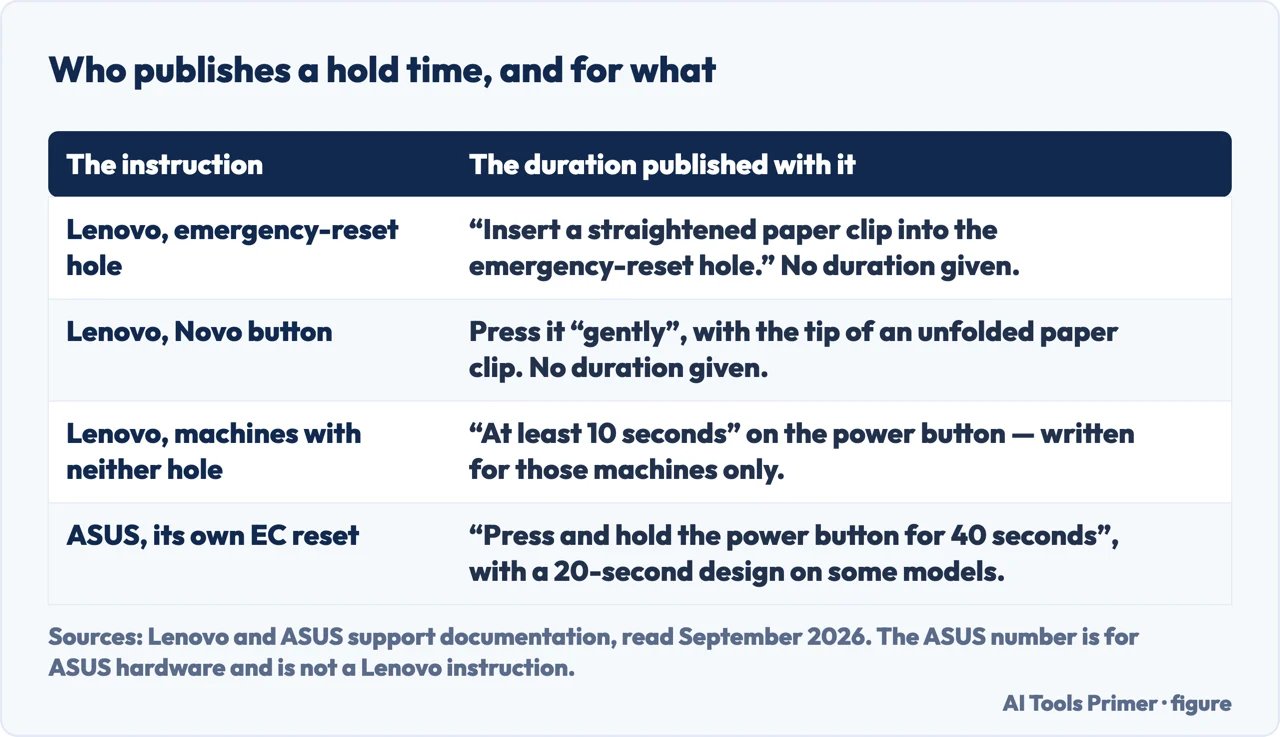
Lenovo publishes no hold time for either hole. On its no-power troubleshooting page the phrase is simply “use a straightened paper clip in the reset hole to reset the system”; the ThinkPad manual says “insert a straightened paper clip into the emergency-reset hole”; the Novo article says to press it “gently”. None of the three gives a duration. On that troubleshooting page, read in full, the only length of time in seconds that appears anywhere is “at least 10 seconds” — and that sentence is written for the machines that have neither hole. An instruction to hold a pinhole for thirty seconds is not coming from Lenovo.
That absence reads differently next to a manufacturer that does publish one. ASUS documents a hold time for its own hardware reset, and is precise about it: “during the EC reset and RTC reset process, you need to press and hold the power button for 40 seconds”. It also publishes that the number is not universal even inside one brand — “different models may have either a 20-second or 40-second press design” — and describes what the shorter one looks like: “after pressing for 15 seconds, the power indicator will start rapidly flashing for about 3-5 seconds. After the flashing stops, release the power button.” Two things follow, and the second is the point of this page. A duration is exactly the sort of thing a manufacturer writes down when it has one. And forty seconds is an ASUS instruction for ASUS machines, not a number to carry across to a Lenovo pinhole — which is what every guide that supplies one for the Novo hole is quietly doing.
Three Lenovo instructions with no duration attached, and one manufacturer that publishes one for its own hardware. Figure drawn by AI Tools Primer.
Two more things Lenovo publishes that are hard to find anywhere else. First, a diagnostic rather
than a fix: “If the reset works, then there may be an issue with the power button.
Contact Support.” A machine that starts only after a reset is telling you something about
the button, not about Windows. Second, a documented defect where refusing to start is a known
bug: on the ThinkPad L13 Gen 2 and L13 Yoga Gen 2, “The system may not power on when
returning from S4 (hibernate state) or S5 (shutdown / off state) with a BIOS version prior to
1.20 (BIOS ID: R1QET34W)” — and Lenovo’s own remedy is the reset hole for the
symptom plus a BIOS update “to prevent reoccurrence of this issue”.
One inconsistency inside Lenovo’s own pages is worth naming, because it changes who this applies to. The troubleshooting page frames the reset hole as the alternative for sealed batteries: “Remove the battery if the battery is removable. For systems with an internal battery (not removable), use the Emergency-reset hole”. But the ThinkPad T470 bottom-view page lists [1] Removable battery and [5] Emergency-reset hole on the same machine. So the hole is not confined to laptops with sealed batteries, and a reader who checks for a removable battery first may conclude the hole is not for them when it is.
A note on where this question gets answered, and on a limit of this note. Google returned an anti-bot page rather than results when this was written, so the reading below is from Bing, in the United States, on 23 August 2026. Lenovo’s own no-power troubleshooting article is easy to find, so this page makes no claim that the manufacturer is absent from the results read. What is missing is narrower and checkable: the Novo button is named repeatedly and the emergency-reset hole is not named at all — which is the conflation this page exists to undo, since the Novo button is an ideapad control and a great deal of the audience is holding a ThinkPad.
What this page will not do is tell you to open the laptop. Some results for this question suggest removing RAM or the drive; none of the Lenovo documentation read here asks for that, and the pages that do are not the manufacturer.
It will not give you a number of seconds for the pinhole. Lenovo does not publish one, and inventing a duration that sounds authoritative is exactly the habit that makes this question so confusing.
And it will not tell you which model you have or where your hole is. Lenovo’s own instruction is to look: “refer to the page that shows the bottom view in Product Overview section in the User Guide”.
Where to start
Three ways in. If you have not left it charging for ten minutes on a wall socket, start there.
A power reset on ThinkPad, a recovery menu on ideapad, and an icon rather than a position telling them apart. Lenovo documents both, in separate places.
Three Lenovo descriptions of the pinhole, no duration in any of them. The only figure in seconds on the page is written for machines that have no hole.
Not covered here. It will not tell you to take the laptop apart. The Lenovo pages read here never ask for that, and results that do are not written by the manufacturer.
It will not print a hold time for the pinhole. Lenovo publishes none, and a confident number from somewhere else is a guess wearing a uniform.
It will not tell you the machine is dead. Lenovo publishes at least one case where refusing to start was a BIOS defect with a fix, so a diagnosis from a page you are reading is worth nothing.
And it carries no affiliate links, including for the data recovery services that advertise heavily against exactly this question. What holds instead is simple: every instruction here is quoted from Lenovo, the two holes are described from two separate Lenovo pages, and where Lenovo publishes no number this page says so rather than supplying one.
When you start wondering if the machine is dying
Five guides: a laptop that overheats, a slow computer, a battery that drains fast, a Lenovo laptop that will not turn on, and iPhone battery health.
Lenovo, System does not power on from hibernation or power off state — ThinkPad L13 Gen 2, L13 Yoga Gen 2 — Lenovo Support (that the system may not power on when returning from S4, the hibernate state, or S5, the shutdown or off state, with a BIOS version prior to 1.20, BIOS ID R1QET34W; and that the published remedy is to recover the system with the emergency-reset hole and then update the BIOS to 1.20 or later to prevent reoccurrence of this issue) — support.lenovo.com, read 26 August 2026.
Lenovo, Introduction to Lenovo OneKey Recovery 8.0 for Notebooks — Lenovo Support (that from the Novo Button Menu you choose System Recovery, and that the recovery process is irreversible, so any data you wish to save on the system partition should be backed up before starting it) — support.lenovo.com, read 26 August 2026.
Lenovo, Bottom view — ThinkPad T470 — Lenovo Support (item [5], the emergency-reset hole: that if the computer stops responding and you cannot turn it off by pressing the power button you remove the ac power adapter, then insert a straightened paper clip into the emergency-reset hole to reset the computer — with no duration given) — support.lenovo.com, read 26 August 2026.
Lenovo, Troubleshooting No Power Issues — Lenovo Support (that the power cable should be plugged directly into the wall outlet and the system allowed to charge for at least 5 to 10 minutes; that when recharging the battery you should not connect to the power source via power strips, surge protectors or docking stations; that on systems with an internal, non-removable battery you use the Emergency-reset hole with a straightened paper clip; that some systems do not have this reset and the bottom view in the Product Overview section of the User Guide shows whether they do; that on systems without a pin hole reset or Novo button you press and hold the power button for at least 10 seconds; that if the reset works there may be an issue with the power button; and that some ThinkPad LCDs automatically dim when the AC power is unplugged, which is normal) — support.lenovo.com, read 26 August 2026.
Lenovo, Introduction to NOVO button — ideapad — Lenovo Support (that the Novo button is either a small button or pinhole with a backwards arrow icon next to it that resembles an upside down U, usually on the side or near the power button; that it is pressed with the tip of an unfolded paper clip; that under the Novo Button Menu there are options to perform system recovery, enter the BIOS or configure the boot menu; that the button may be located at different places on different models; and that for Lenovo All-in-ones there is no NOVO button) — support.lenovo.com, read 26 August 2026.
ASUS Support — How to Reset Embedded Controller (EC Reset), Real-Time Clock (RTC), and Hard Reset (ON ASUS HARDWARE: that the procedure begins by removing all external devices, turning the device off and connecting the power adapter; that the power button is then held for 40 seconds; that different models may have either a 20-second or a 40-second press design; and that on the shorter design the power indicator flashes rapidly for about three to five seconds after fifteen seconds, and the button is released when the flashing stops) — www.asus.com, read 5 September 2026.
AG
Written by Alberto Gulotta
Founder and editor of AI Tools Primer, writing from Palermo, Italy. Thirty-five years of
taking computers apart, starting with a Commodore 64 — the long version is on the
about page.
Written on 23 August 2026 · last checked 7 September 2026.
§
Independence and limits
No affiliate links and no paid placements anywhere on this site. Nobody pays to appear here,
and no company has seen this page before you did.
This is general information, not professional advice. Where a page touches money, health,
safety or the law, it names its source and the date it was read — and your situation may
still differ. See the privacy page and the
cookie policy.