Google’s swap test
pixel“Try to charge another device with your power adapter and cable.” One move, and nothing to buy to find out.

Software · guide
By Alberto Gulotta · Updated · 11 min read
How to fix phone not charging has two answers, and the first thing to establish is which one you need. Apple separates them on its own page.
“If your device stopped charging at 80 percent” — three published reasons, none of them a fault:
- Optimized Battery Charging. It exists “to slow the rate of battery aging by reducing the time that your iPhone spends fully charged”, uses on-device machine learning to learn your routine, and is “active only when your iPhone predicts that it will be connected to a charger for a long period of time”.
- Heat. “If the battery gets too warm, software might limit charging above 80 percent. Your iPhone will charge again when the temperature drops.”
- Charge Limit. On “iPhone 15 models and later, you might have a charge limit, which stops your iPhone from charging past a set limit”.
An iPhone that sits at eighty per cent all night is not on Apple’s list of repairs, and two of the three reasons can clear on their own. For a Pixel that “stops charging at a certain percentage”, Google’s steps, under “Troubleshoot slow charging or battery not charging to full”, turn off Charging optimization and then “Try to charge again.”
So before anything else: if the number is moving but stops at eighty on an iPhone, none of the repair steps below apply. Optimized Battery Charging finishes the job when it expects you to want the phone; for heat, Apple says to try “moving your iPhone and charger to a cooler location”; and a charge limit is a setting, which Apple says to change if you want the phone to charge past 80 per cent.
The rest of this page is for the other case, where the number does not move at all.
If it genuinely will not charge — Apple’s order
Eight steps, and two of them are waiting.
Apple says half an hour, twice — once before the force restart and once after. Google’s 10-minute step starts with plugging in and waiting one minute, and adds the tell: “If you see a battery icon, your phone is powered off and is charging.” It also warns that “A device with a very low charge will charge for several minutes before allowing the screen to power on.” If no battery icon appears, Google’s page has a separate check for the screen: “there could be a problem with your screen”.
Google’s version adds two tests Apple’s does not, and both cost nothing.
Google’s swap test
pixel“Try to charge another device with your power adapter and cable.” One move, and nothing to buy to find out.
Google’s outlet test
pixel“Plug the charger into a wall outlet. Plug in something else, like a lamp.” The same logic one step further back, and just as cheap.
Those two are worth doing early rather than late. A cable, an adapter and an outlet are three suspects, and each can be tested by putting something else on the end of it. The alternative — buying a new cable to find out whether the old one was the problem — is the more expensive experiment.
Two things to take off, and one message to read. Under “Troubleshoot case, battery charger, cable & outlet”, Google starts with the phone case: remove it “to ensure that it doesn’t interfere with your charging plug or wireless charger” — and adds another check: that no accessories, “like cases or battery packs, cover the sensors on your phone or press its buttons”. And if a “Check charging accessory” notification appears, Google says the cable or adapter “may be damaged or not supported by your phone. This can cause your phone to charge very slowly or not at all”.
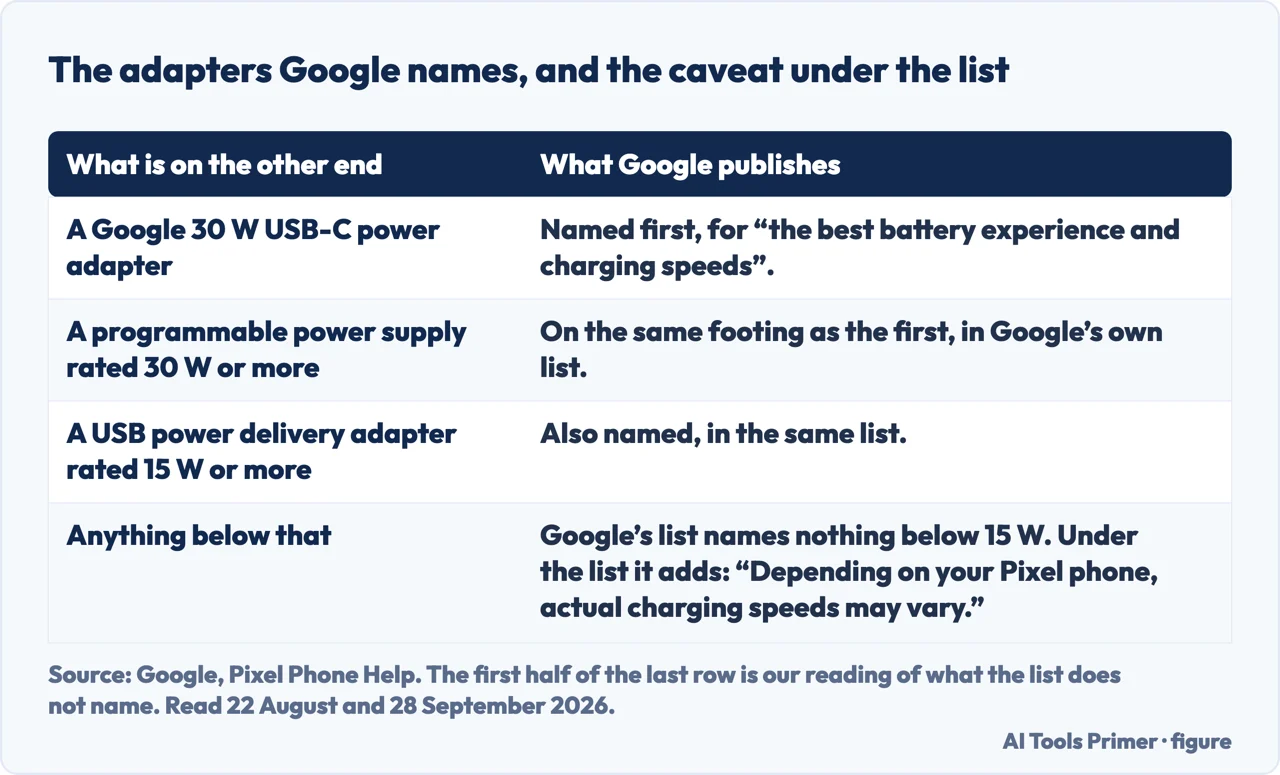
One more thing from Google’s page: the adapter. For “the best battery experience and charging speeds” it names “A Google 30 W USB-C power adapter or other programmable power supply (PPS) power adapter rated for 30 W or more” and “Other USB power delivery (PD) adapters rated for 15 W or more” — and notes that actual speeds vary by model.
What this page will not do is tell you the battery needs replacing. Neither vendor’s procedure reaches that conclusion; both end at service, which is where somebody can measure it.
It also will not tell you to clean a charging port with a pin, a paperclip, or anything else. Apple says to remove debris and does not say with what.
And it will not treat a phone that stops at eighty per cent as broken; on an iPhone, Apple does not.
Three ways in. If it stops at eighty per cent, take the first.
A touch screen, liquid detection, the orange dot, Mac charging, storage and SOS.
Force restarting, turning a phone off, and a speaker with no sound.
A keyboard, one AirPod, and a drive’s health.
Not covered here. It will not tell you the battery needs replacing. Neither vendor’s procedure reaches that conclusion; both end at service, where somebody can measure it.
It will not tell you what to clean a charging port with. Apple says to remove debris and names no tool.
And it will not treat a phone that stops at eighty per cent as broken. What holds instead is simple: the eighty per cent case is explained as the maker explains it, and nothing here asks you to replace a battery.
Written by Alberto Gulotta
Founder and editor of AI Tools Primer, writing from Palermo, Italy. Thirty-five years of taking computers apart, starting with a Commodore 64 — the long version is on the about page.
Something wrong on this page? Write to aitoolsprimer@gmail.com and it gets fixed.
Written on 22 August 2026 · last checked 30 September 2026.
Independence and limits
No affiliate links and no paid placements anywhere on this site. Nobody pays to appear here, and no company has seen this page before you did.
This is general information, not professional advice. Where a page touches money, health, safety or the law, it names its source and the date it was read — and your situation may still differ. See the privacy page and the cookie policy.