
Screens · guide
How to fix phone screen unresponsive touch, in four steps
By Alberto Gulotta · Updated · 11 min read
How to fix phone screen unresponsive touch has a four-step answer from Apple, and one of those steps ends by telling you to change your charger. That is not a typing error.
Apple’s list, in Apple’s order
Four steps, and the third one is doing more work than it looks.
- Restart the iPhone or iPad.
- “Make sure that your screen is clean and free of any debris or water.”
- “Disconnect any Lightning or USB-C accessories.”
And then the sentence that turns this into a test — see below. - “Remove any cases or screen protectors.”
Apple does not call this “the screen not working”
The heading over those four steps is “If your screen is too sensitive or responds intermittently to touch”. That is a wider category than the question, and the width is informative: a screen registering taps you did not make and a screen ignoring taps you did are the same problem to Apple, with the same four remedies. If yours is doing the first, you are on the right page too — and the phantom-touch version has exactly the same list.
Steps two and four are the obvious ones and worth doing properly rather than quickly. Water is named alongside debris — a screen does not need to be wet to misread, only slightly damp — and “remove any cases or screen protectors” means removing them, not inspecting them, because a protector that has lifted a fraction at one corner behaves differently from one that looks the same and has not.
Step three is the interesting one.
“Disconnect any Lightning or USB-C accessories. If your screen works after removing an accessory, try using a different outlet, cable, or charger.”
Read the second half slowly, because it says something that sounds wrong. Apple’s remedy for a screen that has started working again is to change the charger. Not the accessory — the outlet, the cable, or the charger. The implication is plain enough once stated: what a phone is plugged into can affect how its touchscreen behaves, and a screen that misbehaves only while charging has told you where to look. It is the single most useful line on the page and it appears as a subordinate clause.
That makes step three a test rather than a chore, and it is worth running as one. Unplug everything. If the screen recovers, plug the same accessory back in: if the trouble returns, you have found it without buying anything. If it does not return, the accessory was not the cause and the fault is elsewhere. Either outcome is progress, which is more than most of the advice on this subject offers.
“Press and hold the side button until you see the Apple logo (this might take longer than 10 seconds).”
If the screen will not respond at all, the restart in step one has to be forced, and the parenthesis is the part that matters. Ten seconds of holding a button feels like a long time, and it is roughly the point at which most attempts are abandoned as “nothing happened”. Apple says it may take longer than that. The full sequence on a Face ID iPhone is volume up, volume down, then hold the side button — two quick presses and one long one, and the long one is longer than instinct allows for.
And if nothing appears afterwards. Apple’s instruction is patience with a number on it: “If your iPhone doesn’t turn on, charge your iPhone for one hour and then try again.” Where a low-charge battery symbol appears instead, the sequence is to check the charging hardware and then charge “for 30 minutes or until it starts”. Both figures are longer than the pause anybody takes voluntarily, which is the recurring shape of Apple’s troubleshooting: the step being skipped is usually the waiting.
Where all four steps leave the screen unchanged, Apple stops rather than speculating: “If your screen still isn’t working, you might need to set up service for your device.” There is no fifth step, and the absence of one is itself information — there is no software setting, no reset and no hidden menu that Apple is holding back for people who read further.
Another maker publishes a list for the same fault on its own phones, and it is longer at exactly the point where Apple’s is shortest. Google’s instructions for Pixel screens repeat two of Apple’s — “Make sure that your screen is clean” and “Try removing the case or screen protector to see if touch responsiveness improves” — and then add two Apple does not name: “If you’re wearing gloves, take them off” and “If you’ve put any stickers over the screen or sensors, peel them off”. It also names things that are settings rather than gestures: a Touch diagnostics test under Display & touch on the newest Pixels, and a Screen protector mode under Touch sensitivity on the older ones. Google does not say on that page what either of those does, so neither will this one. The point is narrower and useful anyway: this is Google for its own phones, not an answer for Android, and where Apple ends at service another maker still has items on the list.
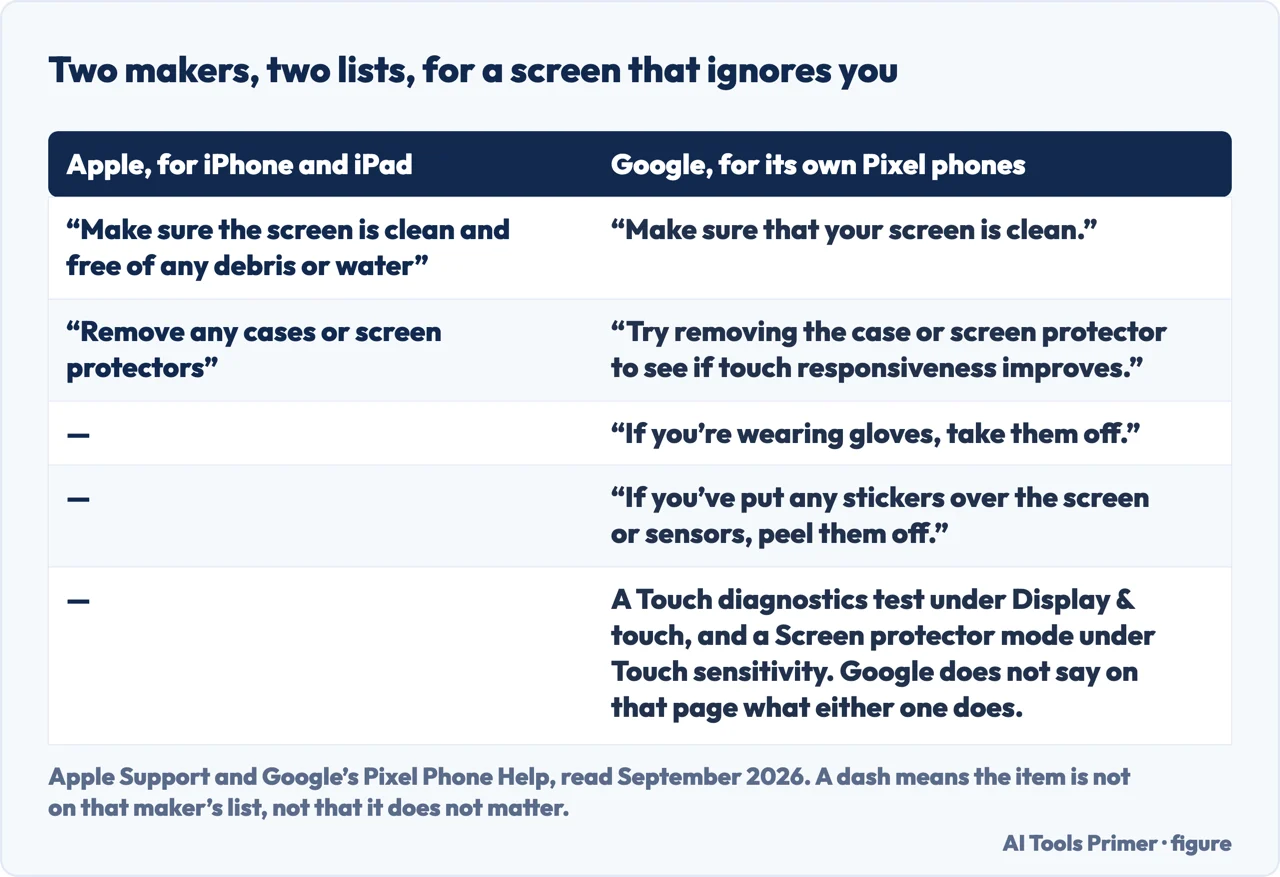
What this page will not do is offer the remedies that circulate for this and appear nowhere in the documentation — the tapping, the freezer, the calibration app. None of them is on Apple’s four-step list, and a touchscreen is not a thing to experiment on.
It will not give an Android-wide version either. The same fragmentation applies as everywhere else on this site: Google documents its own phones, every other maker documents theirs, and the checks are similar while the wording is not.
And it will not tell you whether a repair is worth the price. Apple ends at service, which is where somebody can look at the digitiser rather than guess at it.
Where to start
Three ways in. If it only misbehaves while charging, take the second.
- “Taps are being ignored.”
- Four steps, in order — apple s four steps
- “It goes wrong while charging.”
- Apple names the charger — the accessory test
- “It will not respond at all.”
- Hold longer than you think — forcing a restart
Apple’s four steps
A restart, a clean dry screen, accessories off and the case removed. Filed under a heading that covers both a screen that ignores you and one that invents taps.
The accessory test
Unplug, watch, plug back in. Apple’s follow-up names the outlet, the cable and the charger, which is stranger and more useful than it first reads.
Forcing a restart
Longer than ten seconds, then an hour on a charger before concluding anything. Both numbers are longer than the pause anybody takes voluntarily.
Not covered here. It will not repeat the remedies that circulate for this and appear nowhere in the documentation. The tapping and the freezer are not on Apple’s list, and a touchscreen is not a thing to experiment on.
It will not give an Android-wide version. Google documents its own phones and every other maker documents theirs, which is a fact about Android rather than a gap here.
And it will not tell you whether a repair is worth the price. Apple ends at service, where somebody can look at the hardware instead of guessing at it. What holds instead is simple: four steps in Apple’s own order, with Apple’s own warning about how long a force restart can take, and nothing invented to fill the gaps.
When the keyboard or the screen will not do as it is told
Input that stops arriving, or arrives changed into something you did not type, and the two minutes that tell you whether it is hardware.
- The same job, in the other places it comes up
- How to turn off autocorrect when it is three settings
- Surface keyboard not working, and the step most models lack
- How to fix keyboard not typing when nothing is broken
- Computer monitor display issues, and what each test proves
Sources
- Apple, If the screen isn’t working on your iPhone or iPad — Apple Support, published 15 October 2024 (the heading “If your screen is too sensitive or responds intermittently to touch”; the instruction to restart the iPhone or iPad; the instruction to make sure the screen is clean and free of any debris or water; the instruction to disconnect any Lightning or USB-C accessories, with the follow-up that if the screen works after removing an accessory a different outlet, cable or charger should be tried; the instruction to remove any cases or screen protectors; and the closing note that if the screen still is not working, service may need to be set up for the device) — support.apple.com, read 22 August 2026.
- Apple, Restart an unresponsive iPhone — Apple Support (the force restart sequence for an iPhone with Face ID of pressing and quickly releasing the volume up button, pressing and quickly releasing the volume down button, then pressing and holding the side button until the Apple logo appears, with the note that this might take longer than 10 seconds; the equivalent sequence for an iPhone 7 or iPhone 7 Plus of holding the side and volume down buttons together; and the instructions that if the iPhone does not turn on it should be charged for one hour before trying again, and that where a low-charge battery symbol appears the charging hardware should be checked and the iPhone charged for 30 minutes or until it starts) — support.apple.com, read 22 August 2026.
- Google — Fix touch & response issues on your Pixel screen, Pixel Phone Help (the checks Google publishes for its own phones: to try removing the case or screen protector to see if touch responsiveness improves, to take gloves off, to peel off any stickers put over the screen or sensors, and to make sure the screen is clean; the Touch diagnostics item under Display and touch on Pixel 9 models; and the Screen protector mode under Display and touch, Touch sensitivity on Pixel 8a and earlier. The page does not say what those two settings do, and the safe mode test on it is filed under screen rotation rather than under touch response) — support.google.com, read 6 September 2026.
Written by Alberto Gulotta
Founder and editor of AI Tools Primer, writing from Palermo, Italy. Thirty-five years of taking computers apart, starting with a Commodore 64 — the long version is on the about page.
Something wrong on this page? Write to aitoolsprimer@gmail.com and it gets fixed.
Written on 22 August 2026 · last checked 23 September 2026.
Independence and limits
No affiliate links and no paid placements anywhere on this site. Nobody pays to appear here, and no company has seen this page before you did.
This is general information, not professional advice. Where a page touches money, health, safety or the law, it names its source and the date it was read — and your situation may still differ. See the privacy page and the cookie policy.