
Screens · guide
Wet LCD: the two liquids, and which one is yours
By Alberto Gulotta · Updated · 15 min read
A wet LCD has two liquids in it, and only one of them is yours. Turn the machine off, unplug it, tip it out to drain, and leave the rice alone. Then look at the mark on the glass: what you see tells you which of the two you are dealing with, and that decides everything after.
Is there liquid inside an LCD?
Yes, and that is the sentence that makes this fault confusing. It is also why “LCD display water damage” can name two different faults: the spill that reached the panel, or the panel’s own liquid crystal escaping through cracked glass. The panel in front of you is a sealed sandwich, and the layer in the middle of it is liquid crystal — the L and the C of the name. So when a screen goes strange after a spill there are two liquids in the room, and the whole of what happens next depends on which one you are looking at.
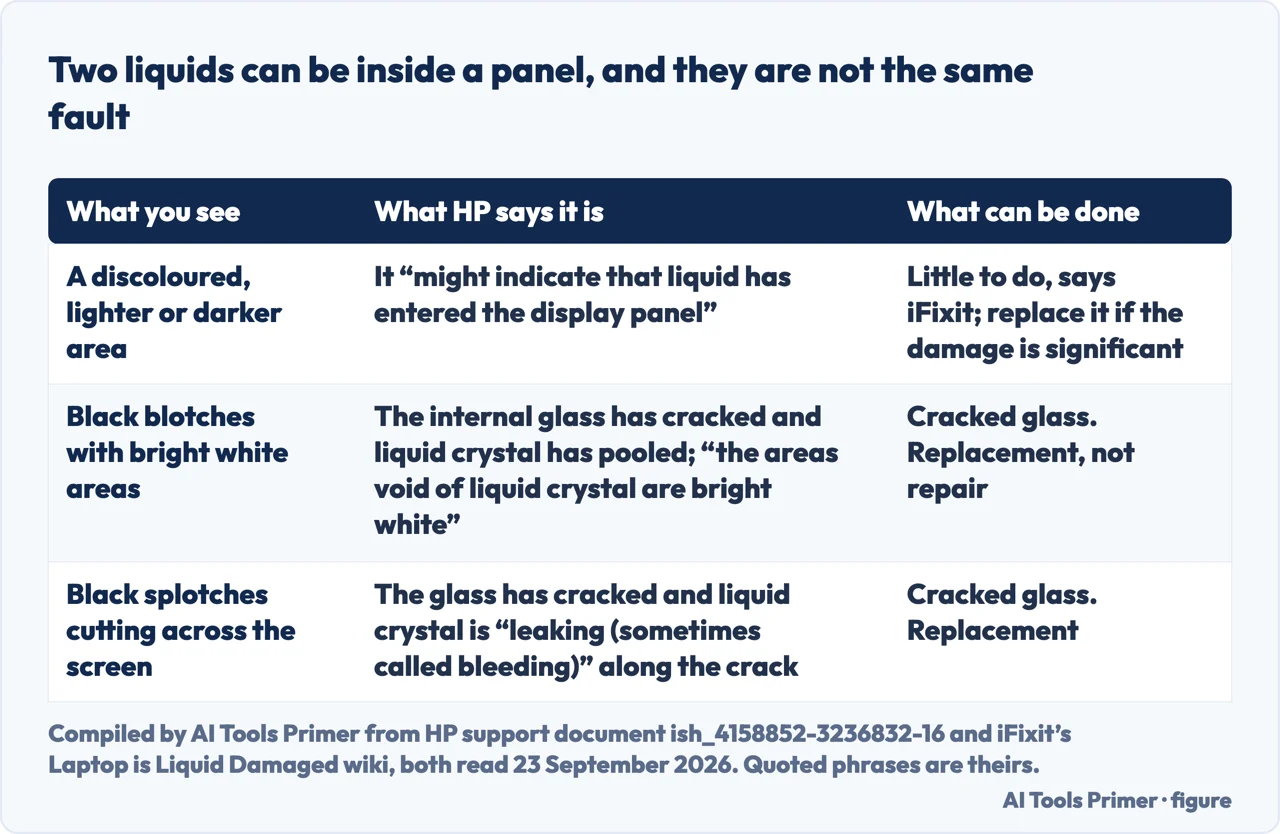
“A discolored, light or dark area on the screen might indicate that liquid has entered the display panel.”
That is HP describing your liquid. Further down the same list it describes the other one: “the internal glass has cracked, allowing liquid crystal to pool into areas (causing black blotches)”. Two liquids, two faults, and only one of them came out of a glass.
HP’s support page for a damaged display happens to describe both, a few lines apart, which is why it is worth reading even if your machine is not an HP. A discoloured, lighter or darker area is what HP attributes to liquid that has entered the panel: the spill, arriving where it should not be. Black blotches with bright white patches beside them are the other thing entirely — the panel’s own liquid crystal moving, and the white is simply where none of it is left. HP describes a third appearance in the same list, black splotches cutting across the screen, and gives it the same cause: “The internal glass has cracked and liquid crystal is leaking (sometimes called bleeding) inside the display panel along the crack.”
The practical difference: HP puts the other two down to cracked internal glass, and the first one only to liquid that got in. If what you are seeing is dark marks with no history of a spill at all, the fault is probably a different one and lives on black marks on a screen; the same goes for white spots and for the soft-edged shapes left by pressure on the glass, which are not liquid at all.
The first minutes, and the thing not to do
There is a published order for this, and following it costs nothing. It comes from iFixit’s wiki for a liquid-damaged laptop.
- Turn it off, now, before anything else. iFixit puts this first for a reason it spells out: switching a liquid-damaged device off is “crucial to prevent electrical shorts and subsequent damage”. A screen that still shows something is a screen that is still powered, and powered is the state in which a spill does the rest of its work.
- Disconnect every power source, and the battery if you can reach it. That means the charger as well as the outlet, and any USB device hanging off the side. The reason is the same one: liquids conduct, so anything still supplying current is still supplying the short.
- Turn the machine upside down and let it drain. iFixit asks you to shake it, in those words — “remove as much liquid as possible” — and to wipe what you can see with a dry cloth. This is the last step that costs you nothing and can still help.
- Do not put it in rice. Not as a folk remedy to be polite about: iFixit’s laptop wiki says to avoid rice and similar desiccants because “desiccants will not remove the contamination caused by the liquid spill”. Drying is not the problem you have. What was in the liquid is still there after it dries, and it keeps working on the metal.
- Then open it, or decide not to. Everything past this point is a repair, and both iFixit and HP warn about doing it yourself. iFixit: liquid damage to a laptop “is not an easy repair, and even minor spills can result in issues that require a lot of tools and experience”. HP is blunter: “HP does not recommend repairing or replacing the screen yourself. This can void warranty options and cause further damage to the computer.”
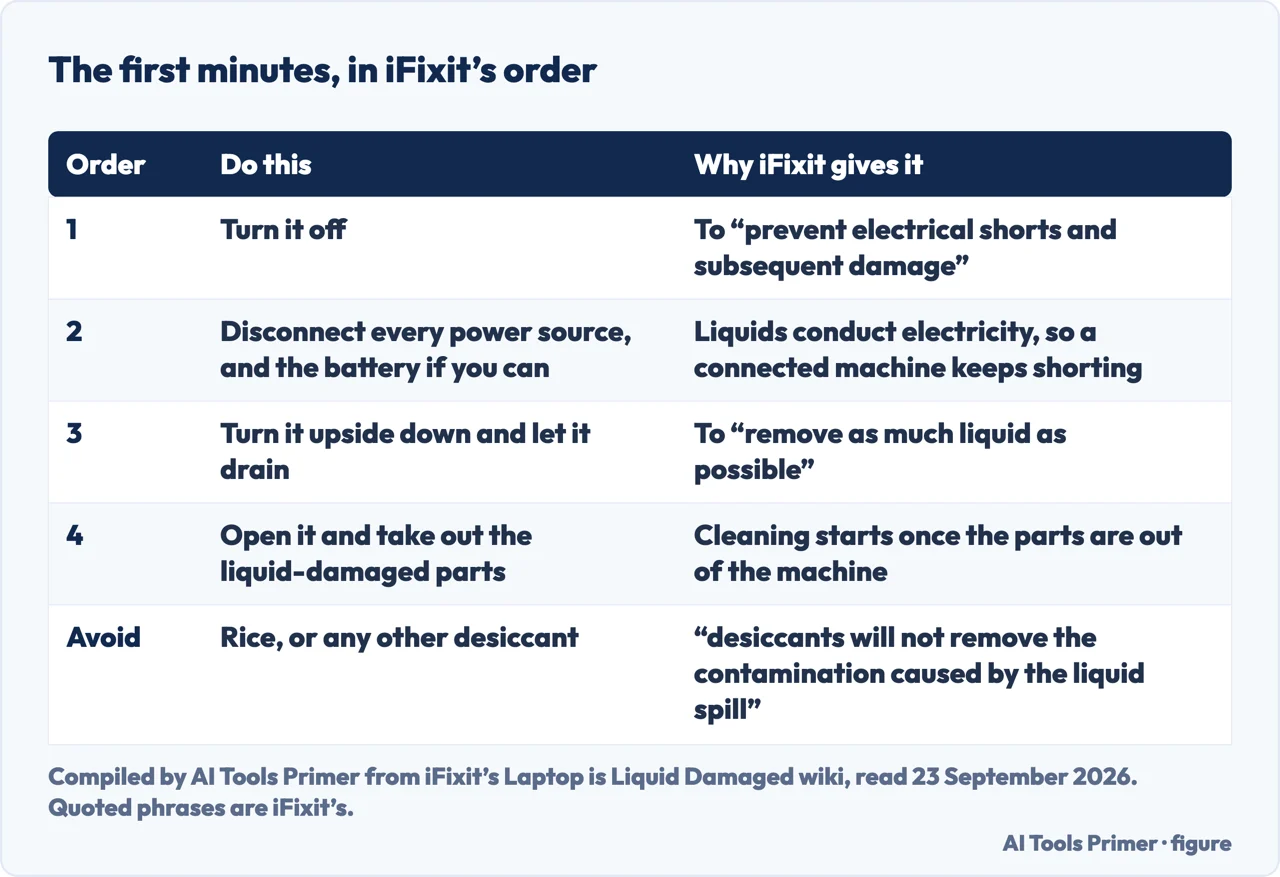
The rice line is worth dwelling on, because iFixit says it plainly in two separate wikis. The laptop one is the one that applies here: avoid rice and similar desiccants, because desiccants do not remove what the liquid left behind. The general electronics wiki puts it as a warning — “Rice and similar desiccants will not help! These will create more damage in the long term as they do not remove the contaminants from the liquid spill”. Drying and cleaning are two different jobs, and rice does not clean.
What you spilled decides how much time you have, and iFixit publishes the numbers rather than a feeling about them.
| Fluid | pH | Which way it attacks |
|---|---|---|
| Lemon juice | 2.3 | Acid |
| Cola | 2.5–3.5 | Acid, and it leaves sugar behind |
| Coffee | 5.0 | Acid |
| Pure water | 7.0 | Neutral — the best case there is |
| Hand soap | 9.0–10.0 | Alkaline |
| Bleach | 12.5 | Alkaline |
Figures from iFixit’s liquid-damage wikis, read 23 September 2026. iFixit’s own reading of the scale: a number under 7 is acid, over 7 alkaline, and “both cases are bad for electronic components”. It also warns that liquids with a lot of sugar in them bring a second problem, the solids left behind once the water has gone.
Can a water-damaged LCD be fixed?
The honest answer is in one line of the same iFixit wiki, and it is not the answer the rest of the page would lead you to expect.
“Unfortunately, there isn’t much that you can do to repair liquid damage to the display. If the damage is significant enough, then you will need to replace the display.”
iFixit says this about the display specifically, in a wiki whose other sections are long instructions for cleaning a board with a brush and isopropyl alcohol.
That line sits at the end of a section on evaluating the damage, where iFixit sets out the order in which the parts of a liquid-damaged laptop tend to go: the battery first, then the storage drive, then the display. Each of the first two has something you can do about it. A battery gets replaced, and iFixit says a submerged one probably has to be. A drive gets its contents copied to a dry drive, which is what iFixit asks you to try — or restored from the backup you already have, if you have one. The display is where the list runs out of remedies.
iFixit’s cleaning instructions are for the board and the parts taken out with it: submerge them in isopropyl alcohol at “90% or higher concentration”, brush the deposits off, check the connectors before reassembly, and “avoid all solvents such as ketone, acetone, or naphtha”. For the display the wiki gives no cleaning step, only the line about replacement.
If the panel is cracked, it is a replacement — and HP points out that a broken panel does not stop the rest of the machine: “LCD screen damage usually doesn’t affect the operation of the notebook computer”, and suggests connecting an external monitor and using the notebook like a desktop. If nothing on the screen is visible at all, the fault may not be the panel and the page for a screen gone half black or for backlight failure is the better start.
What the warranty actually says
This is the part that decides the money, and both makers publish it in plain language rather than in small print. HP gives the damage a name: “Accidental damage, such as spilling liquid on or dropping your PC is called Customer Induced Damage (CID) and is not covered under a standard warranty. Most damaged or broken LCDs are considered a CID.” Dell puts the same event in a list of examples, filed under the heading Liquid Crystal Display (LCD) as “Liquid Spillage”, and states the rule above the list: damages resulting from “accident, abuse, and misuse” are not covered by its limited hardware warranty.
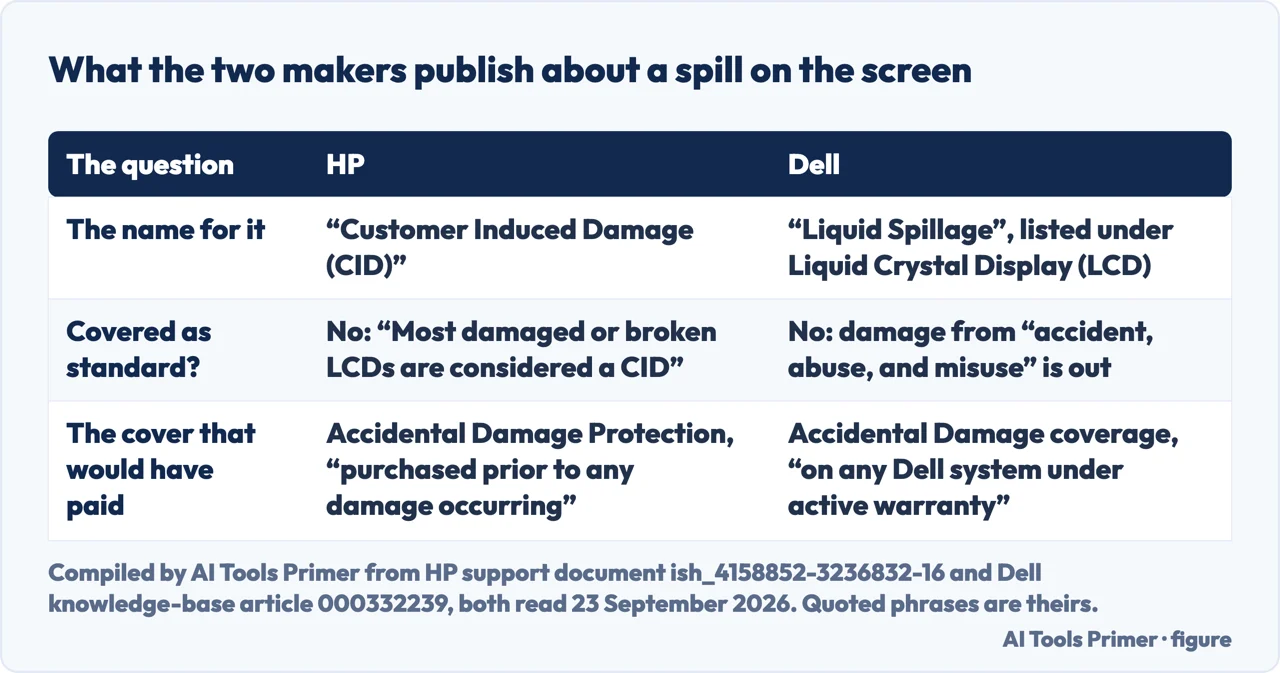
Both also sell the cover that would have paid for it, each with a condition on when it can be bought. HP: its accidental protection plan “must be purchased prior to any damage occurring”. Dell: accidental damage coverage “can be purchased on any Dell system under active warranty”. Neither sentence helps with the screen in front of you; both are worth knowing for the next machine.
If the wet device is a phone rather than a laptop, the paperwork and the warnings are different enough to be a different page: an iPhone that refuses to charge because it has detected moisture is covered under the liquid-detected alert, and it is a warning about the port rather than a broken panel.
Where to start
Three questions, three places to start.
- “It just happened. What do I do?”
- The published order, and the thing not to do. That is the first minutes
- “Is this even repairable?”
- One line of iFixit answers it. See can a water damaged lcd be fixed
- “Who pays for the panel?”
- Both makers publish the answer. Read what the warranty actually says
Marks on the glass that are not a spill
Marks on a screen have other causes too. These are the ones with their own guides, and how each looks different from a wet panel.
When the picture goes instead of the surface
If the problem is what the screen shows rather than a mark on it, start with one of these instead.
Getting the contents out before the machine goes
If the drive still works, these are the guides for getting what is on it somewhere safe.
Questions people also ask
How can I fix a wet LCD screen?
For the panel itself, iFixit is direct: “there isn’t much that you can do to repair liquid damage to the display. If the damage is significant enough, then you will need to replace the display.” What is worth doing is the first minutes — off, unplugged, drained — because that protects the parts that can be cleaned.
How to dry out a wet LCD screen?
Not with rice. iFixit’s laptop wiki says to avoid rice and similar desiccants, because “desiccants will not remove the contamination caused by the liquid spill”. Turn the machine off, disconnect every power source, turn it upside down to drain, and wipe what you can see with a dry cloth.
Is there liquid inside an LCD?
Yes — liquid crystal, the layer the screen is named after. That is why a spill is confusing: HP attributes “a discolored, light or dark area” to liquid that has entered the panel, and black blotches with bright white areas to the panel’s own liquid crystal pooling after the internal glass has cracked.
Is LCD water damage permanent?
It can be, and the appearance tells you which case you are in. HP reads a discoloured area as liquid that may have entered the panel, and black blotches with bright white patches as cracked internal glass, the bright areas being where the liquid crystal is gone. iFixit’s verdict on liquid damage to the display is that there is not much you can do, and that significant damage means replacing it.
Is my computer ruined if it gets wet?
Not necessarily, and the parts fail in an order. iFixit lists the battery first, then the storage drive, then the display. HP adds the practical note that “LCD screen damage usually doesn’t affect the operation of the notebook computer”, so an external monitor can keep a machine with a dead panel in use.
Can you fix a water damaged LCD under warranty?
Not as standard. HP calls a spill “Customer Induced Damage (CID)” and says most damaged or broken LCDs are considered one. Dell lists “Liquid Spillage” under Liquid Crystal Display among the damages its base support does not cover. Both sell accidental cover: HP’s must be bought before any damage occurs, and Dell’s needs a system under active warranty.
Not covered here. It will not take a panel apart. HP does not recommend it, in a sentence, and iFixit’s own warning is that liquid damage to a laptop “is not an easy repair, and even minor spills can result in issues that require a lot of tools and experience” — and a model-by-model teardown is what iFixit’s guides are for.
It gives no repair prices.
It is about a laptop or monitor panel. A wet phone is a different set of documents, and a MacBook that has been in water has its own guide on iFixit that this page does not repeat.
Sources
- iFixit, Laptop is Liquid Damaged, by Jacob Mehnert (the first steps in order; that turning a liquid-damaged device off is crucial to prevent electrical shorts and subsequent damage; that you should shake the device to remove as much liquid as possible; that rice and similar desiccants should be avoided because desiccants will not remove the contamination caused by the liquid spill; the pH values of eleven common fluids; that components should be cleaned in isopropyl alcohol at 90% or higher concentration and that all solvents such as ketone, acetone or naphtha should be avoided; the order of failure of battery, storage drive and display; and that there is not much you can do to repair liquid damage to the display, which will need replacing if the damage is significant enough) — www.ifixit.com, read 23 September 2026.
- iFixit, Electronics Water Damage, by Kyle Wiens and 24 other contributors (that rice and similar desiccants will not help and will create more damage in the long term as they do not remove the contaminants from the liquid spill; the same pH table, with the note that both acid and alkaline are bad for electronic components) — www.ifixit.com, read 23 September 2026.
- HP, Damaged screen, LCD, or display (that a discolored, light or dark area on the screen might indicate that liquid has entered the display panel; that when the internal glass has cracked, allowing liquid crystal to pool into areas causing black blotches, the areas void of liquid crystal are bright white; that the internal glass has cracked and liquid crystal is leaking, sometimes called bleeding, inside the display panel along the crack; that accidental damage such as spilling liquid on or dropping a PC is called Customer Induced Damage and is not covered under a standard warranty, and that most damaged or broken LCDs are considered a CID; that an Accidental Protection plan must be purchased prior to any damage occurring; that HP does not recommend repairing or replacing the screen yourself because this can void warranty options and cause further damage to the computer; and that LCD screen damage usually does not affect the operation of the notebook computer. Read with Chrome on 23 September 2026: this page returns an empty shell to curl) — support.hp.com, read 23 September 2026.
- Dell, Types of Damages Not Covered by Dell Base Support, article 000332239 (that damages resulting from accident, abuse, and misuse are not covered by the Dell Limited Hardware Warranty; that Liquid Spillage is listed among the non-covered examples under the heading Liquid Crystal Display (LCD); and that Accidental Damage coverage can be purchased on any Dell system under active warranty) — www.dell.com, read 23 September 2026.
Written by Alberto Gulotta
Founder and editor of AI Tools Primer, writing from Palermo, Italy. Thirty-five years of taking computers apart, starting with a Commodore 64 — the long version is on the about page.
Something wrong on this page? Write to aitoolsprimer@gmail.com and it gets fixed.
Written on 23 September 2026.
Independence and limits
No affiliate links and no paid placements anywhere on this site. Nobody pays to appear here, and no company has seen this page before you did.
This is general information, not professional advice. Where a page touches money, health, safety or the law, it names its source and the date it was read — and your situation may still differ. See the privacy page and the cookie policy.