
Screens · guide
Half black screen, and the test that removes the computer
By Alberto Gulotta · Updated · 17 min read
A half black screen is not one fault with one answer. It is a question about which side of the machine is broken, and every screen has a test built into it that settles that question without a shop and without a cable. The quickest of them runs with the computer unplugged altogether.
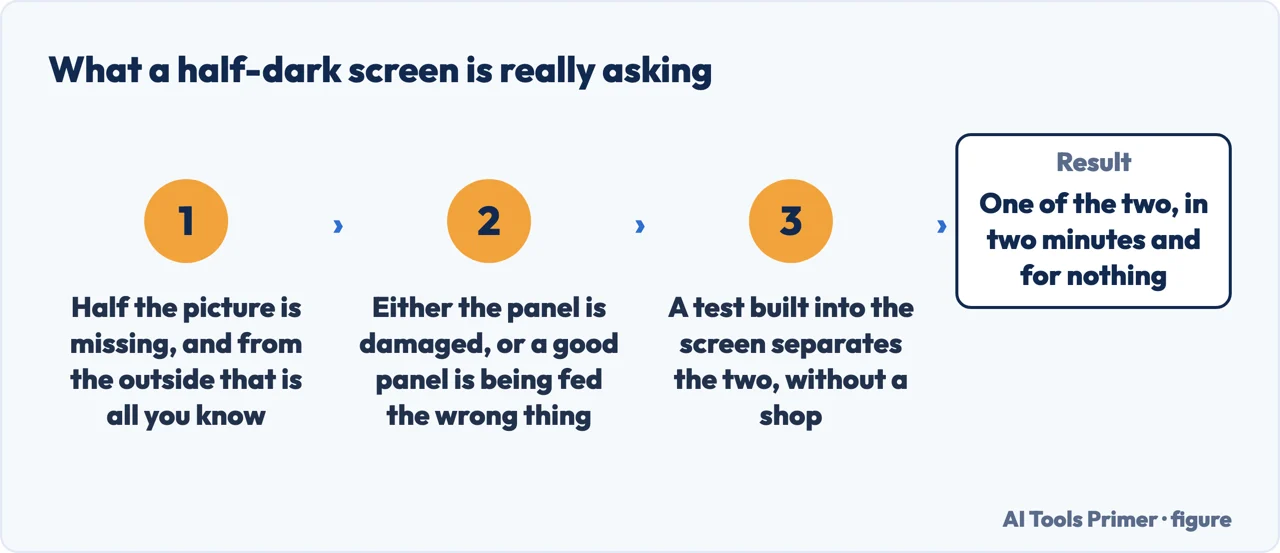
One of these tests runs with the computer unplugged. That is the whole point of it.
Almost everything written about a half-dark screen tests the path: the cable, the port, the driver, the setting. All of that assumes a computer is attached and doing something wrong. A monitor’s own self-test assumes nothing: you pull the video cable out, leave only the power in, and the monitor draws its own picture from its own firmware. Dell says why that is worth doing in a single phrase — the check exists to see whether the monitor is working “as a stand-alone device”. If the dark half is still there with nothing connected to it, no cable, no driver and no setting can be the cause, and you have just closed off every step on this page above the fold.
The reason this is worth saying first is that the ordinary advice for this symptom is written for one case out of four. Restarting the graphics driver, unplugging the power for ten minutes, checking that the cables are seated: every one of those is a test of the path between a computer and a screen. They are good moves, and they are wasted on a panel that is damaged, which is why the order matters more than the list. Two of the four results below make all of them unnecessary.
- Work out which of the three tests is yours. A laptop screen, a desktop monitor and a phone each have a different built-in test, and they are not interchangeable. Dell puts the boundary plainly in its own FAQ: asked whether the laptop test works on a desktop monitor, the answer is “No, this test is specifically for Dell laptop screens.” The table below sorts them.
- On a monitor, take the video cable out and leave the power in. That is the self-test feature check. Dell describes exactly the case it is for: “If the Dell monitor is connected to a computer, but the monitor screen remains dark or it shows a blank screen, the self-test feature check (STFC) helps verify if the Dell monitor is functioning correctly.” A working monitor with no signal shows a floating box on a black background; a half that stays dark behind that box is the monitor’s own.
- On a laptop, run the panel test from cold. On a Dell, hold D and press the power button. It starts before Windows loads and, in Dell’s words, “shows solid colors that fill the entire screen. The colors appear in this order: black, white, red, green, and blue.” The dark half either survives those colours or it does not, and there is nothing in between. The key presses for other makers are in a vertical black line on a laptop screen.
- Only now try the software moves — and listen rather than look. Microsoft documents the shortcut everybody repeats and one detail almost nobody passes on: “Press Windows + Ctrl + Shift + B to reset the graphics driver. You should hear a beep or see a screen flicker if successful.” On a screen that is half dark the beep is the useful half of that sentence, because it tells you the machine heard you. Windows + P is the other one: Microsoft has you tap P again and press Enter to cycle through the display modes.
- Plug in a second screen and look at which of the two is wrong. If the outside screen is perfect and the built-in one is still half dark, the machine is making a whole picture and losing half of it on the way to its own screen; if the panel test in step 3 showed the dark half too, that is the display assembly. HP reaches the same fork from the other direction: for a picture outside and nothing inside its next step is the latest BIOS, graphics driver and chipset, and if nothing appears on either screen, the question is no longer the panel at all, it is the machine starting up.
- Photograph the boundary, with the date. Whether the dark area is growing is the one fact that changes what to do next, and it is a comparison rather than a memory. It is also the first thing a repairer will ask.
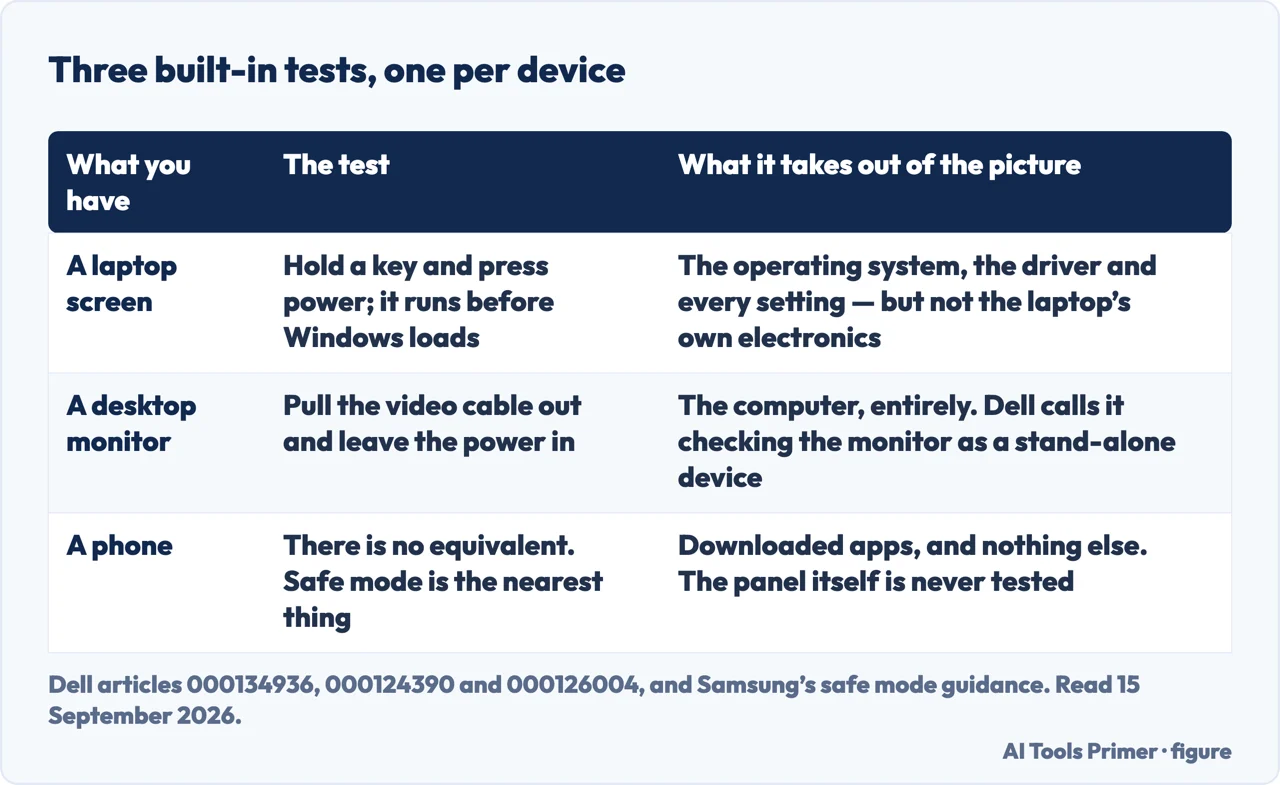
The three tests are not the same test on different hardware, and the difference is the whole reason for the table. The laptop panel test runs from the machine’s own firmware before Windows loads, so it takes the operating system out of the picture but keeps the laptop’s own electronics in it. The monitor’s self-test feature check goes further and takes the computer out entirely. The phone has neither: the nearest thing is safe mode, which Samsung describes as a way “to determine if the issue is caused by an app or with the device itself” — an app, not a panel. So on a phone the evidence has to come from somewhere else, and a blue spot on a phone screen uses a screenshot for it.
What the built-in test does not look at
This is the sentence that makes the test worth running, and it is printed on Dell’s own page for it. A test is only useful if you know what it leaves out.
- It does not look at Windows. “These tests only check your screen hardware. They do not check your Windows settings, graphics drivers, or software.” So a clean test does not mean the screen is fine in use — it means the panel is fine, and the fault is upstream of it.
- It does not look at the cable on a laptop. The panel test runs inside the lid, so a damaged internal ribbon can sit on either side of the result depending on where it failed. Dell adds cracks, spider-web patterns, pressure marks and “uneven brightness across different areas” only to the enhanced test, on machines with an updated BIOS.
- It does not name the broken part. Dell is explicit that this is “a diagnostic tool, not a repair tool”, and that when it fails what you do is write down what you saw, count any LED flashes, and take a photograph. Which component inside the assembly it is, none of the six documents read for this page says.
- On a monitor it is not one key combination. Dell sends you to the model’s own user guide for the steps, and notes separately that monitors with a joystick have their own route. There is no universal sequence to memorise, which is one reason none of the four results read for this page mentions this step.
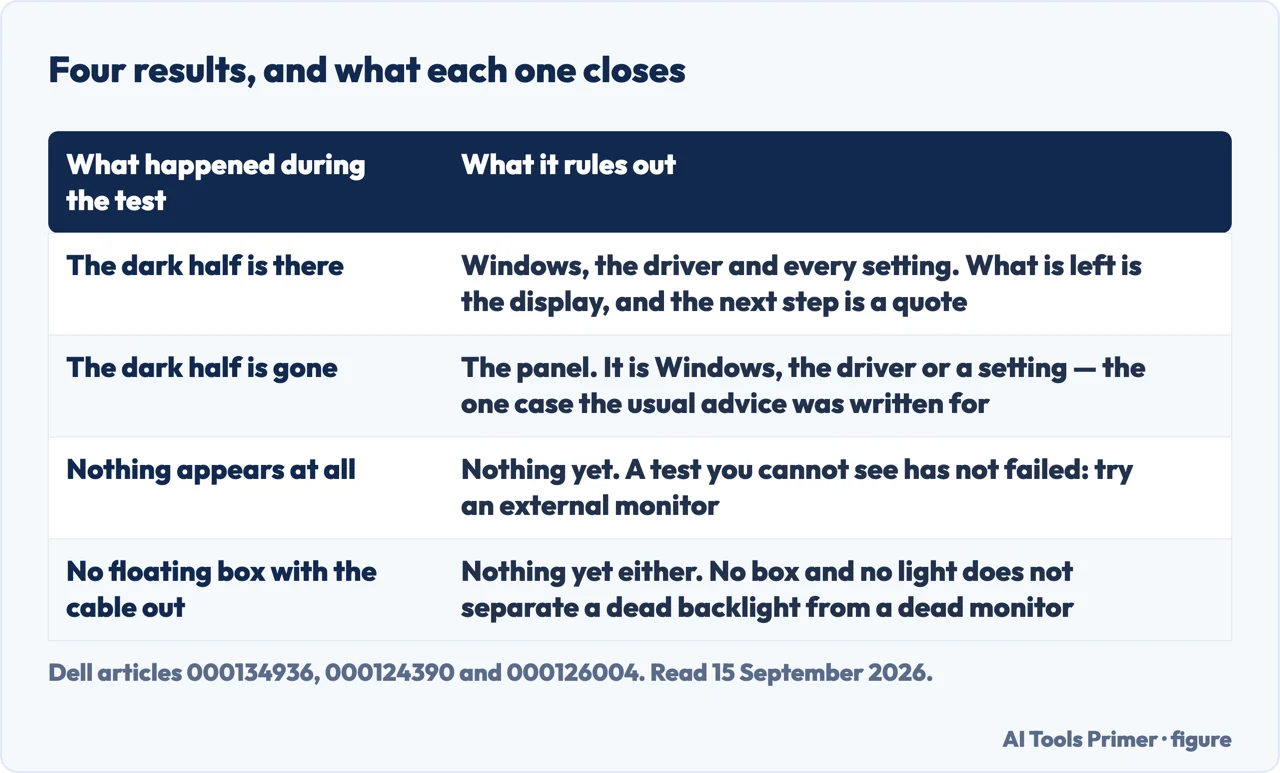
There is one more reading worth making before spending anything, and it is free. If part of the screen still shows the picture correctly — right colours, right shapes, the pointer moving through it — then the machine is producing a good image and sending it out. Whatever is wrong is downstream of that. That reasoning is ours rather than any manufacturer’s, and it is set out at length on half a laptop screen gone white, which is the same argument on the other colour. Where a half-dark screen differs is that black is also what a screen shows when it is doing nothing at all, so the test matters more here: a white half is always the panel, a black half might be a panel that is fine and receiving nothing.
What the answer is worth, before anybody quotes for it. A dark half that survives the built-in test is a panel replacement, and on the three kinds of screen that is three very different bills. A desktop monitor is a whole separate object: you are comparing the repair with the price of another monitor, and on anything but a large or a colour-critical one the comparison is short. A laptop panel can be replaced on its own, but it competes with the price of a different laptop rather than with the price of the fault. A phone display usually comes as an assembly with the glass and the touch layer, so the same fault costs most on the device where it is least separable. None of the six documents read for this page publishes a figure for any of them, and the only number worth having is a quote on your own machine set against what the machine is worth.
Two neighbouring cases, in case this is not quite yours. If the whole screen is dark rather than half of it, and you can hear the machine running, the question is whether the picture is being drawn at all — that is a display backlight that stops working, and it starts somewhere else because the built-in test cannot help when you cannot see what it draws. And if the second screen is the one that has gone dark, it may never have been seen in the first place: a second monitor that is not detected is a different failure with different steps.
Where to start
Three ways in. If the screen is marked rather than half dark, the shape of the mark is the diagnosis and the third one sends you to the right page.
- “Which test do I run?”
- Sorted by what you have — three tests three devices
- “What does the result actually prove?”
- One case in four — reading the result
- “Mine is a line, or a patch.”
- Then the shape is the answer — marks rather than halves
Three tests, three devices
The panel test on a laptop, the self-test on a monitor, and the fact that a phone has neither. Which one applies to you decides everything that follows.
Reading the result
Four things can happen when you run the test, and only one of them is the case that the usual driver and cable advice was written for.
Marks rather than halves
If what you have is a line, a patch or a bruise instead of a whole half, the shape of the mark is the diagnosis and each shape has its own page.
Questions people also ask
What do I do if half of my screen is black?
Run the test built into the screen before you change anything. On a desktop monitor that means pulling out the video cable and leaving the power in; on a laptop it means holding a key while you press power, so the test runs before Windows. If the dark half survives that, nothing in the software can be the cause of it.
Why is my screen half dark?
Either the panel is damaged, or the panel is fine and is being fed the wrong picture. From where you are sitting the two look identical, and the built-in test is the only thing that separates them without opening anything. Dell is clear about the limit of the test: it checks the screen hardware and not Windows, the graphics driver or any setting.
Does restarting the graphics driver fix a half black screen?
It can, in one case out of four: when the panel is fine and the driver has stopped drawing to part of it. Microsoft documents the shortcut as Windows + Ctrl + Shift + B and adds that you should hear a beep or see a flicker if it worked — on a half-dark screen the beep is the part worth listening for.
Is a monitor half screen black different from a laptop one?
Only in which test settles it. On a monitor you unplug the video cable and leave the power in: a working monitor with no signal draws a floating box on a black background, and a dark half behind that box belongs to the monitor. On a laptop the cable cannot come out, so the panel test from cold takes its place.
How do I restore my half screen to full size?
That is a different question with the same words. A picture that fills only part of the panel, with black borders and everything still readable, is a resolution or scaling setting rather than a fault. A half that is dark and stays dark through the built-in test is not something a setting can restore.
What does it mean when a computer screen is half black?
It means one of two things and nothing more: either the panel is damaged, or a working panel is being fed a picture with half of it missing. Neither the symptom nor the shape of it chooses between the two. The test built into the screen does, in about two minutes and without buying anything.
Not covered here. It will not name the broken component. The six documents read for this page do not name one for this symptom, and a repairer with the machine open can say more than any page.
It will not walk through replacing a panel or a backlight strip. Where that is the answer, it is the answer after the test, not instead of it.
It will not price the repair. None of the six documents read here publishes a figure, and the only number worth having is a quote on your own machine. What holds instead is simple: each test above belongs to the company that published it, and this page keeps their names on them instead of blending them into one procedure.
Sources
- Dell, How to Test Your Dell Laptop Screen — article 000134936, last modified 1 June 2026 (the LCD built-in self-test: the key held while the power button is pressed, the colour sequence of solid colours filling the entire screen in the order black, white, red, green and blue, the list of what to look for on each colour, the statement that these tests only check the screen hardware and do not check Windows settings, graphics drivers or software, the reading of a clean result as screen hardware working correctly with the problem lying in Windows, the graphics driver or a software setting, the answer that the test is specifically for Dell laptop screens and not for desktop monitors, and the answer that it is a diagnostic tool and not a repair tool) — www.dell.com, read 15 September 2026.
- Dell, How to Run a Diagnostic Test on a Dell Monitor — article 000124390 (the two tests a monitor carries: the integrated self-test, and the self-test feature check that checks whether the monitor is working as a stand-alone device, described for the case of a monitor connected to a computer whose screen remains dark or shows a blank screen; the instruction that the steps live in the model’s own user guide rather than in one key combination, with a separate route for monitors with a joystick; and the two readings of the result, one sending you to the display troubleshooting article and the other to repair options) — www.dell.com, read 15 September 2026.
- Dell, Dell Display Pixel Guidelines — article 000126004 (read here for the monitor check only: turning off the computer and the monitor, unplugging the video cable from the monitor, plugging the power cable back in and turning the monitor on, and the statement that you should then see a floating box on a black background, which means the monitor is working but has no video signal. It is the article that writes down the gesture used in the second step and in both tables; the self-test article above names the check and sends you to each model’s user guide for the steps) — www.dell.com, read 18 September 2026.
- Microsoft, Troubleshooting blank screens in Windows (the basic steps for a blank screen: checking that the device is charged and the monitor connected, powered and plugged in; pressing Windows, Ctrl, Shift and B to reset the graphics driver with the note that you should hear a beep or see a screen flicker if it worked; cycling the display modes with Windows and P; reaching Task Manager with Ctrl, Alt and Delete to restart Windows Explorer; and the advanced route through safe mode, driver roll-back and system restore) — support.microsoft.com, read 15 September 2026.
- Samsung, Pink lines or dead pixels on Galaxy phone or tablet’s display (read here for the safe mode procedure only, which is the nearest thing a phone has to a built-in test: Samsung describes it as disabling all downloaded apps and loading only the original software that came with the device, so as to determine whether the issue is caused by an app or with the device itself — an app rather than a panel) — www.samsung.com, read 15 September 2026.
- HP, HP Notebook and All-in-One PCs — Troubleshooting screen issues (Windows 11, 10), document ish_7096250-7096363-16 (the section on a screen that is blank or black, which starts from the fork between a problem with the display panel and a problem starting the computer, and the external monitor procedure that separates them; and the section on large white or black areas, which states that a cracked panel can be detected as early as the BIOS-level startup operations, before the computer boots into Windows, that the screen must be replaced, and that the computer can be used by connecting it to an external monitor) — support.hp.com, read 15 September 2026.
Written by Alberto Gulotta
Founder and editor of AI Tools Primer, writing from Palermo, Italy. Thirty-five years of taking computers apart, starting with a Commodore 64 — the long version is on the about page.
Something wrong on this page? Write to aitoolsprimer@gmail.com and it gets fixed.
Written on 16 September 2026 · last checked 23 September 2026.
Independence and limits
No affiliate links and no paid placements anywhere on this site. Nobody pays to appear here, and no company has seen this page before you did.
This is general information, not professional advice. Where a page touches money, health, safety or the law, it names its source and the date it was read — and your situation may still differ. See the privacy page and the cookie policy.