
Screens · guide
Monitor flickering, and which of the two machines is doing it
By Alberto Gulotta · Updated · 16 min read
Monitor flickering comes from one of two places — the monitor itself, or the computer feeding it a picture — and each one has a test of its own. Microsoft’s takes ten seconds inside Windows. The monitor’s runs from its own buttons, with the computer out of the picture entirely.
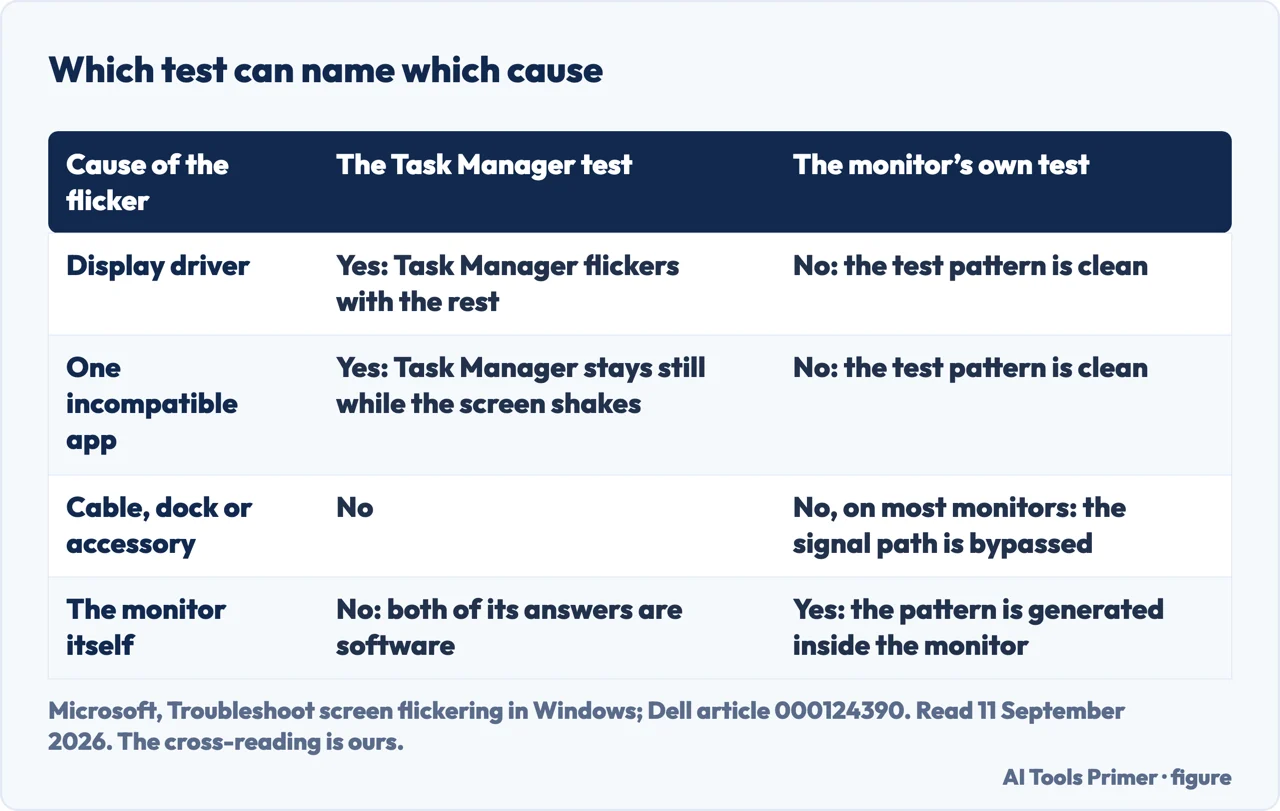
Almost everything written about this fault answers only the first half. Microsoft’s page is a good page and it is about Windows: it opens by saying that “Screen flickering in Windows 11 is usually caused by a display driver issue or incompatible app”, and both of the answers its test can give are software. That is not a flaw in the page — it is what the page is for. It becomes a problem when you have a monitor that is failing and you spend a week rolling drivers back and forth, because the test you were given cannot return the word “monitor”.
“To determine whether a display driver or app is causing the problem, check to see if Task Manager flickers.”
Microsoft’s test is the best ten seconds you can spend on this, and it works because Task Manager is drawn by a different part of Windows from everything else. Press Ctrl + Alt + Delete to open it — or Ctrl + Shift + Esc if that screen does not appear — and then look at the window rather than at the screen. But notice what it cannot tell you: both of its answers are inside Windows, so a monitor that is failing on its own is not one of the things this test is able to name.
Two tests, and they ask different questions
The first runs inside Windows and splits the software in two. The second runs with the computer disconnected, which is the only way to ask the monitor about itself.
- Task Manager, inside Windows. Microsoft: “If Task Manager flickers along with everything else on the screen, a display driver is probably causing the problem.” And the other way: “If Task Manager doesn’t flicker while the rest of the screen is flickering, an incompatible app is probably causing the problem.” Both answers are software. The test cannot return “the monitor”.
- The monitor’s own diagnostics, outside Windows. Dell’s instruction names this symptom first: you run the integrated self-test “when you notice screen abnormalities like flickering, distortion, clarity issues, fuzzy or blurry image, horizontal or vertical lines, color fade, distorted image.” The pattern comes from the monitor itself, so anything you see in it belongs to the monitor.
- The stand-alone check, for a screen that goes dark rather than shaky. Dell describes a self-test feature check that “allows you to check if the Dell monitor is functioning properly as a stand-alone device”, for when “the monitor screen remains dark or it shows a blank screen”. It answers a different question from the one above, and Dell says so on the same page.
The order is worth respecting even though the second test is the more conclusive one. The Windows test costs ten seconds and needs nothing; the monitor test needs you to work the buttons on the case and, for the stand-alone version, to unplug the video cable. Do the free one first, and read its result for what it is: it is not the monitor being cleared, it is the software being split in two.
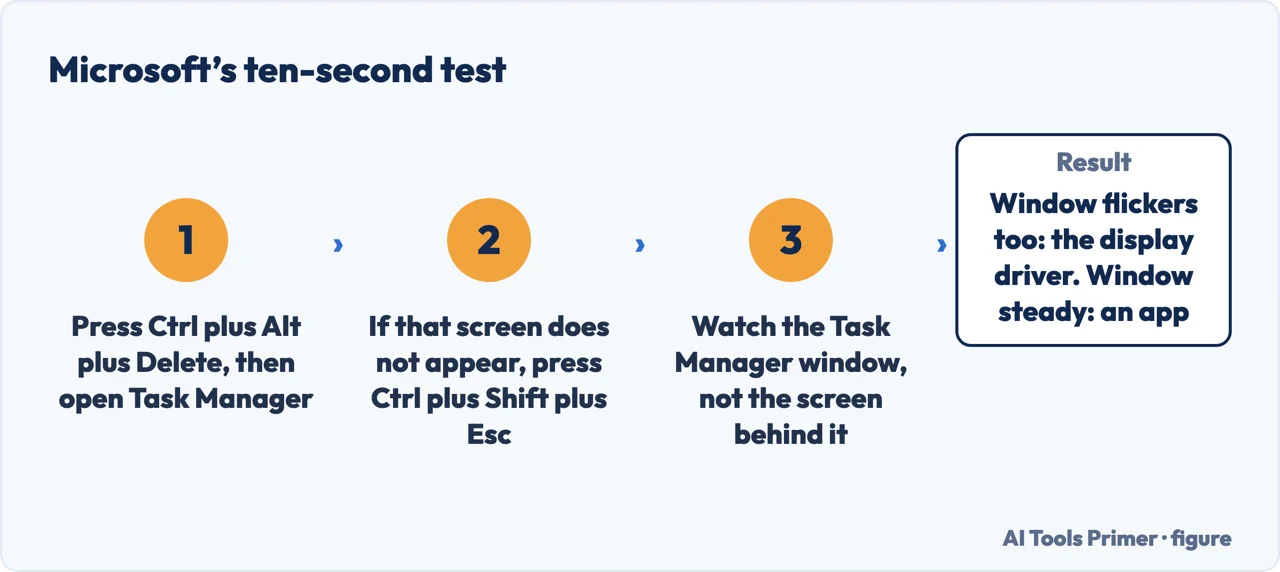
- Open Task Manager and watch the window, not the screen. Ctrl + Alt + Delete, then Task Manager; if that screen does not come up, Ctrl + Shift + Esc opens it directly. Ten seconds of looking decides between a driver and an app, which are the two software answers.
- Before changing anything, try the reset that costs nothing. Microsoft: “In some cases, pressing Windows logo Key + Ctrl + Shift + B to reset your graphics driver may fix your issue. If this does not work, see if restarting helps.” The screen goes black for a moment and comes back; nothing is uninstalled.
- If the flicker was in Task Manager too, go to the driver — backwards first. Microsoft’s order is roll back, then update, then uninstall, and the reason is in the first one: “If Windows Update recently made updates to your device, roll back your display driver.” Device Manager, Display adapters, right-click the adapter, Properties, Driver, Roll Back Driver. If the button is greyed out, that is an answer too: “Windows doesn’t have a previous driver to roll back to and won’t be able to complete this process.”
- If Task Manager stayed still, the flicker belongs to an app. Microsoft’s treatment is to update it or remove it, and the note that matters is where it came from: an app from the Store updates from the Store, and everything else updates from its own maker.
- Now ask the monitor. Run its built-in diagnostics from its own buttons or joystick, the ones on the front or the side edge of the case. The pattern is generated inside the monitor, so if the flicker is there as well, nothing on the computer can be the cause. Dell is blunt about what follows: “If the screen abnormality is present in the integrated self-test mode, contact Dell Technical Support for repair options.”
- If the monitor’s own test is clean, swap the parts around it. Dell’s troubleshooting page puts a second monitor first: “If you have another monitor available, disconnect the current monitor, and replace it with the other monitor. This helps eliminate several factors that might prevent a video signal from reaching the original monitor.” The same logic applies to the cable, which is the cheapest part of the chain.
Two notes on the driver part, because it is where the most damage gets done by people trying to help. The first is Microsoft’s own order — roll back before update — which reads oddly until you notice the sentence that precedes it: the fault often arrives with an update, and going forward again is the one direction that cannot undo it. If you do decide to go forward, take the driver from the machine maker or the graphics chip maker and nowhere else; which generic driver to look for covers that, and a driver updater found through a search is a bigger problem than a flickering screen. The second is that both roll back and uninstall want an administrator: Microsoft states that “You must have administrator privileges to roll back or uninstall a device or driver package using Device Manager.”
And if Task Manager stayed perfectly still while the rest of the screen shivered, resist the driver entirely. That result points at one app, and the way to find it is to notice when the flicker happens rather than to rebuild the system around it. A screen that only misbehaves inside one program, or only while something is playing, is describing the culprit.
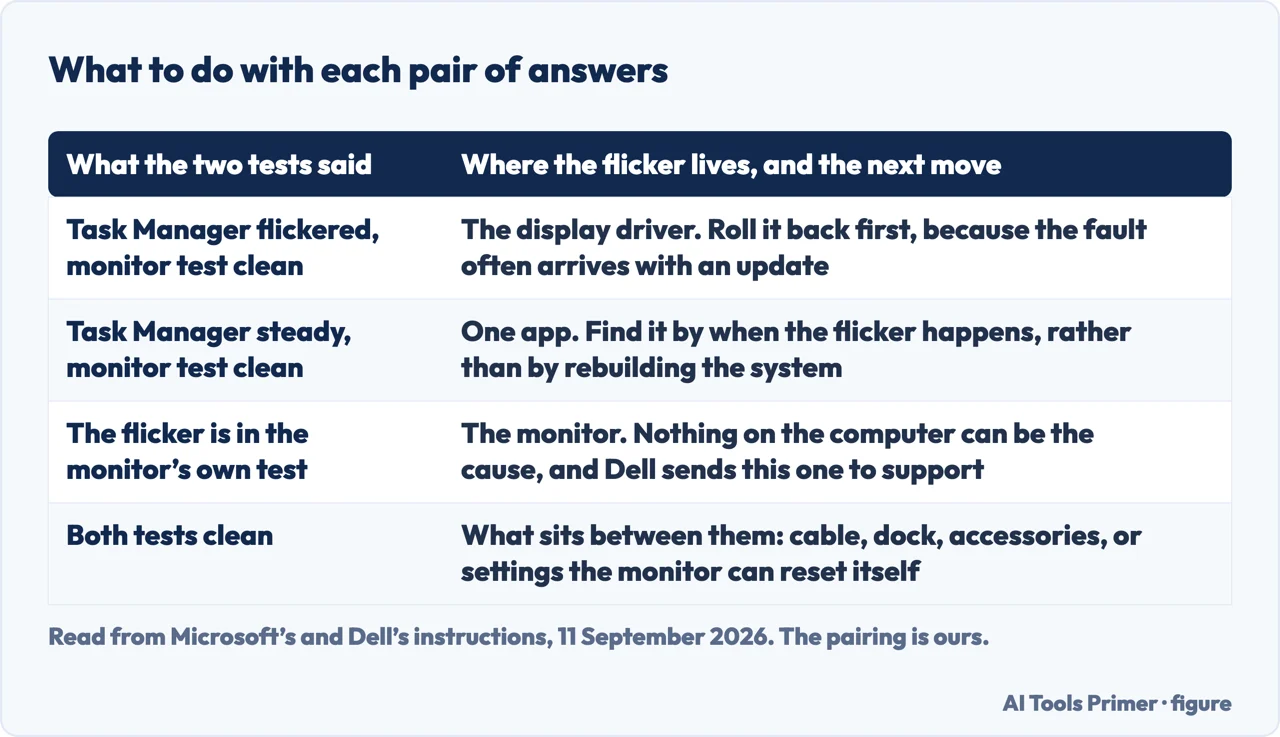
There is a third possibility that neither test names, and it is the one to keep in mind when both come back clean: the things between the two machines. Dell’s troubleshooting page starts its list with a second monitor and then goes to the accessories, because “Accessories like external hard drives, USB devices, Wi-Fi antennas, printers, and VR headsets can sometimes interfere with the boot process”. A cable is the cheapest thing in the chain and the easiest to swap; a docking station sits in the middle of the picture and is the last thing anybody suspects. If the screen is not flickering but blank, that is a different fault with a different route, and it starts at a second monitor that is not detected.
One last one, for a monitor that has settings you did not choose. Dell documents a reset to factory defaults through the on-screen display: “Dell monitors can be reset to factory default settings using the on-screen display (OSD) menu. This can be accessed using the buttons or joystick that is available on the Dell monitor.” It is the monitor equivalent of starting again, it takes a minute, and it is free. If the flicker survives it and survives the built-in test, you are no longer troubleshooting: you are deciding whether to repair.
The question that is easiest to skip, and the one that decides who pays: whether the monitor was dropped. Dell asks it plainly on its troubleshooting page — “Has the monitor been dropped, knocked over, or liquid spilled on it?” — because “Internal damage caused by these sorts of situations could prevent the monitors from working correctly”, and then it says what that means for the bill: “Unless you have an active accidental damage policy, you have to cover the cost of repair yourself.” It is the same sentence the laptop pages carry about cracked panels, and it is worth knowing before you book anything rather than after.
Where to start
Three ways in. If the screen is blank rather than shaking, the first one is not your fault to chase.
- “Is it the computer or the monitor?”
- The two tests, in order — two tests in order
- “Task Manager flickered too.”
- That is the driver — when it is the driver
- “Both tests are clean.”
- Then it is what is between them — the things in between
Two tests, in order
The ten-second one inside Windows, then the one that runs on the monitor with the computer disconnected. They answer different questions and neither replaces the other.
When it is the driver
Roll back before update, and take the file from the maker rather than from a search result. This is where a flickering screen turns into a broken system if it is done badly.
The things in between
Cable, dock, accessories, and the monitor’s own settings. Cheap to test, and the place both tests stop looking.
Questions people also ask
Why does my screen flicker all of a sudden?
Microsoft’s answer for Windows is that flickering “is usually caused by a display driver issue or incompatible app”, and a sudden start often follows an update. Open Task Manager: if it flickers too, it is the driver; if it stays still, it is an app.
What are the signs of a failing computer monitor?
The sign that counts is a fault that survives the monitor’s own diagnostics, because that pattern is generated inside the monitor. Dell lists what to run it for: flickering, distortion, clarity issues, a fuzzy or blurry image, horizontal or vertical lines, colour fade and a distorted image.
How to fix a flickering Dell monitor?
Run the integrated self-test from the monitor’s own buttons. If the flicker is there, Dell’s instruction is to contact its support for repair options; if it is not, the fault is in the computer, the cable or something between them, and a factory reset through the on-screen menu is the next free step.
What does it mean when a monitor is flickering?
On its own it means nothing: the same shiver comes from a display driver, from one incompatible app, from a loose or failing cable, or from the panel itself. It is one of the few faults where two tests, both free, separate those four before any money is spent.
Does a flickering screen damage your eyes?
This page will not answer that, because neither source it is built on says anything about it. Microsoft and Dell both write about the machine, and a health claim needs a health source.
Not covered here. It will not walk through refresh rates and resolution settings as a cure. Neither source it is built on treats them as the cause of a flicker, and a page that fills itself with settings to try is the thing this one was written against.
It will not tell you what a monitor repair costs. Neither of the two Dell articles read for this guide gives a figure, and the only thing either maker puts in writing about money is who pays when the damage was accidental.
And it will not become a Windows page. The test that names the monitor runs on the monitor, which is the half that the operating system cannot see. What holds instead is simple: which machine is doing it is decided by Microsoft’s own check, and Dell’s advice for the monitor is kept separate from Microsoft’s for Windows.
Sources
- Microsoft, Troubleshoot screen flickering in Windows (that flickering in Windows 11 is usually caused by a display driver issue or an incompatible app; the instruction to check whether Task Manager flickers in order to tell which of the two it is, with Ctrl plus Alt plus Delete and the Ctrl plus Shift plus Esc fallback; the two readings of that check, a flickering Task Manager pointing at the display driver and a still one pointing at an incompatible app; the graphics driver reset with the Windows logo key plus Ctrl plus Shift plus B; the three driver routes through Device Manager — roll back, update, uninstall — with rolling back placed first where Windows Update has recently made updates; the note that a greyed-out Roll Back Driver button means there is no previous driver to return to; the requirement for administrator privileges; and the pointer to safe mode for a screen too disturbed to work on) — support.microsoft.com, read 11 September 2026.
- Dell, How to Run a Diagnostic Test on a Dell Monitor — article 000124390 (the integrated self-test, also called built-in diagnostics, described as a tool that helps determine whether the screen abnormality is an inherent problem with the monitor, together with the list of abnormalities it is meant for: flickering, distortion, clarity issues, a fuzzy or blurry image, horizontal or vertical lines, colour fade and a distorted image; the separate self-test feature check, which checks the monitor as a stand-alone device when the screen remains dark or shows a blank screen; the route to the instructions for a given model through the user guide on Dell’s manuals pages; the two conclusions, that an abnormality present in self-test mode goes to Dell support for repair options and one that is absent goes to the display troubleshooting article; and the display maintenance guidelines, including the caution against benzene, thinner, ammonia or ammonia-based cleaners, abrasive cleaners and compressed air) — www.dell.com, read 11 September 2026.
- Dell, How to Troubleshoot Display or Video Issues on a Dell Monitor — article 000132354 (the instruction to test with another monitor in order to eliminate several factors that might prevent a video signal from reaching the original monitor; the note that accessories such as external hard drives, USB devices, Wi-Fi antennas, printers and VR headsets can interfere; the questions about physical damage — whether the monitor has been dropped, knocked over or had liquid spilled on it — with the statement that internal damage of that kind could prevent the monitor from working correctly and that without an active accidental damage policy the owner covers the cost of repair; and the reset to factory defaults through the on-screen display menu using the buttons or joystick on the monitor) — www.dell.com, read 11 September 2026.
Written by Alberto Gulotta
Founder and editor of AI Tools Primer, writing from Palermo, Italy. Thirty-five years of taking computers apart, starting with a Commodore 64 — the long version is on the about page.
Something wrong on this page? Write to aitoolsprimer@gmail.com and it gets fixed.
Written on 11 September 2026 · last checked 23 September 2026.
Independence and limits
No affiliate links and no paid placements anywhere on this site. Nobody pays to appear here, and no company has seen this page before you did.
This is general information, not professional advice. Where a page touches money, health, safety or the law, it names its source and the date it was read — and your situation may still differ. See the privacy page and the cookie policy.