Computer won't turn on has one universally repeated instruction — hold the power button — and no agreed number of seconds. Reading the four manufacturers' own pages, the same gesture appears with five different durations, and two of the four contradict themselves.
Before any of that, one manufacturer says the first thing to do is nothing at all, and gives a reason worth reading twice.
HP’s first instruction is to do nothing
“CAUTION: If your computer does not turn on, wait at least 5 minutes
before troubleshooting the computer. Your computer might be installing an update for Windows
or the BIOS or detecting new hardware. During this update process, you can expect the screen to
be blank for several minutes. It might damage the computer if this process is
interrupted. Do not turn off or unplug the computer during the update process.”
That is the opening paragraph of HP’s page on a computer that will not turn on, and it is
a caution rather than a step. A machine part-way through a firmware update looks exactly like a
dead one: black screen, no response. The instinctive reaction — hold the power button,
pull the plug — is the one HP says might damage it. Five minutes costs nothing and it
goes before everything below.
Now the numbers, each quoted from the company that made the hardware.
Apple
10 seconds
“Press and hold the power button on your Mac for about 10 seconds.” That
is the only duration on the page.
And a warning against a widely repeated remedy: “If you’re using an older,
Intel-based Mac, resetting the SMC might help. You don’t need to do this on a Mac with
Apple silicon.”
Microsoft
10 and 20 seconds
Both numbers appear on the same Microsoft page about blank screens — one in the
basic list, one further down.
Neither is wrong; they belong to different procedures. But a reader scanning for “how
long” finds two answers on one page.
HP
20 seconds, or 15
On the page for a computer that will not turn on: “With the AC adapter unplugged,
press and hold the power button for approximately 20 seconds.”
On HP’s own page titled how to power reset your computer: “Press and hold the
power button for approximately 15 seconds.” Same company, same action, two
figures.
Dell
four figures
Dell’s no-power article carries 15–20, 25, 30–35 and 40 seconds,
because they are different procedures: draining residual power, forcing a shutdown, resetting
the real-time clock.
It is the only one of the four that publishes a tolerance and says what happens if you miss
it.
The reason those disagree is not carelessness: they are three different procedures wearing the same gesture. Draining residual power, forcing a shutdown, and resetting the real-time clock are separate operations with separate purposes, and each manufacturer documents the ones its machines have. The problem is that an article which prints a single number without saying which procedure it belongs to has flattened three things into one.
And on exactly one of the four pages there is a sentence that turns the whole question from trivia into something practical.
Dell, on the real-time clock reset: “If the AC adapter is disconnected from the laptop during the process or the power button is held less than 25 seconds or longer than 40 seconds, the RTC reset process is aborted.”
This is the sentence that makes the whole confusion concrete, and it exists on exactly one of
the four manufacturers’ pages. A step with a window has a way to fail silently: hold
for twenty seconds because another article said twenty, and on a Dell you have not performed the
procedure at all — you have performed nothing, and there is no message telling you so. On
the other three pages the instruction cannot visibly fail, which is a different thing from
always working.
One more remedy the manufacturer contradicts. HP’s hard reset is not only about the button:
before holding it the published sequence is to turn the computer off, disconnect the AC
adapter, remove memory cards from the reader, and disconnect all nonessential devices
— with an explicit exception, “Note: Do not disconnect your mouse, keyboard, or
monitor.” A machine held hostage by one dead USB drive is a real outcome, and it is the part
of the procedure most often summarised away.
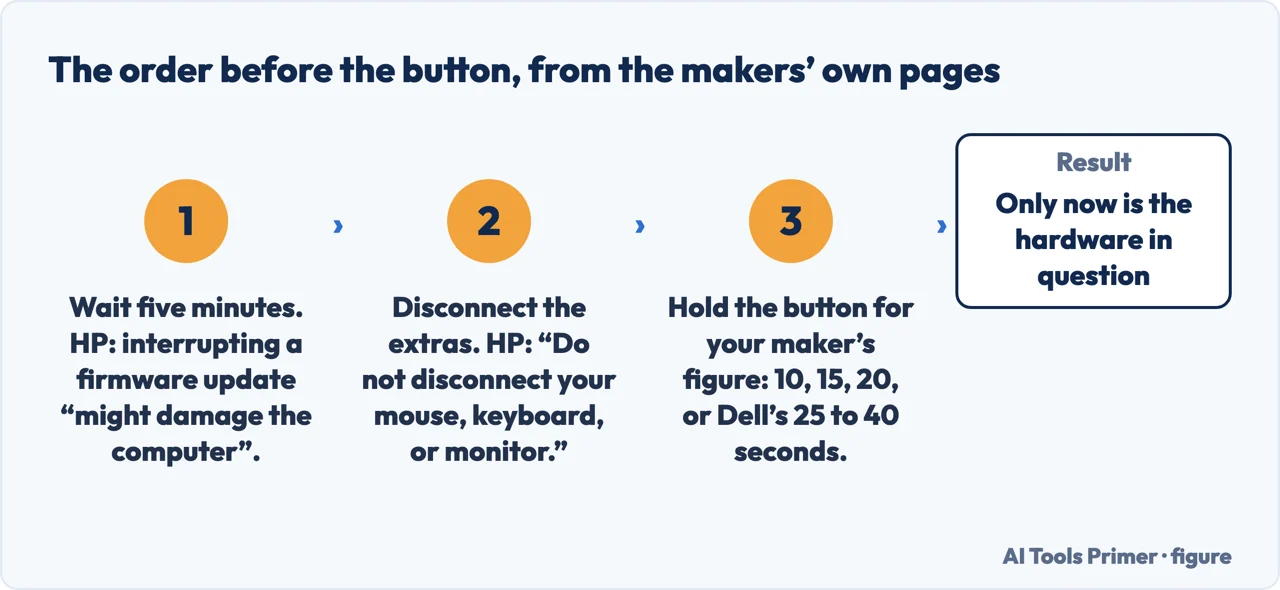
The order the four manufacturers’ pages imply, with HP’s two conditions on it. Quotations from HP and Dell. Figure drawn by AI Tools Primer.
So the order that follows from the documentation. Wait five minutes, because the screen being black is not proof that nothing is happening. Then disconnect everything that is not the mouse, keyboard and monitor, and unplug the adapter. Then hold the button for the length your own manufacturer publishes — and if that is a Dell real-time-clock reset, stay inside twenty-five to forty seconds or the machine quietly ignores you. Only then start suspecting the hardware.
A note on the Mac, because it removes a step rather than adding one. Apple publishes a single duration, about ten seconds, and explicitly narrows the SMC reset: it is for older Intel machines, and “you don’t need to do this on a Mac with Apple silicon”. On a recent Mac, the SMC advice is not a fix that failed. It is an instruction for different hardware.
A note on where this question gets answered, with its limit stated. Google returned an anti-bot page rather than results when this was written, so this reading is from Bing, in the United States, on 23 August 2026. Of the first ten results, one is a manufacturer and the rest are general technology sites, a remote-access company and a data-recovery vendor. None of the visible result text names a hold duration or the five-minute caution — and while snippets are short, the sources that would carry those two things are the manufacturers, and nine of the ten results are not manufacturers.
What this page will not do is tell you which number applies to your computer. It gives four manufacturers and their published figures; which one is yours is written on the machine, not here.
It will not tell you to open the case or reseat components. None of the manufacturer pages read for this asks a customer to do that as an early step, and several guides do.
And it will not diagnose a power supply from a description. That is measurement work, it needs the hardware in front of you, and a page that claims otherwise is guessing.
Where to start
Three ways in. If it went black in the last five minutes, take the first and wait.
A blank screen can be a firmware update in progress, and HP warns in a caution box that interrupting it might damage the machine. Five minutes, before anything else.
One manufacturer publishes a tolerance window and says the process aborts outside it. On the other three pages read here no tolerance and no abort are published at all.
Not covered here. It will not give you one number of seconds. Four manufacturers publish five, they belong to three different procedures, and a single confident figure is how that gets lost.
It will not tell you to open the case. No manufacturer page read here asks a customer to reseat memory or drives as an early step.
It will not diagnose your power supply. That needs the hardware and a meter, not a description and a web page.
And it carries no affiliate links, including for the data recovery services that advertise against exactly this moment of panic. What holds instead is simple: every duration above is quoted from the manufacturer that published it, the contradictions are between pages of the same company, and where the results could not be read on Google this page says which search engine it used.
Sources
Apple, If your Mac doesn’t turn on — Apple Support (the instruction to press and hold the power button on the Mac for about 10 seconds, holding Touch ID on laptops that have it, then pressing and releasing the power button normally; the instruction to unplug all accessories including printers, drives, USB hubs and mobile devices and repeat the step; and the note that on an older, Intel-based Mac resetting the SMC might help while this is not needed on a Mac with Apple silicon) — support.apple.com, read 26 August 2026.
HP, HP PCs — Computer does not turn on, start, or boot — HP Support. The address is HP’s own and resolves, but the document body would not load from here on 26 August 2026: the page ships an empty shell and HP’s script bundle is refused, so the wording quoted above could not be re-read at the time of this revision — support.hp.com, read 26 August 2026.
HP, HP PCs — How to power reset your computer — HP Support. Same as above: the address resolves, the body did not load from here on 26 August 2026 — support.hp.com, read 26 August 2026.
Dell, How to Reset the Real-Time Clock (RTC) to Recover Your Dell Laptop — Dell Support (that RTC reset helps recover supported laptops from a no power, no POST or no boot issue; that it is available on select Alienware, Inspiron, Latitude, Precision, Vostro and XPS laptops only; and that if the AC adapter is disconnected during the process, or the power button is held less than 25 seconds or longer than 40 seconds, the RTC reset process is aborted) — www.dell.com, read 26 August 2026.
AG
Written by Alberto Gulotta
Founder and editor of AI Tools Primer, writing from Palermo, Italy. Thirty-five years of
taking computers apart, starting with a Commodore 64 — the long version is on the
about page.
Written on 23 August 2026 · last checked 6 September 2026.
§
Independence and limits
No affiliate links and no paid placements anywhere on this site. Nobody pays to appear here,
and no company has seen this page before you did.
This is general information, not professional advice. Where a page touches money, health,
safety or the law, it names its source and the date it was read — and your situation may
still differ. See the privacy page and the
cookie policy.