Login items
things that open“Apps, documents, folders, or server connections” that open automatically whenever you log in. Visible things — windows appearing that you did not ask for.

Software · guide
By Alberto Gulotta · Updated · 10 min read
How to fix slow boot Mac has a first step that almost nothing else mentions, and it is not a change — it is a measurement. Apple documents a way to start the machine once with its startup list switched off.
- “If you see the login window, press and hold the Shift key while you click the Log In button, then release the Shift key when the Dock opens.”
- “If you don’t see the login window, restart your Mac, press and hold the Shift key when you see the progress bar in the startup window, then release the Shift key after the desktop appears.”
That is the whole test, and it costs one restart. Start the Mac once with its login items suppressed and see whether it is different. If it is, the answer is in that list and you can go and edit it. If it is not, you have ruled out the usual first suspect — which is worth more than another guess, because it stops you deleting things that were never the problem.
Everything else on this page depends on what that restart tells you, which is the right order and an unusual one. The common advice is to go and empty the login list on the assumption that it is the culprit. The list is easy to empty and hard to reassemble, and if it was not the cause you have spent an afternoon and lost the things you wanted opening for you.
Apple’s page on a slow Mac lists five causes — disk space, memory, an incompatible app, apps left open, and a disk problem — and login items are not among them. Nowhere does Apple write that a long login list makes a Mac slow to start.
That absence is why this page is built around a test rather than an instruction. The claim that login items slow your startup is extremely plausible and is not published by the manufacturer, so the honest move is to hand you the measurement Apple does publish and let your own machine answer. One Shift-held restart settles it for your Mac, which is the only Mac the question was about.
If the Shift-held start was noticeably quicker, the list is where to go — and there are actually two lists in that pane, which is worth knowing before you start switching things off.
Login items
things that open“Apps, documents, folders, or server connections” that open automatically whenever you log in. Visible things — windows appearing that you did not ask for.
Allow in the background
things that runA separate switch letting an app “perform tasks when the app isn’t open, such as checking for software updates or syncing data”. Nothing appears on screen.
The distinction matters because they fail differently. A login item announces itself: a window opens, an icon appears in the Dock, something is visibly running that you did not ask for. A background item is silent by design — Apple’s own examples are checking for software updates and syncing data — so a machine with nothing visibly open can still have a queue of things doing work.
Where the list lives
The pane has been renamed, which is why older instructions send you somewhere that no longer exists.
There is a way to make that asymmetry go away, and it is not in Apple’s documentation. A second source outside Apple — The Eclectic Light Company, a macOS blog with no product to sell — confirms the test in the same terms, “press and hold the Shift key when you click on the Log In button … until the Dock appears”, and then publishes the part Apple does not: the list can be read out before it is emptied, with sudo sfltool dumpbtm > ~/Documents/btmdump.text. It is explicit about why, and it is exactly the complaint above: the file “is also invaluable if you’re going to nuke Login Items in a reset, as it provides a record of what you might need to restore afterwards”. One command, run before you delete anything, turns an irreversible afternoon into a reversible one.
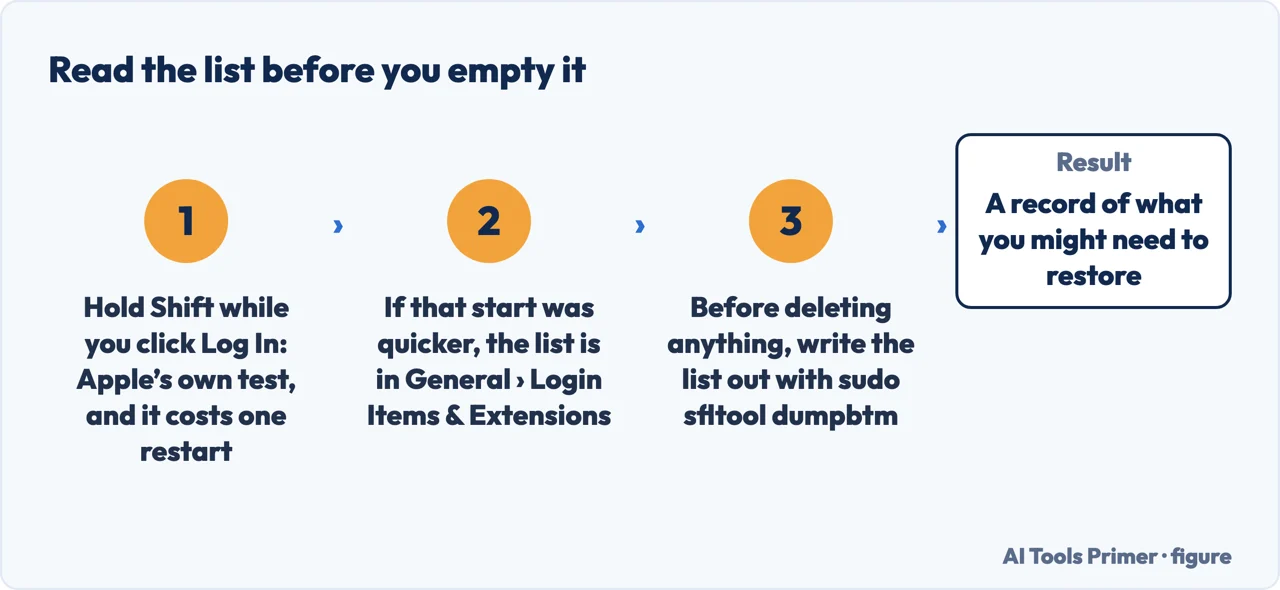
One note on the name, because it is a common source of dead instructions. The pane is now Login Items & Extensions, inside System Settings under General. Guides that send you to System Preferences, or to Users & Groups, or to a tab called simply Login Items, are describing an arrangement that has moved.
And if the Shift-held start made no difference at all, the startup is not what is slow — the machine is, and it happens to be most noticeable at the beginning. That is a different question with a different published answer, and it has its own guide below.
What this page will not do is give you a list of items that are safe to remove. Which apps should open at login is a question about your day rather than about macOS, and a stranger guessing at it would be guessing at the wrong thing.
It also will not tell you to reset anything, clear anything, or install a startup manager. Apple documents the list, the switch, and the test; everything past that would be somebody else’s theory printed in the same typeface as the facts.
Three ways in. Take the first one before you change anything.
One restart with Shift held, and the answer is yours rather than an article’s. Apple publishes both routes — from the login window and from a restart.
Things that open, and things that run without opening. Same settings pane, different failure modes, and only one of them is visible.
If the test changes nothing, the slowness is not in the startup. Apple publishes five causes for a slow Mac and none of them is a login list.
Not covered here. It will not list which login items are safe to remove. What should open when you sit down is a question about your work, not about macOS.
It will not tell you that login items are the cause. Apple does not say so, and the whole point of the test above is that your machine can answer it better than any page can.
And it will not recommend a startup manager or a cleaner. The list is a settings pane with an add button and a remove button, and there is nothing there to manage on your behalf. What holds instead is simple: one held Shift key is Apple’s own instruction, and the causes of a slow Mac are the ones Apple publishes, not the ones forums repeat.
Written by Alberto Gulotta
Founder and editor of AI Tools Primer, writing from Palermo, Italy. Thirty-five years of taking computers apart, starting with a Commodore 64 — the long version is on the about page.
Something wrong on this page? Write to aitoolsprimer@gmail.com and it gets fixed.
Written on 22 August 2026 · last checked 23 September 2026.
Independence and limits
No affiliate links and no paid placements anywhere on this site. Nobody pays to appear here, and no company has seen this page before you did.
This is general information, not professional advice. Where a page touches money, health, safety or the law, it names its source and the date it was read — and your situation may still differ. See the privacy page and the cookie policy.