Spotlight › “Software Update”
Apple lists this first: search for it in the menu bar, “then click to open it from the search results.” Fewer steps than remembering which pane it lives in.

Software · guide
By Alberto Gulotta · Updated · 10 min read
How to update safari on mac has a short answer that sounds like an evasion until you read Apple’s reason for it: you do not update Safari, you update the system it came with. There is no separate Safari installer to look for. Once that is clear, the rest of this guide is about the thing you actually have to do instead.
“Safari is included with the operating system (OS) on your Apple device. If a later version of Safari is available for your device, you can get it by installing the latest OS updates or upgrades for your device.”
Apple’s answer, and it is a redirection rather than an instruction. There is no Safari updater to find, because Safari is not updated separately. The macOS page says the same thing from the other side: “macOS updates include the latest features and built-in apps such as Safari, Notes, Messages, and Apple Music.” One update, several programs, and no way to take just the browser.
That has one consequence worth stating plainly before anything else. If your Mac cannot run a newer macOS, it cannot have a newer Safari. Apple’s recommendation is “using the latest macOS that is compatible with your Mac” — the compatibility clause is doing real work in that sentence, and on an older machine it is the whole answer.
For everybody else, the route is short and there are two of them.
Apple lists this first: search for it in the menu bar, “then click to open it from the search results.” Fewer steps than remembering which pane it lives in.
The one to know if Spotlight is not where your hands are. And if it is not there at all: Apple notes that “if your older Mac doesn’t have Software Update”, there are other ways to download and install macOS.
Once Software Update is open it does the looking for you: Apple says it “automatically checks for any new Apple software for your Mac model”. If it reports that the Mac is up to date and you do not believe it, there are three ways to make it look again — “To check again, click Check for Updates, press Command-R, or close and reopen Software Update.”
What Apple tells you about the installation itself
The fifth of those is the one to read before you start rather than during. A machine that restarts itself twice and shows a black screen in between looks, to anybody who has not been told, exactly like a machine that has failed. Apple says it may do that several times. Knowing that in advance is the difference between waiting and intervening — and Apple’s instruction points one way: “allow installation to complete”.
And the case where the answer is that nothing needs updating at all. Apple: “If a website says that Safari is out of date even though you’re already using the latest version of macOS, iOS, iPadOS, or visionOS, there could be an issue with the website.”
It is worth noticing what Apple does not suggest next. Not a download, and not a reinstall: “If you’re sure that you want to use the website, contact the website owner or developer for guidance about how to best use their website.” The banner is treated as a claim that can be wrong.
One question all of this leaves is whether it matters on a Mac that works perfectly well, and that answer is not Apple’s to give. The UK’s National Cyber Security Centre tells people to apply updates “to your apps and your device’s software as soon as they are available”, because they “include protection from viruses and other kinds of malware”, and is blunt about the priority: applying them is “one of the most important (and quickest) things you can do to keep yourself safe online”.
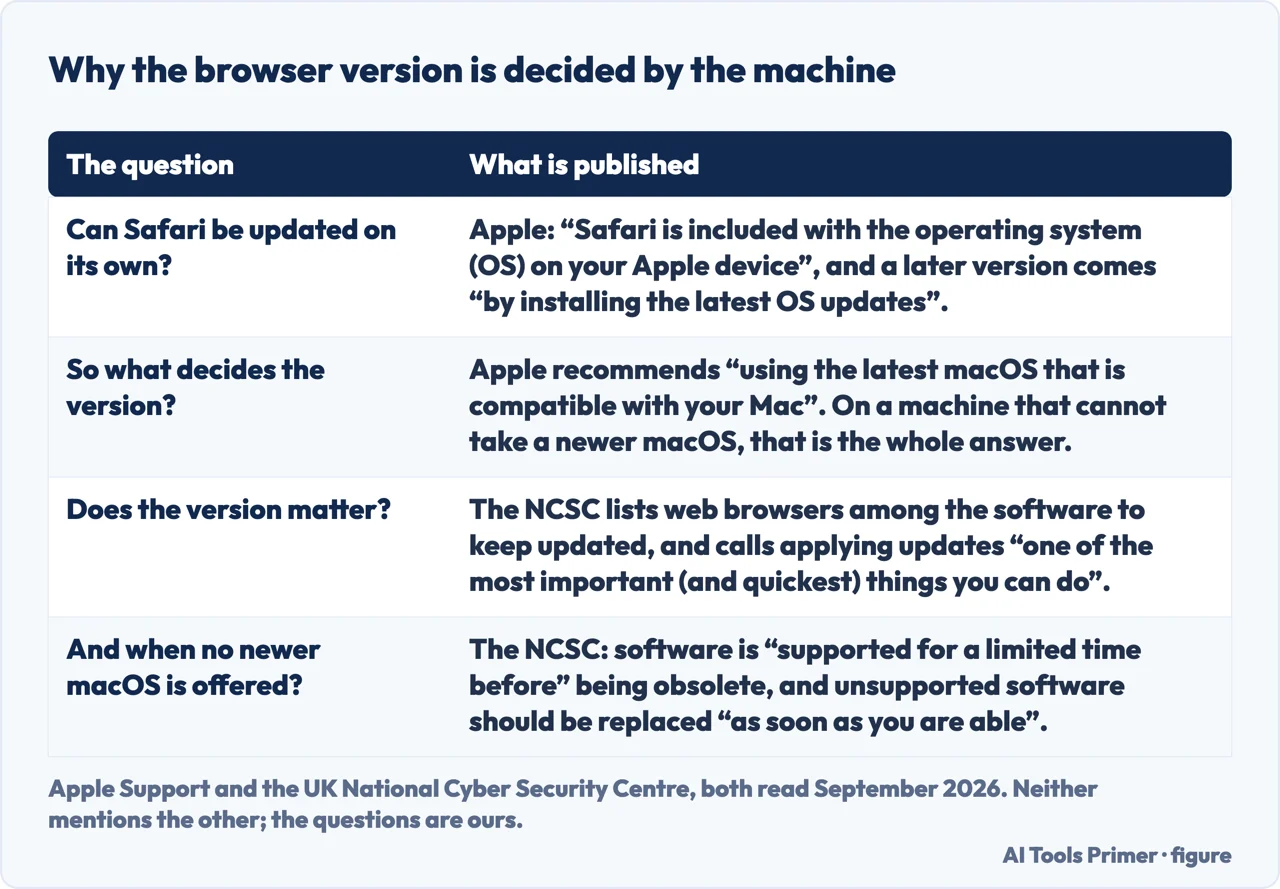
The sentence that lands hardest on this page is the next one. “Manufacturers eventually stop providing updates for older devices”, the NCSC says, and names what that costs: a device no longer supported “won’t receive updates that contain new features and performance improvements” and “won’t receive the security updates from the manufacturer (and without these your phone is less secure)”. On a Mac that can no longer take a newer macOS, that is about the browser as much as the machine — because by Apple’s own arrangement they are one decision, not two. It is also the point at which the honest answer to “how do I update Safari” stops being a menu path.
What the NCSC does not say is that you must go and buy something: “You don’t need to buy the latest (or most expensive) model to stay safe, but if possible, avoid buying and using phones that are no longer supported.” That is advice about what to acquire next, not an instruction to replace what works — and this page had it the other way round until 16 September 2026, when the NCSC page was reread and found to have been rewritten.
One more thing from the same page, and it settles an argument that comes up whenever somebody is still running Windows and wants the browser their phone uses. Apple no longer offers Safari for Windows. Its own wording: “Safari 5.1.7 for Windows was the last version made for Windows”, and the page dates that release to 2010 and calls it “now outdated.” Anything currently offered as Safari for Windows is not coming from Apple.
Which leaves the practical summary. To get a newer Safari, install the macOS update. To find out whether one exists, open Software Update and let it look. If it says you are current and a website disagrees, believe the Mac — Apple does. And if the Mac is old enough that no newer macOS is offered, the browser is as new as that machine can make it, and the honest next question is about the machine rather than the browser.
The guides below take it four ways: why there is no separate updater, running Software Update, what happens during the installation, and the website that tells you to update something you cannot.
Four ways in.
Safari ships with the system, so it is versioned with the system. That single fact answers the search and creates the limit underneath it.
A banner telling you to update a browser that is already current. Apple’s own answer is not a download, and it is worth quoting to whoever built the site.
Not covered here. It will not send you to a download page for Safari. Apple does not offer one, and pages that appear to are offering something else.
It will not tell you a website banner is proof your browser is old. Apple explicitly allows for the website being wrong, and says who to contact.
And it will not pretend an old Mac can run a new browser. The version is tied to the system, the system is tied to the hardware, and that chain is worth knowing before spending an afternoon on it. What holds instead is simple: the statement that Safari ships with the operating system is Apple’s own, quoted with the Software Update routes and the answer about out-of-date websites.
Written by Alberto Gulotta
Founder and editor of AI Tools Primer, writing from Palermo, Italy. Thirty-five years of taking computers apart, starting with a Commodore 64 — the long version is on the about page.
Something wrong on this page? Write to aitoolsprimer@gmail.com and it gets fixed.
Written on 22 August 2026 · last checked 23 September 2026.
Independence and limits
No affiliate links and no paid placements anywhere on this site. Nobody pays to appear here, and no company has seen this page before you did.
This is general information, not professional advice. Where a page touches money, health, safety or the law, it names its source and the date it was read — and your situation may still differ. See the privacy page and the cookie policy.