
Apple: “Press these three keys together: Option (or Alt), Command, and Esc.” On a Mac with a Touch Bar, Apple notes that Esc is on the left of the Touch Bar rather than a key.
Software · guide
Force quit Mac when an app stops answering you
By Alberto Gulotta · Updated · 9 min read
Force quit Mac and the answer is three keys, worth knowing by heart. What is worth reading is the sentence Apple puts in front of them and the list it puts after — because the keys end the freeze and neither explain it nor make it less likely to happen again.
“Before you decide to force an app to quit, try to quit the app normally: press Command-Q.”
Apple’s own first instruction, and the reason for it is on its other page in five words: force quitting means “you may lose unsaved changes.” That is the whole reason for the order — the risk Apple names is to unsaved work, and the normal quit is what it asks you to try before running that risk. Attempting it costs a second, and the second is cheap against a document.
Why the unsaved work goes, and why Command-Q is different
Apple states the risk on its support page and stops there. The reason is in its developer documentation, which lists what causes a process to be terminated with SIGKILL: “The operating system terminated the process, often because a background task violated a requirement, device resources were limited, or the user force quit the app.”
And SIGKILL is defined, in the standard that defines it, in four words inside a bracket: “Kill (cannot be caught or ignored)”. Its default action there is “abnormal termination of the process”. A program cannot arrange to hear that signal, so it cannot run anything when it arrives — no save, no prompt, no “do you want to keep changes?”.
That is the whole difference between the two ways out. Command-Q asks the app, and the app gets to decide what to do before it goes. Force Quit does not ask. It is not a stronger request — it is not a request at all, and the app is not told. The same standard lists a termination signal that a program can hear, right above it in the table, which is why the distinction exists at all rather than being an Apple choice.
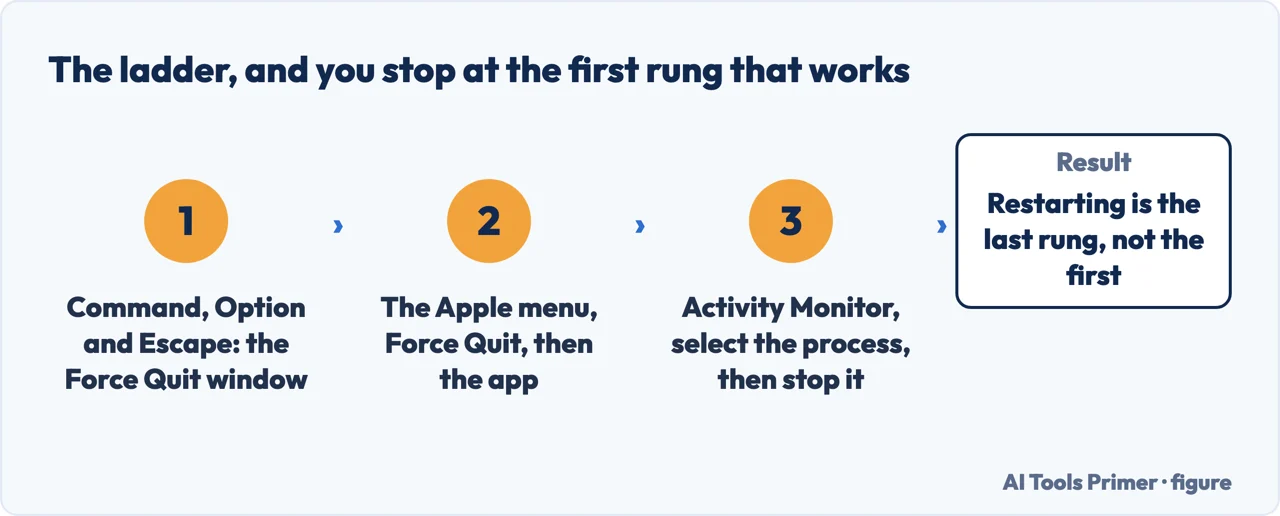
If Command-Q does nothing, then: there are two ways in and they open the same window.
Option (or Alt) + Command + Esc
Apple menu › Force Quit. The same window either way: select the app that is not responding, then click Force Quit.
One entry in that window behaves differently from all the others, and it is worth knowing before you meet it in a panic. Apple: “The Finder is always open, but if it stops responding, you can force it to quit and reopen: select Finder in the Force Quit window, then click Relaunch.” The button changes its name for that one row — and if the Finder is what has stopped, that row is the fix, which is a great deal cheaper than restarting the Mac.
Then the part that is easy to skip, because by the time the app is closed the problem feels solved. It is not solved; it is postponed. Apple publishes a ladder for an app that keeps doing this, and two of the rungs are not what you would guess.
Apple’s ladder for an app that keeps doing it
- Reopen it. “If the app quit, reopen it by clicking Reopen in the dialog that appears.” The offer is made once and it is easy to dismiss without reading.
- Restart the Mac. Second on Apple’s list rather than first.
- Check it is compatible with your version of macOS. Especially after a system update.
- Open a different file in the same app. Apple’s reasoning is one line and it reframes the whole problem: “There may be a problem with the original file.” An app that crashes on one document and nothing else is not a broken app.
- Disconnect anything you just plugged in — “disconnect any peripheral devices you just connected (for example, a printer). They may not be compatible with your version of macOS.”
- Remove third-party plug-ins or enhancements. And the timing note that makes it worth checking: “If you recently updated the app or macOS, a plug-in or enhancement you installed may no longer be compatible.”
The fourth of those is the one to try first out of order. Open a different file in the same app. If the second file is fine, the app was never the problem, and everything else on the list — reinstalling, updating, removing plug-ins — is effort spent in the wrong place. It costs nothing and it splits the problem in half, which is exactly what the second-device test does for a network and the Outbox does for mail.
The fifth is the one that sounds least likely and is easiest to test. Something plugged in a few minutes ago, working perfectly as far as you can tell, is on Apple’s own list of things to remove when an app will not behave. Apple does not claim it is common; it lists it, with a reason — the device “may not be compatible with your version of macOS” — and it takes one unplugging to rule out.
And the step below all of them, for a Mac that will not even restart. Apple: “Press and hold the power button on your Mac for up to 10 seconds, until your Mac turns off.” Then press and release it again to turn the Mac back on.
With one note that saves a hunt on a modern laptop: “Every Mac has a power button. On laptop computers that have Touch ID, press and hold the Touch ID button.” The fingerprint reader is the power button.
A last word on what force quitting actually costs, since the whole page turns on it. Apple says plainly that you may lose unsaved changes, and it names no other cost. It is not written up as a last resort either: Apple documents it as the ordinary response to an app that is not responding, with the normal quit tried first. The care belongs before the keys rather than after them — try Command-Q, give it a moment, and then stop being patient.
The guides below take it four ways: what to try before force quitting, the two routes into the window, the Finder’s own row, and the ladder for an app that keeps freezing.
Where to start
Four ways in.
- “I have unsaved work in it.”
- Go to before you force it
- “My desktop has gone strange.”
- That is the finder row
- “It does this every day.”
- That is the ladder
Before you force it
One instruction Apple puts ahead of the keys, and a five-word reason. The gap between a slow app and a stuck one is where unsaved work lives.
The Finder row
One entry in that window is never absent and never quits — it relaunches. Knowing that turns a frightening desktop into a two-click fix.
The ladder
Apple’s published list for an app that keeps freezing. Two rungs on it are worth trying out of order, because they cost nothing and rule out half the problem.
Not covered here. It will not treat force quitting as dangerous. Apple documents it as the normal answer to an unresponsive app, and names the only cost: unsaved changes.
It will not tell you to restart the Mac first. That is second on Apple’s own list, and the Finder row makes it unnecessary.
And it will not stop at closing the app. An app that freezes daily has a cause, Apple publishes the ladder for finding it, and two of its rungs cost nothing. What holds instead is simple: the instruction to try Command-Q first and the ladder for a repeatedly freezing app are Apple’s own.
Sources
- Apple Support — How to force an app to quit on Mac (the instruction to try quitting normally with Command-Q first, the Option-Command-Esc shortcut and the Apple menu route, the note about Esc on a Touch Bar, the Finder’s Relaunch button, and the power-button hold of up to 10 seconds including the Touch ID note). Published date given on the page: 8 December 2025 — support.apple.com, read 22 August 2026.
- Apple — macOS User Guide, If an app freezes or quits unexpectedly on Mac (the warning that you may lose unsaved changes, the Reopen dialog, and the ordered suggestions including checking compatibility, opening a different file because there may be a problem with the original, disconnecting recently connected peripherals such as a printer, and removing third-party plug-ins after an update) — support.apple.com, read 22 August 2026.
- Apple Developer, EXC_CRASH (SIGKILL) — Understanding the exception types in a crash report (that the operating system terminates the process with SIGKILL for several reasons, one of them being that the user force quit the app) — developer.apple.com, read 26 August 2026.
- The Open Group,
— The Single UNIX Specification, Version 2 (that SIGKILL is defined as “Kill (cannot be caught or ignored)”, that its default action is abnormal termination of the process, and that a separate termination signal exists which a program can handle) — pubs.opengroup.org, read 26 August 2026.
Written by Alberto Gulotta
Founder and editor of AI Tools Primer, writing from Palermo, Italy. Thirty-five years of taking computers apart, starting with a Commodore 64 — the long version is on the about page.
Something wrong on this page? Write to aitoolsprimer@gmail.com and it gets fixed.
Written on 22 August 2026 · last checked 23 September 2026.
Independence and limits
No affiliate links and no paid placements anywhere on this site. Nobody pays to appear here, and no company has seen this page before you did.
This is general information, not professional advice. Where a page touches money, health, safety or the law, it names its source and the date it was read — and your situation may still differ. See the privacy page and the cookie policy.