
Software · guide
Desktop won’t boot: the machine is telling you where it stopped
By Alberto Gulotta · Updated · 16 min read
The fans spin. A light is on. Something is clearly receiving power — and Windows never arrives. That gap, between a machine that switches on and an operating system that loads, is where this page lives, and it is a narrower place than it looks.
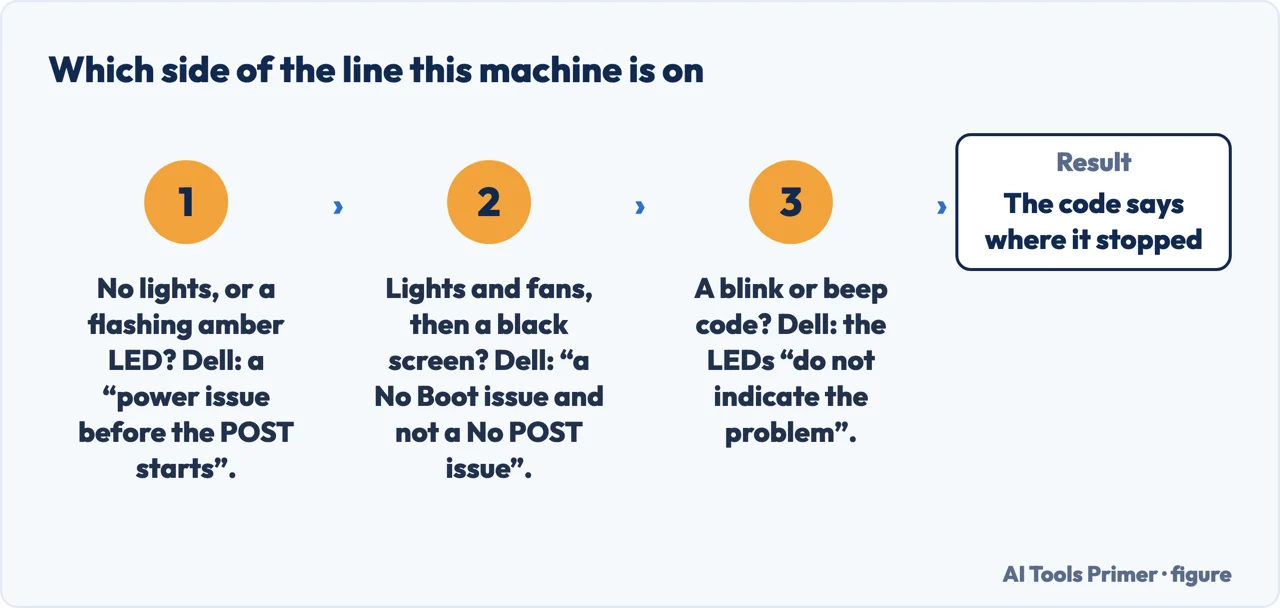
“If your computer successfully completes POST and then displays a black screen, you are likely experiencing a No Boot issue and not a No POST issue.”
“If you do not see any LEDs, or only a Flashing Amber Power LED, your computer may be experiencing a power issue before the POST starts.”
Dell draws the line itself, in its OptiPlex indicator guide, and it is the line this page sits on. Lights and fans mean the machine got past the first hurdle. If nothing lights at all, the problem is earlier and belongs on a different page. If something lights and Windows still never arrives, everything below applies.
In that gap the machine is not silent. Every major manufacturer publishes a dictionary for the noises and lights it makes before Windows takes over: HP, Dell and Lenovo for whole computers, ASUS, MSI, GIGABYTE and ASRock for the boards inside them.
Before reading any code, read what two manufacturers say the code cannot tell you. Dell: “the diagnostic LEDs only indicate how far through the POST process could be completed. They do not indicate the problem that caused the POST routine to stop.” ASUS, in its motherboard manual: “The Q-LEDs provide the most probable cause of an error code as a starting point for troubleshooting. The actual cause may vary from case to case.”
Two companies, two different signalling systems, the same admission. A code tells you where the machine stopped and what is most likely at fault. It does not name the broken part. Guides that turn a code straight into a verdict are claiming more than the people who designed the code.
With that established, the code is worth reading — starting with the one manufacturer that publishes the grammar as well as the vocabulary.
HP: how the light is meant to be read
HP publishes the grammar before the vocabulary, on “HP Desktop PCs — Computer beeps or a light blinks during startup”. Read 23 August 2026.
| Element | What HP states |
|---|---|
| Red blinks | “The red light blinks represent a major error category (long blinks).” |
| White blinks | “The white light blinks represent a minor error category (short blinks).” |
| After the majors | “A one (1) second pause occurs after the last major blink.” |
| After the minors | “A two (2) second pause occurs after the last minor blink.” |
| When the lights stop | “Blink error code sequences continue until you unplug the computer or press the power button.” |
| When the beeps stop | “Beep error code sequences occur for the first five (5) iterations of the pattern, and then stop.” |
The last two rows are the practically useful ones, and they point in opposite directions. The light keeps repeating until you intervene; the sound gives you five passes and then goes quiet. HP also notes, on the same page, that “Diagnostic lights and audible beep codes are not available on all models” — so on some machines neither channel exists.
Dell publishes the timing in milliseconds. On “Understanding Beep Codes on a Dell Desktop PC”: “The delay between each beep is 300 milliseconds. The delay between each set of beeps is three seconds, and the beep sound lasts 300 milliseconds.”
Those numbers describe beeps. HP’s one and two seconds, above, describe the pauses that close each group of blinks. They are measurements of different things on different machines — worth keeping apart rather than merging into one rule about “counting the signal”.
Lenovo publishes the same kind of table for ThinkCentre in words rather than numbers, pairing patterns such as “3 short beeps followed by 1 long beep.” with causes such as “Video card or on-board video not detected.” — and one entry that pairs sound with text on screen, “4 long beeps and Error 8998/8999 on the screen.”
On an assembled machine the signalling is on the board itself, and it is a light rather than a sound.
ASUS Q-LED: four lights, four checks
Colours as printed in the ROG STRIX Z890-E GAMING WIFI manual (item 22, page 30); meanings from the ASUS support article on Q-LED troubleshooting. Read 23 August 2026.
| LED | Colour | What ASUS says a solid light means |
|---|---|---|
| CPU | Red | “indicates no CPU or CPU faulty” |
| DRAM | Yellow | “indicates no Memory or Memory faulty” |
| VGA | White | “indicates no Graphics Card or Graphics Card faulty” |
| BOOT | Yellow green | “indicates no boot device(etc:HDD/SSD) or boot device faulty” |
Two things in that table matter more than the colours. Every meaning is a pair, not a diagnosis — absent or faulty — and ASUS never collapses the two. And the criterion is a light that stays on: the manual specifies “If an error is found, the critical component’s LED stays lit up until the problem is solved”. Lights flickering in sequence during a normal start are the checks passing, not failing.
On cheaper ASUS boards there are no four lights — there is one, blinking. The Q-LED Core function moves the same diagnosis onto the power LED, and ASUS publishes a cadence you can time: “Very slow blinking: The power LED flashes super slowly, the light is on for 4 seconds, and the light is off for 4 seconds (No Boot Device detected)”.
And a trap worth the whole section. The same fast blink means two different things depending on the chip: “If you are using an Intel motherboard, the fast blinking means that the DRAM is not detected. If you are using an AMD motherboard, the fast blinking means that the CPU is not detected.” Read without knowing which platform you own, that signal is not merely unclear — it points at the wrong component.
The same idea, four other names
Every major board maker ships this feature under its own brand. Text as printed in each manufacturer’s manual. Read 23 August 2026.
| Maker | Name | What the manual publishes |
|---|---|---|
| MSI | EZ Debug LED | Red — “CPU is not detected or fail”; Yellow — “DRAM is not detected or fail”; White — “GPU is not detected or fail”; Green — “booting device is not detected or fail” |
| GIGABYTE | Status LEDs | “CPU status LED”, “Memory status LED”, “VGA status LED”, “Boot device status LED” — the legend only, with no recommended action published alongside it |
| ASRock | Post Status Checker | “Solid Red indicates CPU is dysfunctional.” “Solid Yellow indicates DRAM is dysfunctional.” |
| ASRock | Dr. Debug | A two-digit code instead of a light: 0x31 “PEI_MEMORY_INSTALLED”, 0x50 “PEI_MEMORY_INVALID_TYPE”, and dozens more |
One honest gap, stated rather than papered over: GIGABYTE and ASRock publish what each light or code means, but no instruction for what to do about it. Where a manufacturer stops, this page stops too.
Reading the code settles one question: whether the machine stopped before handing over to Windows, or after. If it got that far, the rest is software — and there the documentation is Microsoft’s.
Getting into the repair screen when Windows will not start
Microsoft’s “Windows recovery environment” page and Dell’s “Computer Cannot Boot into Windows”. Read 23 August 2026.
| Source | Published instruction |
|---|---|
| Microsoft | “You can also force Windows to enter automatic repair by interrupting the normal boot process two times.” |
| Microsoft | “After doing this two times, Windows should automatically boot into Windows RE on the third restart.” |
| Dell | “Turn on the computer. When you see the Windows logo, press and hold the power button to turn it off. Repeat this again. On the third try, let it fully restart.” |
Both count two interruptions, with the third start left alone to finish. Microsoft names the destination — Windows RE; Dell describes the same three gestures without naming it. The common phrasing “after three failed boots” describes a different action, and neither company uses it.
If the repair screen keeps coming back, or never gets past “Preparing Automatic Repair”, that is a different problem with its own documentation — including a command Microsoft publishes to break the cycle, and a caution from HP against holding the power button down. It has its own guide: Preparing Automatic Repair.
Which leaves the case where none of this is reachable, because the repair environment itself never appears.
If the third restart never reaches the repair screen, Microsoft’s route runs through another machine: “On a working PC, create the installation media for Windows”, then “Connect the installation media you created to your nonfunctional PC”.
The published sizes differ by version and Microsoft states them separately: Windows 11 asks for “A blank USB flash drive with at least 8 GB of space”, while the Windows 10 download page asks for at least 5 GB. And if the machine ignores the stick: “If your PC does not automatically boot to the USB or DVD media, you might have to open a boot menu or change the boot order in your PC’s BIOS or UEFI settings.”
“This media can be used for bare metal recovery on the device it was created for, ensuring a smooth and efficient restoration process.”
Worth reading twice, because a recovery drive is often suggested at this point and it is not the same tool. Microsoft ties it to the device it was created for, and the tool that makes one runs on the machine being protected — not on a borrowed one. A recovery drive is something you make while the computer still works. Once it will not start, the second computer can only produce installation media.
Where to start
Three ways in.
- “Nothing lights up at all.”
- Different problem Computer won't turn on
- “It beeps, or a light blinks.”
- Start here before windows loads
- “It reaches a blue screen.”
- That is Blue screen error
Before Windows loads
Beep codes, blink codes and board LEDs — what the manufacturers publish, and what they say those signals cannot tell you.
Once Windows starts again
The repairs and checks that only make sense on a machine that boots.
Not covered here. Every beep code, blink code, LED meaning, command and requirement on this page is quoted from the manufacturer that publishes it — HP, Dell, Lenovo, ASUS, MSI, GIGABYTE, ASRock and Microsoft — and every source is listed below What holds instead is simple: a code tells you where the machine stopped rather than what broke, which is the manufacturers’ own caveat and the reason this page touches hardware last.
Sources
- HP Support — HP Desktop PCs, Computer beeps or a light blinks during startup (that red blinks represent a major error category and white blinks a minor one; the one-second pause after the last major blink and two-second pause after the last minor blink; that blink sequences continue until the computer is unplugged or the power button pressed while beep sequences run for the first five iterations and then stop; that diagnostic lights and audible beep codes are not available on all models; and the individual code meanings quoted, each stated as a potential failure) — support.hp.com, read 23 August 2026.
- Dell — Understanding Beep Codes on a Dell Desktop PC (that the delay between each beep is 300 milliseconds, the delay between each set of beeps is three seconds and the beep sound lasts 300 milliseconds) — www.dell.com, read 23 August 2026.
- Dell — A Reference Guide to the Dell OptiPlex Diagnostic Indicators (that the diagnostic LEDs only indicate how far through the POST process could be completed and do not indicate the problem that caused the POST routine to stop; that a black screen after a successfully completed POST is likely a No Boot issue and not a No POST issue; and that no LEDs, or only a flashing amber power LED, may indicate a power issue before POST starts) — www.dell.com, read 23 August 2026.
- Dell — Computer Cannot Boot into Windows (the three-gesture procedure: turn on the computer, hold the power button to turn it off when the Windows logo appears, repeat, and on the third try let it fully restart) — www.dell.com, read 23 August 2026.
- Lenovo Support — Beep symptoms during startup, ThinkCentre (that beep symptoms are tones or a series of tones separated by pauses during POST; the beep patterns quoted; the cause "Video card or on-board video not detected."; and the entry pairing four long beeps with Error 8998/8999 on the screen) — support.lenovo.com, read 23 August 2026.
- ASUS — Motherboard troubleshooting via Q-LED indicators (the published meaning of each solid Q-LED: no CPU or CPU faulty, no Memory or Memory faulty, no VGA or VGA faulty, and no boot device or boot device faulty) — www.asus.com, read 23 August 2026.
- ASUS — FAQ of Q-LED Core (that the Q-LED Core function checks components via the power LED during POST; the very slow blink of four seconds on and four seconds off indicating no boot device detected; and that fast blinking means DRAM not detected on an Intel motherboard but CPU not detected on an AMD motherboard) — www.asus.com, read 23 August 2026.
- ASUS — ROG STRIX Z890-E GAMING WIFI user manual, item 22 Q-LEDs, page 30 (that the Q-LEDs check key components during the booting process and the critical component’s LED stays lit up until the problem is solved; and that the Q-LEDs provide the most probable cause of an error code as a starting point for troubleshooting, with the actual cause varying from case to case; LED colours as printed) — dlcdnets.asus.com, read 23 August 2026.
- MSI — PRO H610M-A DDR4 user guide, Onboard LEDs, EZ Debug LED (the published colour table: red for CPU not detected or fail, yellow for DRAM not detected or fail, white for GPU not detected or fail, green for boot device not detected or fail) — download-2.msi.com, read 6 September 2026.
- GIGABYTE — Z890 GAMING X WIFI7 user manual, section 2-7 Onboard Buttons and LEDs, Status LEDs (the legend naming the CPU, memory, VGA and boot device status LEDs, published without an accompanying recommended action) — download.gigabyte.com, read 23 August 2026.
- ASRock — X870 Pro RS user manual, section 2.14 Post Status Checker (the component and LED indicator status table, including that solid red indicates the CPU is dysfunctional and solid yellow indicates DRAM is dysfunctional) — download.asrock.com, read 23 August 2026.
- ASRock — X870E Taichi White user manual, section 2.14 Dr. Debug (the two-digit code table, including 0x31 PEI_MEMORY_INSTALLED and 0x50 PEI_MEMORY_INVALID_TYPE, published as code and internal phase name without a recommended action) — download.asrock.com, read 23 August 2026.
- Microsoft Support — Windows recovery environment (that you can force Windows to enter automatic repair by interrupting the normal boot process two times, and that after doing this two times Windows should automatically boot into Windows RE on the third restart; and the instruction to create installation media on a working PC and connect it to the nonfunctional one) — support.microsoft.com, read 23 August 2026.
- Microsoft Learn — BitLocker recovery overview (the list of common events that cause a device to enter BitLocker recovery, including entering the wrong PIN too many times, turning off support for reading the USB device in the preboot environment, changes to the NTFS partition table, changes to the BIOS, UEFI firmware, master boot record, boot sector or boot manager, and docking or undocking a portable computer; and the definition of the recovery password as a 48-digit number used to unlock a volume in recovery mode) — learn.microsoft.com, read 23 August 2026.
- Microsoft Learn — BitLocker recovery known issues (the statement that in that article "recovery password" refers to the 48-digit recovery password and "recovery key" refers to the 32-digit recovery key) — learn.microsoft.com, read 23 August 2026.
- Microsoft Support — Create installation media for Windows (that a blank USB flash drive with at least 8 GB of space is required, and that it is recommended to use a blank drive because any content on it is deleted) — support.microsoft.com, read 23 August 2026.
- Microsoft — Download Windows 11 (that if the PC does not automatically boot to the USB or DVD media you might have to open a boot menu or change the boot order in the PC’s BIOS or UEFI settings) — www.microsoft.com, read 23 August 2026.
- Microsoft Support — Recovery Drive (that the media can be used for bare metal recovery on the device it was created for) — support.microsoft.com, read 23 August 2026.
Written by Alberto Gulotta
Founder and editor of AI Tools Primer, writing from Palermo, Italy. Thirty-five years of taking computers apart, starting with a Commodore 64 — the long version is on the about page.
Something wrong on this page? Write to aitoolsprimer@gmail.com and it gets fixed.
Written on 23 August 2026 · last checked 23 September 2026.
Independence and limits
No affiliate links and no paid placements anywhere on this site. Nobody pays to appear here, and no company has seen this page before you did.
This is general information, not professional advice. Where a page touches money, health, safety or the law, it names its source and the date it was read — and your situation may still differ. See the privacy page and the cookie policy.