
Software · guide
Preparing Automatic Repair: the screen, and what not to do first
By Alberto Gulotta · Updated · 13 min read
Preparing Automatic Repair is the message a Windows machine shows when it has given up on starting normally and moved to its own repair path. It is not an error message, and the worst thing to do about it is the thing almost everyone does first.
“If your computer does not turn on, wait at least 5 minutes before troubleshooting the computer. Your computer might be installing an update for Windows or the BIOS or detecting new hardware. During this update process, you can expect the screen to be blank for several minutes. It might damage the computer if this process is interrupted.”
HP’s caution, on its page about a computer that will not start, and the reason it belongs before every other instruction: the instinctive response to this screen is to hold the power button down, and that is the one action a manufacturer explicitly warns can cause harm. Five minutes costs nothing.
What the screen actually is. ASUS, which documents this by name, describes it as a feature rather than a fault: “Automatic Repair is a Windows feature designed to assist in resolving operating system and software issues to ensure the stability of your device. When your Windows operating system encounters errors, problems, or crashes, the Automatic Repair feature will attempt to automatically detect, identify, and fix these issues.”
Dell states the trigger more precisely: “Automatic Repair starts if the computer fails over to WinRE because of a detected startup failure.” Something interrupted the start, and Windows moved to its recovery environment on purpose.
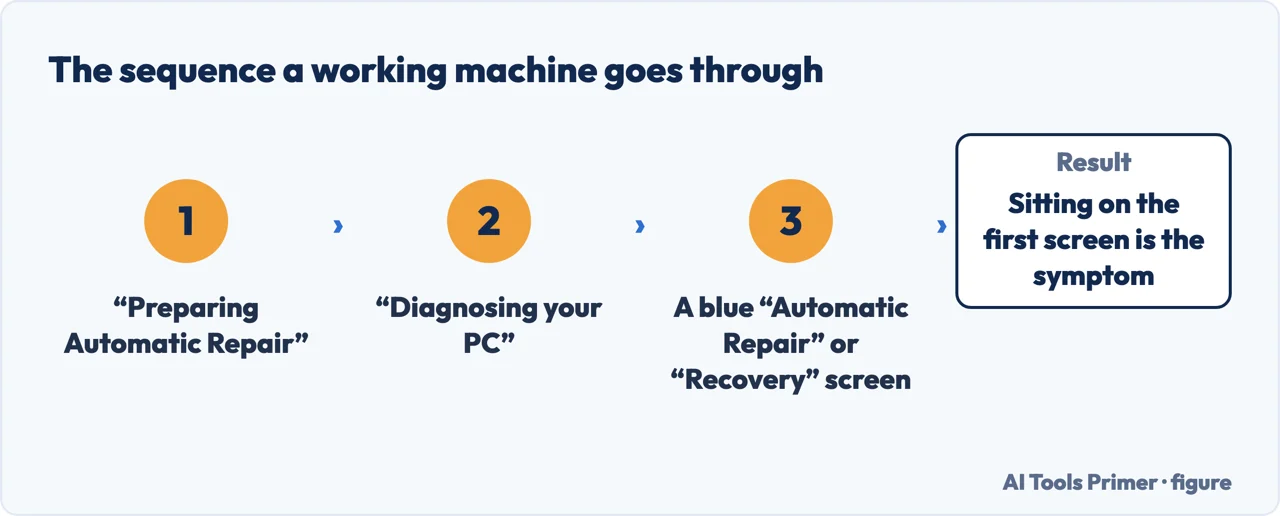
The sequence you should see. ASUS: “Generally, when your device displays "Preparing Automatic Repair," it should proceed to "Diagnosing your PC," and you might then see a blue "Automatic Repair" or "Recovery" screen.”
That is the difference between a machine working and a machine stuck. Movement through those three screens is normal. Sitting on the first one is the symptom — and ASUS lists it as one: “Screen stuck on the black screen with "Preparing Automatic Repair"”.
Once the wait is over and the screen has not moved, the cheapest step comes from two manufacturers who wrote it independently.
The first step two manufacturers agree on
Before any menu, any key combination, any reinstall. Read 23 August 2026.
| Source | What they publish |
|---|---|
| ASUS | “Remove all external devices, including the keyboard, mouse, external hard drive, printer, memory cards, CDs in the optical drive, and any adapter cards in card readers. Sometimes, external devices can prevent your device from entering the repair screen.” |
| Lenovo | “Disconnect all external devices, including the USB drive, portable hard disk, printer, docking station, and even the mouse and keyboard, because a malfunctioning external device may prevent the PC from starting up.” |
Two companies, written independently, both putting a peripheral first and both explicitly including the keyboard and mouse — the two things nobody thinks to unplug. It costs a minute and it is reversible, which is more than can be said for most of what follows.
It is also worth knowing how a machine arrives here, because the answer explains why it so often follows a hang rather than a crash — and because the manufacturers do not tell the same story.
How many failed starts trigger it — the sources disagree
Same procedure, three manufacturers, two different counts. Quoted as published. Read 23 August 2026.
| Source | Published instruction | Interruptions |
|---|---|---|
| Microsoft | “You can also force Windows to enter automatic repair by interrupting the normal boot process two times.” … “After doing this two times, Windows should automatically boot into Windows RE on the third restart.” | Two |
| Dell | “Immediately after the Dell logo, when you see the blue Windows logo, press and hold the power button to shut down the device.” | Two |
| Acer | “Repeat step 2 for a total of three times. This will simulate Windows failing to properly boot up three times in a row triggering Windows Automatic Repair.” | Three |
We are not going to pretend those agree. Microsoft and Dell describe two interruptions with the third start left alone; Acer describes three. The practical reading is that the count is the reason people arrive here by accident — anyone who has force-shut a machine a couple of times to clear a hang has performed exactly this procedure without meaning to.
From here the paths divide by brand. HP is the only maker with a document devoted to what happens when the repair fails, and its structure is itself an instruction.
When the repair itself fails: HP’s published order
HP is the one manufacturer with a document dedicated to this failure, titled “Automatic Repair couldn’t repair your PC”. Its section headings, in HP’s own order. Read 23 August 2026.
| # | Section |
|---|---|
| 1 | Perform a hard reset |
| 2 | Restore BIOS default settings |
| 3 | Run System Tests in HP PC Hardware Diagnostics Windows |
| 4 | Reset the computer when Windows does not start normally |
| 5 | Contact HP Customer Support |
HP’s opening line is worth having: “If the error message Automatic Repair couldn’t repair your PC is displayed, use the following procedures to troubleshoot the issue.” Note where hardware testing sits — third, before resetting anything. The order is the advice.
The keys are not the same on every machine
Manufacturer instructions for reaching recovery and firmware when Windows will not start. Read 23 August 2026.
| Maker | Published instruction |
|---|---|
| HP — recovery | “Restart your computer, and then immediately press the F11 key repeatedly.” |
| HP — reset | “To launch from outside Windows, press f11 while restarting the computer. Click Troubleshoot, and then click Reset this PC.” |
| HP — firmware | “Press the power button to start the computer and repeatedly press the f10 key to enter the BIOS setup menu.” |
| HP — diagnostics | “Turn on the computer and immediately press esc repeatedly, about once every second. When the menu appears, press the f2 key.” |
| Dell — where to interrupt | “Immediately after the Dell logo, when you see the blue Windows logo, press and hold the power button to shut down the device.” |
Generic guides describe the interrupted-restart trick because it works everywhere. The manufacturer keys are faster and more reliable on the machine they belong to — and on an HP, F11 skips the whole business of failing to boot on purpose.
“The startup repair tool will not diagnose any potential hardware issues, but is a good place to get started if you are having software problems.”
Acer states the boundary that explains a great many fruitless afternoons. If the cause is a failing disk or bad memory, this tool will never find it, no matter how many times it runs. That is why HP puts hardware testing third in its list, and why it publishes a tool that runs outside Windows entirely: “The HP PC Hardware Diagnostics UEFI application is a comprehensive set of tests to help identify, isolate, and diagnose possible HP Personal Computer hardware issues. This tool runs outside of the Operating System”.
If the screen keeps returning. Microsoft publishes a command for precisely this: “If the computer repeatedly stops the startup process on the recovery options display, run the following command at a command prompt to break the cycle: Bcdedit /set {default} recoveryenabled no”. That stops the automatic attempt; it does not fix what caused it.
And the attempt leaves a record worth reading before deciding anything: “You can find the log file in the %windir%\System32\LogFiles\Srt\Srttrail.txt folder”.
When none of the on-machine routes work, Dell puts the external one above the tricks: “Accessing the Advanced startup options using the Windows installation media is the most recommended method.” It is the only route that survives a damaged recovery partition, because nothing on the broken disk is involved.
Acer makes the same point as prevention rather than cure: “Acer recommends creating a Windows 11 recovery drive. By creating a recovery drive, you will be able to reinstall Windows 11 in case your computer ever experiences major problems like hardware failure.” That one has to be done while the machine still works.
What no manufacturer publishes, and we are not going to invent. Nobody states how many times Automatic Repair retries before giving up, and nobody puts a number on how long the first screen should take. ASUS goes as far as “for an extended period” and stops there.
So there is no honest threshold to offer beyond HP’s five minutes for a possible update. If a guide tells you the exact number of minutes after which the machine is definitely stuck, it is not quoting anybody.
Where to start
Three ways in.
- “It has been on this screen for ages.”
- Start at before windows loads
- “It repaired nothing and came back.”
- Go to when windows does start
- “It never gets this far.”
- That is Desktop won’t boot
Before Windows loads
The stages a machine passes through before this screen can even appear, and what the hardware publishes about each one.
When Windows does start
The repairs and checks that only make sense on a machine that reaches the desktop.
Not covered here. Every instruction, key, section order and caution on this page is quoted from the company that publishes it — HP, ASUS, Acer, Dell, Lenovo and Microsoft — and every source is listed below What holds instead is simple: the screen is Windows doing something deliberate rather than something breaking, and the first move is to wait.
Sources
- HP — “Automatic Repair couldn’t repair your PC” error is displayed (the opening instruction to use the procedures on that page when the message is displayed; the section order beginning with a hard reset and BIOS defaults and placing hardware tests before resetting; the instruction to restart and immediately press F11 repeatedly; and the instruction to press the power button and repeatedly press f10 to enter the BIOS setup menu) — support.hp.com, read 23 August 2026.
- HP — Computer does not turn on, start, or boot (the caution to wait at least 5 minutes before troubleshooting because the computer might be installing a Windows or BIOS update or detecting new hardware, that the screen can be expected to stay blank for several minutes, and that interrupting the process might damage the computer; and the instruction to press esc repeatedly then f2 to open the diagnostics) — support.hp.com, read 23 August 2026.
- HP — HP PC Hardware Diagnostics (that the UEFI application is a comprehensive set of tests to help identify, isolate and diagnose possible hardware issues, and that it runs outside of the operating system) — support.hp.com, read 23 August 2026.
- HP — Software recovery options, Windows (that Reset this PC can be launched from outside Windows by pressing f11 while restarting, then choosing Troubleshoot and Reset this PC) — support.hp.com, read 23 August 2026.
- ASUS — Troubleshooting, Automatic Repair (Startup Repair) on Boot (the definition of Automatic Repair as a Windows feature that attempts to detect, identify and fix errors; the symptom “Screen stuck on the black screen with Preparing Automatic Repair”; the normal progression from Preparing Automatic Repair to Diagnosing your PC and then a blue Automatic Repair or Recovery screen; and the instruction to remove all external devices including keyboard, mouse, external hard drive, printer, memory cards, CDs and adapter cards) — www.asus.com, read 23 August 2026.
- Acer Community knowledge base — Windows 11 Startup Repair Tool (that repeating the interrupted start for a total of three times simulates Windows failing to boot three times in a row and triggers Automatic Repair; and that the startup repair tool will not diagnose any potential hardware issues but is a good place to start for software problems) — community.acer.com, read 23 August 2026.
- Acer Community knowledge base — Windows 11: How to Create Windows 11 Recovery Media (that Acer recommends creating a recovery drive so Windows 11 can be reinstalled if the computer experiences major problems such as hardware failure) — community.acer.com, read 23 August 2026.
- Dell — How to Boot to the Advanced Startup Options Menu in Windows 11 and Windows 10 (that Automatic Repair automates common diagnostic and repair tasks if Windows does not boot and starts if the computer fails over to WinRE because of a detected startup failure; the instruction to hold the power button immediately after the Dell logo when the blue Windows logo appears; and that using the Windows installation media is the most recommended method of reaching Advanced startup) — www.dell.com, read 23 August 2026.
- Lenovo — User Guide, LOQ Essential 15IRX11 and 15ARP11, “What should I do if my PC won’t start” (the instruction to disconnect all external devices including the USB drive, portable hard disk, printer, docking station and even the mouse and keyboard, because a malfunctioning external device may prevent the PC from starting up) — support.lenovo.com, read 23 August 2026.
- Microsoft Support — Windows recovery environment (that Windows can be forced into automatic repair by interrupting the normal boot process two times, and that after doing this two times Windows should automatically boot into Windows RE on the third restart) — support.microsoft.com, read 23 August 2026.
- Microsoft Learn — Advanced troubleshooting for Windows startup issues (the command Bcdedit /set {default} recoveryenabled no published for when the computer repeatedly stops the startup process on the recovery options display; and that the Startup Repair log file is found in the %windir%\System32\LogFiles\Srt\Srttrail.txt folder) — learn.microsoft.com, read 23 August 2026.
Written by Alberto Gulotta
Founder and editor of AI Tools Primer, writing from Palermo, Italy. Thirty-five years of taking computers apart, starting with a Commodore 64 — the long version is on the about page.
Something wrong on this page? Write to aitoolsprimer@gmail.com and it gets fixed.
Written on 23 August 2026 · last checked 23 September 2026.
Independence and limits
No affiliate links and no paid placements anywhere on this site. Nobody pays to appear here, and no company has seen this page before you did.
This is general information, not professional advice. Where a page touches money, health, safety or the law, it names its source and the date it was read — and your situation may still differ. See the privacy page and the cookie policy.