
Software · guide
BitLocker recovery key: where it is, and who else might have it
By Alberto Gulotta · Updated · 14 min read
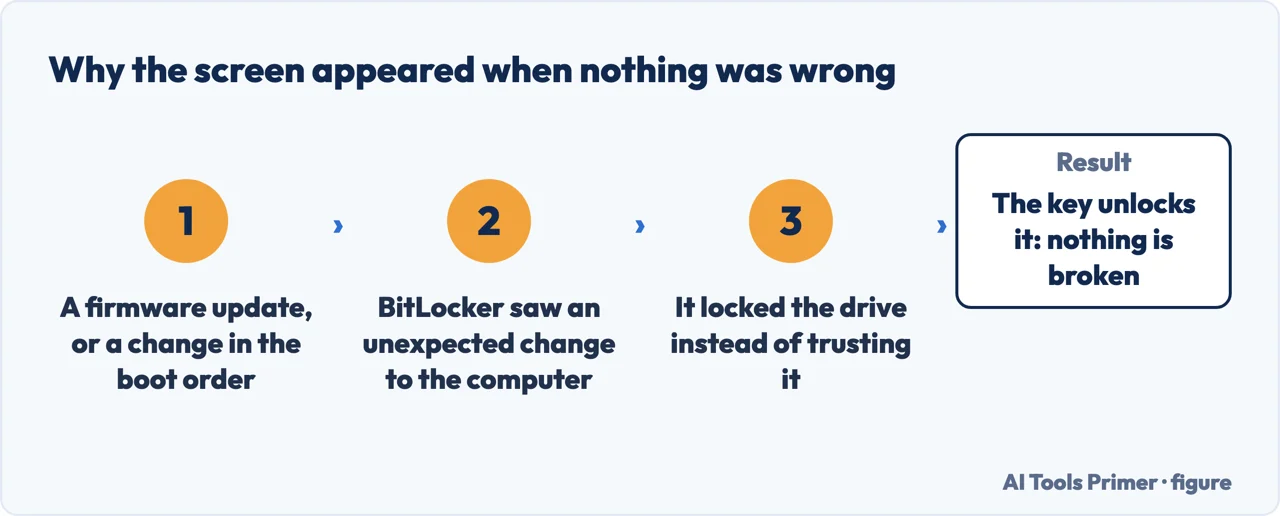
A BitLocker recovery key is what Windows asks for when a machine that started perfectly yesterday now shows a blue screen demanding a 48-digit number. That BitLocker recovery key screen does not mean anything is broken, which is the first useful thing to know — the second is harder.
“Microsoft Support doesn’t have the ability to retrieve, provide, or recreate a lost BitLocker recovery key.”
Microsoft puts that in a box at the top of its own page on finding the key, and everything else on this page follows from it. There is no support call that ends with someone reading you the number. The key either exists somewhere you can reach, or the drive stays shut — which makes the order of what you do next matter more than usual.
So the sequence is: find out what changed, find the number, and avoid anything irreversible until both are answered. Microsoft publishes the list of things that trigger this, and most of it is not damage.
What sends a working machine to this screen
Microsoft’s own list of “common events that cause a device to enter BitLocker recovery mode when starting Windows”, quoted from BitLocker recovery overview. Read 23 August 2026.
| Kind | Events Microsoft lists |
|---|---|
| Firmware and hardware | “Upgrading critical early startup components, such as a BIOS or UEFI firmware upgrade”; “Upgrading the motherboard to a new one with a new TPM”; “Moving a BitLocker-protected drive into a new computer” |
| The TPM itself | “Turning off, disabling, deactivating, or clearing the TPM”; “TPM self-test failure”; “Hiding the TPM from the operating system” |
| Boot order and media | “Having the CD or DVD drive before the hard drive in the BIOS boot order”; “Using PXE boot”; “upgrading Windows from a CD/DVD or a mounted ISO” |
| Everyday handling | “Docking or undocking a portable computer”; “Entering the wrong PIN too many times”; “Exceeding the maximum allowed number of failed sign-in attempts” |
| Disk structure | “Changes to the NTFS partition table on the disk”; “Changes to the boot manager” |
What stands out about that list is how much of it is maintenance rather than damage. A firmware update, a new motherboard, a docking station, a mistyped PIN — all of them appear on it. In those cases the drive is intact and so is the data: the machine has simply stopped recognising the conditions it agreed to unlock under.
Two questions sit behind this screen: what is BitLocker recovery key asking for, and how to find BitLocker recovery key records once the prompt is already up. The first is answered above. The second has an order, and it starts with something easy to skip past.
Do this before searching anywhere. Microsoft’s first step is not to hunt for the number, it is to write down an identifier: “When you are prompted to enter a BitLocker recovery key, take note of the first 8 digits of the recovery key ID.”
Those eight digits are how you tell one saved key from another. An account that has protected several machines over the years holds several keys, and they are indistinguishable without it.
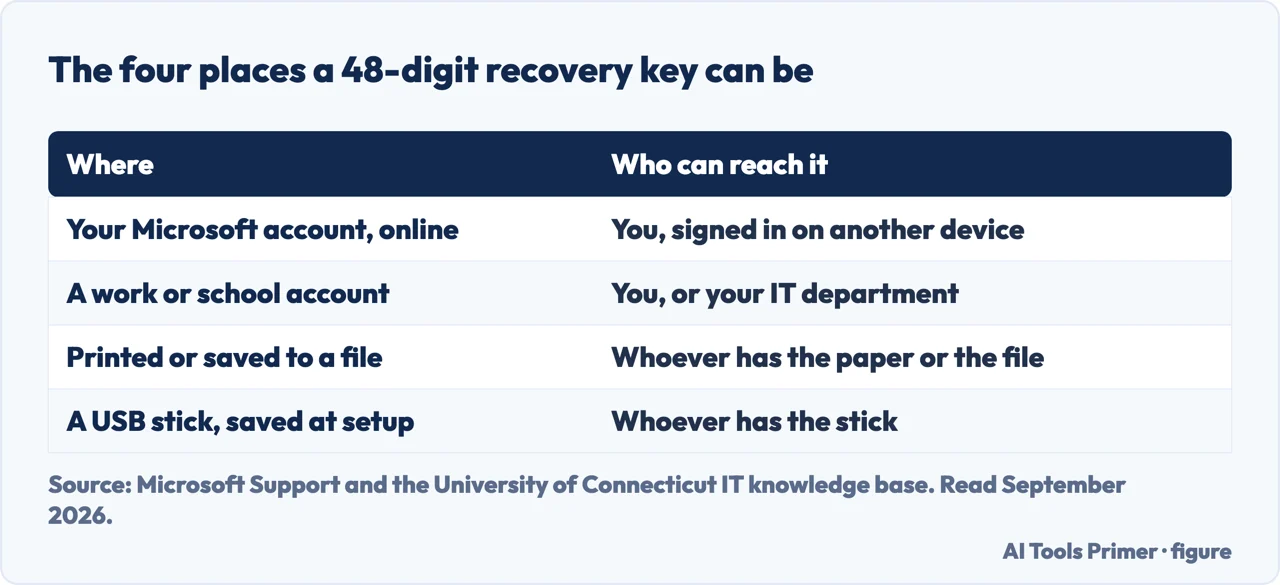
The four places Microsoft says to look
Section headings and instructions quoted from “Find your BitLocker recovery key”. Read 23 August 2026.
| Where | What Microsoft publishes |
|---|---|
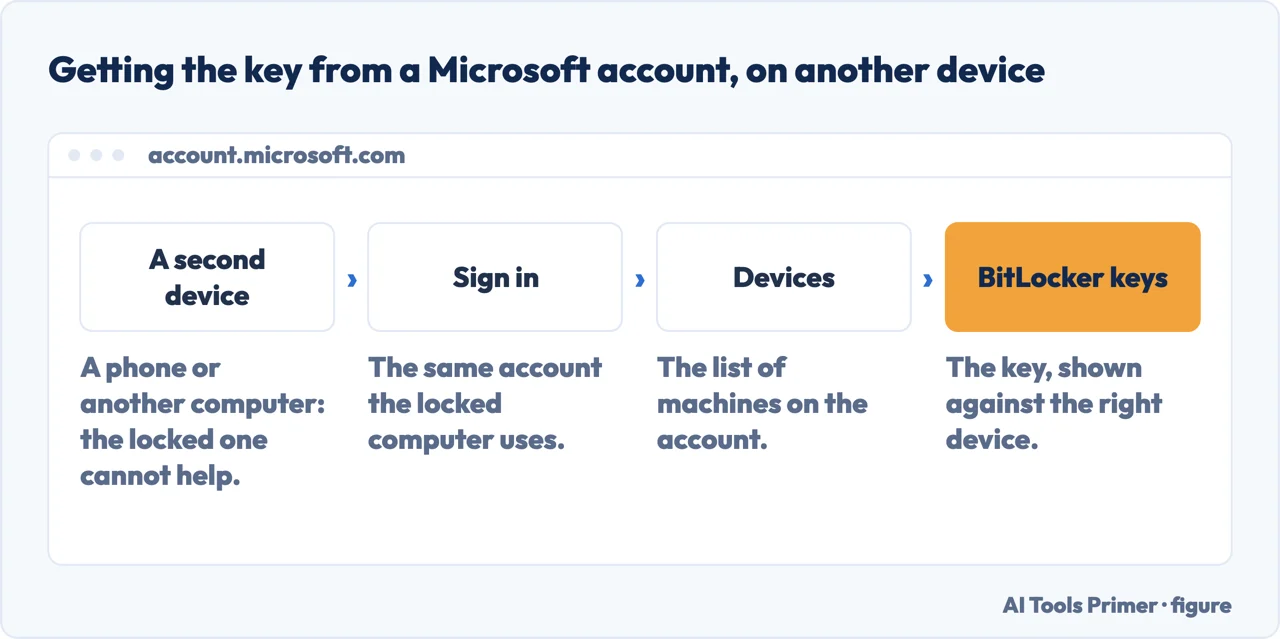
| Microsoft account | “From another device, open a web browser and go to https://aka.ms/myrecoverykey” |
| Work or school account | “From another device, open a web browser and go to https://aka.ms/aadrecoverykey” |
| A printout | “You might have printed your recovery key when BitLocker was activated. Look where you keep important papers related to your device.” |
| A USB flash drive | “Plug the USB flash drive into your locked device and follow the instructions.” |
Both web addresses are meant to be opened on another device — a phone will do. The locked machine cannot help you here, and there is no reason to keep restarting it while you look.
The key may not be in your account at all. Microsoft: “If the device was set up, or if BitLocker was turned on, by somebody else, the recovery key might be stored in that person’s Microsoft account.” And for a managed machine: “If your device is managed by an organization, check with your IT department to retrieve the recovery key.”
Newer machines narrow the search themselves. “Starting in Windows 11, version 24H2, the BitLocker recovery screen shows a hint of the Microsoft account associated with the recovery key.” If a hint is on screen, it is telling you which account to sign into.
On recent versions of Windows the screen holds more than it shows, and one keystroke opens it.
Press Alt, and the screen says why
On Windows 11 version 24H2 and later: “Users have the option to review additional information about the recovery error by pressing the Alt key.” Codes and causes quoted from Microsoft Learn, BitLocker preboot recovery screen. Read 23 August 2026.
| Code | Cause Microsoft publishes |
|---|---|
| E_FVE_DEVICE_LOCKEDOUT | “Device lockout triggered due to too many incorrect sign in attempts.” |
| E_FVE_BAD_CODE_ID | “BitLocker entered recovery mode because a boot application changed.” |
| E_FVE_TPM_DISABLED | “A TPM is present but is disabled for use before or during boot.” |
| E_FVE_TPM_NOT_DETECTED | “The booting system doesn’t have or doesn’t detect a TPM.” |
| E_FVE_BAD_SRK | “The TPM’s internal Storage Root Key is corrupted.” |
| E_FVE_CI_DISABLED | “Driver signature enforcement is disabled.” |
| E_FVE_RECOVERY_ERROR_UNKNOWN | “BitLocker entered recovery mode because of an unknown error.” |
Two of the published causes name their own remedy, which is why this keystroke is worth trying before anything else. For a configuration change: “A bootable media is inserted. Removing it and restarting your device might fix this problem”. And where Secure Boot is involved: “Re-enabling Secure Boot and rebooting the system might fix the recovery issue. Otherwise, a recovery method is required to access the device.”
One more obstacle sits between people and their own key, and it is a matter of vocabulary rather than technology.
A naming difference that costs people their own key. Microsoft’s consumer page calls the number a recovery key: “This is a 48-digit number that lets you regain access”. Microsoft’s IT documentation uses the word differently — “Recovery password: a 48-digit number used to unlock a volume when it is in recovery mode” — and its known-issues page states it outright: “In this article, "recovery password" refers to the 48-digit recovery password and "recovery key" refers to 32-digit recovery key.”
So the same two words mean different things on two Microsoft sites. Someone searching an organisation’s records for a “recovery key” can be told none exists while the 48-digit password sits there under the other name.
Two documented cases where the prompt itself is the fault. Microsoft publishes a known issue titled around the sentence “Windows prompts for a BitLocker recovery password. However, a BitLocker recovery password wasn’t configured.” — the machine is asking for something that was never created.
And a second, tied to a specific update. Microsoft documents that uninstalling the cumulative update KB5063878, or a later one, and rolling the machine back to an earlier build causes BitLocker PIN unlock to fail. Worth knowing before removing an update to fix an unrelated problem — the rollback is the trigger, not the update itself.
“If you can’t find the BitLocker recovery key and are unable to undo any changes that caused it to be needed, you’ll have to reset your device using one of the Windows recovery options.”
“Resetting your device will remove all of your files.”
Microsoft states the ending plainly, and it is worth reading the first sentence twice: the alternative to finding the key is undoing the change that triggered the screen. Putting the old motherboard back, re-enabling the TPM, removing the bootable media, restoring the boot order. That is why the error code behind the Alt key matters — it names the change.
Who else might have it, seen from an organisation that holds thousands of them. The University of Connecticut describes the trigger in the same terms Microsoft does — BitLocker locks the drive “when BitLocker detects an unexpected change to the computer or a physical attempt to access the data by anyone other than the device owner” — and then adds the part that decides who can help you: “only the primary user of the computer can access the recovery key through the self- service portal”, and on a shared machine you have to go to local IT support. On a work laptop the key is very likely held for you. On a personal one, it is held only where you put it.
Which leaves the version of this page that matters most — the one read on a machine that is still working.
While the machine still works
Microsoft’s own backup options, quoted from “Back Up Your BitLocker Recovery Key”.
- Check it was saved at all. “In most situations, your BitLocker recovery key is automatically backed up when BitLocker is first activated”. In most situations — not all, and on the laptop known-issues page Microsoft is blunter: “BitLocker does not automatically manage this backup process.”
- Open the tool. “From Start, type BitLocker and select Manage BitLocker from the list of results”.
- Pick a destination. Four are offered: “Save to your Microsoft Account”, “Save to a USB flash drive”, “Save to a file”, “Print the recovery key”.
- Mind where the file lands. “You can’t save the file to the BitLocker encrypted drive, so you might have to save it to a USB drive”.
- And where the drive lands. “Don’t store this USB flash drive with the key on it with your computer.”
The whole event is avoidable when the change is planned. Microsoft: “For planned scenarios, such as a known hardware or firmware upgrades, initiating recovery can be avoided by temporarily suspending BitLocker protection”.
Suspend before the firmware update, resume after. It costs a minute and removes the most common trigger on the list above.
Where to start
Three ways in.
- “It is asking now and I need the number.”
- Go to when the machine will not start
- “Why did this even happen?”
- Start at when the machine will not start
- “My PC will not start at all.”
- That is Desktop won’t boot
When the machine will not start
This screen means Windows got far enough to ask a question. The pages below cover the cases where it never gets that far.
Encryption and passwords
What Windows encrypts by default, and where the keys and passwords for it actually live.
Not covered here. Every cause, error code, address and instruction on this page is quoted from Microsoft’s own documentation — the consumer support pages and the IT documentation on Microsoft Learn — and every source is listed below What holds instead is simple: the screen is a demand to be re-identified, not a failure, and the four places the key can be are listed above, with who can reach each one.
Sources
- Microsoft Support — Find your BitLocker recovery key (that Microsoft Support doesn’t have the ability to retrieve, provide, or recreate a lost BitLocker recovery key; that the key is a 48-digit number needed when BitLocker can’t automatically unlock an encrypted drive; the instruction to take note of the first 8 digits of the recovery key ID; the four places to look, with the addresses aka.ms/myrecoverykey and aka.ms/aadrecoverykey to be opened from another device, a printout and a USB flash drive; that the key might be stored in the Microsoft account of whoever set the device up; that from Windows 11 version 24H2 the recovery screen shows a hint of the associated Microsoft account; the instruction to check with an IT department on a managed device; and that without the key the device has to be reset, which removes all files) — support.microsoft.com, read 6 September 2026.
- Microsoft Learn — BitLocker recovery overview (the list of common events that cause a device to enter BitLocker recovery mode when starting Windows, quoted in the table on this page; the definition of the recovery password as a 48-digit number used to unlock a volume in recovery mode, and the destinations where it may be saved; that recovery can be avoided for planned hardware or firmware upgrades by temporarily suspending BitLocker protection; and that if a device is unable to boot after two failures, Startup Repair starts automatically) — learn.microsoft.com, read 23 August 2026.
- Microsoft Learn — BitLocker preboot recovery screen (that by default the recovery screen displays a generic message and the url aka.ms/recoverykeyfaq; that from Windows 11 version 24H2 users can review additional information about the recovery error by pressing the Alt key; the error codes and their published causes quoted in the table on this page; and the two remedies named in the causes — removing inserted bootable media and restarting, and re-enabling Secure Boot and rebooting) — learn.microsoft.com, read 23 August 2026.
- Microsoft Learn — BitLocker recovery known issues (the statement that in that article "recovery password" refers to the 48-digit recovery password and "recovery key" refers to the 32-digit recovery key; the known issue in which Windows prompts for a BitLocker recovery password that was never configured; that BitLocker does not automatically manage the backup process; and the PIN unlock failure that follows uninstalling cumulative update KB5063878, or a later one, and rolling the machine back to an earlier build) — learn.microsoft.com, read 23 August 2026.
- Microsoft Support — Back Up Your BitLocker Recovery Key (that in most situations the recovery key is automatically backed up when BitLocker is first activated; the instruction to type BitLocker at Start and select Manage BitLocker; the four backup destinations offered — Microsoft account, USB flash drive, file, printout; that the file cannot be saved to the BitLocker encrypted drive; and the warning not to store the USB flash drive holding the key with the computer) — support.microsoft.com, read 6 September 2026.
- University of Connecticut IT Knowledge Base — Getting a BitLocker recovery key: what triggers the lock, and who can retrieve the key on a managed or shared machine — kb.uconn.edu, read 4 September 2026.
Written by Alberto Gulotta
Founder and editor of AI Tools Primer, writing from Palermo, Italy. Thirty-five years of taking computers apart, starting with a Commodore 64 — the long version is on the about page.
Something wrong on this page? Write to aitoolsprimer@gmail.com and it gets fixed.
Written on 23 August 2026 · last checked 23 September 2026.
Independence and limits
No affiliate links and no paid placements anywhere on this site. Nobody pays to appear here, and no company has seen this page before you did.
This is general information, not professional advice. Where a page touches money, health, safety or the law, it names its source and the date it was read — and your situation may still differ. See the privacy page and the cookie policy.