
iPhone · guide
How to see saved passwords on iPhone, and where they moved
By Alberto Gulotta · Updated · 11 min read
The reason how to see saved passwords on iPhone is confusing is that the answer changed. They used to be a screen inside Settings; in iOS 18 they became an app of their own. Both routes are documented, and which one applies depends on the phone in your hand.
| Version | Where to look | What Apple says | Source |
|---|---|---|---|
| iOS 18 and later | The Passwords app | “To use the Passwords app, update to iOS 18” | Apple |
| iOS 17 and earlier | Settings › Passwords | “Tap Settings, then scroll down and tap Passwords” | Apple |
| Either | Face ID, Touch ID or the passcode first | The list does not open without one of them | Apple |
| Changing one | Tap Edit, then Change Password | It changes the entry, not the account | Apple |
| Deleting one | Tap Edit, then Delete | Apple’s note: “this action doesn’t remove the password or passkey from the website or app where you created it” | Apple |
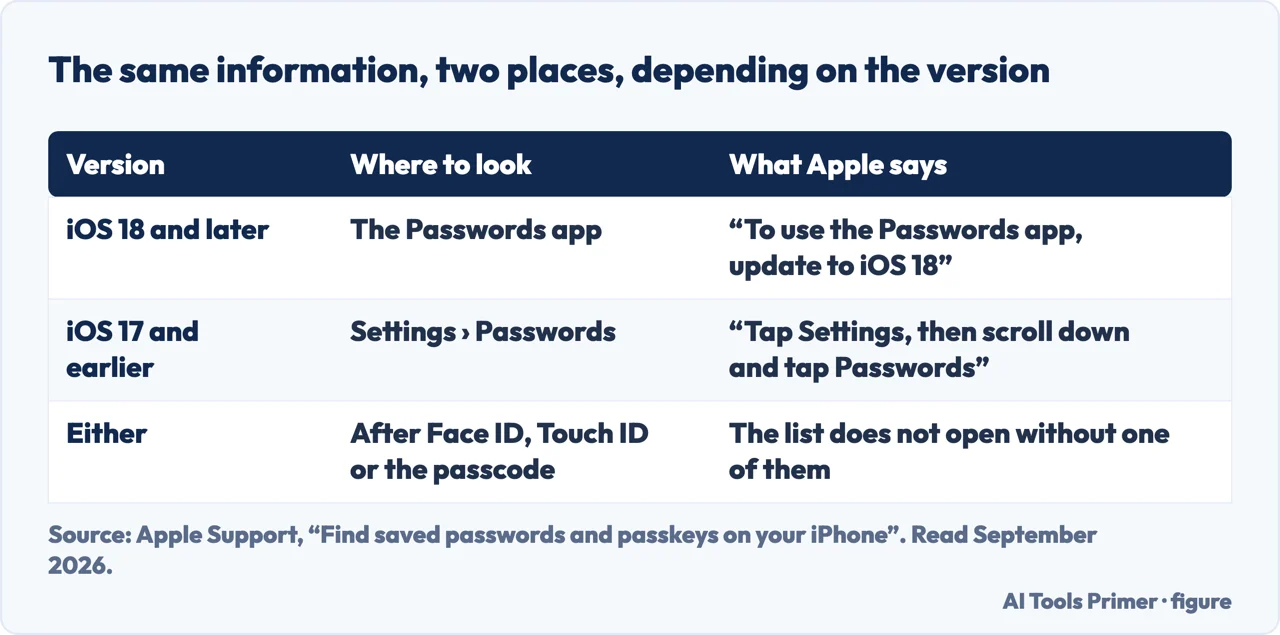
Two places, depending on the version
This is why an otherwise correct instruction can send you to a screen that is not there.
- iOS 18 and later
- Open the Passwords app, unlock with Face ID, Touch ID or your passcode, then “choose a category or Shared Group, then select a website or app.” Apple: “To use the Passwords app, update to iOS 18.”
- iOS 17 or earlier
- Tap Settings, scroll down and tap Passwords, authenticate, then select a website or app.
- Find out which route your phone has. On iOS 18 and later the passwords live in an app of their own; before that they were a screen inside Settings.
- Open the Passwords app — or Settings, then scroll down to Passwords. Both are Apple’s own wording for the two versions.
- Unlock with Face ID or Touch ID, or enter your passcode. Nothing is shown before this, on either route.
- Choose a category, or a Shared Group, then the website or app. The entry opens with the password in it.
- To change or remove one, tap Edit. Change Password edits the stored entry; Delete removes it from the phone and from nowhere else.
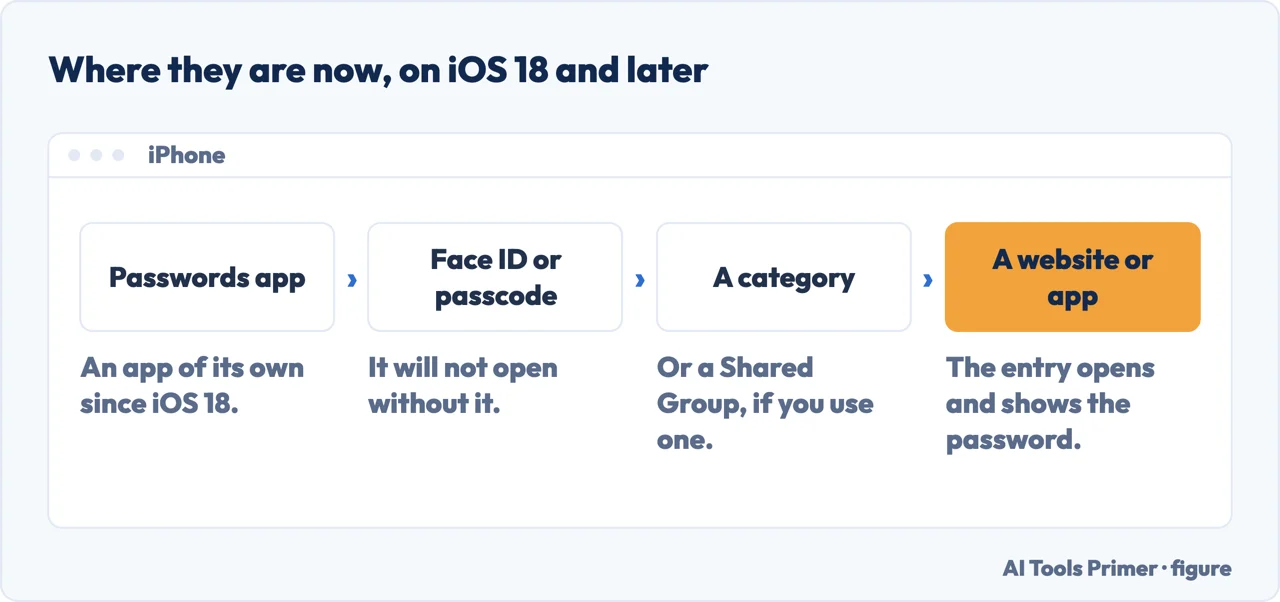
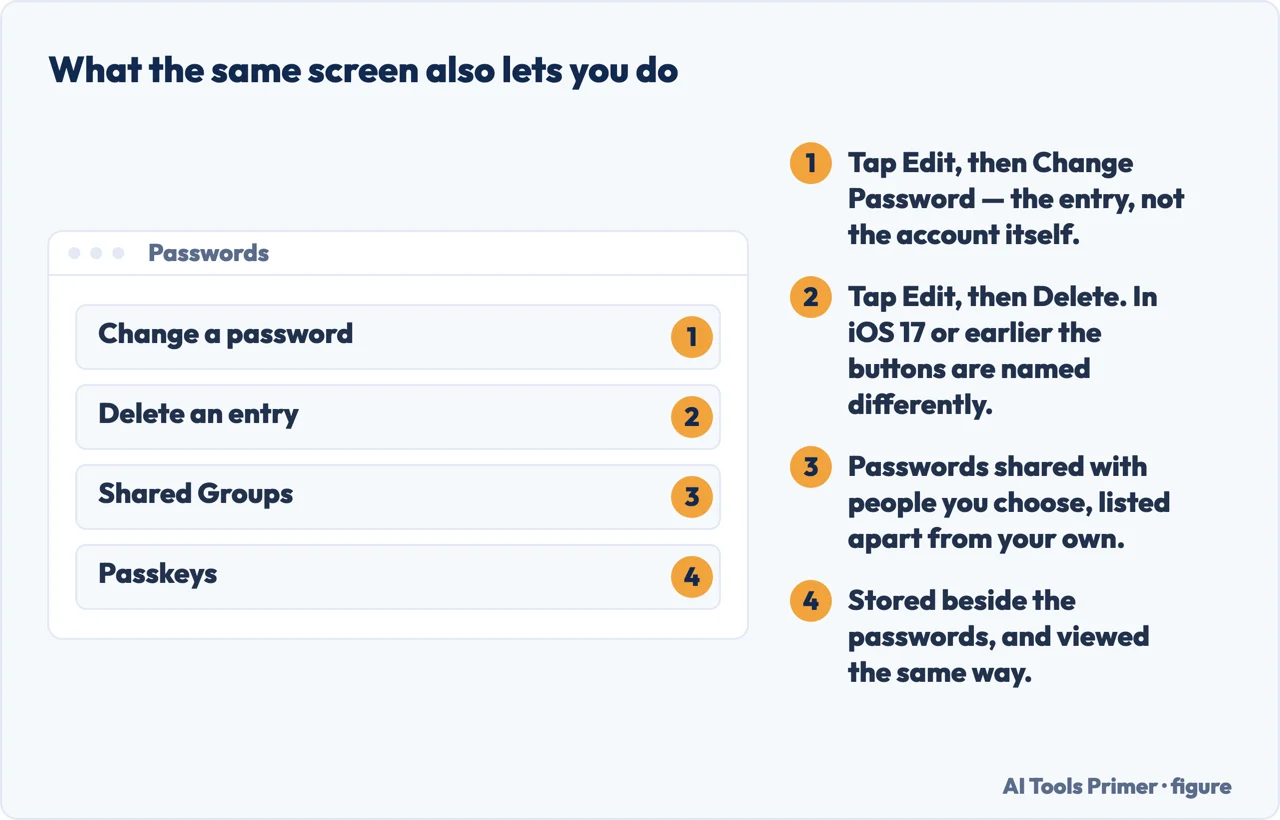
Either way the first step is the same, and Apple puts it in both sets of instructions: authenticate with Face ID, Touch ID or the passcode before anything is shown.
And if the list is short, the passwords may simply be somewhere else. A password typed into Chrome on the phone is saved by Google, not by Apple, and appears in Google Password Manager rather than in the Passwords app. Neither list shows the other, which is the commonest reason a password that certainly exists cannot be found.
“Get Siri’s attention, then say something like, ‘Show my passwords.’ If you’re looking for the password to a specific website or app, try something like, ‘What is my Hulu password?’”
Apple documents this as a convenience, and it is one. It is also worth knowing for the opposite reason: a spoken request is one of the documented routes to this information. Anybody weighing up what somebody holding their unlocked phone could reach should count Siri among the doors, not only the app icon on the Home Screen.
Whether that matters depends on who is near the phone and how Siri is set up. It is here because a page about where passwords live ought to name every route Apple documents to them, not only the convenient one.
If a password is not there — Apple’s four checks
Apple’s own order — and the first two are about looking at the wrong list rather than about anything being lost.
- Make sure you are seeing everything. In the Passwords app, “make sure to choose All”. In iOS 17 or earlier, “the Settings screen should say Passwords at the top, rather than a Shared Group name or My Passwords.”
- Check Recently Deleted. In the Passwords app, tap Deleted. In iOS 17 or earlier, Settings → Passwords → Recently Deleted.
- Check iCloud Keychain is on, if you have more than one Apple device.
- Shared Groups need recent software. A password moved to a Shared Group “is visible only on devices with compatible software” — Apple names iOS 17 or later.
The first of those is worth trying before assuming anything. The Passwords app groups entries, and a group is not the whole list — if you are looking at a Shared Group you are looking at a subset. Apple’s instruction is blunt: choose All. On the older Settings screen the same check is done by reading the heading.
“Note: This action doesn’t remove the account from the website or app where you created it.”
Apple attaches that note twice — once to removing an account entry, once to removing a password or passkey. Deleting the entry deletes your record of it. The account carries on existing, with whatever email address and whatever password it had, at the company that holds it. Tidying this list is not closing anything, and treating it as if it were is how people lose access to an account that is still very much open.
The field worth knowing about while you are in there. Apple documents a Notes field on each entry, for keeping “recovery key information, security questions, PIN numbers, and similar details” alongside the password — Passwords app → All → the account → Edit → Notes. That is a documented home for the answers to security questions, which otherwise tend to live on paper or nowhere.
Two smaller things from the same guide that make the app more useful than a list. You can copy a password without reading it aloud or retyping it — tap the account, tap the Password field, then Copy Password. And each entry holds the website: tapping the URL offers Copy Website, so the account entry can be the way you get to the site rather than a place you go after arriving.
The guides below take it three ways: where the passwords are now, what to do when one is missing, and the neighbouring settings about what a phone reveals and to whom.
Where to start
Three ways in.
- “There is no Passwords in Settings.”
- Start at where they moved
- “One of them is missing.”
- Go to the four checks
- “I want to delete an old account.”
- Read deleting an entry
Where they moved
A screen inside Settings until iOS 17, an app of its own from iOS 18. Both are documented, and a guide naming only one will be wrong for half the phones.
The four checks
Apple publishes an order for a password that seems to have vanished, and the first two checks are about looking at the wrong list rather than about loss.
Deleting an entry
Apple says twice that removing a password does not remove the account. The list is your record of a thing, not the thing itself.
Questions people also ask
How do I view saved passwords on iPhone?
On iOS 18 and later, open the Passwords app and unlock it with Face ID, Touch ID or your passcode, then choose a category and the website or app. On iOS 17 or earlier the same list is in Settings › Passwords.
Why can’t I find the Passwords app?
Because it arrived with iOS 18: Apple’s instruction is “to use the Passwords app, update to iOS 18”. On an earlier version the passwords are still there, in Settings, further down the list.
How do I change a saved password?
Open the entry, tap Edit, then Change Password. Note what that does and does not do: it updates what the phone remembers, and the site itself still has the old one until you change it there too.
If I delete a password, is the account gone?
No. Apple attaches the same note to both actions: “this action doesn’t remove the account from the website or app where you created it”, and the same for a password or a passkey. You have forgotten it, not closed it.
Not covered here. It will not describe one route. The location changed with iOS 18, and both versions are given because both phones are in use.
It will not treat deleting an entry as closing an account. Apple says the opposite twice, and it is the sentence most likely to matter later.
And it will not leave Siri out. It is a documented way to reach these passwords, which makes it part of the answer to where they are. What holds instead is simple: the two routes by iOS version and the note that deleting an entry does not remove the account are Apple’s own.
Sources
- Apple, Find saved passwords and passkeys on your iPhone (that the Passwords app requires iOS 18; the route to open it, unlock with Face ID, Touch ID or a passcode and choose a category or Shared Group; the iOS 17 or earlier route via Settings → Passwords; the Siri phrasings “Show my passwords” and “What is my Hulu password?”; and the four checks when a password cannot be found — choosing All in the Passwords app or confirming the Settings heading says Passwords rather than a Shared Group name, checking Deleted or Recently Deleted, ensuring iCloud Keychain is on across multiple devices, and the note that a password moved to a Shared Group is visible only on devices with compatible software, namely iOS 17 or later) — support.apple.com, read 22 August 2026.
- Apple, iPhone User Guide — View your passwords and related information on iPhone (that iCloud Keychain keeps the information up to date across approved devices; tapping an account and the Password field, and Copy Password; the Notes field for recovery key information, security questions, PIN numbers and similar details; Copy Website from an account entry; and the notes that removing an account, a password or a passkey does not remove the account, password or passkey from the website or app where it was created) — support.apple.com, read 3 September 2026.
- Google Password Manager — where the same passwords live for anyone who saved them in Chrome instead of on the phone — passwords.google, read 3 September 2026.
Written by Alberto Gulotta
Founder and editor of AI Tools Primer, writing from Palermo, Italy. Thirty-five years of taking computers apart, starting with a Commodore 64 — the long version is on the about page.
Something wrong on this page? Write to aitoolsprimer@gmail.com and it gets fixed.
Written on 22 August 2026 · last checked 23 September 2026.
Independence and limits
No affiliate links and no paid placements anywhere on this site. Nobody pays to appear here, and no company has seen this page before you did.
This is general information, not professional advice. Where a page touches money, health, safety or the law, it names its source and the date it was read — and your situation may still differ. See the privacy page and the cookie policy.