You changed the password on your provider’s website, and now the phone asks for it every twenty minutes. How to update email password on iphone is a short answer with one field in it — and two things around it that decide whether the afternoon goes well.
Settings › Apps › Mail › Mail Accounts › the account › Account › Password
That is the field. Before you use it, the warning Apple puts at the top of both of its pages on this, because the shortcut people are usually pointed at is to delete the account and add it back.
“When you make an iOS or iPadOS backup in iCloud or iTunes, it backs up your mail
settings, but not your email. If you delete or change your email account settings,
previously downloaded emails might be removed from your device.”
Apple says this twice, at the top of two separate pages, and it is the reason to change the
password rather than take the usual advice and delete the account. A backup will not bring the
messages back, because a backup never had them. For an account left on the server that is a
nuisance; for an account whose only copy of ten years of mail is on the phone, it is the
whole story.
So: change the password in place. Deleting and re-adding is the heavier instrument, and Apple’s own wording covers both — changed account settings, not only deleted ones, can take downloaded mail with them.
Then the part that turns a two-minute job into an evening. The password you just set may not be the password the Mail app is asking for.
The password you just changedWhat you think Mail wants
The one you type into your provider’s website. Apple’s check is exactly that: “To check your
email address and password, sign in to your email provider’s website.”
Which is a better instruction than it looks. It settles what the password actually is somewhere
that will accept it, before you start typing it into a field on a phone.
A special passwordWhat Mail may actually want
Apple: ask your provider “if you turned on any security features or restrictions, like
two-step verification, for your email account. You might need a special password
or might need to request authorization from your email provider.”
So the right password can fail, and the fix is not on the phone at all. Apple sends you to the
provider, twice, and names them as the ones who authorise the device.
That second card is the one that turns a wrong assumption into a lost afternoon. If your provider has two-step verification switched on, the account is arranged so that a password alone is not enough. Apple’s answer is not a trick on the phone: it is that you “might need a special password” — one the provider issues for this purpose — and it points you at them, because that password is theirs to give rather than yours to choose. The name on your provider’s settings screen may be “two-step” or “two-factor” and it does not tell you which arrangement you have — two-factor and two-step has the difference, and the reason Google and Microsoft use the words interchangeably.
It is worth knowing this exists before you spend an hour convinced you are mistyping. A correct password can be refused for a reason that has nothing to do with what you typed. Apple’s phrasing is careful and worth taking literally: you “might need a special password or might need to request authorization from your email provider to send and receive email on your device.” Two different arrangements, both of which live on the provider’s site rather than on the phone.
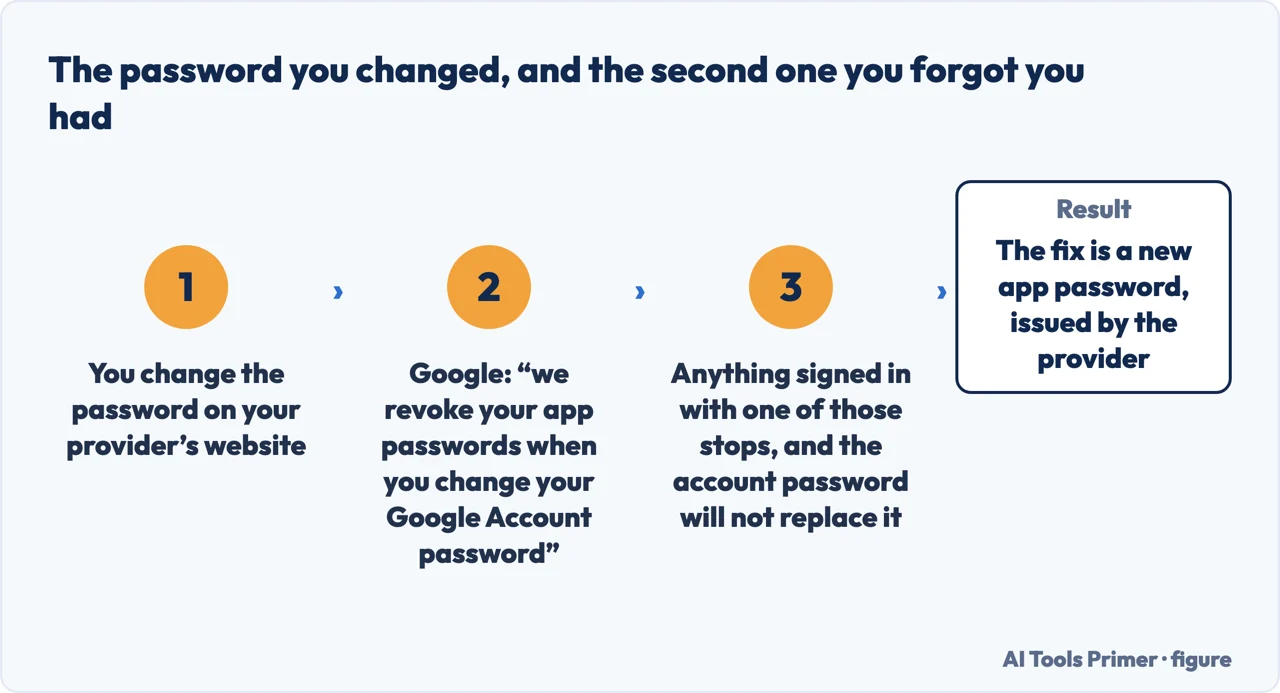
One provider publishes exactly what that “special password” is, and one consequence of it that belongs on this page. Google calls it an app password — “a 16-digit passcode that gives a less secure app or device permission to access your Google Account” — and says it exists only on accounts that have 2-Step Verification turned on. The part that matters here is what happens when you do the very thing this guide is about: “To help protect your account, we revoke your app passwords when you change your Google Account password.” So on a Google account, changing the password can stop a second password you had forgotten existed, and the new account password will not stand in for it — a new app password has to be created. Google adds a note worth reading before creating one at all: “iPhones and iPads with iOS 11 or up don’t require app passwords. Instead use ‘Sign in with Google.’” That is Google describing Google accounts; another provider’s arrangement may differ, and the place to ask is that provider.
The password that fixes it is issued by the provider, not chosen by you. Figure drawn by AI Tools Primer.
Two free diagnostics before you change anything
Look for an Outbox. Apple: “Tap Outbox. If you don’t see an Outbox, then your email
was sent.” The mailbox only exists while something is stuck in it, so its absence is an
answer — the sending half is fine and the problem is elsewhere.
Look for Undo Send. “If Undo Send is available, the message has not been sent.”
The button that looks like a recall is also a status light.
Check for an outage. Apple puts this before any of the fiddling: “Check with your email
service provider to find out if there’s a service outage.” A password that stopped working at
nine in the morning, for everybody, was never the password.
The first of those three is the one that saves the most effort, because it decides which half of the problem you have. Mail that will not send and mail that will not arrive are separate faults with separate Apple pages behind them, and an Outbox that does not exist tells you the sending half is working before you touch a single setting.
And the setting that explains mail arriving in batches rather than when it is sent. Apple
on Fetch New Data: “With iOS 11 and later, and iPadOS, Automatically is set by default. Your device
will fetch new data in the background only when your device is charging and connected to
Wi-Fi.”
Read that once and a familiar pattern stops being mysterious: nothing all afternoon, then eleven
messages the moment the phone goes on charge in the evening. That is not a broken account. It is
the default doing precisely what Apple documents, and the fix is a schedule rather than a password.
One last thing about where the account came from, because it changes what is at stake. Apple’s warning about downloaded mail matters most on accounts that keep their only copy on the device. If the account leaves everything on the server, removing it and adding it back costs you a download. If it pulled the mail down and stopped keeping a copy on the server, the messages on that phone are the archive. Knowing which you have is worth the two minutes it takes to look, and it is the difference between an inconvenience and a loss.
The guides below take it four ways: the field itself, the password that is not your password, the checks that cost nothing, and the mail that arrives late rather than not at all.
The reason a correct password is refused. Two-step verification changes what the Mail app is allowed to do with a password, and the answer is issued by the provider.
Not covered here. It will not tell you to delete the account and add it back as the first move. Apple warns twice that changed or deleted account settings can take downloaded mail with them, and a backup will not have it.
It will not pretend a refused password means you typed it wrong. Two-step verification makes a correct password insufficient by design, and the fix is issued by the provider.
And it will not send you to a mail app to solve a password problem. The account is the same account whichever program reads it, and a new app inherits the same refusal. What holds instead is simple: the warning about downloaded mail and the two-step verification note are Apple’s own, quoted with the Outbox and Undo Send diagnostics.
Email that is not arriving
Four places the message can be, none of which is the one you are looking in.
Apple Support — If you can’t receive email on your iPhone or iPad (the warning that backups include mail settings but not email, the instruction to verify the password by signing in on the provider’s website, the two-step verification note about needing a special password, and the Fetch New Data settings with the charging and Wi-Fi conditions) — support.apple.com, read 22 August 2026.
Apple Support — If you can’t send email on your iPhone or iPad (the same warning about account settings and downloaded email, the Outbox check and what its absence means, and the Undo Send button as an indication that a message has not been sent) — support.apple.com, read 22 August 2026.
Google Account Help — Sign in with app passwords (that an app password is a 16-digit passcode giving a less secure app or device permission to access a Google Account, and can only be used with accounts that have 2-Step Verification turned on; that Google revokes app passwords when the Google Account password is changed, so a new one must be created to keep using the app; that iPhones and iPads with iOS 11 or up do not require app passwords and should use Sign in with Google instead; and that every app password can only be checked once). Google accounts only — support.google.com, read 5 September 2026.
AG
Written by Alberto Gulotta
Founder and editor of AI Tools Primer, writing from Palermo, Italy. Thirty-five years of
taking computers apart, starting with a Commodore 64 — the long version is on the
about page.
Written on 22 August 2026 · last checked 23 September 2026.
§
Independence and limits
No affiliate links and no paid placements anywhere on this site. Nobody pays to appear here,
and no company has seen this page before you did.
This is general information, not professional advice. Where a page touches money, health,
safety or the law, it names its source and the date it was read — and your situation may
still differ. See the privacy page and the
cookie policy.