Not getting emails on iPhone is rarely mail that failed to arrive. In Apple’s own documentation it splits into two very different things: the app did not go and get it, or it got it and did not tell you. The settings behind each are published, and two of them are on by default.
Start with collection, because the default is stricter than almost anyone realises.
Push is a capability, not a preference
“By default, Fetch New Data settings are based on what’s provided by your
email service. If Push isn’t available as a setting, your account will default to
Fetch.”
And on the iCloud Mail page: “If you have multiple email accounts, tap your iCloud
account and turn on Push. You can only use Push with one account at a time.”
So the switch you are looking for may not be there, and if it is, it belongs to one account
and not the others. A person with a work address and a personal one cannot have both on
Push, and the second one is fetching on a schedule whether they chose that or not.
The fallback has two conditions attached, and they are the useful part: “With iOS 11 and
later, and iPadOS, Automatically is set by default. Your device will fetch new data in
the background only when your device is charging and connected to Wi-Fi.” Read that
literally. A phone off the charger, on cellular, is not fetching in the background at
all — it collects the mail when you open the app. That is the documented behaviour of
the default setting, not a fault.
That single sentence — background fetching happens only while charging and on Wi-Fi — explains the most common version of this complaint: mail appears when you open the app, and not before. It is the documented behaviour of the setting Apple turns on for you.
And there is a second, larger switch that turns collection off entirely.
Among the features Low Power Mode suspends, Apple lists one by name:
“Email fetch: turned off”. With two published thresholds around it: “If
your device supports Adaptive Power and it’s turned on, Low Power Mode turns on when
your battery goes below 20%”, and “When you charge the device to 80% or
higher, Low Power Mode turns off.”
Put that beside the previous box and a whole afternoon of missing mail explains itself.
A phone below twenty per cent may have switched off email fetch by itself, and it stays
that way until it is charged to eighty. Nothing is broken, nothing was lost, and the messages
arrive in a batch the moment the condition clears — which is exactly what it looks like
when people say the mail “came all at once”.
Now the other half of the question, where the mail is already on the phone.
The badge can be telling the truth about the wrong thing
“When you use the categories option in Mail in iOS 18.2, the badge alert for
Mail on your Home screen only shows the number of unread messages in your Primary
category.” The setting that changes it: “Under Badge Count, tap All Unread
Messages.”
This is the case where the mail did arrive, the phone did fetch it, and the icon says nothing.
With categories on, a message sorted into Transactions or Promotions does not raise the
number on the icon — and somebody who has always used that number as their signal
will conclude that nothing came. The message is in the app, one tab away.
The remaining causes are all versions of the same thing: the message arrived and the signal did not.
Silenced, not missing
notifications
Apple documents muting a thread, but not for a length of time: open a message in the conversation, tap the menu button, then “tap Mute”. There is no hour and no until-tonight. What is adjustable is what happens to the mail itself, under Settings, Apps, Mail, “Muted Thread Action”.
Which makes it a better explanation than a timer would be: a thread you silenced weeks ago is still silent now, the messages are still arriving, and nothing in the mailbox will mention it.
It went to the phone
apple watch
“If your iPhone is unlocked, you get notifications on your iPhone instead of your
Apple Watch.”
Mail that never buzzed on the wrist was delivered to the phone in your hand.
Only some days exist
exchange
On a work account: “Tap Mail Days to Sync to change the number of days Mail will
sync with your Exchange mailbox.”
Older mail is not missing from the server — it is outside the window you set.
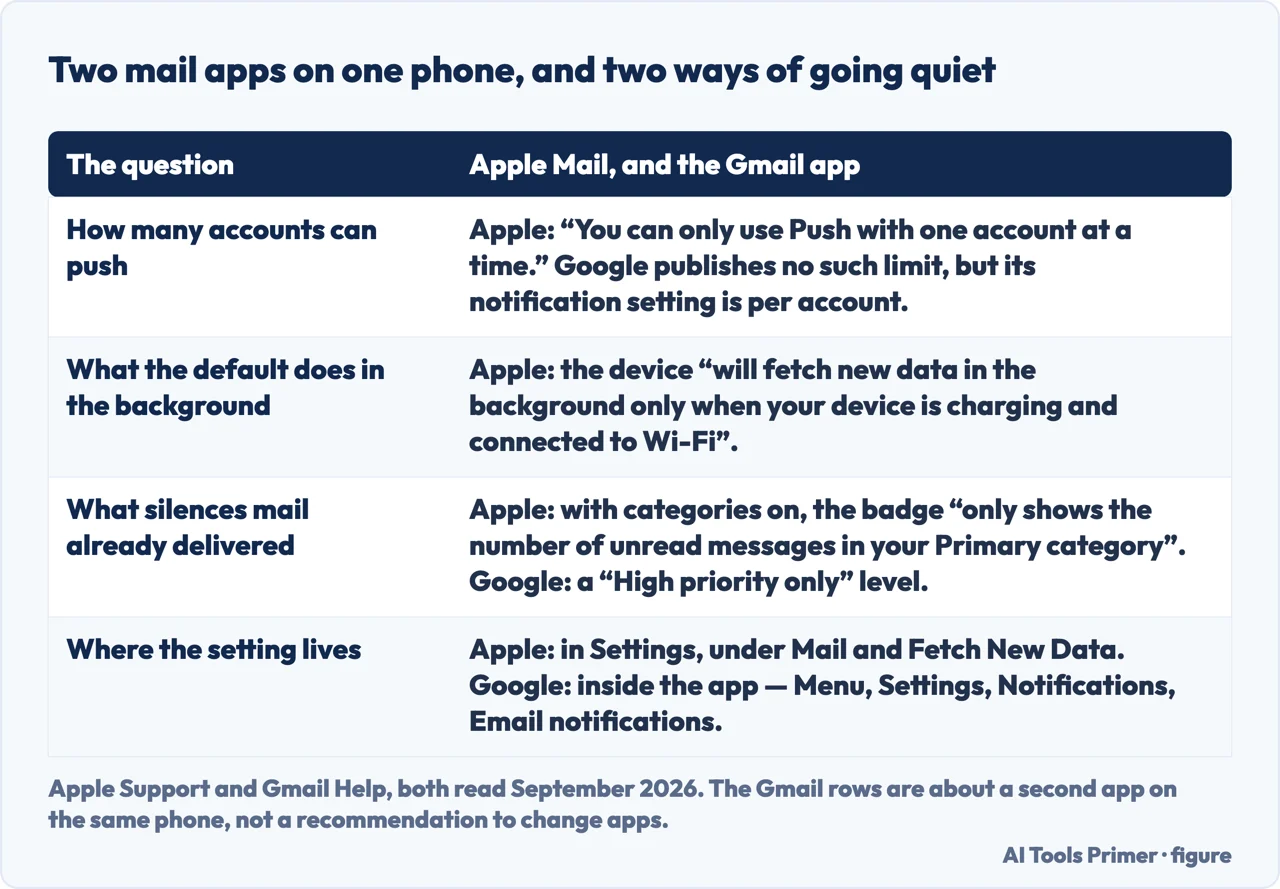
All of that is the Mail app, and it is not the only mail application on the phone. The second one has its own way of going quiet, and it is worth checking if the missing mail arrives there. Google’s notification setting for the Gmail app is not a switch but a level: beside on and off there is “High priority only”, which alerts you for the messages it treats as important and stays silent for the rest. That is the same shape as the Mail badge with categories on — delivered, and nothing said — reached from a different menu, inside the app rather than in Settings. And it carries the same trap as Apple’s Push: “If you have multiple accounts in the Gmail app, change this setting for each account.” A setting corrected on one address leaves the other exactly as it was.
Two applications on one phone, with two different ways of saying nothing. Quotations from Apple and from Google. Figure drawn by AI Tools Primer.
One of those deserves emphasis because it is invisible from the phone. On a work Exchange account, the number of days Mail keeps is a setting — mail older than that window is not on the device at all, and it has not been deleted from the server. Somebody searching their iPhone for a message from two months ago may be searching a copy that was never meant to hold it.
Two Apple warnings to read before changing anything, because both destroy mail rather than find
it. On mailboxes: “When you delete a custom mailbox, it permanently deletes all of the
email messages inside the mailbox and from your account.” And on removing and re-adding the
account: “If you delete or change your
email account settings, previously downloaded emails might be removed from your device.”
Apple puts that sentence under a heading called Before you begin, which is where it
belongs.
One more setting worth knowing about before you try to add an account and cannot: “If you’re not in a familiar location, you must first turn off Stolen Device Protection before you configure an Exchange account”. A work account that refuses to set itself up in a hotel is not broken; it is a security feature doing what it says.
So the order that follows from the documentation. Check whether the phone is on Low Power Mode, because that switches email fetch off by name. Then check Fetch New Data, knowing that Push may not exist for your provider and can belong to only one account. Then check the badge setting, if the icon is your signal and you are on iOS 18.2 or later. Only then consider touching the account, which Apple warns can remove mail already downloaded.
A note on where this question gets answered. On the first page of results for the general version of this question, read on 23 August 2026, the only first-party documentation is Apple’s article on this exact iPhone problem — which is the one page most of the material above comes from, and the one that says background fetch needs a charger and Wi-Fi.
What this page will not do is tell you the mail was never sent. That is a question for the account rather than the phone, and it is covered by the guide on email that stops arriving, linked below.
It will not tell you to delete and re-add the account first. Apple publishes a warning about exactly that, and every check above is reversible in seconds.
And it will not recommend a third-party mail app. The behaviours above belong to the account and the operating system, and a different app inherits most of them.
Where to start
Three ways in. If mail only appears when you open the app, take the first.
A badge counting one category, a muted thread, a notification sent to the phone instead of the watch, and an Exchange window that ends before the message you want.
Not covered here. It will not tell you to delete and re-add the account first. Apple warns in writing that changing account settings can remove emails already on the device.
It will not recommend a third-party mail app. Most of the behaviours above belong to the account and to iOS, and follow you into any app.
It will not diagnose the sender’s side. Mail that never reached your provider is a different question, on a different guide.
And it carries no affiliate links, including for storage plans and mail services, the products a guide on this subject usually exists to sell. What holds instead is simple: every default, threshold and warning above is quoted from Apple directly, and where a setting is on unless you changed it this page says so; the Apple pages are listed below.
Email that is not arriving
Four guides: email that is not arriving, an iPhone not getting email, recovering deleted email and updating an email password on an iPhone.
Apple Support — If you can’t receive email on your iPhone or iPad (that by default Fetch New Data settings are based on what the email service provides, and that if Push is not available as a setting the account defaults to Fetch; and the warning that if you delete or change your email account settings, previously downloaded emails might be removed from your device) — support.apple.com, read 24 August 2026.
Apple Support — If iCloud Mail isn’t working (the instruction that with multiple email accounts you tap the iCloud account and turn on Push, and that you can only use Push with one account at a time) — support.apple.com, read 24 August 2026.
Apple Support — Customize your Mail notifications on your iPhone or iPad (that when the categories option is used in Mail in iOS 18.2 the badge alert for Mail on the Home screen only shows the number of unread messages in the Primary category, and the route through Settings, Apps, Notifications and Customize Notifications where, under Badge Count, All Unread Messages can be tapped) — support.apple.com, read 24 August 2026.
Apple Support — Set email notifications on iPhone, iPhone User Guide (that to reduce interruptions from busy email threads you open a message in the conversation, tap the menu button and tap Mute, with no duration offered; and that what happens to muted messages is set separately under Settings, Apps, Mail, Muted Thread Action) — support.apple.com, read 24 August 2026.
Apple Support — Notifications on your Apple Watch (that notifications appear on the Apple Watch or the iPhone but not both, and that if the iPhone is unlocked you get notifications on the iPhone instead of the Apple Watch) — support.apple.com, read 24 August 2026.
Apple Support — Use mailboxes to organize email messages on your iPhone or iPad (that when you delete a custom mailbox it permanently deletes all of the email messages inside the mailbox and from your account, and that messages can be moved to another mailbox first) — support.apple.com, read 24 August 2026.
Apple Support — Set up Exchange ActiveSync on your iPhone, iPad, or Apple Vision Pro (the instruction to tap Mail Days to Sync to change the number of days Mail will sync with the Exchange mailbox, and that limiting the range gives faster syncing on a large mailbox) — support.apple.com, read 24 August 2026.
Apple Support — Use Low Power Mode to save battery life on your iPhone or iPad (that Low Power Mode turns off Email fetch, that with Adaptive Power enabled it turns itself on when the battery goes below 20%, and that it turns off again when the device is charged to 80% or higher) — support.apple.com, read 16 September 2026.
Google — Change Gmail notifications, iPhone and iPad, Gmail Help (that the Gmail app offers a notification level rather than a single switch, reached through Menu, Settings, Notifications and Email notifications, with High priority only alerting for important messages; that device notifications must be turned on for the app to notify at all; and that with multiple accounts in the Gmail app the setting has to be changed for each account) — support.google.com, read 6 September 2026.
AG
Written by Alberto Gulotta
Founder and editor of AI Tools Primer, writing from Palermo, Italy. Thirty-five years of
taking computers apart, starting with a Commodore 64 — the long version is on the
about page.
Written on 23 August 2026 · last checked 16 September 2026.
§
Independence and limits
No affiliate links and no paid placements anywhere on this site. Nobody pays to appear here,
and no company has seen this page before you did.
This is general information, not professional advice. Where a page touches money, health,
safety or the law, it names its source and the date it was read — and your situation may
still differ. See the privacy page and the
cookie policy.