
iPhone · guide
How to hide apps on iPhone, and where the name still shows
By Alberto Gulotta · Updated · 10 min read
Apple offers two features here rather than one, and how to hide apps on iPhone is the second of them. Knowing which you want takes less time than doing the wrong one.
The app stays where it is and “requires Face ID, Touch ID, or your passcode to open”. Apple adds that information inside a locked app “won’t appear in other locations — for example, in CarPlay, notification previews, search, Siri suggestions, or your call history”. After you quit it, it relocks.
Locking, plus removal from the Home Screen. The app “disappears from your Home Screen and moves to the Hidden folder at the bottom of App Library”, reachable by swiping left past every Home Screen page and authenticating.
Hiding one, in Apple’s steps
The route starts in the same menu as locking, because hiding is locking with an extra step.
- Go to the Home Screen and find the app.
- Touch and hold the icon until the menu opens.
- Tap Require Face ID (or Touch ID or Passcode).
- Tap Hide and Require Face ID, authenticate, then tap Hide App.
Note that hiding runs through the locking menu. There is no separate hide command: you require authentication first, and then choose to remove the icon as well. Which means anybody who has locked an app has already seen the door to hiding it.
“When you hide an app, its name is still visible in some places, such as Screen Time, Battery Usage By App (in Settings), and your App Store purchase history.”
Apple’s own sentence, in the iPhone User Guide for iOS 26, and it is the one that decides whether this feature does what you want. Hiding removes an icon and adds a lock; it does not remove the app’s name from the phone. Three ordinary screens still list it, and none of them requires anything clever to open. If the purpose is that nobody knows the app exists, this is not the feature that achieves it — and Apple said so rather than letting you find out.
The guide for iOS 27 has dropped that sentence, and read on 16 September 2026 it puts nothing in its place: it says where a hidden app goes, and no longer says where its name stays. That is a silence rather than a change of behaviour, and it is reported here as a silence. Both versions still carry the same tip — “to view a list of your hidden apps, go to the Settings app, tap Apps, then tap Hidden Apps” — which is one more screen on which the names are written down.
That list is short and specific, and it is the difference between a feature and a promise. Two of the three are ordinary settings screens and the third is a list kept by the App Store. None of them is behind the authentication that guards the app itself. Hiding an app is genuinely useful for handing somebody your unlocked phone — Apple’s own framing is wanting “peace of mind that they can’t get into certain apps” — and it is not a way to make an app unfindable.
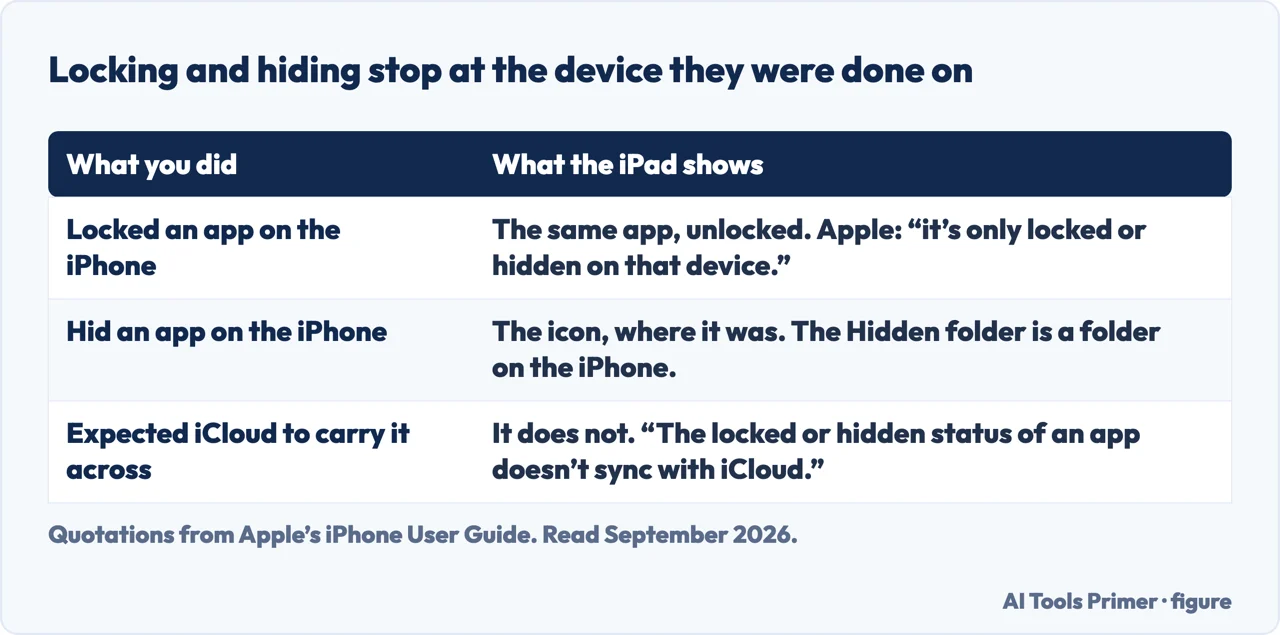
There is a second limit in the same guide, and it matters on any household with more than one Apple device: “When you lock or hide an app on your iPhone, it’s only locked or hidden on that iPhone. The locked or hidden status of an app doesn’t sync with iCloud.” So the same app on an iPad is exactly where it was.
“Anyone aged 13 to 17 in a Family Sharing group can lock or hide an app, but a parent or guardian in the family group can see that the app was downloaded and how much time it’s used, and restrict access to it using Screen Time.”
And below thirteen the feature is not available at all: Apple states that “children under 13 in a Family Sharing group can’t lock or hide apps.” It adds that “these ages vary by country or region”. Worth knowing from both sides of that arrangement — a teenager should know what hiding does not conceal, and a parent should know it is not a way for an app to vanish from their view.
What cannot be hidden or locked. Apple: “Apps that come installed can’t be hidden — only apps you download separately from the App Store can be hidden”, and an app set as the default web browser or app marketplace cannot be hidden either. Locking has its own exclusions, and Apple lists them: Calculator, Camera, Clock, Contacts, Find My, Maps, Shortcuts and Settings. So a request that fails on one of these is not a fault in the phone or a step you missed.
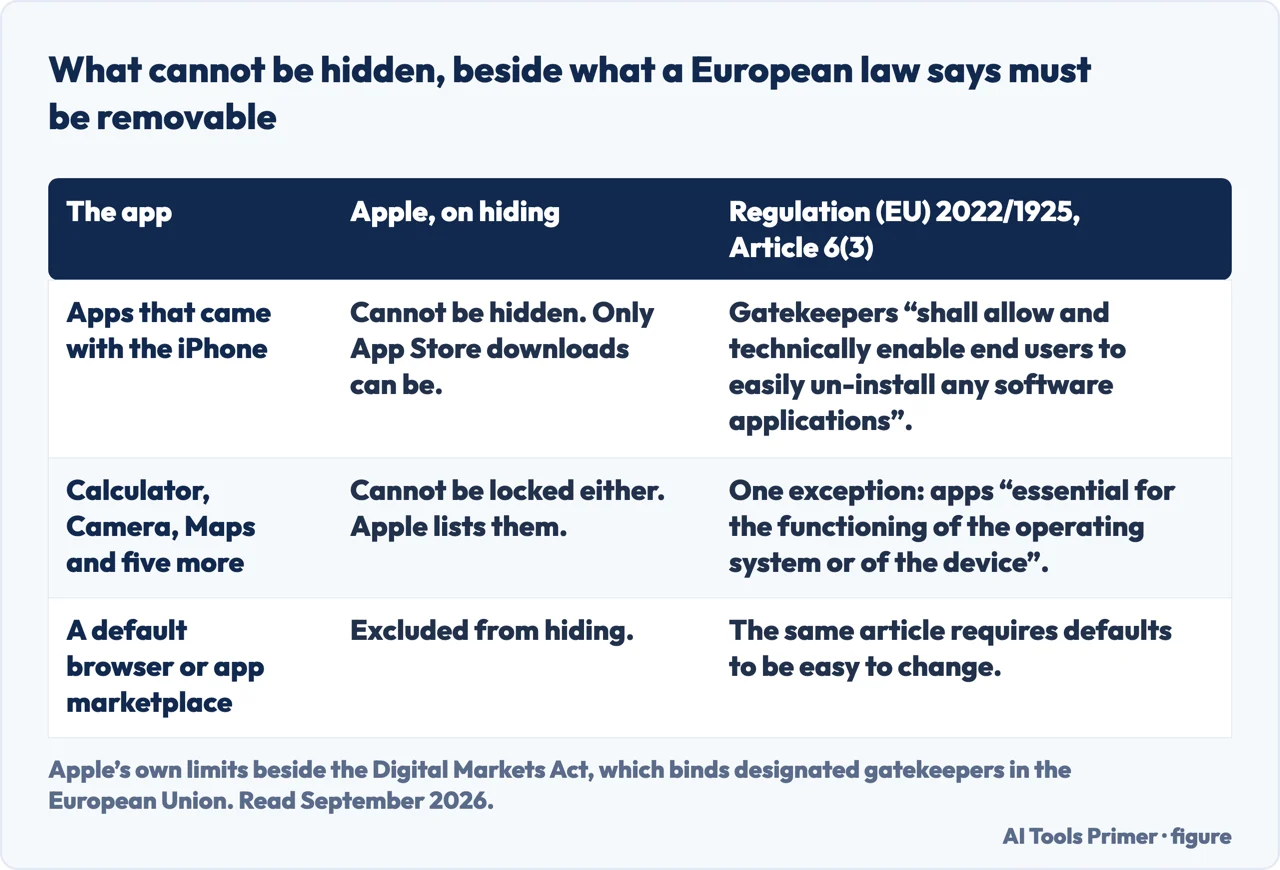
There is a route past that last limit, and it is not Apple’s. In the European Union the Digital Markets Act requires a designated gatekeeper to “shall allow and technically enable end users to easily un-install any software applications on the operating system of the gatekeeper”, with one exception for applications “essential for the functioning of the operating system or of the device”. Hiding and un-installing are not the same act — one leaves the app on the phone and the other does not — but if the reason for hiding a built-in app was simply to stop seeing it, that is the law under which a second option exists.
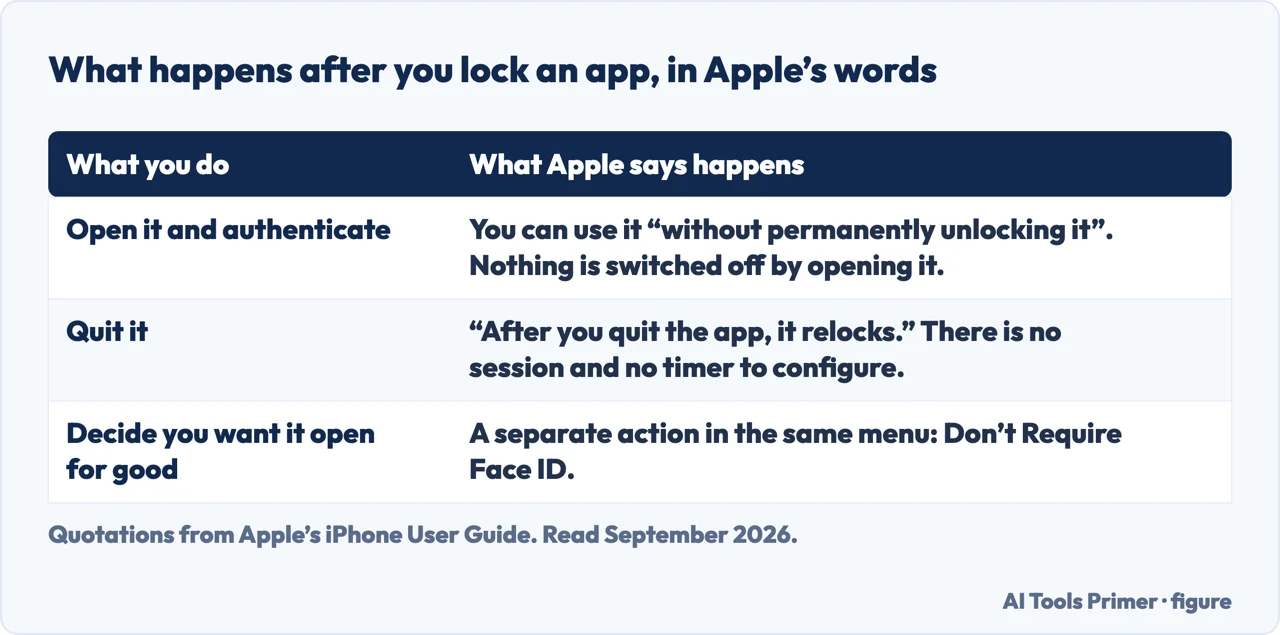
One practical note on living with a locked app, because it is the part that decides whether you keep the setting. Apple: you can open and use a locked app “without permanently unlocking it” — tap it, authenticate, use it — and “after you quit the app, it relocks”. There is no session, no timer to configure and nothing to remember to switch back on. Unlocking permanently is a separate action: the same menu, Don’t Require Face ID.
The guides below take it three ways: locking against hiding, what remains visible either way, and the neighbouring settings for a phone somebody else may be holding.
Where to start
Three ways in.
- “I am handing somebody my phone.”
- Start at locking and hiding
- “Will anybody know the app is there?”
- Go to what stays visible
- “The option is not on the menu.”
- That is what cannot be hidden
Locking and hiding
Two features, one menu. Locking keeps the icon and adds authentication; hiding does the same and moves the app into a folder at the bottom of App Library.
What stays visible
Three ordinary screens still carry the name, by Apple’s own account. The feature is about access rather than about existence.
What cannot be hidden
Built-in apps, and a specific list Apple publishes for locking. A greyed-out option here is documented behaviour rather than a fault.
Not covered here. It will not tell you a hidden app is invisible. Apple names three places the name still appears, and leaving that out would be selling the feature rather than describing it.
It will not skip the Family Sharing rules. A parent can still see that an app was downloaded and how long it is used, and both people in that arrangement deserve to know it.
And it will not suggest a way around the limits. Built-in apps cannot be hidden, and Apple publishes the list of what cannot be locked. What holds instead is simple: the difference between locking and hiding and the three places a hidden app’s name still appears are quoted from Apple’s iPhone User Guide.
Sources
- Apple, iPhone User Guide — Lock or hide an app on iPhone (that locking requires Face ID, Touch ID or a passcode to open an app and that information inside a locked app will not appear in CarPlay, notification previews, search, Siri suggestions or call history; that a locked or hidden status applies only to that device and does not sync with iCloud; that children under 13 in a Family Sharing group cannot lock or hide apps, that those aged 13 to 17 can but a parent or guardian can see the app was downloaded and how much time it is used and can restrict it with Screen Time, and that these ages vary by country or region; the steps to lock, to open a locked app without permanently unlocking it and that it relocks after quitting, and to unlock via Don’t Require Face ID; that some apps that come with iPhone cannot be locked, namely Calculator, Camera, Clock, Contacts, Find My, Maps, Shortcuts and Settings; the steps to hide an app and that it moves to the Hidden folder at the bottom of App Library; the tip that a list of hidden apps can be seen in Settings under Apps then Hidden Apps; and that apps that come installed cannot be hidden, only apps downloaded separately from the App Store, with default web browser and app marketplace apps also excluded. This address serves the guide for iOS 27, which no longer carries the sentence about where a hidden app’s name remains visible) — support.apple.com, read 16 September 2026.
- Apple, iPhone User Guide for iOS 26 — Lock or hide an app on iPhone, reached from the version selector on the page above, for the sentence that a hidden app’s name is still visible in places such as Screen Time, Battery Usage By App and App Store purchase history — support.apple.com, read 16 September 2026.
- European Union — Regulation (EU) 2022/1925 on contestable and fair markets in the digital sector (the Digital Markets Act), Article 6(3), read on the portal of the Publications Office of the European Union, for the duty on a designated gatekeeper to allow and technically enable end users to easily un-install any software application on its operating system, for the single exception covering applications essential for the functioning of the operating system or of the device and not offerable on a standalone basis by third parties, and for the parallel duty to make default settings easy to change — publications.europa.eu, read 6 September 2026.
Written by Alberto Gulotta
Founder and editor of AI Tools Primer, writing from Palermo, Italy. Thirty-five years of taking computers apart, starting with a Commodore 64 — the long version is on the about page.
Something wrong on this page? Write to aitoolsprimer@gmail.com and it gets fixed.
Written on 22 August 2026 · last checked 23 September 2026.
Independence and limits
No affiliate links and no paid placements anywhere on this site. Nobody pays to appear here, and no company has seen this page before you did.
This is general information, not professional advice. Where a page touches money, health, safety or the law, it names its source and the date it was read — and your situation may still differ. See the privacy page and the cookie policy.