
iPhone · guide
How to make text bigger on iPhone, everywhere or in one app
By Alberto Gulotta · Updated · 9 min read
There are three answers to how to make text bigger on iPhone, and they are genuinely different: a normal size, a much larger range, and a slider that changes the size only in the app you happen to be using. Apple documents all three in different places.
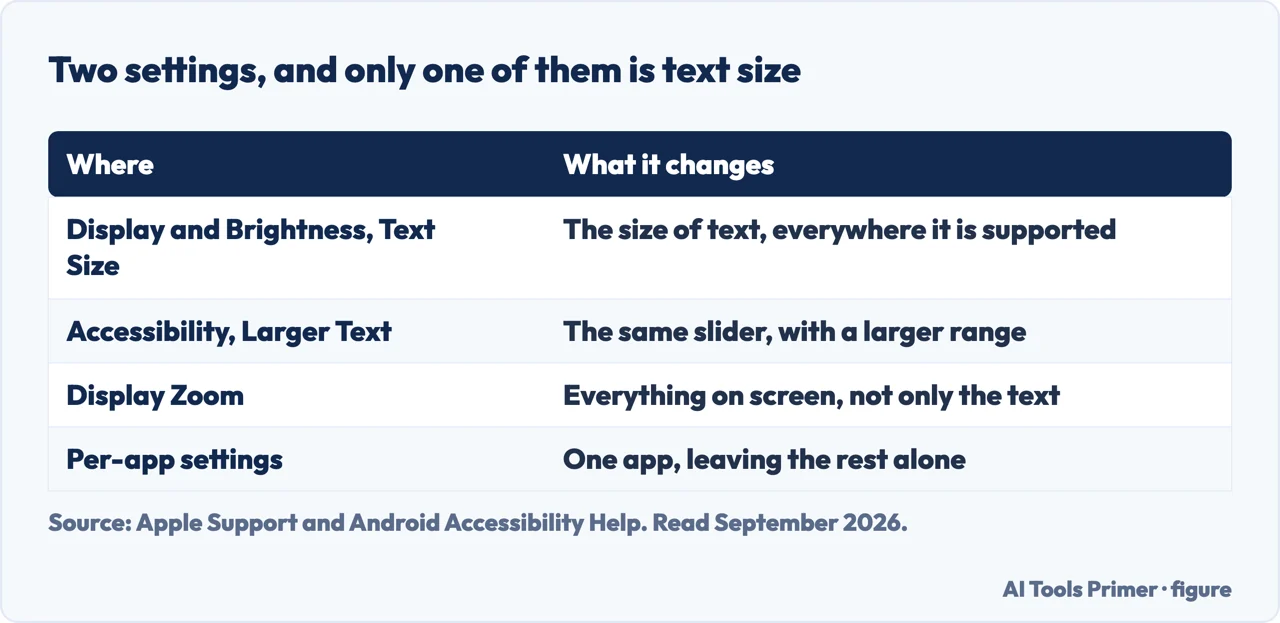
Two screens, and the second one goes further
Apple documents both, on two different pages. They lead to sliders with different ranges.
- The ordinary size
- Settings → Display & Brightness → Text Size, then drag the slider. From Apple’s support article on font size, dated August 2023.
- The larger range
- Settings → Accessibility → Display & Text Size → Larger Text, then drag the slider. And for more than that: turn on Larger Accessibility Sizes. The current iPhone User Guide documents this route.
Those two routes end in the same place — a slider — but the second one reaches further, and Larger Accessibility Sizes extends it again. If the slider has been dragged to its end and the text is still too small, that switch is the thing that extends it.
It is worth spelling out what that changes about the whole question. Text size stops being one decision for the entire phone and becomes something you set per situation: bigger for reading, ordinary for everything else, adjusted in the moment rather than in Settings. For anybody who wants large text only sometimes, that is the arrangement they were looking for.
Why some apps ignore all of this. Apple’s wording is precise: the size applies to “all supported apps”, and elsewhere to apps “that support Dynamic Type”. The examples Apple gives are its own — Calendar, Mail, Messages, Notes, Settings, Contacts, Phone.
So an app whose text stays stubbornly small is not necessarily misbehaving and is not a setting you have missed. It is an app that has not adopted the feature. Apple does not publish a list of which third-party apps have, and this guide is not going to guess at one.
Three neighbouring settings on the same screen
- Bold Text — Apple’s phrase is “make text heavier”, which is a different lever from making it bigger and can be used instead of it.
- Display Zoom — increases “the size of text as well as interface elements like icons and buttons”. The one to reach for when the problem is not only the words.
- Show Borders — adds a border around controls, buttons and Control Centre to make them easier to see.
Of those three, Display Zoom is the one worth knowing about first if the difficulty is not only with words. Enlarging text leaves the buttons the same size; Display Zoom enlarges the interface with it, which is a different kind of help and a different setting.
“Making the text too large might make it hard to tap buttons or other functions within apps. Go back to your settings and adjust the font size as needed.”
Apple’s own caution, and a fair one. Text and layout share the same screen: past a certain size something has to give, and what gives is usually a button being pushed off the edge or squeezed into an unreachable strip. If a phone becomes hard to operate right after this change, that is the first thing to undo — and the fact that Apple warns about it in advance means it is a known trade rather than a fault.
One more route Apple points at rather than describes here, and it is worth knowing exists: visual accessibility settings can be customised for specific apps. So between the Control Centre slider and the per-app settings, “bigger text” does not have to be an all-or-nothing choice about the whole phone — which is the assumption most of the frustration around this setting starts from.
Android splits the same job the same way, and names it more clearly. Its accessibility settings offer two separate sliders — Font size and Display size — where iOS offers two screens, and Google adds the caveat Apple leaves to experience: the setting “doesn’t apply to some apps”. It also puts a Font Size tile in Quick Settings once you have used it, which is the equivalent of the Control Centre control here. The lesson that transfers: text size and everything-else size are two different settings on every phone, and reaching for the wrong one is why the result rarely looks the way you expected.
The guides below take it three ways: the two settings screens, the per-app slider, and the neighbouring settings for when size alone is not the problem.
Where to start
Three ways in.
- “The slider does not go far enough.”
- Start at the two screens
- “I want it bigger only in one app.”
- Go to the control centre slider
- “One app ignores the setting.”
- That is dynamic type
The two screens
Display and Brightness for the ordinary range, Accessibility for the larger one — and a further switch that extends it again. Guides that name one are describing half of it.
The Control Centre slider
A control that changes text size inside the app you are in — and that is not on the screen until you add it, which is why it goes unfound.
Dynamic Type
The setting only reaches apps that support it. Apple names its own; for everybody else’s, it publishes no list and this guide does not invent one.
Not covered here. It will not tell you there is one text size setting. Apple documents two screens with different ranges, and a third control that works inside a single app.
It will not blame an app that ignores the setting. Dynamic Type is something an app has to support, and Apple publishes no list of which third-party ones do.
And it will not skip Apple’s warning. Text large enough can make buttons hard to reach, and Apple says so before you drag the slider rather than after. What holds instead is simple: the two routes to text size and the note that it applies to apps supporting Dynamic Type are Apple’s own wording.
Something on the iPhone screen you did not choose
Four things people take for faults, and all four are settings.
- The same job, in the other places it comes up
- How to turn off Liquid Glass: three settings, not one
- White dot on screen iPhone: two settings, one test
- The orange dot on iPhone is a report, not a fault
Sources
- Apple, iPhone User Guide — Make text easier to read on iPhone (that a single preferred text size can be set for all supported apps including Calendar, Mail, Messages, Notes and Settings; the Settings → Accessibility → Display & Text Size → Larger Text route and the Larger Accessibility Sizes switch; the Bold Text option described as making text heavier; the tip to change text size while in an app using the Control Centre Text Size slider, and how to add that control if it is not shown; that Display Zoom increases the size of text as well as interface elements like icons and buttons; and the Show Borders setting for controls, buttons and Control Centre) — support.apple.com, read 22 August 2026.
- Apple, Change the font size on your iPhone, iPad, and iPod touch — published 22 August 2023 (that font size can be changed in Mail, Contacts, Calendar, Phone, Notes and other apps that support Dynamic Type; the Settings → Display & Brightness → Text Size route; the Settings → Accessibility → Display & Text Size → Larger Text route for larger options; and the warning that making the text too large might make it hard to tap buttons or other functions within apps) — support.apple.com, read 22 August 2026.
- Android Accessibility Help — Change text & display settings: font size and display size as two separate controls, and the note that the setting does not apply to some apps — support.google.com, read 4 September 2026.
Written by Alberto Gulotta
Founder and editor of AI Tools Primer, writing from Palermo, Italy. Thirty-five years of taking computers apart, starting with a Commodore 64 — the long version is on the about page.
Something wrong on this page? Write to aitoolsprimer@gmail.com and it gets fixed.
Written on 22 August 2026 · last checked 23 September 2026.
Independence and limits
No affiliate links and no paid placements anywhere on this site. Nobody pays to appear here, and no company has seen this page before you did.
This is general information, not professional advice. Where a page touches money, health, safety or the law, it names its source and the date it was read — and your situation may still differ. See the privacy page and the cookie policy.